• Home
  • News
  • Software
  • Knowledge
  • MMO
  • Tips
  • Security
  • Network
  • Office
AnonyViet - English Version
  • Home
  • News
  • Software
  • Knowledge
  • MMO
  • Tips
  • Security
  • Network
  • Office
No Result
View All Result
  • Home
  • News
  • Software
  • Knowledge
  • MMO
  • Tips
  • Security
  • Network
  • Office
No Result
View All Result
AnonyViet - English Version
No Result
View All Result

Fix iCloud Not Found error on AltStore and SideStore

AnonyViet by AnonyViet
October 25, 2025
in Tips
0

Fix iCloud Not Found error is a problem many AltStore and SideStore users encounter when trying to sideload applications. This error appears when the iCloud version on your computer is incompatible, preventing AltServer from working. Don’t worry, this article will show you how to completely solve the problem in just a few simple steps, ensuring 100% success.

Join the channel Telegram belong to AnonyViet 👉 Link 👈

Why do you get iCloud Not Found error?

This error is not due to the computer or account Apple ID Yours has a problem. The reason lies in the difference between the two versions of iCloud for Windows:

Version from Microsoft Store

This is the version that most users install for convenience. However, apps from the Microsoft Store operate in a “sandboxed” environment, with limited access to the system. This causes AltServera Win32 application, cannot “see” and use important iCloud service components such as Apple Mobile Device Support or Bonjour.
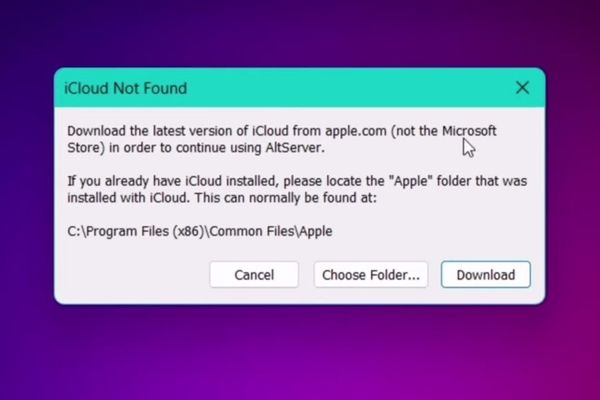
Why do you get iCloud Not Found error?

Standalone version from Apple

This is the traditional installation version (.exe). It installs necessary services directly into the system, allowing other applications such as AltServer to freely access and interact with it. AltStore designed to work with this version.

So our goal is clear: completely remove the iCloud version from the Microsoft Store and install the exact standalone version that AltStore requires.

Steps to fix iCloud Not Found error

  • Open File Explorer and navigate to the path: C:\Program Files (x86)\Common Files.
  • Find and rename the folder “Apple” to another name (for example: Applerr) > Press Continue.
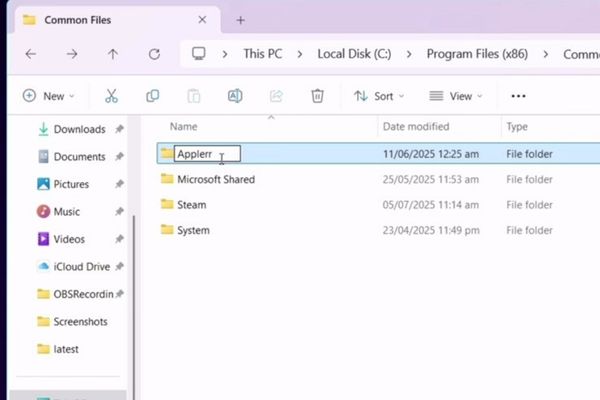
Steps to fix iCloud Not Found error
  • Open AltStore on your computer, an error message will appear. Here, click the button Download.
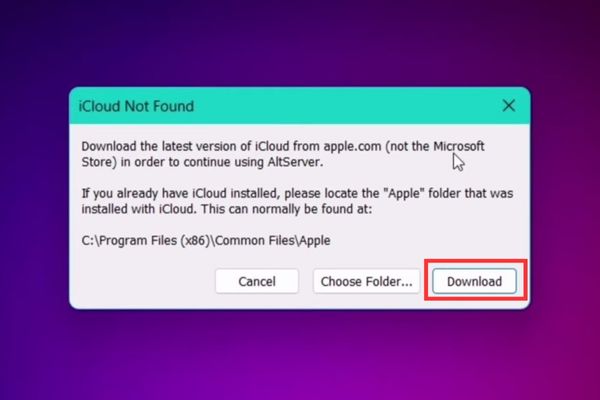
Click the Download button
  • The browser will automatically open and download the file iCloudSetup.exe. This is the version we need.
  • While waiting for the download, remove the incompatible version of iCloud by going to the Start Menu, searching for “iCloud,” right-clicking, and selecting Uninstall.
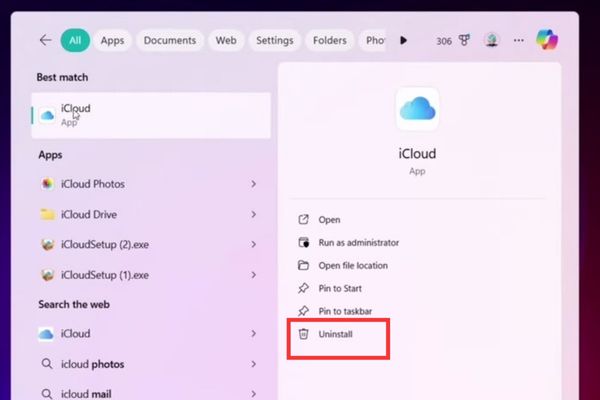
Select Uninstall
Select Uninstall
  • In the app settings window, find iCloud, tap the three-dot icon and select Modify.
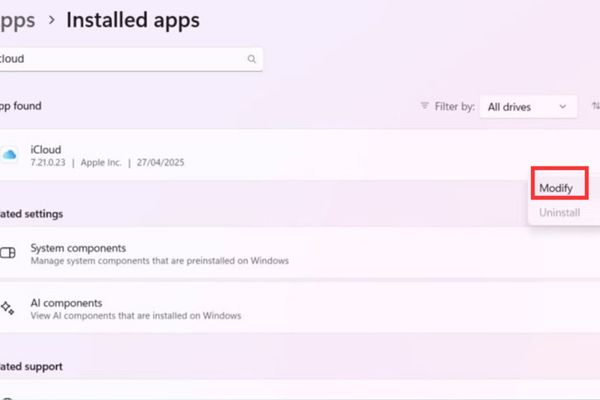
Select Modify
Select Modify
  • Select Remove > Next and follow the steps to uninstall it completely.
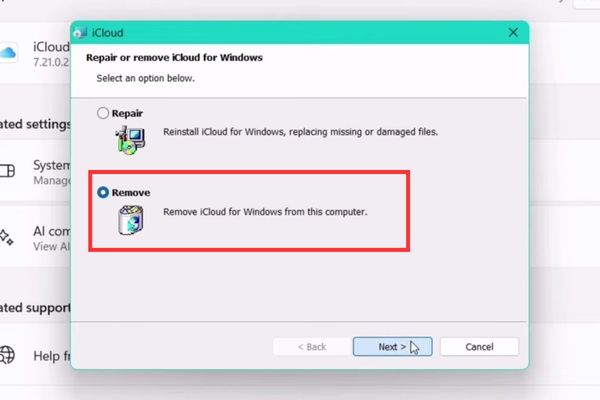
Select Remove > Next” width=”600″ height=”400″ title=”Fix iCloud Not Found error on AltStore and SideStore 19″ srcset=”https://anonyviet.com/wp-content/uploads/2025/07/khac-phuc-loi-icloud-not-found-6.jpg 600w, https://anonyviet.com/wp-content/uploads/2025/07/khac-phuc-loi-icloud-not-found-6-300×200.jpg 300w” sizes=”(max-width: 600px) 100vw, 600px”/><figcaption id=Select Remove > Next
  • After file iCloudSetup.exe Once downloaded, open and install.

Important: When asked, select Yes to restart the computer. This step is required for the changes to take effect.
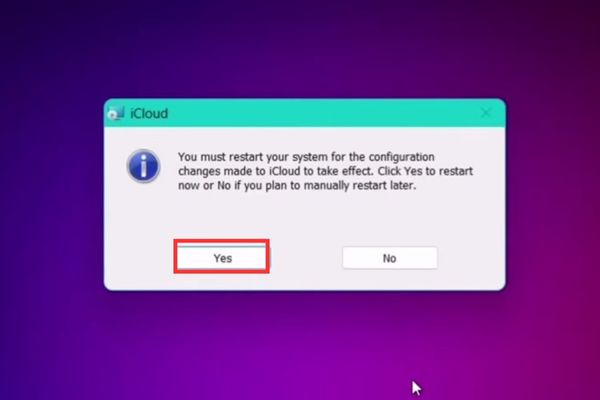
Select Yes to restart the computer
  • After your computer restarts, open the iCloud app and sign in with your Apple ID > Sign in > Don’t Send > Apply.
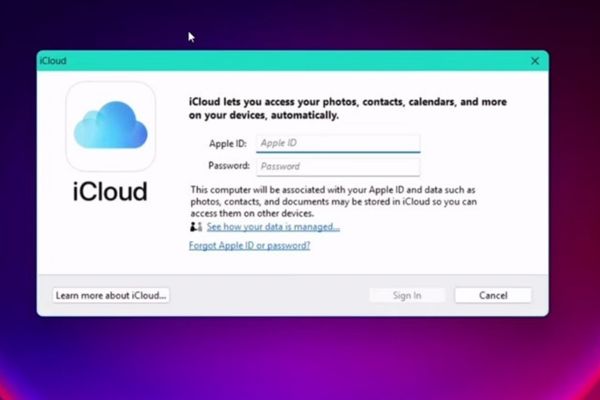
Sign in with Apple ID
  • Reopen AltServer. If the error message still appears, tap Choose Folder.
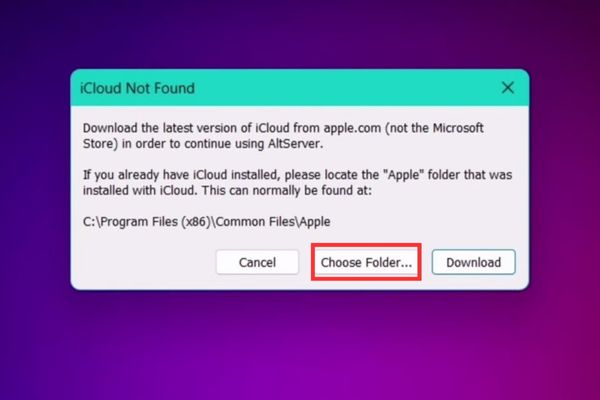
Click Choose Folder
Click Choose Folder
  • Navigate to the correct path: This PC > Local Disk (C:) > Program Files (x86) > Common Files.
  • Select folder “Apple” is newly created and pressed OK.
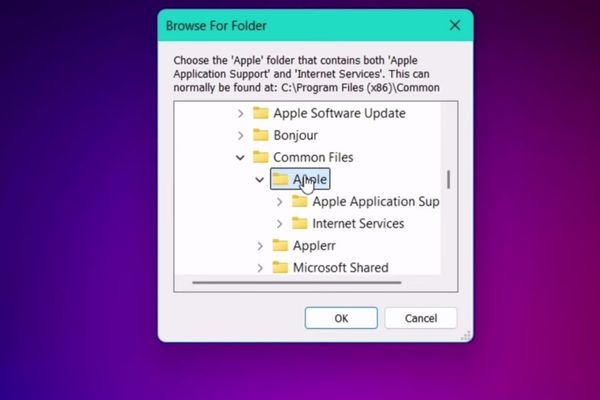
Select folder "Apple"
Select the “Apple” folder

The error will immediately disappear and the AltStore icon will work normally in the system tray, ready for you to sideload the application.
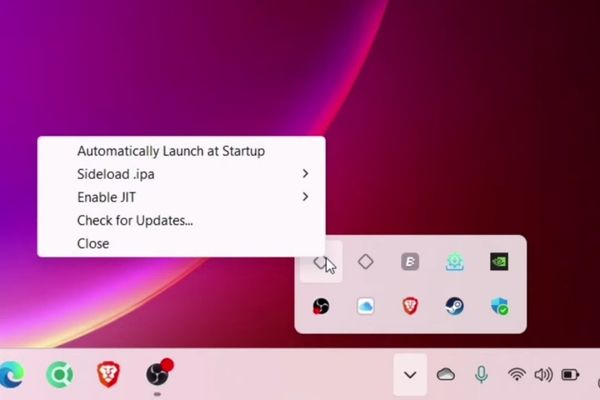
Successfully resolved iCloud Not Found error

Conclusion

So, with just a few simple steps, you have completely solved the problem. Job fix iCloud Not Found error It’s essentially just installing the correct software version that AltStore requires. Hopefully this guide has helped you save some time and get back to sideloading apps quickly and efficiently.


Tags: AltstoreerrorfixiCloudSideStore
Previous Post

How to find someone’s information on Facebook using the search engine

Next Post

How to use Comet: The AI ​​assistant that helps you do everything on the web

AnonyViet

AnonyViet

Related Posts

How to see your email account creation date
Tips

How to see your email account creation date

November 11, 2025
Microsoft’s ranking of the 10 best Windows versions
Tips

Microsoft’s ranking of the 10 best Windows versions

November 11, 2025
Recover deleted data on Windows 10 with Windows File Recovery
Tips

Recover deleted data on Windows 10 with Windows File Recovery

November 10, 2025
Tips

Why hasn’t your computer been updated to Windows 10 2004?

November 9, 2025
3 OCR Tools Extract Text from Images without Retyping
Tips

3 OCR Tools Extract Text from Images without Retyping

November 8, 2025
Ways hackers use to hack your Facebook and how to fix it
Tips

Ways hackers use to hack your Facebook and how to fix it

November 7, 2025
Next Post
How to use Comet: The AI ​​assistant that helps you do everything on the web

How to use Comet: The AI ​​assistant that helps you do everything on the web

0 0 votes
Article Rating
Subscribe
Login
Notify of
guest

guest

0 Comments
Oldest
Newest Most Voted
Inline Feedbacks
View all comments

Recent News

How to install Anh Hai’s Pho Shop on MacBook is super easy

How to install Anh Hai’s Pho Shop on MacBook is super easy

November 11, 2025
How to turn off ads on Yoosee app in just 1 minute

How to turn off ads on Yoosee app in just 1 minute

November 11, 2025
Windows 11 and MS Office 2021 lifetime license, genuine from  during Keysoff’s 11.11 sale

Windows 11 and MS Office 2021 lifetime license, genuine from $14 during Keysoff’s 11.11 sale

November 11, 2025
How to see your email account creation date

How to see your email account creation date

November 11, 2025
How to install Anh Hai’s Pho Shop on MacBook is super easy

How to install Anh Hai’s Pho Shop on MacBook is super easy

November 11, 2025
How to turn off ads on Yoosee app in just 1 minute

How to turn off ads on Yoosee app in just 1 minute

November 11, 2025
Windows 11 and MS Office 2021 lifetime license, genuine from  during Keysoff’s 11.11 sale

Windows 11 and MS Office 2021 lifetime license, genuine from $14 during Keysoff’s 11.11 sale

November 11, 2025
AnonyViet - English Version

AnonyViet

AnonyViet is a website share knowledge that you have never learned in school!

We are ready to welcome your comments, as well as your articles sent to AnonyViet.

Follow Us

Contact:

Email: anonyviet.com[@]gmail.com

Main Website: https://anonyviet.com

Recent News

How to install Anh Hai’s Pho Shop on MacBook is super easy

How to install Anh Hai’s Pho Shop on MacBook is super easy

November 11, 2025
How to turn off ads on Yoosee app in just 1 minute

How to turn off ads on Yoosee app in just 1 minute

November 11, 2025
  • Home
  • Home 2
  • Home 3
  • Home 4
  • Home 5
  • Home 6
  • Next Dest Page
  • Sample Page

new88 trang chủ shbet trang chủ f168 trang chủ qq88 nhà cái 78win

No Result
View All Result
  • Home
  • News
  • Software
  • Knowledge
  • MMO
  • Tips
  • Security
  • Network
  • Office

new88 trang chủ shbet trang chủ f168 trang chủ qq88 nhà cái 78win

wpDiscuz
0
0
Would love your thoughts, please comment.x
()
x
| Reply