Are you worried about laptop running out of battery without receiving the warning? With Windows 11, you can easily Customize low battery notifications On Windows 11 to receive a warning when the battery level drops below the desired threshold. Anonyviet will guide you two simple but effective ways to set up notifications, helping you always control your battery condition!
| Join the channel Telegram belong to Anonyviet 👉 Link 👈 |
Instructions 2 ways to customize low battery notifications on Windows 11
Method 1: Use the integrated feature of Windows 11
Windows 11 Provides an integrated feature to warn when the laptop battery level drops to a certain threshold. This method does not display the notification of the format but will appear warning in the system tray, helping you quickly identify low battery status.
Step 1: To start, press the key combination Windows + Senter Control Panel Go to the search bar and open the application. At the Control Panel interface, select Hardware and Soundthen click Power Options.
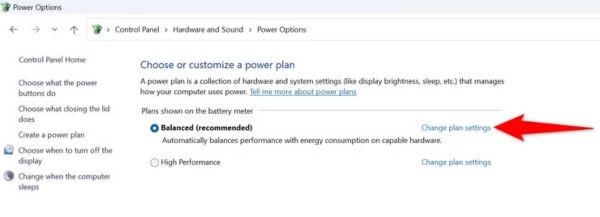
Step 2: Click Change Plan Settings next to. Next, choose Change Advanced Power Settings To open the detailed configuration window.
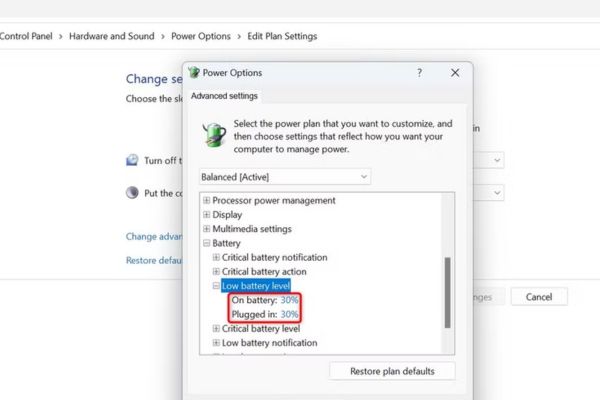
Step 3: In the Power Options window, roll down and expand item Battery. Continue to expand Low Battery Level And set the desired battery percentage for both ON Battery and Plugged in options. This is the battery level you want to receive notice.
Step 4: Still in Battery, expanded Low Battery Notification And make sure both ON Battery and Plugged in options are turned on ON. If left in off, you will not receive any notifications.
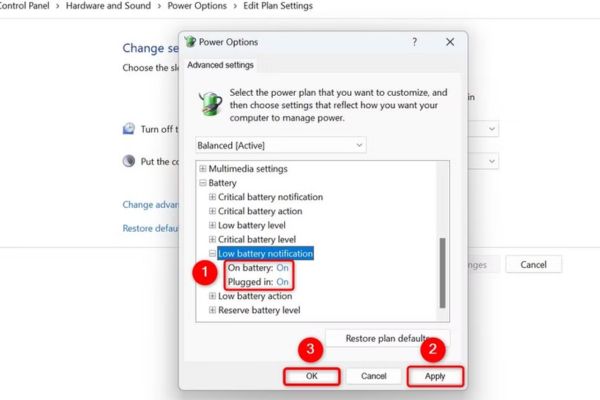
Step 5: Press Applythen choose OK To save the settings.
Method 2: Create low battery notifications with Task Scheduler
If you want to receive a more modern format, you can use a code PowerShell Combined with Task Scheduler to customize the low battery notice above Windows 11. This method allows you to receive notifications when the battery drops below the specific percentage.
Step 1: Open Notepad by pressing Windows + Senter Notepad and launch the application. Copy and paste the following code into Notepad, Replace the number 30 with the battery percentage You want to receive notifications:
$Battery = Get-WmiObject -Class Win32_Battery
$Level = $Battery.EstimatedChargeRemaining

if ($Level -lt 30) {
[Windows.UI.Notifications.ToastNotificationManager, Windows.UI.Notifications, ContentType = WindowsRuntime]
$template = [Windows.UI.Notifications.ToastNotificationManager]::GetTemplateContent([Windows.UI.Notifications.ToastTemplateType]::ToastText01)
$toast = $template.GetElementsByTagName("text")[0]
$toast.AppendChild($template.CreateTextNode("Battery below 30%! Please plug in your charger."))
$notifier = [Windows.UI.Notifications.ToastNotificationManager]::CreateToastNotifier("Battery Alert")
$notifier.Show([Windows.UI.Notifications.ToastNotification]::new($template))
}
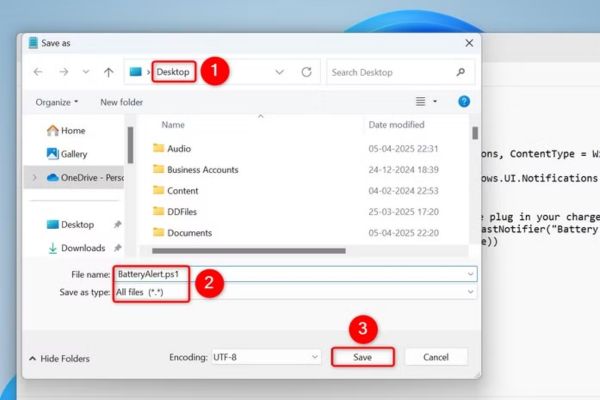
Step 2: Select File> Save as From the menu of Notepad. Select the script folder, name the file Batteryalert.ps1 And in the Save as type, select All Files. Press Save To save.
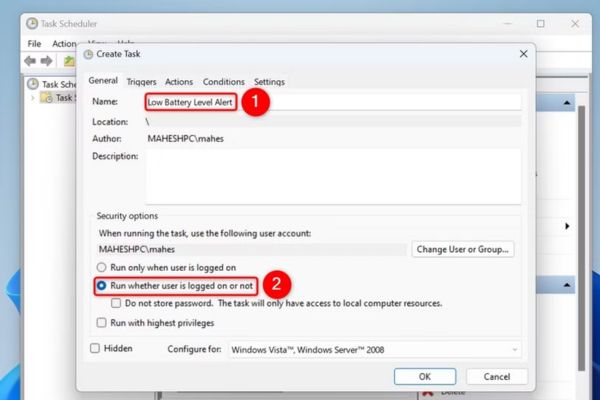
Step 3: Press Windows + Senter Task Scheduler and start running. In the right frame, choose Create Task. Name the task, for example: low battery warning. In the Security Options section, turn on the option Run Whether User is logged on or not.
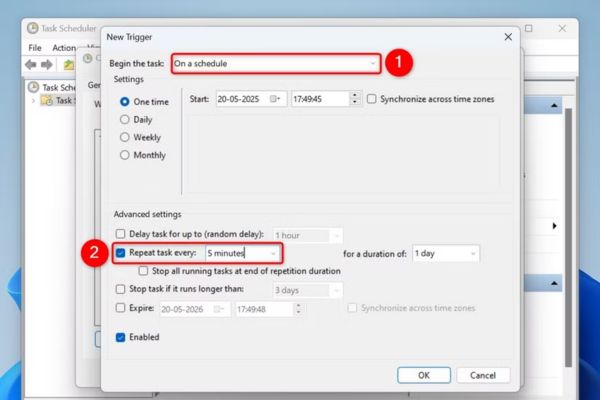
Step 4: Switch to triggers tab, click New To add new trigger. In the section Begin The Task, select On a schedule. In Advanced Settings, turn on Repeat task every And choose the time, for example 5 minutes, let Task Scheduler check the battery level periodically.
Step 5: Switch to the Actions tab, click New. In Program/Script field, enter PowerShell.exe. In the Add Arguments School (Optional), enter the following code, replace the path with the actual location of the file batteryalert.ps1:
-ExecutionPolicy Bypass -File "C:\Users\Username\Desktop\BatteryAlert.ps1"
Click OK, enter your account password if required and save the task.
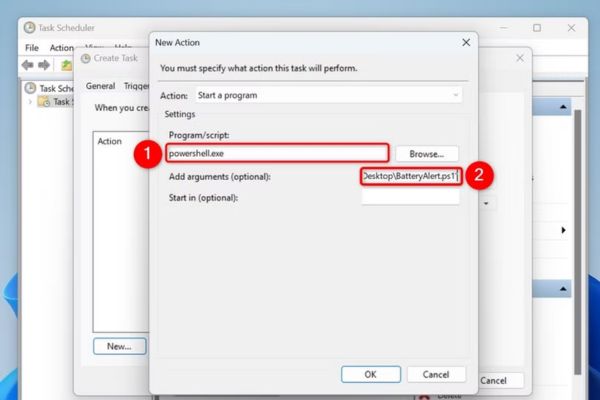
Task Scheduler will run the script every 5 minutes to check the battery level. If the battery drops below the set level, you will receive a notification of the Toast.
Note: Do not move the Batteryalert.PS1 file to another folder, otherwise Task Scheduler will not find the script. If you need to move, update the path in the task scheduler.
To pause or delete the notice, open Task Scheduler, right -click on the mission and choose Disable To pause or Delete To delete.
Conclude
Job Customize low battery notifications On Windows 11 helps you always grasp the battery condition of the laptop, avoiding the situation of unexpected battery. Whether using the integrated feature or set up custom notifications with Task Scheduler, you can easily control the battery level as you like.