• Home
  • News
  • Software
  • Knowledge
  • MMO
  • Tips
  • Security
  • Network
  • Office
AnonyViet - English Version
  • Home
  • News
  • Software
  • Knowledge
  • MMO
  • Tips
  • Security
  • Network
  • Office
No Result
View All Result
  • Home
  • News
  • Software
  • Knowledge
  • MMO
  • Tips
  • Security
  • Network
  • Office
No Result
View All Result
AnonyViet - English Version
No Result
View All Result

Activate Dolby Vision HDR Windows 11 to experience ultimate visuals

AnonyViet by AnonyViet
October 29, 2025
in Tips
0

Activate Dolby Vision HDR Windows 11 is the first step for you to turn your computer screen into a mini cinema. This technology delivers brilliant, deep and incredibly realistic images. Let’s discover how to do it in just a few minutes.

Join the channel Telegram belong to AnonyViet 👉 Link 👈

What is Dolby Vision HDR?

Most of us are familiar with SDR (Standard Dynamic Range) screens. SDR has a certain limit to the colors and brightness it can display.

HDR (High Dynamic Range) was born to break that limit. It allows displaying a wider range of colors, deeper blacks and much brighter whites. As a result, the image becomes more detailed, realistic and has more depth.

However, Dolby Vision goes a step further than the regular HDR10 standard. The core difference lies in “dynamic metadata”.

  • HDR10: Uses static metadata, meaning it applies a common color and brightness setting to the entire movie or show.
  • Dolby Vision: Using dynamic metadata, allows fine-tuning of images frame-by-frame or scene-by-scene. This means that in a scene, dark areas will be truly dark and bright areas will be bright without losing detail from each other. This is the secret to creating the ultimate cinematic experience.

When you enable Dolby Vision HDR Windows 11you’re unlocking the ability to display content exactly as the filmmaker intended.
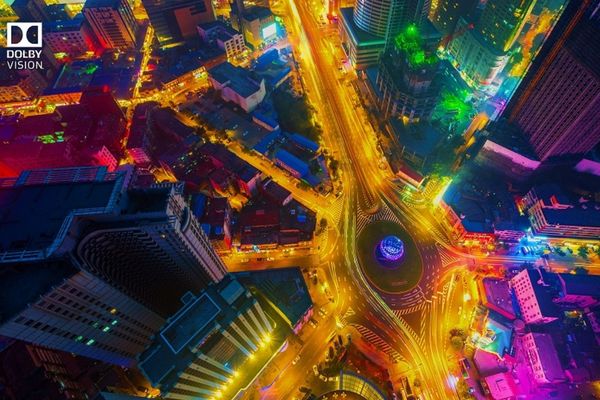
What is Dolby Vision HDR?

Necessary conditions to enjoy Dolby Vision on Windows 11

To be able to experience this technology, your system needs to meet a few basic requirements.

  • Monitors that support Dolby Vision: Check the specifications from your monitor or laptop manufacturer to make sure it has the Dolby Vision logo or certification, as not all HDR monitors support it.
  • Compatible graphics cards (GPUs): Most modern graphics cards from NVIDIA (RTX series) and AMD (RX 6000 series and above) both support Dolby Vision signal output.
  • Updated Windows 11 operating system: Make sure you’re running the latest version of Windows 11, especially the 24H2 update, to get the best support and most intuitive installation interface.
  • Dolby Vision content: You need a source that supports this technology, such as movies and shows on Netflix (with Premium package), Disney+, or games that support Dolby Vision.

Necessary conditions to enjoy Dolby Vision on Windows 11

Instructions for activating Dolby Vision HDR Windows 11

Step 1: Open the application Settings using key combinations Windows + I. Alternatively, you can also click the Start menu and select the Settings gear icon.

Step 2: In the newly opened Settings window, look at the menu column on the left and select System. Next, in the right pane, find and click the cell Display.
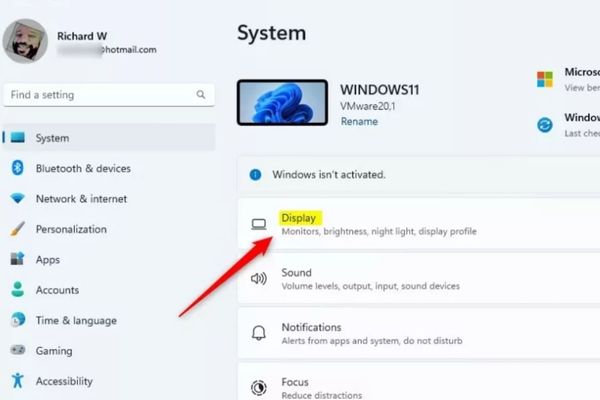
Click the Display box

Step 3: On the Display settings page, you will see display-related options. Find and click on the section called HDR.
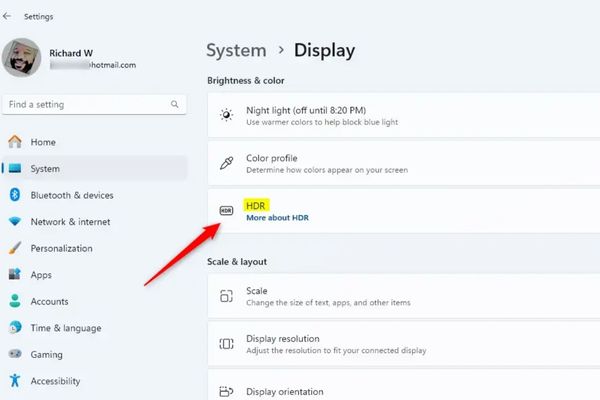
Select HDR
Select HDR

Step 4: Find options Use HDR and flip the switch On. If you have multiple displays, make sure you’ve selected the correct display that supports Dolby Vision from the drop-down menu.
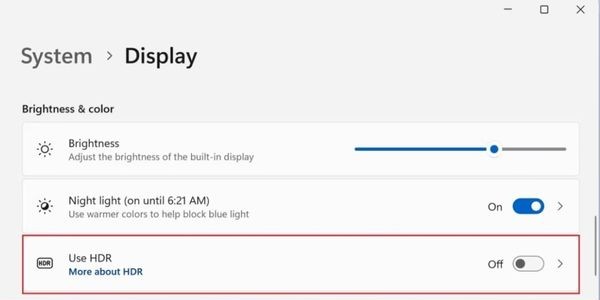
Enable Use HDR
Enable Use HDR

If your system (display, GPU, operating system) meets the requirements, Windows 11 will automatically use the Dolby Vision profile. You will immediately notice a change in color and brightness on the screen.
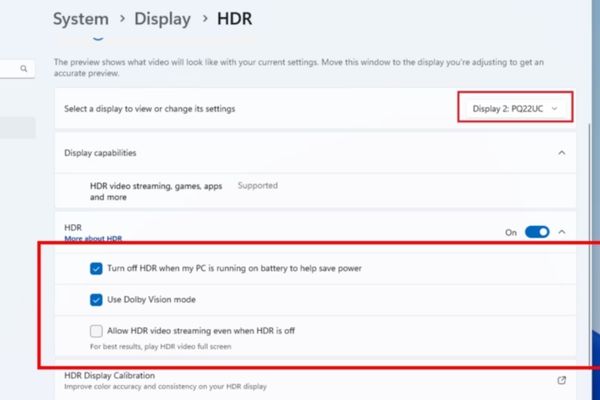
Instructions for activating Dolby Vision HDR Windows 11

How to turn off Dolby Vision HDR when not needed

While it’s great for entertainment, you may want to turn off HDR when working on documents or general office tasks to save battery life (for laptops) or to keep colors displayed properly.

How to do it is very simple: Just repeat the above steps and in Step 4, flip the switch Use HDR about location Off. The screen will return to normal SDR mode.

Conclude

Job Enable Dolby Vision HDR Windows 11 is no longer a complicated process for tech people. With innovations from Microsoft, every user can now easily harness the maximum visual power from their hardware. Your movie watching and gaming experience will be raised to a new level with vivid colors, impressive contrast and amazing detail.


Tags: activateDolbyexperienceHDRUltimateVisionvisualsWindows
Previous Post

How to download Facebook Messenger messages to your computer

Next Post

What is Direct Connect AWS? Benefits when businesses use Direct Connect AWS

AnonyViet

AnonyViet

Related Posts

Instructions to Hide Secret Documents in Any Song
Tips

Instructions to Hide Secret Documents in Any Song

February 10, 2026
How to block Update to Windows 10 21H1 to avoid errors
Tips

How to block Update to Windows 10 21H1 to avoid errors

February 9, 2026
How to prioritize 5G Wifi reception on Laptop and PC
Tips

How to prioritize 5G Wifi reception on Laptop and PC

February 5, 2026
How to Get Grok AI for Free 7 Days
Tips

How to Get Grok AI for Free 7 Days

February 3, 2026
What are special characters? Learn from A to Z about hot trends of Gen Z and Gamers
Tips

What are special characters? Learn from A to Z about hot trends of Gen Z and Gamers

February 2, 2026
5 AI tools to make AI model videos – Create beautiful AI Tiktok female characters
Tips

5 AI tools to make AI model videos – Create beautiful AI Tiktok female characters

February 1, 2026
Next Post
What is Direct Connect AWS? Benefits when businesses use Direct Connect AWS

What is Direct Connect AWS? Benefits when businesses use Direct Connect AWS

0 0 votes
Article Rating
Subscribe
Login
Notify of
guest

guest

0 Comments
Oldest
Newest Most Voted
Inline Feedbacks
View all comments

Recent News

Instructions to Hide Secret Documents in Any Song

Instructions to Hide Secret Documents in Any Song

February 10, 2026
How to blur photos on iPhone after taking them is extremely simple

How to blur photos on iPhone after taking them is extremely simple

February 10, 2026
Dell SE2426: A “lifesaver” solution for office workers’ eyes.

Dell SE2426: A “lifesaver” solution for office workers’ eyes.

February 9, 2026
How to block Update to Windows 10 21H1 to avoid errors

How to block Update to Windows 10 21H1 to avoid errors

February 9, 2026
Instructions to Hide Secret Documents in Any Song

Instructions to Hide Secret Documents in Any Song

February 10, 2026
How to blur photos on iPhone after taking them is extremely simple

How to blur photos on iPhone after taking them is extremely simple

February 10, 2026
Dell SE2426: A “lifesaver” solution for office workers’ eyes.

Dell SE2426: A “lifesaver” solution for office workers’ eyes.

February 9, 2026
AnonyViet - English Version

AnonyViet

AnonyViet is a website share knowledge that you have never learned in school!

We are ready to welcome your comments, as well as your articles sent to AnonyViet.

Follow Us

Contact:

Email: anonyviet.com[@]gmail.com

Main Website: https://anonyviet.com

Recent News

Instructions to Hide Secret Documents in Any Song

Instructions to Hide Secret Documents in Any Song

February 10, 2026
How to blur photos on iPhone after taking them is extremely simple

How to blur photos on iPhone after taking them is extremely simple

February 10, 2026
  • Home
  • Home 2
  • Home 3
  • Home 4
  • Home 5
  • Home 6
  • Next Dest Page
  • Sample Page

https://sun52.network

No Result
View All Result
  • Home
  • News
  • Software
  • Knowledge
  • MMO
  • Tips
  • Security
  • Network
  • Office

https://sun52.network

wpDiscuz
0
0
Would love your thoughts, please comment.x
()
x
| Reply