• Home
  • News
  • Software
  • Knowledge
  • MMO
  • Tips
  • Security
  • Network
  • Office
AnonyViet - English Version
  • Home
  • News
  • Software
  • Knowledge
  • MMO
  • Tips
  • Security
  • Network
  • Office
No Result
View All Result
  • Home
  • News
  • Software
  • Knowledge
  • MMO
  • Tips
  • Security
  • Network
  • Office
No Result
View All Result
AnonyViet - English Version
No Result
View All Result

How to connect pictures from phone screen to computer monitor

AnonyViet by AnonyViet
February 6, 2023
in Tips
0

Sometimes the smartphone screen is so small that you cannot make the most of the entertainment function. Want to connect it to display images on a larger screen? Today I will show you how to connect your phone screen to your computer screen so you can have a better experience.

Join the channel Telegram belong to AnonyViet 👉 Link 👈

With this method, you will be able to take advantage of your computer screen for your phone. You can watch movies, play games on your phone through the computer screen. This is great to help protect your eyes from the strain of looking at a screen that is too small.

Connect phone screen to computer monitor

We will be using a tool called ApowerMirror that will help you do this in a few notes. ApowerMirror provides you with the following two connectivity solutions:

  • Wireless connection: directly between the phone and the computer via WiFi transmission.
  • Wired connection: use a USB data cable to connect.

However, I prefer wireless connection because it is much simpler and more convenient. But it requires a stable Wifi connection. If in an environment without Internet or weak network, you can choose the second solution.

Introducing the outstanding features of ApowerMirror

  • Transfer images directly from your phone to your computer or projector.
  • Allows interaction with removable hardware such as keyboard, mouse.
  • Sync your phone’s notifications to your computer.
  • Capture and record phone screen (manipulate right on the computer).
  • Support composing, sending messages, emails from the phone through the computer.

Instructions for installing and using ApowerMirror

First, you must download the software at the homepage according to the link below. Download for both phone and computer (download for both devices).

Go to the homepage and download the software for both devices. Note that the Wi-Fi connection feature will only allow you to transfer images. Unable to interact with the mouse and keyboard… If you want to use the mouse with the keyboard, you must use a cable connection.

Instructions to connect the phone image to the computer via WiFi

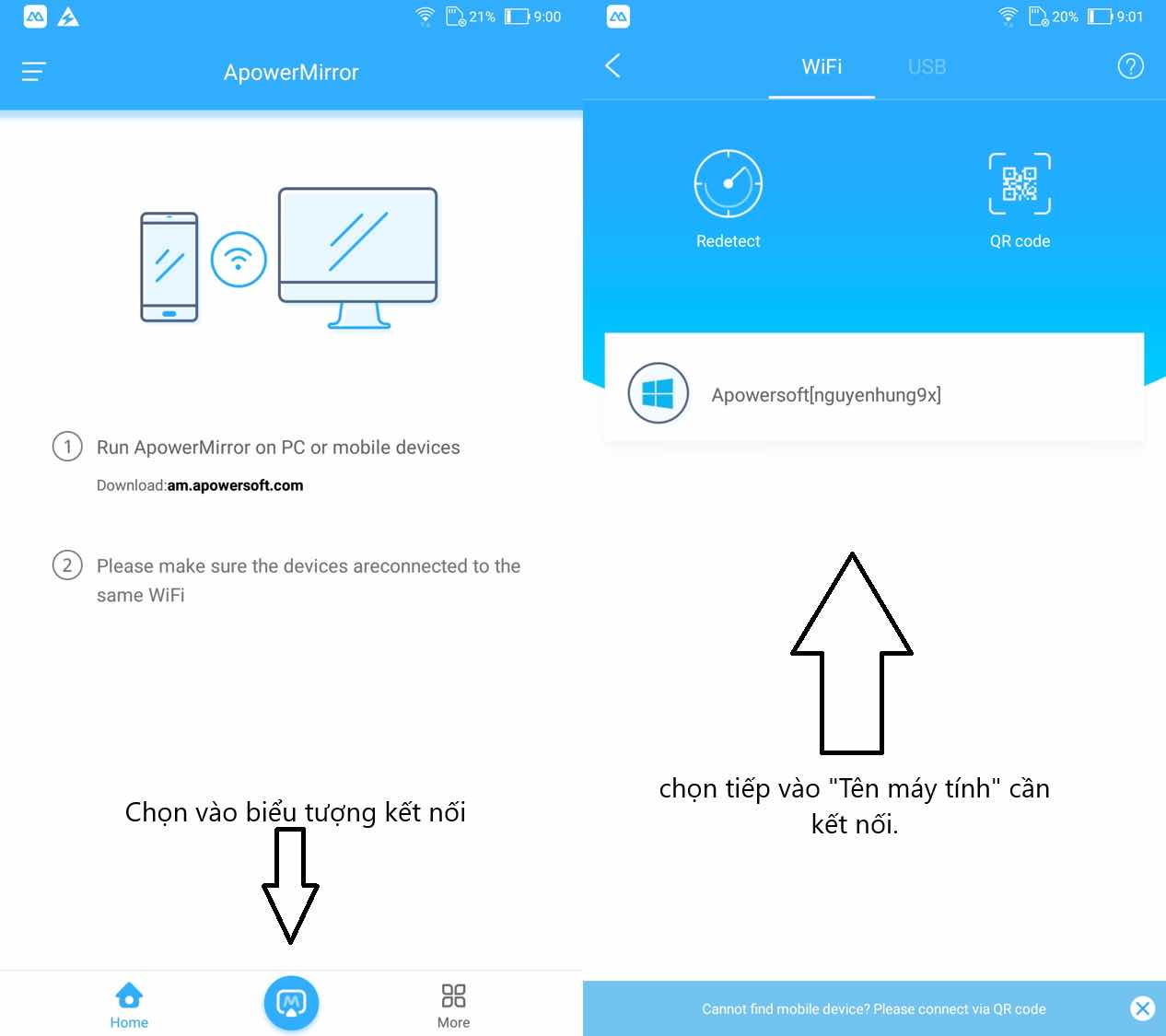
  • Now start the software ApowerMirror on phones and computers.
  • On the phone app, select the “Connect” application. (Two devices should use the same Wifi).
  • Then select the name of the computer to connect.
How to connect pictures from phone screen to computer monitor

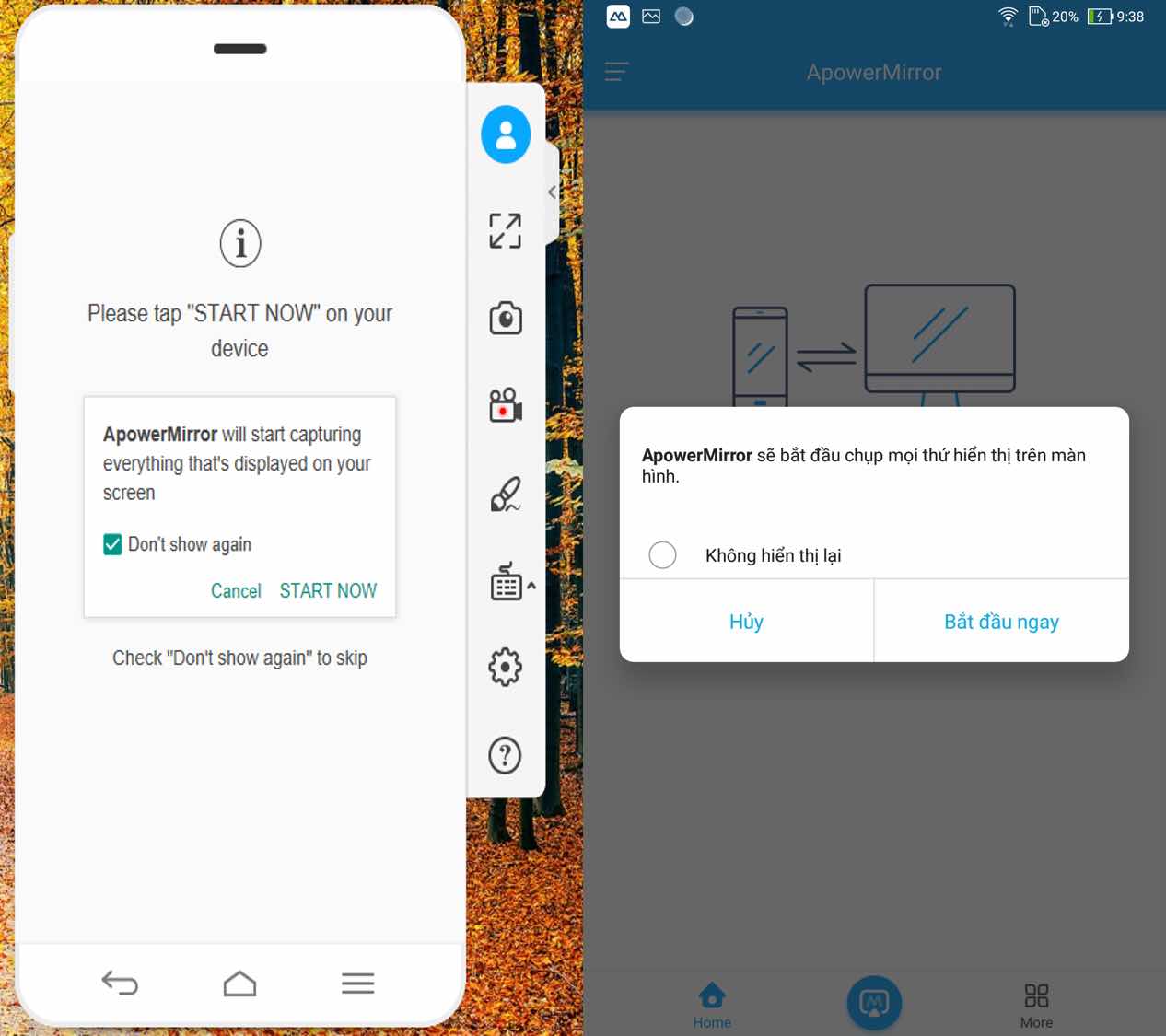
After selecting the computer name, a message will appear asking for permission to use. Click START IMMEDIATELY on the phone app and START NOW on a computer application. After allowing permission on both devices, the application will start transferring images and syncing images with each other. You can now start using your phone from your computer screen.

Instructions to connect the phone image to the computer via USB cable

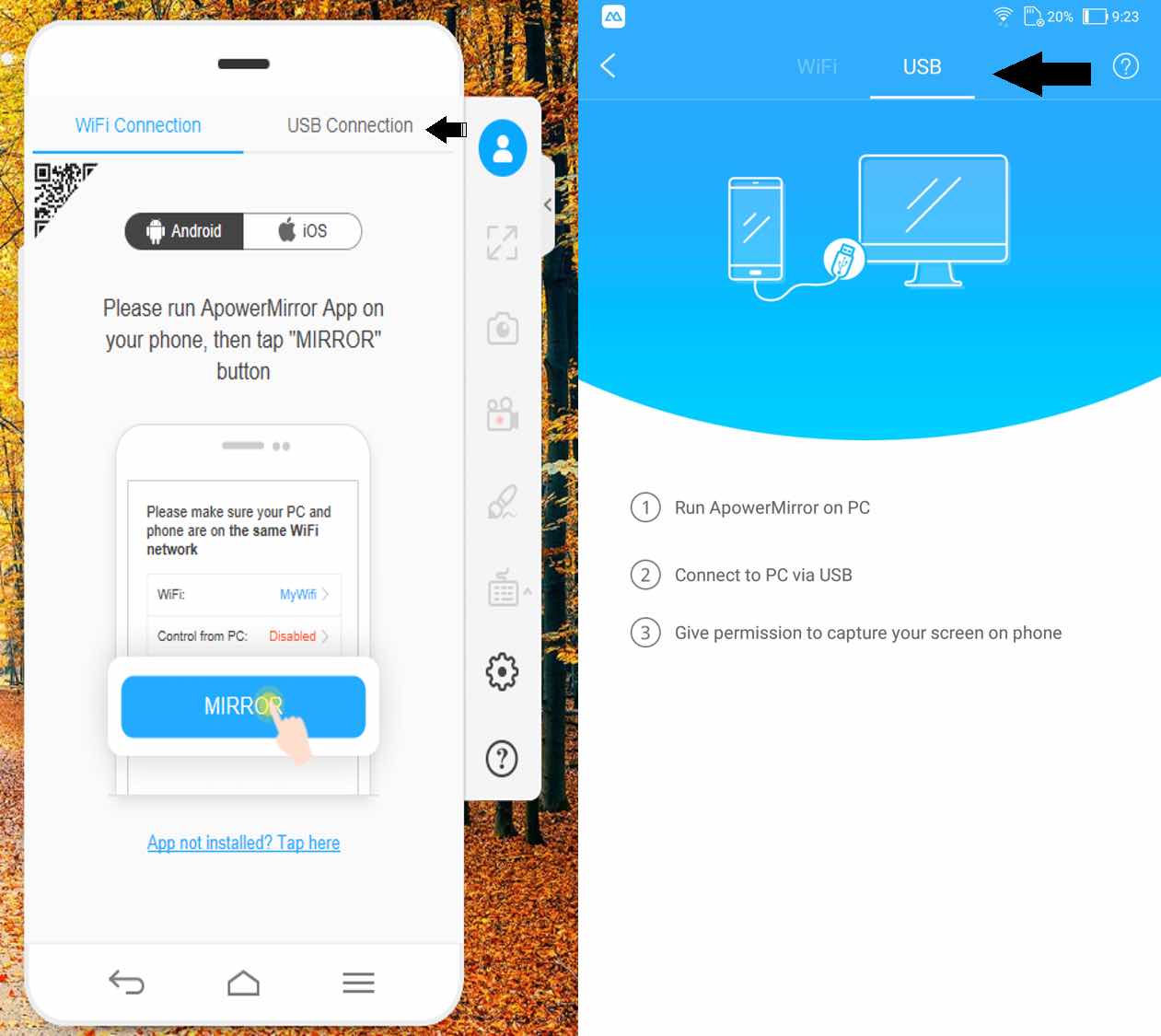
This method is a bit more expensive to buy wire. But it will guarantee you a more stable and quality connection. In addition, you can also use the mouse and keyboard to control and use your phone. Now I will show you how to do it!!

You need to enable developer mode of your phone to allow it to use. Go to Settings => About phone. Then, repeatedly click on “Version number” until the message “You are already a developer” appears, then stop.
How to connect images from phone screen to computer screen 5

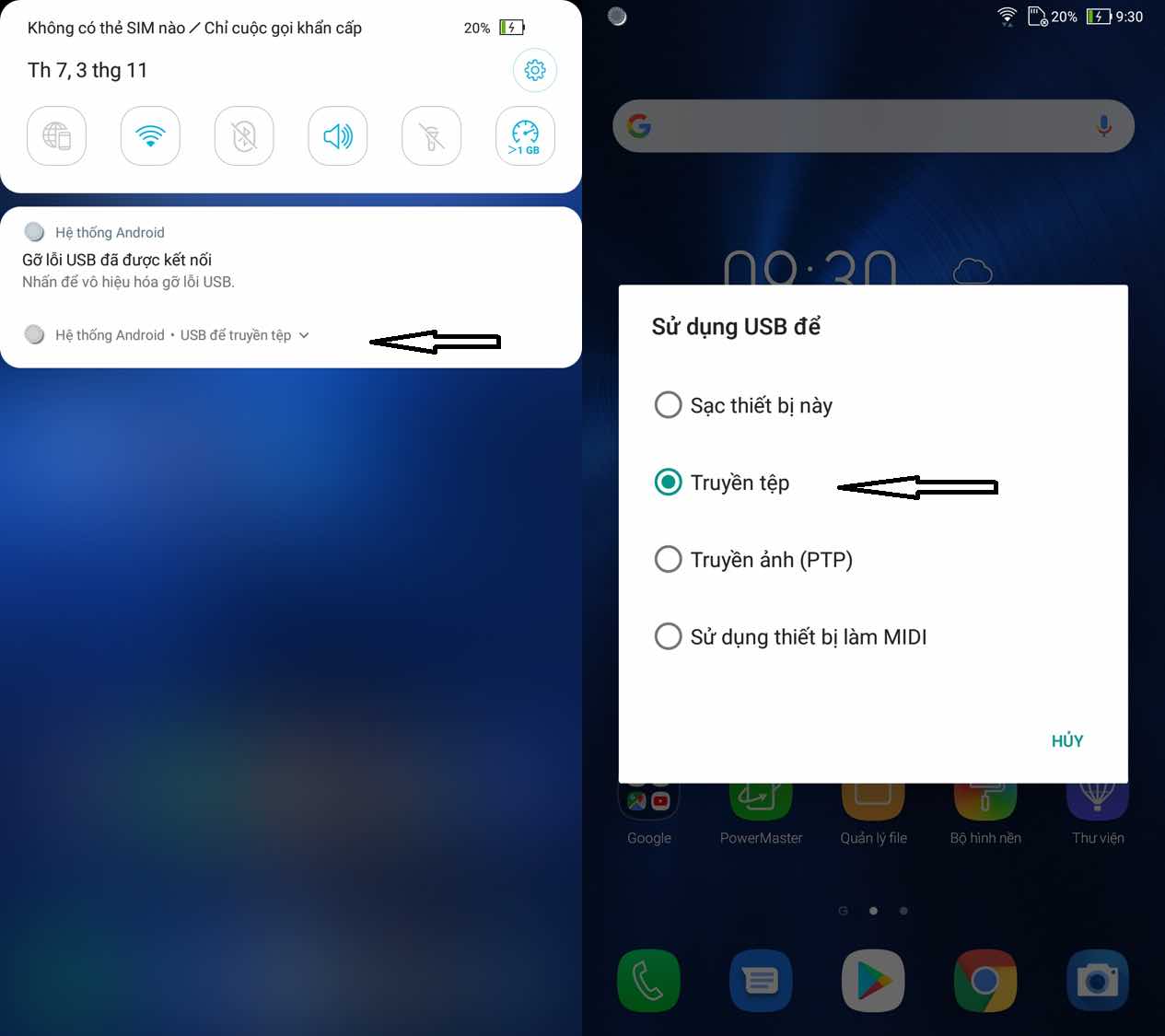
Go to your phone’s notification center and select the mode as File transfer with USB. This function in each machine will be in different places, so you have to work hard to find it for yourself.
How to connect images from phone screen to computer monitor 6

At this point, a message asking for permission to use will appear in the same way as the Wifi connection above. You click START IMMEDIATELY on the phone app and START NOW on a computer application. Done, you can start using it!!

Instructions for connecting the phone screen to the computer screen

The article achieved: 5/5 – (100 votes)

Tags: computerconnectMonitorphonepicturesscreen
Previous Post

Instructions to fix the error that cannot download applications on Appstore

Next Post

Secure USB with USB Flash Security App

AnonyViet

AnonyViet

Related Posts

How to report a fraudulent website on Weebly
Tips

How to report a fraudulent website on Weebly

October 19, 2026
How to view Facebook stories without others knowing
Tips

How to view Facebook stories without others knowing

October 18, 2026
Instructions for registering a .tech domain name for free for 1 year
Tips

Instructions for registering a .tech domain name for free for 1 year

October 18, 2026
Instructions on how to enter promotional codes on the App Store most accurately
Tips

Instructions on how to enter promotional codes on the App Store most accurately

October 18, 2026
How to open “This PC” instead of “Quick Access” in File Explorer by default
Tips

How to open “This PC” instead of “Quick Access” in File Explorer by default

October 17, 2026
How to create a virtual Pet, a virtual character running around on the Desktop to relax
Tips

How to create a virtual Pet, a virtual character running around on the Desktop to relax

October 15, 2026
Next Post
Secure USB with USB Flash Security App

Secure USB with USB Flash Security App

0 0 votes
Article Rating
Subscribe
Login
Notify of
guest

guest

0 Comments
Oldest
Newest Most Voted

Recent News

How to report a fraudulent website on Weebly

How to report a fraudulent website on Weebly

October 19, 2026
How to view Facebook stories without others knowing

How to view Facebook stories without others knowing

October 18, 2026
Instructions for registering a .tech domain name for free for 1 year

Instructions for registering a .tech domain name for free for 1 year

October 18, 2026
Instructions on how to enter promotional codes on the App Store most accurately

Instructions on how to enter promotional codes on the App Store most accurately

October 18, 2026
How to report a fraudulent website on Weebly

How to report a fraudulent website on Weebly

October 19, 2026
How to view Facebook stories without others knowing

How to view Facebook stories without others knowing

October 18, 2026
Instructions for registering a .tech domain name for free for 1 year

Instructions for registering a .tech domain name for free for 1 year

October 18, 2026
AnonyViet - English Version

AnonyViet

AnonyViet is a website share knowledge that you have never learned in school!

We are ready to welcome your comments, as well as your articles sent to AnonyViet.

Follow Us

Contact:

Email: anonyviet.com[@]gmail.com

Main Website: https://anonyviet.com

Recent News

How to report a fraudulent website on Weebly

How to report a fraudulent website on Weebly

October 19, 2026
How to view Facebook stories without others knowing

How to view Facebook stories without others knowing

October 18, 2026
  • Home
  • Home 2
  • Home 3
  • Home 4
  • Home 5
  • Home 6
  • Next Dest Page
  • Sample Page

say88 tỷ lệ kèo nhà cái kèo nhà cái 5 febet

No Result
View All Result
  • Home
  • News
  • Software
  • Knowledge
  • MMO
  • Tips
  • Security
  • Network
  • Office

say88 tỷ lệ kèo nhà cái kèo nhà cái 5 febet

wpDiscuz
0
0
Would love your thoughts, please comment.x
()
x
| Reply