• Home
  • News
  • Software
  • Knowledge
  • MMO
  • Tips
  • Security
  • Network
  • Office
AnonyViet - English Version
  • Home
  • News
  • Software
  • Knowledge
  • MMO
  • Tips
  • Security
  • Network
  • Office
No Result
View All Result
  • Home
  • News
  • Software
  • Knowledge
  • MMO
  • Tips
  • Security
  • Network
  • Office
No Result
View All Result
AnonyViet - English Version
No Result
View All Result

How to enable the Play music button on Chrome with the Global Media Control feature

AnonyViet by AnonyViet
February 4, 2023
in Tips
0

Chrome 77 has just been released with an experimental feature to pause or play music while playing in multiple Tabs called Global Media Control. Currently this feature is still hidden and here is how to enable the Play music button on Chrome. To enable Global Media Control mode, you can follow the instructions below:

Join the channel Telegram of the AnonyViet 👉 Link 👈

How to enable the Play/Pause music button on the new Chrome

How to enable the Play/Pause music button on the new Chrome

If above Chrome You turn on many tabs to listen to music, not to mention some other tabs to watch movies. So how can I pause the music in this tab, and play the music in another tab without moving the tabs. In the new update version of Chrome 77, Chrome has tested the Play music feature of Chrome in many tabs. Unfortunately, Chrome 77 still has not fixed the error anonymous detection.

A Play button will appear at the top right corner of Chrome. This button will display all the songs/movies and audio files from the Website. You can easily pause, play or rewind music without clicking back and forth between tabs. The Global Media Controls feature needs to be activated with “flag” of Chrome.

Google Chrome comes with some useful options under test. These features are mainly used by testers (testing experts), and are not announced for general users. To enable or disable the experimental feature, you can use hidden options called ‘flag’.

Enable Global Media Control in Chrome

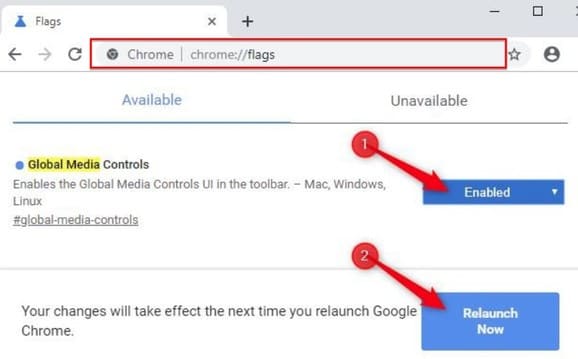
  1. Update your Google Chrome browser to version 77 .
  2. Open Google Chrome and go to the address: chrome://flags/#global-media-controls.
  3. Select Enable from the dropdown next to the line ‘Global Media Controls’.enable Global Media Controls
  4. Restart the browser

Now you will see Play button play music on Chrome Toolbar.

How to enable the Play music button on Chrome with the Global Media Control feature

Click that button to access the list of songs or currently playing on Chrome. You’ll see the name of a song or video that’s playing. Feature buttons include: Play, Pause, Previous (play back the previous song) and Forward (forward).

To disable the Global Media Controls feature, open the flags page and change the option from Enable wall Default.


The article achieved: 5/5 – (100 votes)

Tags: buttonChromecontrolEnablefeatureGlobalmediamusicplay
Previous Post

Rohos Face Logon 4.3 Full Key – Unlock Windows with face recognition

Next Post

Tor Browser 8.0 – The most secure DeepWeb browser available today

AnonyViet

AnonyViet

Related Posts

How to add sliders to Facebook Stories to easily rewind videos
Tips

How to add sliders to Facebook Stories to easily rewind videos

April 21, 2026
How to change the default font on Windows 10
Tips

How to change the default font on Windows 10

April 13, 2026
5 tips for using a Browser to replace an App (helps save RAM, time and money)
Tips

5 tips for using a Browser to replace an App (helps save RAM, time and money)

April 13, 2026
How to make funny MeMe photos without Photoshop within 10 seconds
Tips

How to make funny MeMe photos without Photoshop within 10 seconds

April 11, 2026
How to quickly design your own Logo without Photoshop
Tips

How to quickly design your own Logo without Photoshop

April 10, 2026
How to convert Website into App on Windows
Tips

How to convert Website into App on Windows

April 9, 2026
Next Post
Tor Browser 8.0 – The most secure DeepWeb browser available today

Tor Browser 8.0 - The most secure DeepWeb browser available today

0 0 votes
Article Rating
Subscribe
Login
Notify of
guest

guest

0 Comments
Oldest
Newest Most Voted
Inline Feedbacks
View all comments

Recent News

Create an avatar to celebrate April 30 with a beautiful red flag shirt with yellow stars

Create an avatar to celebrate April 30 with a beautiful red flag shirt with yellow stars

April 30, 2026
How to get 2 months of Super Duolingo for free worth 300k

How to get 2 months of Super Duolingo for free worth 300k

April 30, 2026
How to create a Face Sticker Collection using ChatGPT

How to create a Face Sticker Collection using ChatGPT

April 29, 2026
How to install the cute Bongo Cat mouse pointer for Windows

How to install the cute Bongo Cat mouse pointer for Windows

April 29, 2026
Create an avatar to celebrate April 30 with a beautiful red flag shirt with yellow stars

Create an avatar to celebrate April 30 with a beautiful red flag shirt with yellow stars

April 30, 2026
How to get 2 months of Super Duolingo for free worth 300k

How to get 2 months of Super Duolingo for free worth 300k

April 30, 2026
How to create a Face Sticker Collection using ChatGPT

How to create a Face Sticker Collection using ChatGPT

April 29, 2026
AnonyViet - English Version

AnonyViet

AnonyViet is a website share knowledge that you have never learned in school!

We are ready to welcome your comments, as well as your articles sent to AnonyViet.

Follow Us

Contact:

Email: anonyviet.com[@]gmail.com

Main Website: https://anonyviet.com

Recent News

Create an avatar to celebrate April 30 with a beautiful red flag shirt with yellow stars

Create an avatar to celebrate April 30 with a beautiful red flag shirt with yellow stars

April 30, 2026
How to get 2 months of Super Duolingo for free worth 300k

How to get 2 months of Super Duolingo for free worth 300k

April 30, 2026
No Result
View All Result
  • Home
  • News
  • Software
  • Knowledge
  • MMO
  • Tips
  • Security
  • Network
  • Office

wpDiscuz
0
0
Would love your thoughts, please comment.x
()
x
| Reply