• Home
  • News
  • Software
  • Knowledge
  • MMO
  • Tips
  • Security
  • Network
  • Office
AnonyViet - English Version
  • Home
  • News
  • Software
  • Knowledge
  • MMO
  • Tips
  • Security
  • Network
  • Office
No Result
View All Result
  • Home
  • News
  • Software
  • Knowledge
  • MMO
  • Tips
  • Security
  • Network
  • Office
No Result
View All Result
AnonyViet - English Version
No Result
View All Result

How to set Password expiration date in Windows for more security

AnonyViet by AnonyViet
February 3, 2023
in Tips
0

Changing your password regularly is one of the things you need to do to secure your account. Microsoft has integrated the feature to set the “lifetime” for Passwords for a long time. If it is time to expire Password, you must change to a new Password. This article will guide you to set an expiration date for your Windows password in the simplest way.

Join the channel Telegram belong to AnonyViet 👉 Link 👈

Depending on whether you’re using a local account or a Microsoft account to sign in to your PC, the steps will vary.

Set Password expiration date for Microsoft account

On Windows 10, you may have noticed that Microsoft wants you to use a Microsoft account to sign in instead of a local account.

Therefore, you can set a Password expiration date for your Microsoft account. You will be prompted to reset your Password every 72 days. You must set a new password before you can enable or disable this setting.

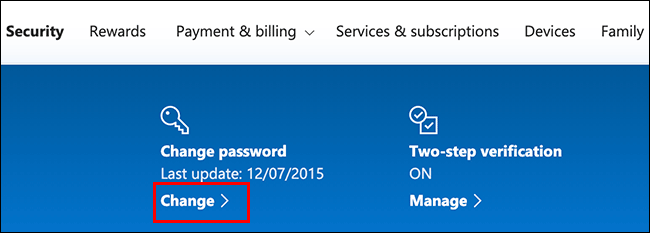
To do that, go to account protection section and login. In the “Change password” section at the top, select “Change”.
How to set Password expiration date in Windows for more security

You will be prompted to provide your current password, as well as a new password.

To set a password expiration date, click “Make Me Change My Password Every 72 Days” to enable this feature.

Press “Save” to apply new password and expiration date.How to set Windows password expiration dateIf the change is successful, you will return to the Microsoft account security page. Sign back in to Microsoft and sign out of Windows to use the new password.
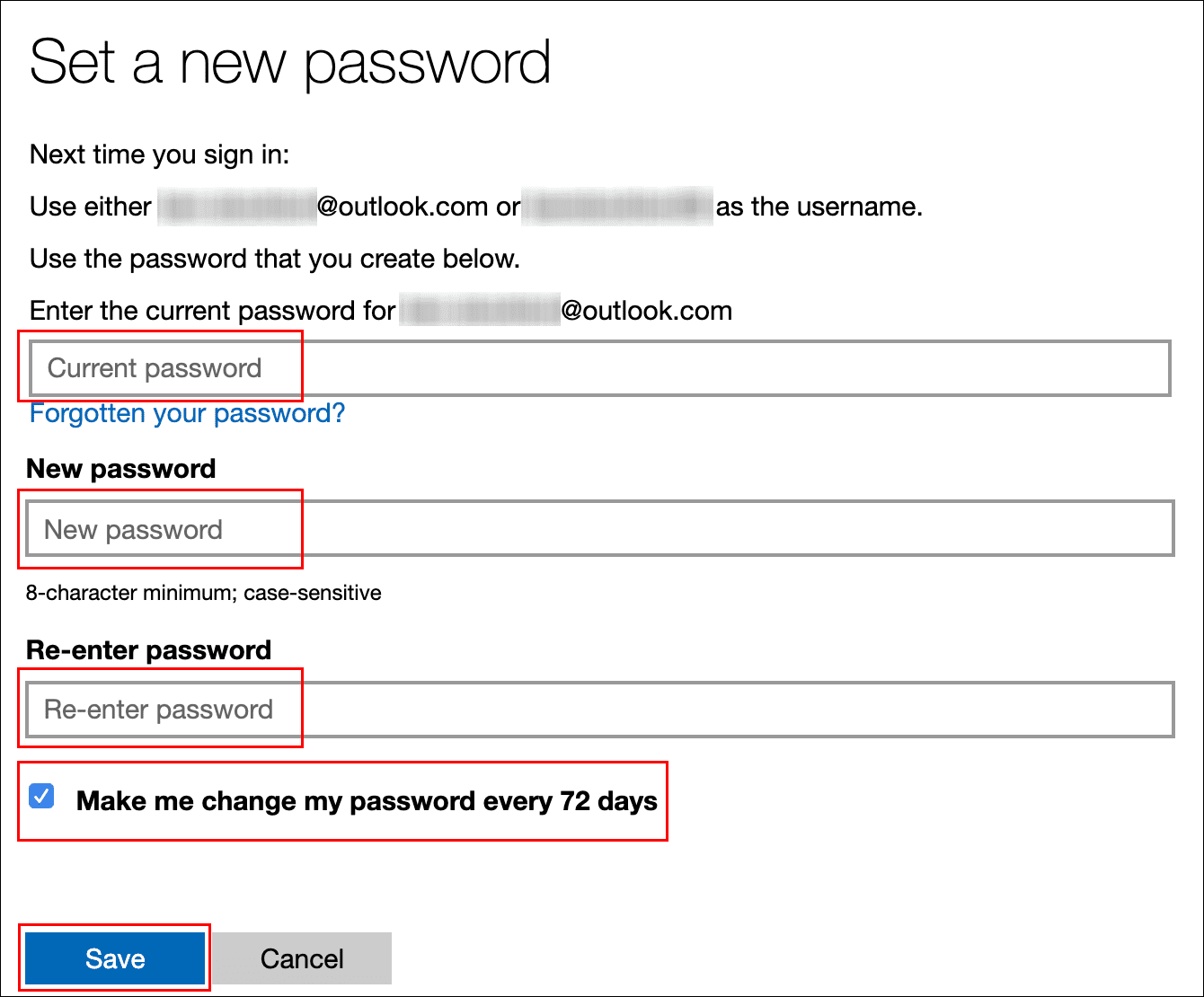
The password for your Microsoft account will expire later 72 days and you will be prompted to change your password the next time you log in.

Set password expiration for Local account

If you use a local account on your PC and not Microsoft, you can still do this.

Activate password reset date limit

First, you must disable feature “password never expires”

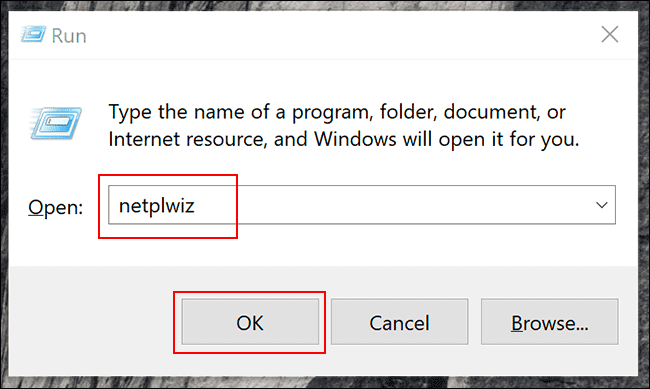
Click How to set Password expiration date in Windows 10 to open the dialog box “Run”. Import “netplwiz”and press “Ok” or Enter to open User Accounts.
netplwiz

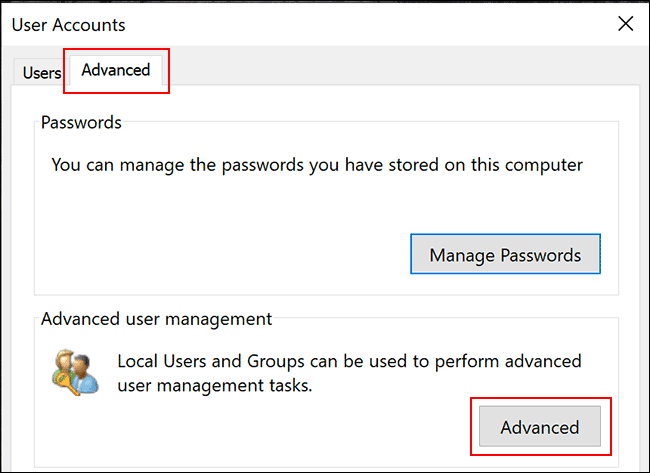
In the Advanced tab, press “Advanced” open “Advanced User Management”.
Advanced

Here, click “User” in the menu on the left, and right-click your account. Press “Properties” to enter advanced user settings.
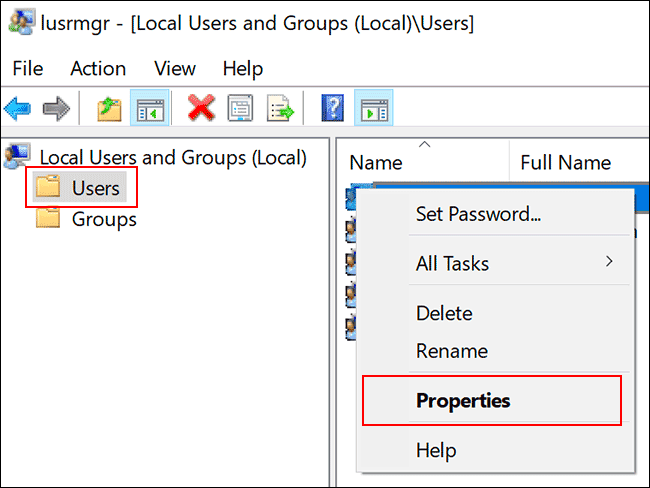
How to set Password expiration date in Windows for more security

In the “Properties” menu, uncheck “Password Never Expires”, and click “Ok”.
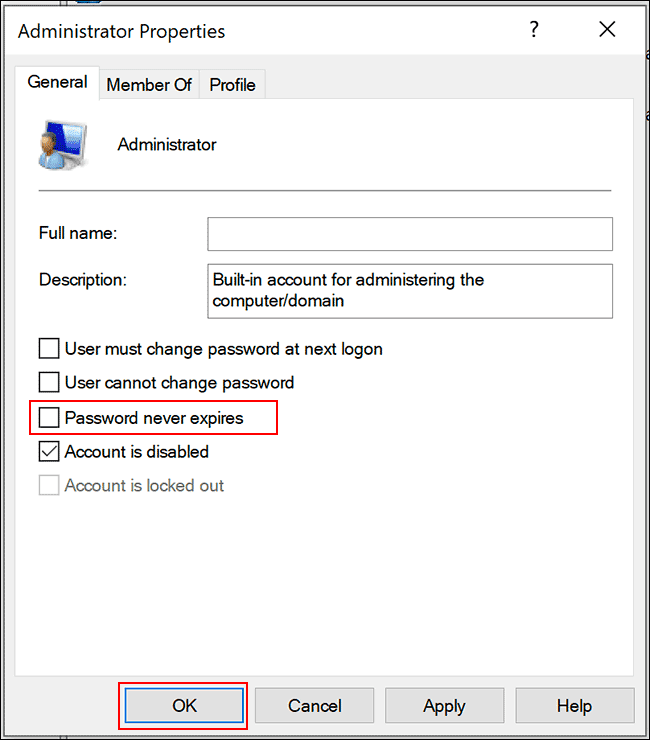
Password Never Expires

Using Local Group Policy Editor

Unlike a Microsoft account, you can set your password to expire anytime you want.

The default on Windows 10 is 42 days. If your PC is running Windows 10 Pro, Education, or Enterprise, press Windows + R and type gpedit.msc to open the Local Group Policy Editor.
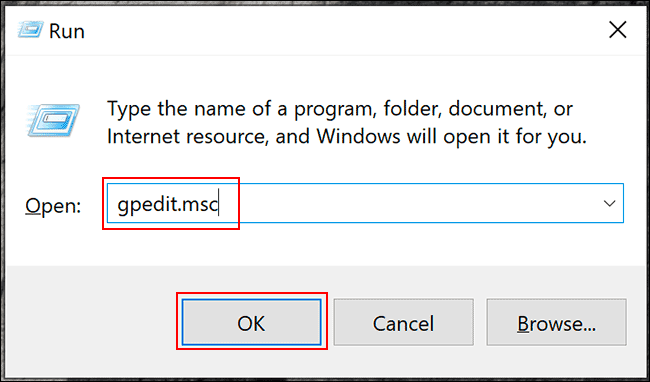
Use Local Group Policy Editor to set password expiration

In the menu on the left, go to Coputer Configuration > Windows Settings > Security > Settings > Account Policies > Password Policyand double-tap “Maximum Password Age”.
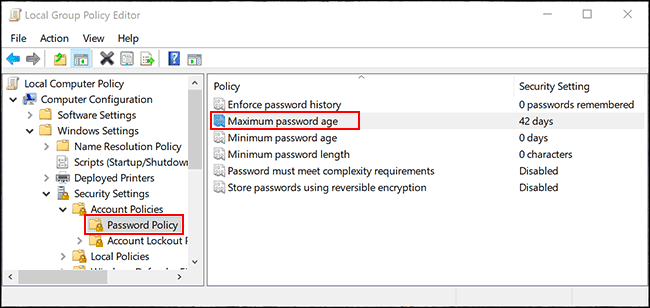
Maximum Password Age

Change number “42” into as many days as you want, and press “Ok” to save settings.
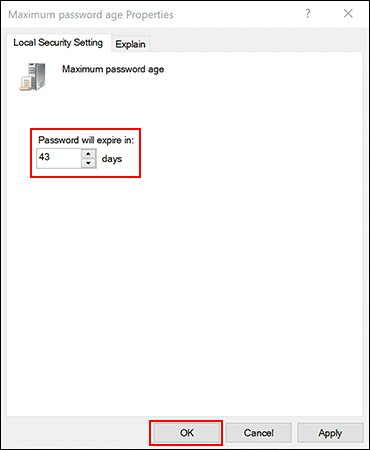
Maximum Password Age windows

After this time has elapsed, Windows will prompt you to reset your password.

Using Windows PowerShell

If you are using Windows 10 Home, you must use PowerShell or Command Prompt to set the age for the password. You can also use it instead of the Local Group Policy Editor.

Right-click the Start menu, press “Windows PowerShell (Admin)” or “Command Prompt (Admin)”depending on your version of Windows.
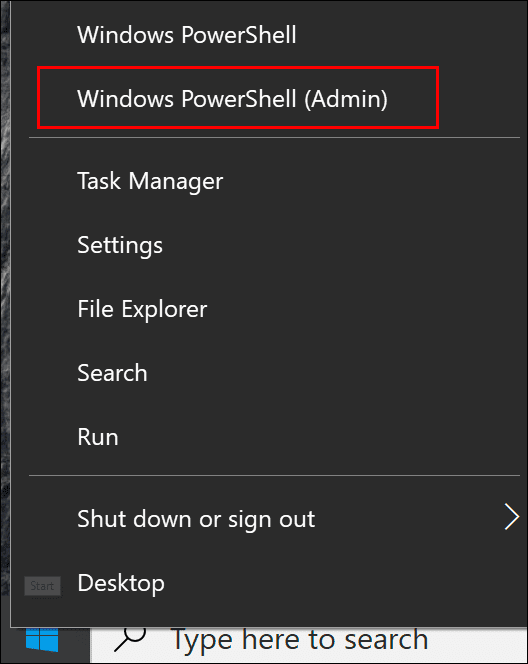
Windows PowerShell

In the PowerShell window, type “net accounts” to find the current password age for your account.

If you want to change it, enter “net accounts /maxpwage:00”replace 00 with the date you want.
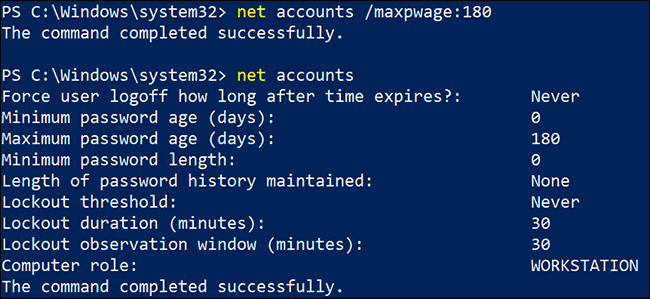
net accounts

It will apply to all local accounts on your PC. If in the process of changing your password you forget it, please enter this paragraph to reset.


The article achieved: 5/5 – (100 votes)

Tags: DateexpirationPasswordsecuritysetWindows
Previous Post

Why should you delete Office 2003 on your computer right now?

Next Post

PUBG Mobile – 10 game tips you may not know

AnonyViet

AnonyViet

Related Posts

How are Windows 11 Pro and Windows 10 Pro different?
Tips

How are Windows 11 Pro and Windows 10 Pro different?

October 23, 2026
Instructions for using CleanYourTV: Remove ads on Android TV, Google TV
Tips

Instructions for using CleanYourTV: Remove ads on Android TV, Google TV

October 23, 2026
How to use Messenger without a Facebook account
Tips

How to use Messenger without a Facebook account

October 22, 2026
The website helps you draw beautifully like TikToker Viet My
Tips

The website helps you draw beautifully like TikToker Viet My

October 21, 2026
Instructions on how to hard reset iPhone 18 Pro / iPhone 18 Pro Max
Tips

Instructions on how to hard reset iPhone 18 Pro / iPhone 18 Pro Max

October 21, 2026
Anyone can do how to increase Internet speed using CMD
Tips

Anyone can do how to increase Internet speed using CMD

October 20, 2026
Next Post
PUBG Mobile – 10 game tips you may not know

PUBG Mobile - 10 game tips you may not know

0 0 votes
Article Rating
Subscribe
Login
Notify of
guest

guest

0 Comments
Oldest
Newest Most Voted

Recent News

How are Windows 11 Pro and Windows 10 Pro different?

How are Windows 11 Pro and Windows 10 Pro different?

October 23, 2026
Instructions for using CleanYourTV: Remove ads on Android TV, Google TV

Instructions for using CleanYourTV: Remove ads on Android TV, Google TV

October 23, 2026
Receive copyright for 3 Halloween software worth 0

Receive copyright for 3 Halloween software worth $150

October 23, 2026
How to use Messenger without a Facebook account

How to use Messenger without a Facebook account

October 22, 2026
How are Windows 11 Pro and Windows 10 Pro different?

How are Windows 11 Pro and Windows 10 Pro different?

October 23, 2026
Instructions for using CleanYourTV: Remove ads on Android TV, Google TV

Instructions for using CleanYourTV: Remove ads on Android TV, Google TV

October 23, 2026
Receive copyright for 3 Halloween software worth 0

Receive copyright for 3 Halloween software worth $150

October 23, 2026
AnonyViet - English Version

AnonyViet

AnonyViet is a website share knowledge that you have never learned in school!

We are ready to welcome your comments, as well as your articles sent to AnonyViet.

Follow Us

Contact:

Email: anonyviet.com[@]gmail.com

Main Website: https://anonyviet.com

Recent News

How are Windows 11 Pro and Windows 10 Pro different?

How are Windows 11 Pro and Windows 10 Pro different?

October 23, 2026
Instructions for using CleanYourTV: Remove ads on Android TV, Google TV

Instructions for using CleanYourTV: Remove ads on Android TV, Google TV

October 23, 2026
  • Home
  • Home 2
  • Home 3
  • Home 4
  • Home 5
  • Home 6
  • Next Dest Page
  • Sample Page

say88 tỷ lệ kèo nhà cái kèo nhà cái 5 febet

No Result
View All Result
  • Home
  • News
  • Software
  • Knowledge
  • MMO
  • Tips
  • Security
  • Network
  • Office

say88 tỷ lệ kèo nhà cái kèo nhà cái 5 febet

wpDiscuz
0
0
Would love your thoughts, please comment.x
()
x
| Reply