• Home
  • News
  • Software
  • Knowledge
  • MMO
  • Tips
  • Security
  • Network
  • Office
AnonyViet - English Version
  • Home
  • News
  • Software
  • Knowledge
  • MMO
  • Tips
  • Security
  • Network
  • Office
No Result
View All Result
  • Home
  • News
  • Software
  • Knowledge
  • MMO
  • Tips
  • Security
  • Network
  • Office
No Result
View All Result
AnonyViet - English Version
No Result
View All Result

How to add Safe Mode to Windows 11’s Boot Menu

AnonyViet by AnonyViet
January 26, 2023
in Tips
0

Although Microsoft Windows 11 may be the latest and greatest version of Microsoft, but it can still fail to boot. To troubleshoot Windows not starting properly, many users will use Safe Mode, which eliminates the loading of irrelevant applications, systems, and drivers. It is a very easy and effective troubleshooting method.

Join the channel Telegram of the AnonyViet 👉 Link 👈

How to add Safe Mode to Windows 11’s Boot Menu

However, if you have frequent boot failures, then you should add Safe Mode to your list of boot options (boot menu). This will be less annoying than trying to remember to enter Safe Mode every time you restart your PC. Using the Boot Configuration Data (BCD) editor, we can change the default settings to add Safe Mode to the boot menu.

How to add Safe Mode to the Windows 11 Boot Menu

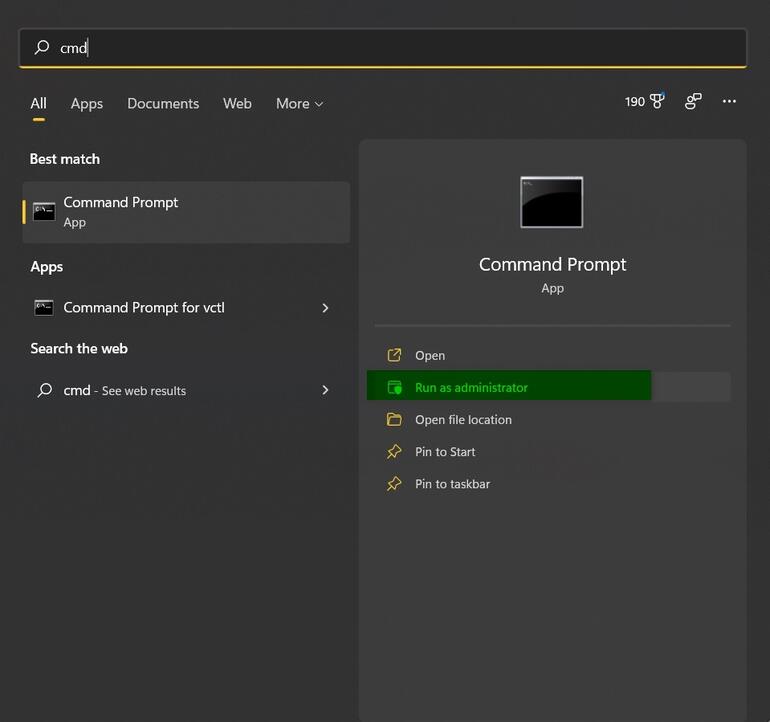
Click the Windows 11 search icon on the taskbar and type cmd in the search box. Select Run As Administrator from the options menu on the right.
How to add Safe Mode to the Boot Menu of Windows 11 9

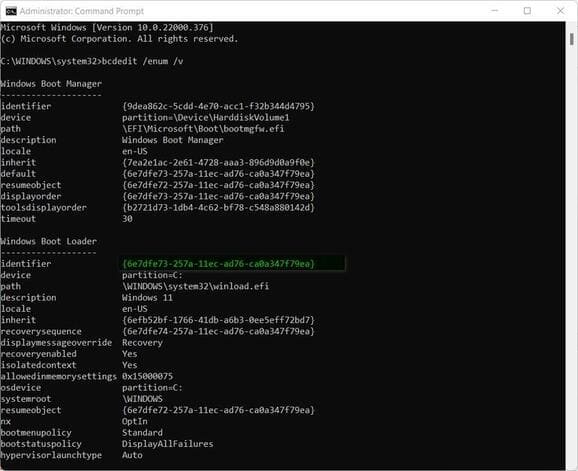
From CMD, enter the following command:

bcdedit /enum /v

Copy the identifier number to the clipboard. It is the number in brackets under the Windows Boot Manager heading. This number is unique to your PC.
How to add Safe Mode to the Boot Menu of Windows 11 10

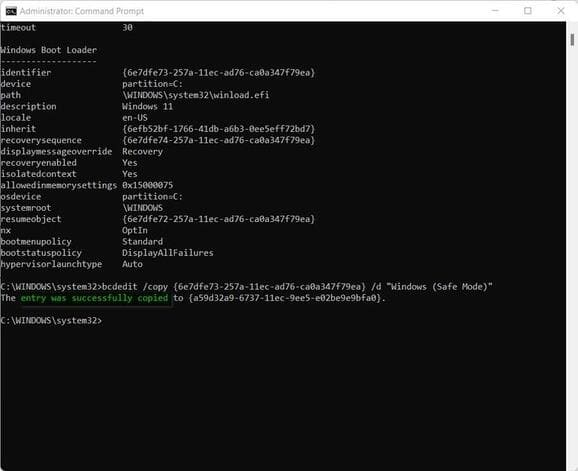
Next, enter this command:

bcdedit /copy {your identifier number} /d "Windows (Safe Mode)"

You will be notified as below if the copy is successful.
How to add Safe Mode to the Boot Menu of Windows 11 11

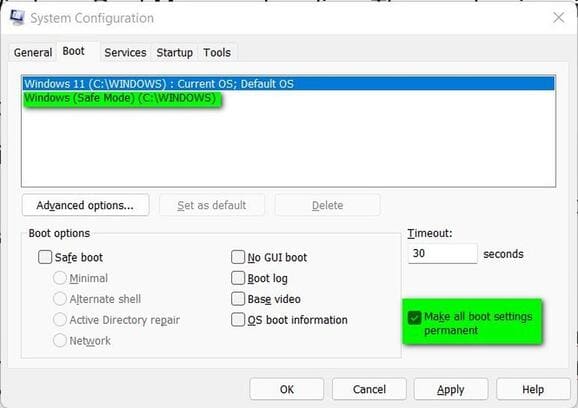
We can add details to our new Safe Mode configuration using the app msconfig. Type msconfig at command prompt and press enter to open.

Click the Boot tab on the msconfig application. As you can see, we have added Safe Mode to the boot menu. Select Make All Boot Settings Permanent to keep the new configuration intact.
How to add Safe Mode to the Boot Menu of Windows 11 12

From this configuration menu, you can modify the Safe Mode settings to include network drivers, which can be important for your troubleshooting. Select Safe Boot and then select Network.

When you’re done, click the Apply button and then the OK button. The next time you reboot or start up your Windows 11 PC, you’ll be given the choice of default booting or Safe Mode. If you do nothing for 30 seconds, the system will choose default boot.
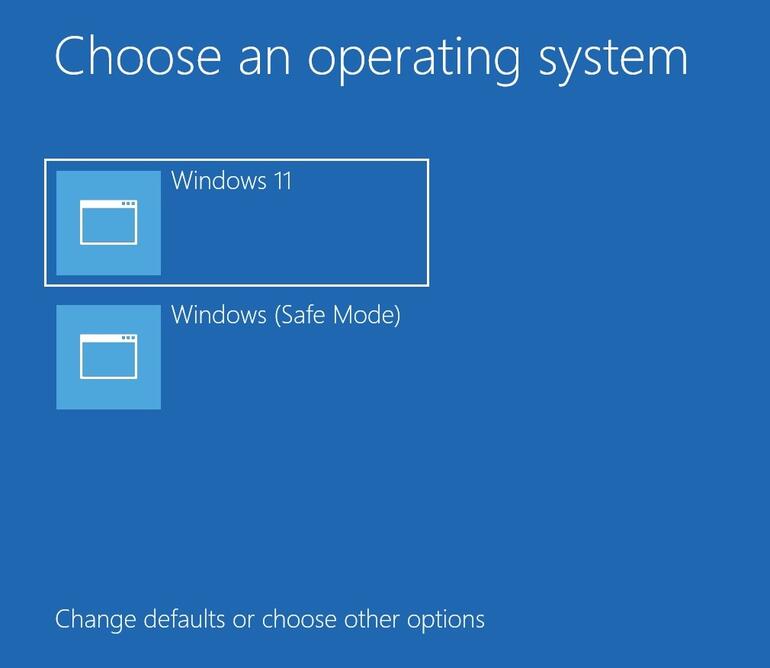
How to add Safe Mode to the Boot Menu of Windows 11 13

When you no longer need the Safe Mode option, run the msconfig application again, click the Boot tab, select the Safe Mode item, and then click the Delete button. Apply the changes and click OK to complete the process. Your PC will now revert to the default boot process.


The article achieved: 5/5 – (100 votes)

Tags: 11sAddBootmenuModesafeWindows
Previous Post

Lesson 10: Flash Fill – Quick Fill – Basic Excel

Next Post

How to Create a Map Walking Video with TravelBoast

AnonyViet

AnonyViet

Related Posts

Get free Cambridge courses to prepare for IELTS, Starters, Movers
Tips

Get free Cambridge courses to prepare for IELTS, Starters, Movers

June 4, 2026
How to record reaction videos with Android phones, no app needed
Tips

How to record reaction videos with Android phones, no app needed

June 1, 2026
Instructions on how to get Google AI Pro 1 year for free for new accounts
Tips

Instructions on how to get Google AI Pro 1 year for free for new accounts

June 1, 2026
Top free AI tools to help write, test and optimize content
Tips

Top free AI tools to help write, test and optimize content

June 1, 2026
Instructions for receiving Lovable Pro 12 months for free
Tips

Instructions for receiving Lovable Pro 12 months for free

May 29, 2026
Instructions for receiving 1 month of ElevenLabs Creator for free worth
Tips

Instructions for receiving 1 month of ElevenLabs Creator for free worth $22

May 25, 2026
Next Post
How to Create a Map Walking Video with TravelBoast

How to Create a Map Walking Video with TravelBoast

0 0 votes
Article Rating
Subscribe
Login
Notify of
guest

guest

0 Comments
Oldest
Newest Most Voted
Inline Feedbacks
View all comments

Recent News

Get free Cambridge courses to prepare for IELTS, Starters, Movers

Get free Cambridge courses to prepare for IELTS, Starters, Movers

June 4, 2026
How to check network speed on Apple TV when the image is jerky or lagging

How to check network speed on Apple TV when the image is jerky or lagging

June 3, 2026
Instructions on how to prevent acquaintances from seeing your Tiktok

Instructions on how to prevent acquaintances from seeing your Tiktok

June 2, 2026
How to record reaction videos with Android phones, no app needed

How to record reaction videos with Android phones, no app needed

June 1, 2026
Get free Cambridge courses to prepare for IELTS, Starters, Movers

Get free Cambridge courses to prepare for IELTS, Starters, Movers

June 4, 2026
How to check network speed on Apple TV when the image is jerky or lagging

How to check network speed on Apple TV when the image is jerky or lagging

June 3, 2026
Instructions on how to prevent acquaintances from seeing your Tiktok

Instructions on how to prevent acquaintances from seeing your Tiktok

June 2, 2026
AnonyViet - English Version

AnonyViet

AnonyViet is a website share knowledge that you have never learned in school!

We are ready to welcome your comments, as well as your articles sent to AnonyViet.

Follow Us

Contact:

Email: anonyviet.com[@]gmail.com

Main Website: https://anonyviet.com

Recent News

Get free Cambridge courses to prepare for IELTS, Starters, Movers

Get free Cambridge courses to prepare for IELTS, Starters, Movers

June 4, 2026
How to check network speed on Apple TV when the image is jerky or lagging

How to check network speed on Apple TV when the image is jerky or lagging

June 3, 2026
No Result
View All Result
  • Home
  • News
  • Software
  • Knowledge
  • MMO
  • Tips
  • Security
  • Network
  • Office

wpDiscuz
0
0
Would love your thoughts, please comment.x
()
x
| Reply