

Some Windows users are reporting an issue whereby when they start Windows 11 or Windows 10, the system boots to the desktop without any icons or thumbnails and shows an error message Explorer.exe – Fail Fast Exception. Also, the taskbar is unresponsive. This article will provide the most suitable solutions for this problem. Keep in mind that this error can happen with other .exe files and there are cases when you Alt + Tab out of the game or program the error can occur.
| Join the channel Telegram of the AnonyViet 👉 Link 👈 |
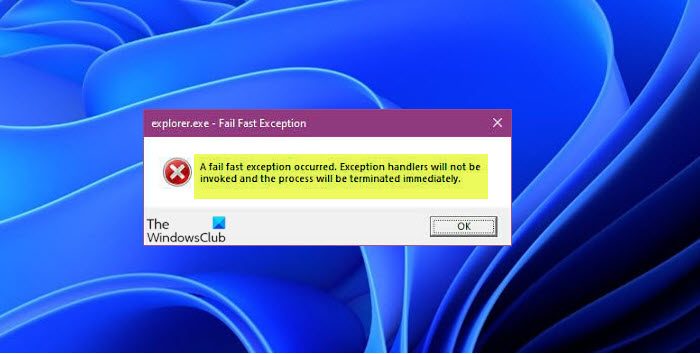
Depending on the .exe program or process, when you encounter this problem, you will receive the following full error message similar to the following;
Explorer.exe – Fail Fast Exception
A fail fast exception occurred. Exception handlers will not be invoked and the process will be terminated immediately.
What is Explorer EXE Fail Fast Exception?
Fail Fast Exception is a type of exception generated by User Mode applications. Unlike all other exception codes, Fail Fast Exceptions ignores all exception handlers. Upgrading this exception will terminate the application and invoke Windows Error Reporting (WER), if Windows Error Reporting is enabled.
Explorer.exe – Fail Fast Exception
If you encounter this error, you can try the solutions suggested below in order and see if it helps to resolve this Explorer.exe – Fail Fast Exception error.
1. Restart File Explorer
2. Turn off Fast Startup
3. Run SFC and DISM . scans
4. Run CHKDSK
5. Run the program in Compatibility mode
6. Uninstall and reinstall the program
7. Perform a system restore
8. Troubleshoot program conflicts.
1. Restart File Explorer
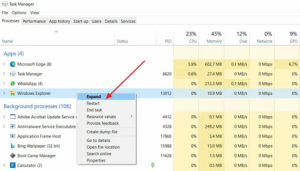
Since the error message refers to the explorer.exe process, this solution requires you to restart File Explorer and see if the Explorer.exe – Fail Fast Exception error occurring on your Windows 11/10 PC is resolved. decide or not. You will have to open Task Manager, find explorer.exe, right click on it and select Restart.
2. Turn off Fast Startup
Feature Fast Startup in Windows 11/10 is enabled by default if available. Fast Startup is designed to help your computer start up faster after you shut down your computer. When you shut down your computer, it goes into hibernation instead of shutting down completely.
You can see how to turn it off Fast Startup here.
3. Run SFC and DISM . scans
This solution requires you to run SFC and DISM scans on your device. You can see how to scan SFC and DISM here.
4. Run CHKDSK
This way needs you run CHKDSK to fix errors or bad sectors on the system drive, which here could be the culprit. The system drive is the drive that contains the system partition. This is usually the C: drive.
5. Run the program in Compatibility Mode
This solution requires that you run the program in Compatibility mode. This is suitable for PC users who have problems when they exit the game.
6. Uninstall and reinstall the program
This also works for some PC users. You need to uninstall the app or game (preferably using a third-party software uninstaller) from your Windows 11/10 device and then reinstall them.
7. Perform a system restore
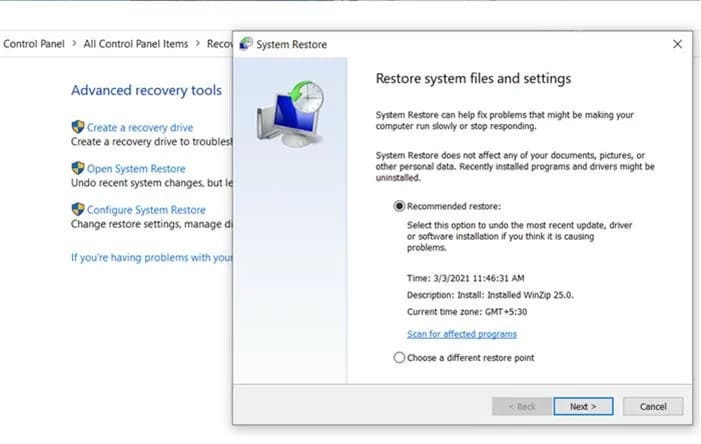
To perform a System Restore on your Windows 11/10 device, do the following:
- Press Windows key + R to open Run.
- In the Run dialog, type rstrui and press Enter to open the Wizard System Restore.
- When you get to the initial System Restore screen, click next to move to the next window.
- On the next screen, start by selecting Show more restore points.
- After you complete this, select a restore point prior to the date the error occurred.
- Click next to move to the next menu.
- Click finish and confirm at the last prompt.
At the next system boot, the computer will return to the previous state; and hope the problem will be solved. If not, try the next solution.
8. Troubleshooting program conflicts
If the program is in conflict with some other installed software, this error may appear. We recommend troubleshooting in Clean Boot State to identify conflicting software.
How to fix Runtime Explorer unexpected error?
To fix unexpected Runtime Explorer error on Windows 11/10 computer, you can try any of the following:
- Restart the computer.
- Update the program to the latest version.
- Completely remove the program, then reinstall it.
- Install the latest Microsoft Visual C++ Redistributable package.
- Run an SFC scan to repair corrupted Windows files.
- Run System Restore to return your computer to its previous state.
How to fix a working EXE?
Is Explorer EXE a virus?
The explorer.exe file is located in the C:\Windows folder and it is a safe and legitimate Microsoft Windows system process called “Windows Explorer”. If the explorer.exe file is located anywhere else on your system, it could be malware.






