• Home
  • News
  • Software
  • Knowledge
  • MMO
  • Tips
  • Security
  • Network
  • Office
AnonyViet - English Version
  • Home
  • News
  • Software
  • Knowledge
  • MMO
  • Tips
  • Security
  • Network
  • Office
No Result
View All Result
  • Home
  • News
  • Software
  • Knowledge
  • MMO
  • Tips
  • Security
  • Network
  • Office
No Result
View All Result
AnonyViet - English Version
No Result
View All Result

Lesson 52: How to use the search feature in Excel

AnonyViet by AnonyViet
January 26, 2023
in Office
0

To access some of the more advanced search features in Excelyou need to perform the following steps.

Join the channel Telegram of the AnonyViet 👉 Link 👈

How to use the search feature in Excel

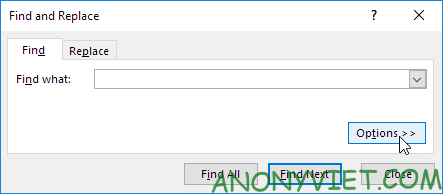
first. Click Options in the ‘Find and Replace’ dialog box.
Lesson 52: How to use the search feature in Excel

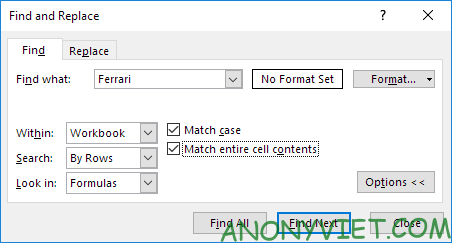
2. Enter the text you want to find. For example, type Ferrari.
Lesson 52: How to use the search feature in Excel 5

3. Select Workbook in Within to find text on all worksheets.

4. Select “Match case” to make your search more specific. For example, Excel will only look for Ferrari but not ferrari.

5. Select “Match entire cell contents” to find cells containing exactly “Ferrari”. For example, Excel won’t find cells containing “Car Ferrari”, “Ferrarii”, or even “Ferrari”.

6. A question mark (?) will replace a character. For example, F?rrari will look for Ferrari, Forrari, Farrari, etc. Asterisk

replaces a string of zero or more characters. For example: F *rrari will find Ferrari, Foorrari, Faaaaaaarrari, etc. In addition, you can also view many other excel articles

here.

The article achieved: 5/5 – (100 votes)

Tags: ExcelfeatureLessonsearch
Previous Post

How to share Wifi from Laptop to other devices using Windows 11

Next Post

500 link Dark Web cập nhật mới nhất 2020

AnonyViet

AnonyViet

Related Posts

How to add Watermark to Google Docs to protect copyright
Office

How to add Watermark to Google Docs to protect copyright

April 19, 2026
Instructions on how to hide formulas in Excel to secure data
Office

Instructions on how to hide formulas in Excel to secure data

February 6, 2026
Top who creates the most beautiful presentation slide today
Office

Top who creates the most beautiful presentation slide today

September 23, 2025
Automatically check and correct spelling errors on Google Docs
Office

Automatically check and correct spelling errors on Google Docs

February 23, 2025
Instructions for downloading Google Docs files easily on any device
Office

Instructions for downloading Google Docs files easily on any device

December 18, 2024
Launching AI image creation feature on Google Docs
Office

Launching AI image creation feature on Google Docs

November 20, 2024
Next Post
500 link Dark Web cập nhật mới nhất 2020

500 link Dark Web cập nhật mới nhất 2020

0 0 votes
Article Rating
Subscribe
Login
Notify of
guest

guest

0 Comments
Oldest
Newest Most Voted
Inline Feedbacks
View all comments

Recent News

Tips to completely turn off CAPTCHA codes on iPhone and Mac are super simple

Tips to completely turn off CAPTCHA codes on iPhone and Mac are super simple

April 25, 2026
Compare Poco X8 Pro and Poco X7 Pro: A new step for the “king” of mid-range performance

Compare Poco X8 Pro and Poco X7 Pro: A new step for the “king” of mid-range performance

April 24, 2026
How to compress online videos for free without losing quality

How to compress online videos for free without losing quality

April 24, 2026
Top 5 apps to view good days 2026 for free on iOS and Android

Top 5 apps to view good days 2026 for free on iOS and Android

April 23, 2026
Tips to completely turn off CAPTCHA codes on iPhone and Mac are super simple

Tips to completely turn off CAPTCHA codes on iPhone and Mac are super simple

April 25, 2026
Compare Poco X8 Pro and Poco X7 Pro: A new step for the “king” of mid-range performance

Compare Poco X8 Pro and Poco X7 Pro: A new step for the “king” of mid-range performance

April 24, 2026
How to compress online videos for free without losing quality

How to compress online videos for free without losing quality

April 24, 2026
AnonyViet - English Version

AnonyViet

AnonyViet is a website share knowledge that you have never learned in school!

We are ready to welcome your comments, as well as your articles sent to AnonyViet.

Follow Us

Contact:

Email: anonyviet.com[@]gmail.com

Main Website: https://anonyviet.com

Recent News

Tips to completely turn off CAPTCHA codes on iPhone and Mac are super simple

Tips to completely turn off CAPTCHA codes on iPhone and Mac are super simple

April 25, 2026
Compare Poco X8 Pro and Poco X7 Pro: A new step for the “king” of mid-range performance

Compare Poco X8 Pro and Poco X7 Pro: A new step for the “king” of mid-range performance

April 24, 2026
No Result
View All Result
  • Home
  • News
  • Software
  • Knowledge
  • MMO
  • Tips
  • Security
  • Network
  • Office

wpDiscuz
0
0
Would love your thoughts, please comment.x
()
x
| Reply