• Home
  • News
  • Software
  • Knowledge
  • MMO
  • Tips
  • Security
  • Network
  • Office
AnonyViet - English Version
  • Home
  • News
  • Software
  • Knowledge
  • MMO
  • Tips
  • Security
  • Network
  • Office
No Result
View All Result
  • Home
  • News
  • Software
  • Knowledge
  • MMO
  • Tips
  • Security
  • Network
  • Office
No Result
View All Result
AnonyViet - English Version
No Result
View All Result

How to share Wifi from Laptop to other devices using Windows 11

AnonyViet by AnonyViet
January 26, 2023
in Tips
0

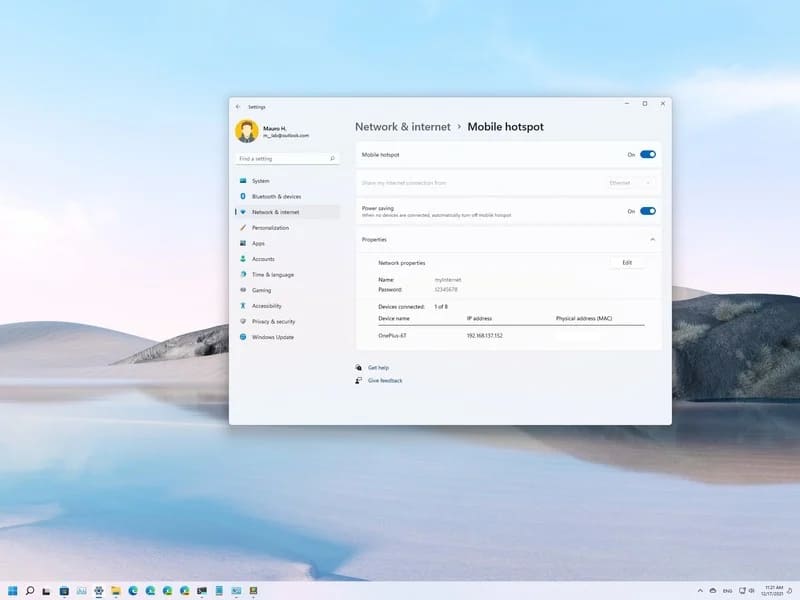
Above Windows 11you can share your internet wifi with other computers and even phones using the mobile hotspot feature without additional software.

Join the channel Telegram of the AnonyViet 👉 Link 👈

How to share Wifi from Laptop to other devices using Windows 11

The ability to create a mobile hotspot can be useful in many situations. For example, if you are in a place with only a wired connection and want to connect your tablet or phone to the internet. Or you are in a place where you are the only one with a network subscription and you want to share the Internet with others.

Whatever the reason, Windows 11 makes it easy to share your internet connection or access your local network with the portable hotspot feature available through the Settings app.

How to share wifi from laptop on windows 11

On Windows 11, you can share your internet connection via Ethernet, Wi-Fi, or a cellular data plan. However, the device must have at least one wireless network adapter that acts as an access point for other computers to connect.

To create a Wi-Fi hotspot on Windows 11 and share the Internet with other devices, follow these steps:

1. Open Settings.

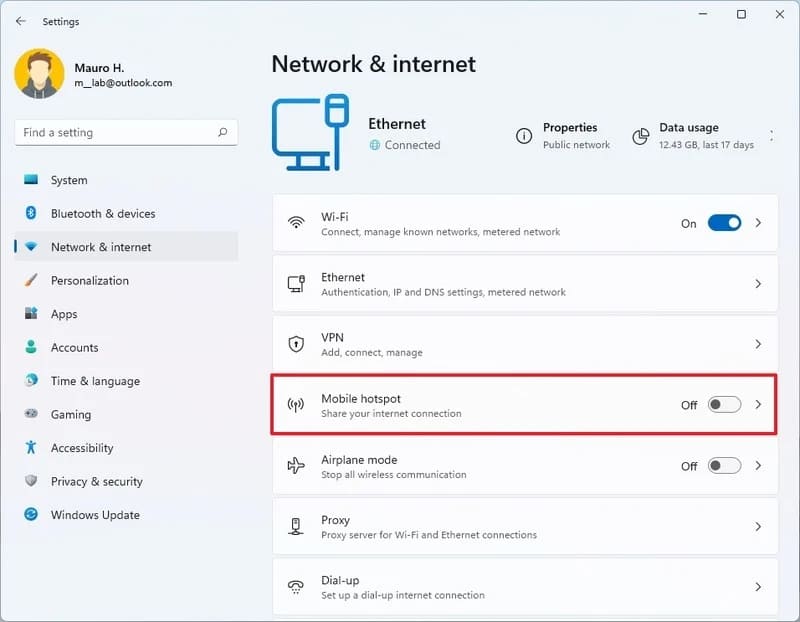
2. Click Network & internet.

3. Click Mobile hotspot on the right side.
How to share Wifi from Laptop to other devices using Windows 11 10

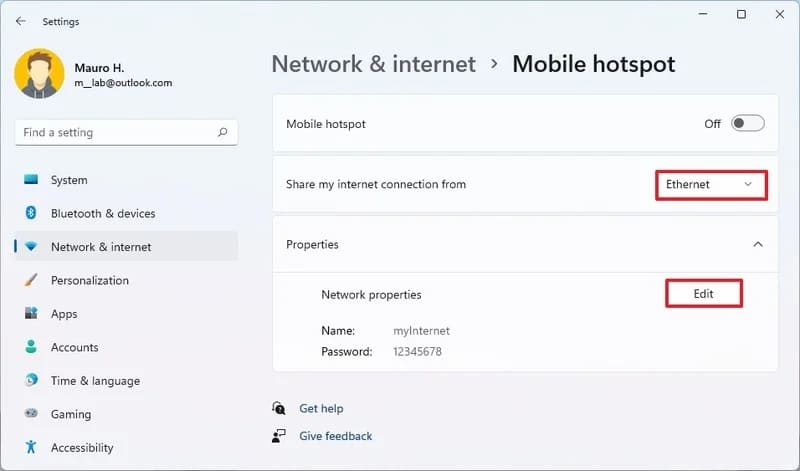
4. Use the “Share my internet connection from” setting and select the network adapter that is connected to the internet to share the connection – for example, Ethernet.

5. In the “Properties” section, click the . button Edit.
How to share Wifi from Laptop to other devices using Windows 11 11

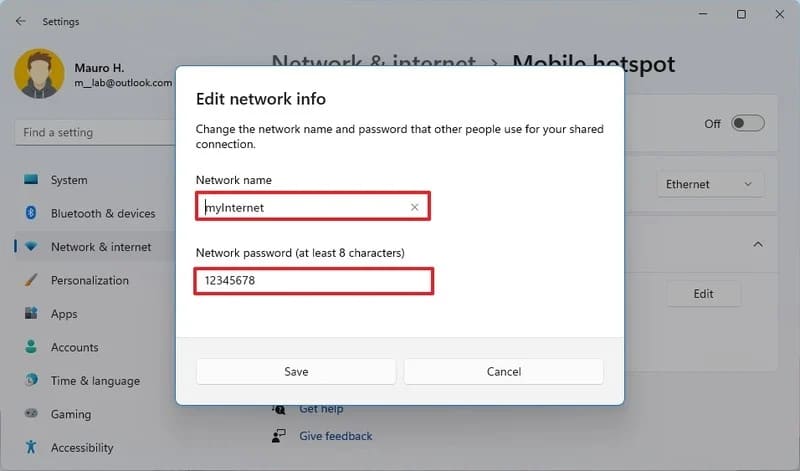
6. Confirm the name for the mobile hotspot.

7. Create a password that other devices will use to access the connection.
How to share Wifi from Laptop to other devices using Windows 11 12

8. Click the button Save.

9. Turn on Mobile hotspot to start sharing internet.
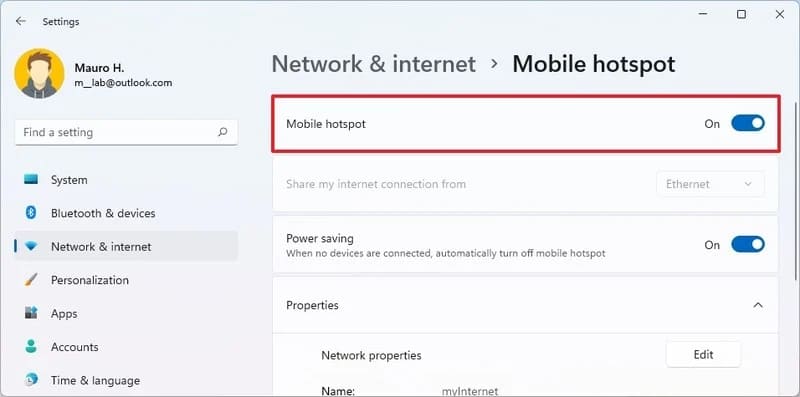
How to share Wifi from Laptop to other devices using Windows 11

10. (Optional) Disable option Power saving to continue broadcasting even when no devices are connected. If not, you’ll need to re-enable the feature to allow other computers to connect.

After you complete the steps above, Windows 11 will allow up to eight computers or phones (Android and even iPhone) to connect to the internet.

How to enable mobile hotspot on Windows 11

Since you probably won’t be sharing your internet connection very often, you can use the following steps to turn this feature on or off:

1. Click the network icon in the System tray of the Taskbar.

Quick Tip: You can also open Quick Settings with Windows key + A.

2. Click Mobile hotspot to enable or disable this feature.
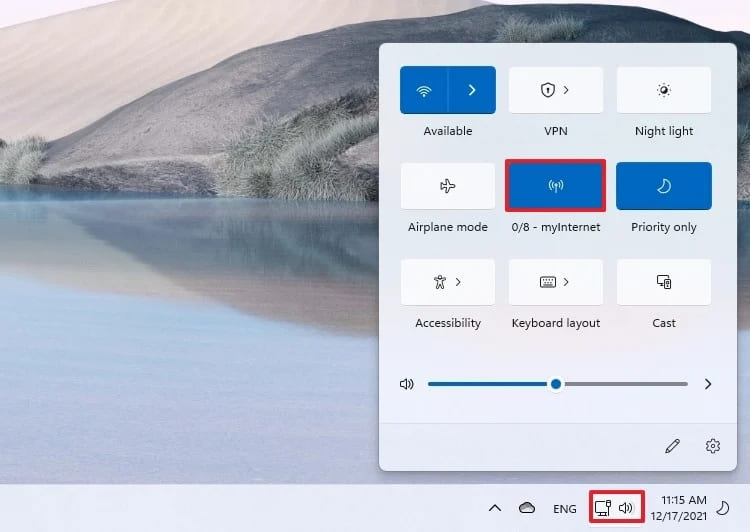
How to share Wifi from Laptop to other devices using Windows 11

Alternatively, you can manage the status of your mobile hotspot from the Settings app using these steps:

1. Open Settings.

2. Click Network & internet.

3. Turn on or off Mobile hotspot (necessary).
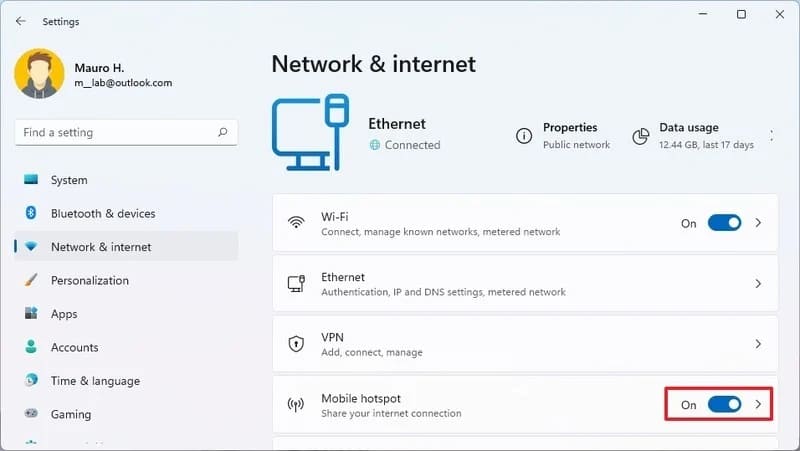
How to share Wifi from Laptop to other devices using Windows 11 15

After you complete these steps, the hotspot will turn on and devices will be able to see the connection and connect to your network.


In addition, you can also speed up wifi by cmd here.

The article achieved: 5/5 – (100 votes)

Tags: devicesLaptopShareWiFiWindows
Previous Post

Get Copyright 24 software worth $924 on Christmas

Next Post

Lesson 52: How to use the search feature in Excel

AnonyViet

AnonyViet

Related Posts

How to use CMD environment variables in Windows
Tips

How to use CMD environment variables in Windows

January 18, 2026
How to add or remove columns in File Explorer Windows 11
Tips

How to add or remove columns in File Explorer Windows 11

January 17, 2026
Sign up for Pluralsight One for 1 year of free access to Online courses
Tips

Sign up for Pluralsight One for 1 year of free access to Online courses

January 16, 2026
How to schedule a Batch file (CMD) to run on Windows
Tips

How to schedule a Batch file (CMD) to run on Windows

January 15, 2026
Instructions for downloading Facebook Videos with new interface 2021
Tips

Instructions for downloading Facebook Videos with new interface 2021

January 14, 2026
How to get ChatGPT K-12 Teacher for free
Tips

How to get ChatGPT K-12 Teacher for free

January 13, 2026
Next Post
Lesson 52: How to use the search feature in Excel

Lesson 52: How to use the search feature in Excel

0 0 votes
Article Rating
Subscribe
Login
Notify of
guest

guest

0 Comments
Oldest
Newest Most Voted
Inline Feedbacks
View all comments

Recent News

How to use automatic verification bot to register for ChatGPT K12, Spotify Student,…

How to use automatic verification bot to register for ChatGPT K12, Spotify Student,…

January 18, 2026
Instructions on how to create head-grabbing photos – New trend causing TikTok storm

Instructions on how to create head-grabbing photos – New trend causing TikTok storm

January 18, 2026
How to use CMD environment variables in Windows

How to use CMD environment variables in Windows

January 18, 2026
Instructions for installing the application “Are you dead yet” – Demumu

Instructions for installing the application “Are you dead yet” – Demumu

January 17, 2026
How to use automatic verification bot to register for ChatGPT K12, Spotify Student,…

How to use automatic verification bot to register for ChatGPT K12, Spotify Student,…

January 18, 2026
Instructions on how to create head-grabbing photos – New trend causing TikTok storm

Instructions on how to create head-grabbing photos – New trend causing TikTok storm

January 18, 2026
How to use CMD environment variables in Windows

How to use CMD environment variables in Windows

January 18, 2026
AnonyViet - English Version

AnonyViet

AnonyViet is a website share knowledge that you have never learned in school!

We are ready to welcome your comments, as well as your articles sent to AnonyViet.

Follow Us

Contact:

Email: anonyviet.com[@]gmail.com

Main Website: https://anonyviet.com

Recent News

How to use automatic verification bot to register for ChatGPT K12, Spotify Student,…

How to use automatic verification bot to register for ChatGPT K12, Spotify Student,…

January 18, 2026
Instructions on how to create head-grabbing photos – New trend causing TikTok storm

Instructions on how to create head-grabbing photos – New trend causing TikTok storm

January 18, 2026
  • Home
  • Home 2
  • Home 3
  • Home 4
  • Home 5
  • Home 6
  • Next Dest Page
  • Sample Page

https://sun52.network

No Result
View All Result
  • Home
  • News
  • Software
  • Knowledge
  • MMO
  • Tips
  • Security
  • Network
  • Office

https://sun52.network

wpDiscuz
0
0
Would love your thoughts, please comment.x
()
x
| Reply