• Home
  • News
  • Software
  • Knowledge
  • MMO
  • Tips
  • Security
  • Network
  • Office
AnonyViet - English Version
  • Home
  • News
  • Software
  • Knowledge
  • MMO
  • Tips
  • Security
  • Network
  • Office
No Result
View All Result
  • Home
  • News
  • Software
  • Knowledge
  • MMO
  • Tips
  • Security
  • Network
  • Office
No Result
View All Result
AnonyViet - English Version
No Result
View All Result

7 apps that help add features to Windows

AnonyViet by AnonyViet
January 26, 2023
in Tips
0

Are you still using Windows 10 after Windows 11 came out? You may have made the right choice, because becoming an early Windows 11 user can be a problem. Microsoft will support Windows 10 until 2025, so there’s plenty of time to keep using it. I’ve been using Windows 10 for a while and discovered there are Windows apps that will make your life easier.

Join the channel Telegram of the AnonyViet 👉 Link 👈

7 apps that help add features to Windows

Windows 10 apps that will make your life easier

first. Winaero Tweaker
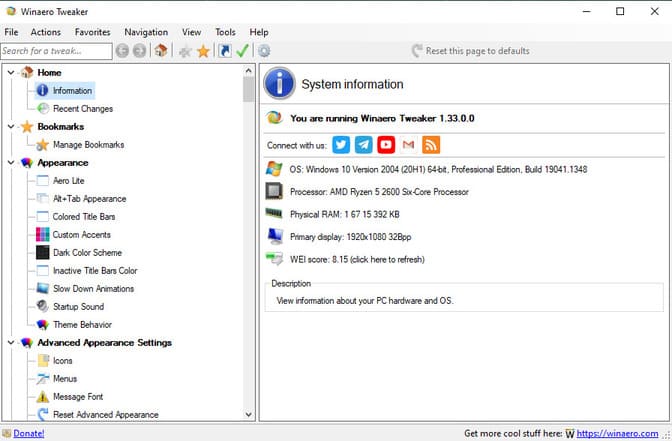
7 applications that help add features to Windows 11

Winaero Tweaker is a free utility for Windows that allows you to tweak some system settings that Microsoft doesn’t allow users to tweak. Some of these settings include customization options, skin changes, and more. Moreover, it allows you to add additional components to an existing interface, such as adding more options in the context menu. , hide shortcut arrows,…

This is a delicate application for advanced users as it allows deeper control into the operating system. Winaero supports Windows 11, 10, 8/8.1 and 7.

2. Autoruns
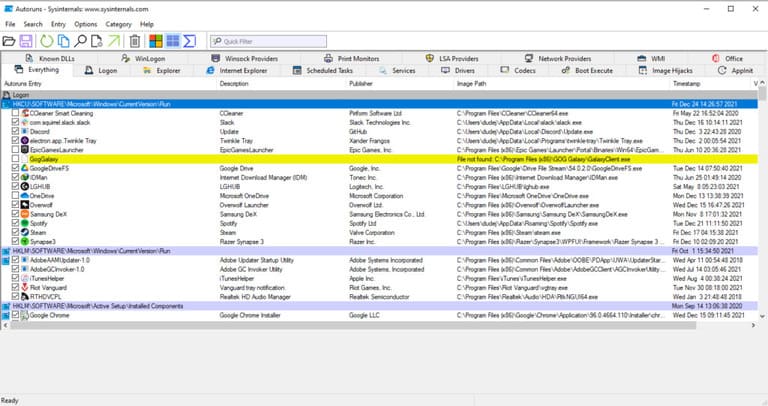
7 applications to help add features to Windows 12

Autoruns is a powerful utility for managing applications that start with Windows. If you are a heavy user of apps and worried about the performance of your system then this is the app for you. Autoruns keeps track of all the applications and services that start up when you open your PC. You can see all the apps and disable the ones you don’t need.

Using Autoruns to disable startup applications can greatly improve your system performance. I recommend using this app if you are a professional user.

3. EarTrumpet
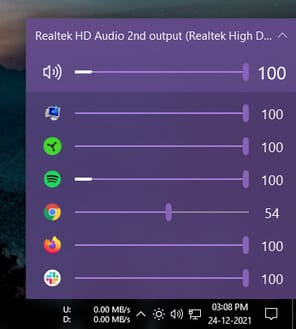
7 applications to help add features to Windows 13

EarTrumpet is one of my favorite apps. This will be a lifesaver if you join online meetings or online classes. Windows already has a Volume Mixer, but it only takes a few clicks. EarTrumpet will let you control the sound of individual apps right from the Taskbar.

The application replaces the default volume control icon on your Taskbar. Moreover, you can also control the volume of other audio devices. This application is also available for Windows 11.

4. Twinkle Tray
7 applications to help add features to Windows 14

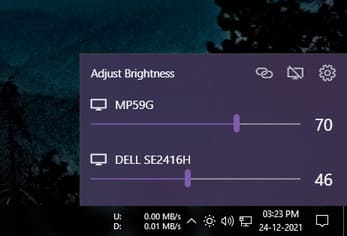
Twinkle Tray is one of the best Windows 10 apps that make your workflow easier. This app is intended for users with multiple monitors or desktop users. It allows you to control the brightness of the screen from the Taskbar. Just like the brightness slider on a laptop, it’s just more efficient.

It also has other features like synchronizing the brightness of both screens and a power off switch for your display.

5. NetSpeedMonitor
7 applications to help add features to Windows 15

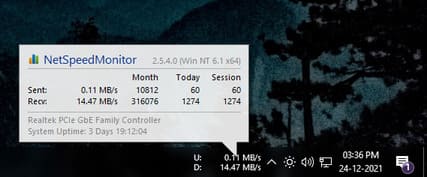
NetSpeedMonitor is another application on the Taskbar. Its only job is to tell you the Internet speed. NetSpeedMonitor is a speed monitor on the Taskbar, showing exactly how fast your internet connection is being used.

It also features logging of how much data you use each month, your average speed, and more. If you are someone who regularly downloads files or streams, then this 10 app is for you. It also supports previous versions of Windows.

6. Chocolatey
7 applications that help add features to Windows 16

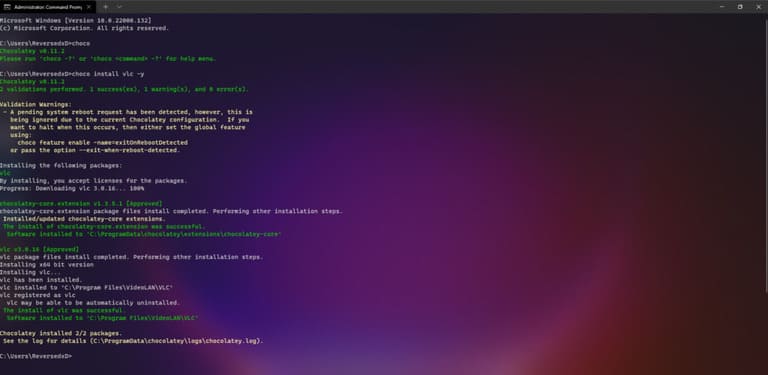
Chocolatey is a command line utility that allows you to install and update applications without visiting any websites or downloading an installer. Likewise, you can install many apps directly from here. It saves you the hassle of searching for apps and downloading them.

7. TaskbarX
7 applications to help add features to Windows 17

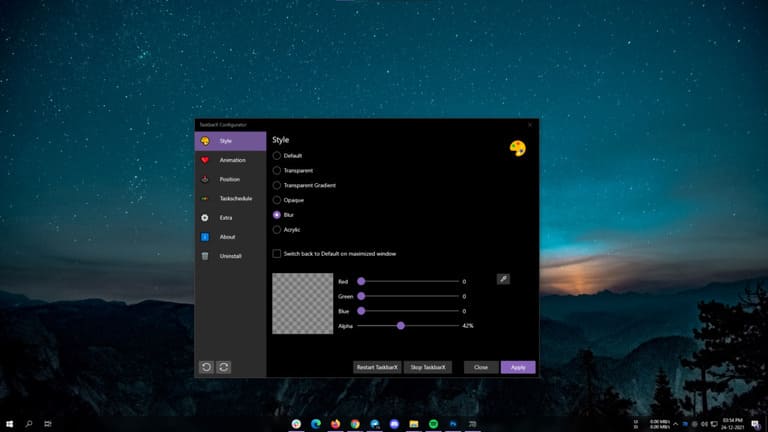
TaskbarX is more of a customization app than a utility app. However, it makes using PC more convenient. The application helps to change the icons on the Taskbar, just like Windows 10. However, this application has many different customization options.

You can easily change the Taskbar skin and it doesn’t consume much system resources. I prefer the Taskbar to be centered, which helps increase productivity, but that’s personal preference.

Ultimately, these 7 Windows 10 apps will help improve your Windows experience. In addition, you can also see a list of extensions to increase productivity here.


The article achieved: 5/5 – (100 votes)

Tags: AddappsfeaturesWindows
Previous Post

Lesson 61: How to create invoices in Excel

Next Post

Lesson 60: How to Plan a Meal in Excel

AnonyViet

AnonyViet

Related Posts

How to change the default font on Windows 10
Tips

How to change the default font on Windows 10

April 13, 2026
5 tips for using a Browser to replace an App (helps save RAM, time and money)
Tips

5 tips for using a Browser to replace an App (helps save RAM, time and money)

April 13, 2026
How to make funny MeMe photos without Photoshop within 10 seconds
Tips

How to make funny MeMe photos without Photoshop within 10 seconds

April 11, 2026
How to quickly design your own Logo without Photoshop
Tips

How to quickly design your own Logo without Photoshop

April 10, 2026
How to convert Website into App on Windows
Tips

How to convert Website into App on Windows

April 9, 2026
Instructions for getting 3 months of Adobe Express Pro for free
Tips

Instructions for getting 3 months of Adobe Express Pro for free

April 9, 2026
Next Post
Lesson 60: How to Plan a Meal in Excel

Lesson 60: How to Plan a Meal in Excel

0 0 votes
Article Rating
Subscribe
Login
Notify of
guest

guest

0 Comments
Oldest
Newest Most Voted
Inline Feedbacks
View all comments

Recent News

Japanese Watch Week: Choose the color that suits your destiny, start the new year well at Mobile World

Japanese Watch Week: Choose the color that suits your destiny, start the new year well at Mobile World

April 20, 2026
4K Video Downloader Plus – Tool to download YouTube videos on macOS

4K Video Downloader Plus – Tool to download YouTube videos on macOS

April 20, 2026
How to add Watermark to Google Docs to protect copyright

How to add Watermark to Google Docs to protect copyright

April 19, 2026
How to intercept traffic using Burp Suite to analyze HTTP/HTTPS

How to intercept traffic using Burp Suite to analyze HTTP/HTTPS

April 18, 2026
Japanese Watch Week: Choose the color that suits your destiny, start the new year well at Mobile World

Japanese Watch Week: Choose the color that suits your destiny, start the new year well at Mobile World

April 20, 2026
4K Video Downloader Plus – Tool to download YouTube videos on macOS

4K Video Downloader Plus – Tool to download YouTube videos on macOS

April 20, 2026
How to add Watermark to Google Docs to protect copyright

How to add Watermark to Google Docs to protect copyright

April 19, 2026
AnonyViet - English Version

AnonyViet

AnonyViet is a website share knowledge that you have never learned in school!

We are ready to welcome your comments, as well as your articles sent to AnonyViet.

Follow Us

Contact:

Email: anonyviet.com[@]gmail.com

Main Website: https://anonyviet.com

Recent News

Japanese Watch Week: Choose the color that suits your destiny, start the new year well at Mobile World

Japanese Watch Week: Choose the color that suits your destiny, start the new year well at Mobile World

April 20, 2026
4K Video Downloader Plus – Tool to download YouTube videos on macOS

4K Video Downloader Plus – Tool to download YouTube videos on macOS

April 20, 2026
No Result
View All Result
  • Home
  • News
  • Software
  • Knowledge
  • MMO
  • Tips
  • Security
  • Network
  • Office

wpDiscuz
0
0
Would love your thoughts, please comment.x
()
x
| Reply