• Home
  • News
  • Software
  • Knowledge
  • MMO
  • Tips
  • Security
  • Network
  • Office
AnonyViet - English Version
  • Home
  • News
  • Software
  • Knowledge
  • MMO
  • Tips
  • Security
  • Network
  • Office
No Result
View All Result
  • Home
  • News
  • Software
  • Knowledge
  • MMO
  • Tips
  • Security
  • Network
  • Office
No Result
View All Result
AnonyViet - English Version
No Result
View All Result

How to schedule a computer shutdown in Windows

AnonyViet by AnonyViet
January 26, 2023
in Software
0

You want to hang up the computer to play games or download and want to schedule the computer to turn off automatically after 3 hours. Very simply, WINdows has a built-in computer shutdown timer or you can use 3rd party software. In this article, I will show you how to schedule sleep mode in Windows.

Join the channel Telegram of the AnonyViet 👉 Link 👈

How to schedule a computer shutdown in Windows

How to schedule a computer shutdown in Windows

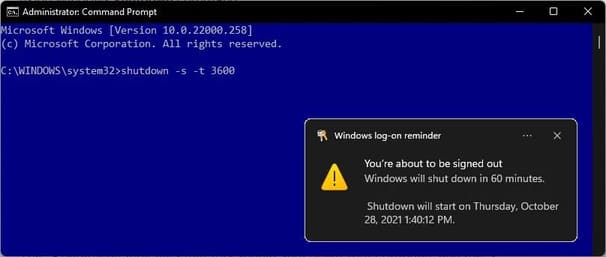
You can schedule shutdown mode in Windows to shut down your computer after a certain amount of time. The simplest way to do that is through the Command Prompt, using the command shutdown of Windows.

First, launch Command Prompt by pressing Windows + R and typing cmd then Enter.

Now enter the following command:

Shutdown -s -t 3600

The -s parameter is shutdown and the -t 3600 parameter is to wait 3600 seconds, which is equivalent to one hour. Just by typing this command, you can quickly schedule a shutdown.
How to schedule a computer shutdown in Windows 12

Create timer shortcut

If you want to use the timer frequently, you can create a shortcut to quickly turn on the timer. You can create a timer shortcut without having to open the Command Prompt.

You can also create a shortcut to cancel the timer.
How to schedule a computer shutdown in Windows 13

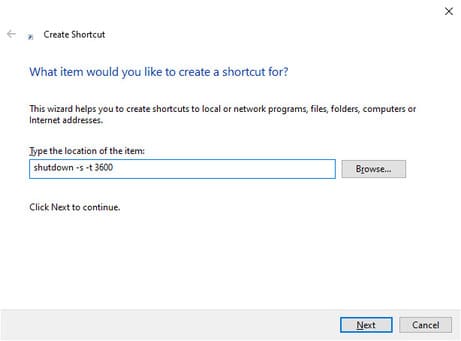
First, let’s create a new shortcut. Right click on your desktop and select New > Shortcuts. Copy and paste the following command:

Shutdown -s -t 3600

Name the shortcut and click finish.
How to schedule a computer shutdown in Windows 14

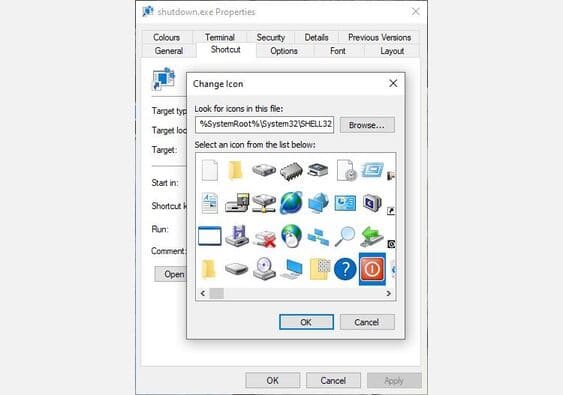
To change the icon, right click on the shortcut, select Propertiesthen click Change Icon. Choose the icon you like.

Create a shortcut to turn off the timer

You can create a shortcut to cancel the sleep timer.

Right click on your desktop and select New > Shortcuts. Copy and paste the following command:

Shutdown -a

Name the shortcut then click finish. Like the shortcut above, you can change the icon to easily distinguish 2 different shortcuts.

Dedicated shutdown timer app for Windows 10

If you do not want to use shortcuts or simply prefer a graphical user interface, then you can use some of the following specialized software.

1. SleepTimer Ultimate
How to schedule a computer shutdown in Windows 15

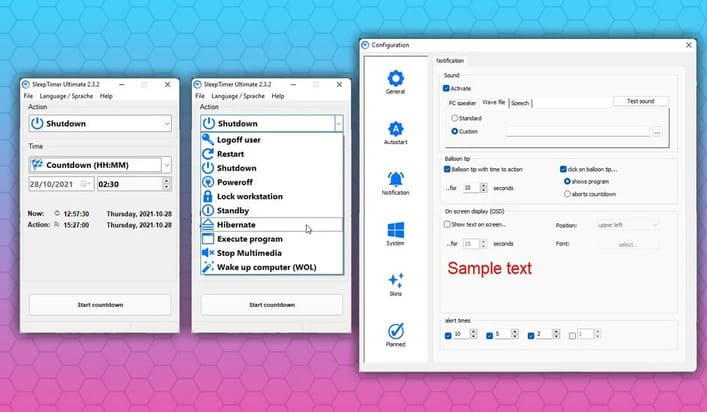
SleepTimer Ultimate is a free timer program with tons of functions.

You can use SleepTimer Ultimate to set multiple timers, each with different tasks. For example, you can set a specific date and time in the future for your computer to shut down or log out of your Windows account if the CPU reaches a certain level.

Another cool feature of SleepTimer Ultimate is the timer program launcher. You can set the program to launch after a specific amount of time. Plus, you can add a customizable timer overlay (like a widget) to your screen to keep track of the timer, making sure you know when the time is up.

Download: SleepTimer Ultimate for Windows (Free of charge)

2. Sleep Timer
How to schedule a computer shutdown in Windows 16

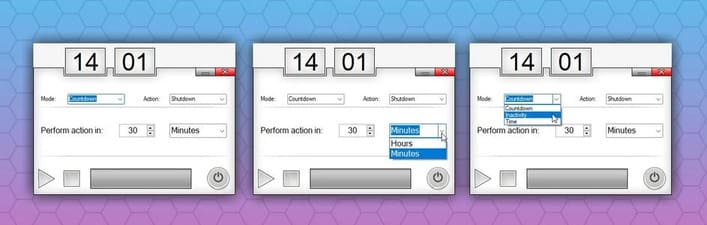
Sleep Timer takes a more basic approach than SleepTimer Ultimate. However, Sleep Timer has what you want: you set a timer, leave the computer, and it will turn off at the appropriate time.

The app’s developer originally envisioned Sleep Timer as the perfect tool for people who wanted to listen to music while they slept, but didn’t want to leave it on all night.

There are also timed reboot or hibernate options, and you can manually shutdown it after a period of inactivity.

Download: Sleep Timer for Windows (Free of charge)

3. Adios
How to schedule a computer shutdown in Windows 17

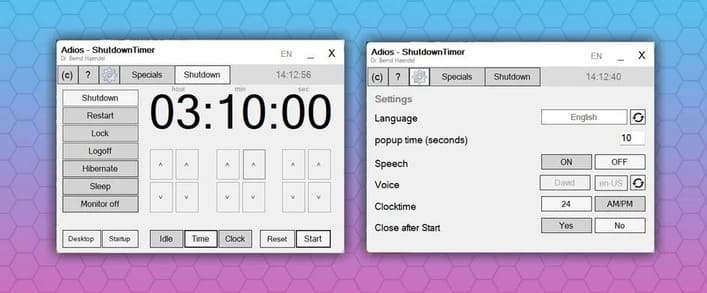
Adios is a free timer for Windows with a handy and easy to use user interface. There are options for timer shutdown, reboot, user logout and screen off. You use the up and down arrows to set the time.

You’ll also find an option to enable voice notifications for the shutdown timer, which is a pretty cool option.

Like SleepTimer Ultimate, you can use Adios to schedule programs to run.

Download: Adios for Windows (Free of charge)

Change sleep mode timer on Laptop

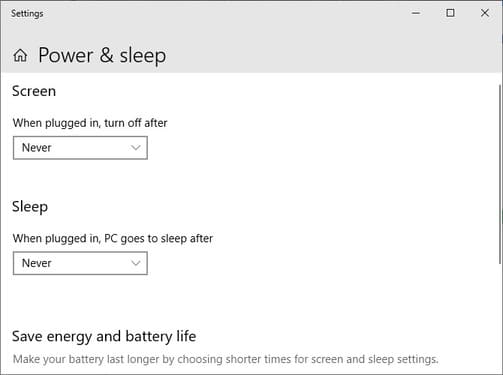
Windows 10 has a sleep timer and you probably already use it. When you are not using your computer, laptop, it will automatically go to sleep mode after a certain period of time.

To edit the amount of time before going to sleep, type sleep go to the Start Menu and select the first one. You can edit the sleep timer from this menu.
How to schedule a computer shutdown in Windows 18

There are two things to know about these options:

  • Screen: Set screen off time
  • Sleep: Set time to sleep

The first option does not put your entire computer to sleep. Instead, only the screen turns off. You can use the “Sleep” option to specify a specific amount of time before the system goes into hibernation.

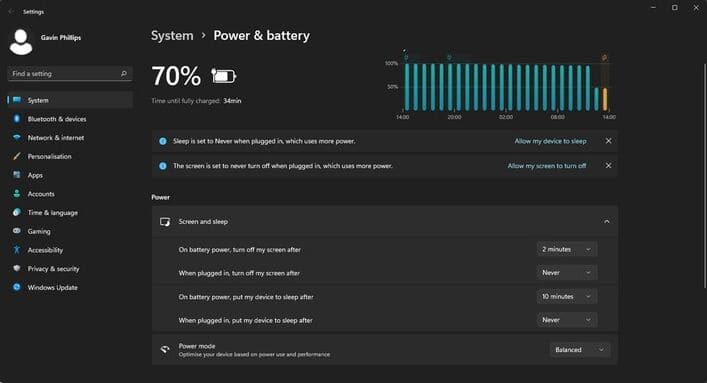
The sleep settings are similar in Windows 11, although the settings menu is different from Windows 10.
How to schedule a computer shutdown in Windows 19

In addition, you can also set the Windows 10 screen off time here.

The article achieved: 5/5 – (100 votes)

Tags: computerscheduleShutdownWindows
Previous Post

Hack Data 4G for free for 30 days with App OpenTunnel

Next Post

Lesson 67: How to limit your budget in Excel

AnonyViet

AnonyViet

Related Posts

Compact design, durable battery, excellent camera: Review of OPPO Reno 16 Pro 5G
Software

Compact design, durable battery, excellent camera: Review of OPPO Reno 16 Pro 5G

July 12, 2026
Download the free 3D Pinball Space Cadet game on the App Store now
Software

Download the free 3D Pinball Space Cadet game on the App Store now

July 12, 2026
Learn new skills with iPad 11 (A16) 128GB: when is enough, when should you upgrade to a higher level?
Software

Learn new skills with iPad 11 (A16) 128GB: when is enough, when should you upgrade to a higher level?

July 10, 2026
Instructions for taking free buses in Ho Chi Minh City from July 2026
Software

Instructions for taking free buses in Ho Chi Minh City from July 2026

July 9, 2026
3 steps to change Zalo number when sim is revoked
Software

3 steps to change Zalo number when sim is revoked

July 8, 2026
The simplest way to log out of Gmail on Huawei phones
Software

The simplest way to log out of Gmail on Huawei phones

July 5, 2026
Next Post
Lesson 67: How to limit your budget in Excel

Lesson 67: How to limit your budget in Excel

0 0 votes
Article Rating
Subscribe
Login
Notify of
guest

guest

0 Comments
Oldest
Newest Most Voted

Recent News

Instructions on how to create POV product review videos using Flow

Instructions on how to create POV product review videos using Flow

July 13, 2026
How to fix “This PC can’t run Windows 11” error This PC doesn’t meet the minimum system requirements

How to fix “This PC can’t run Windows 11” error This PC doesn’t meet the minimum system requirements

July 13, 2026
Compact design, durable battery, excellent camera: Review of OPPO Reno 16 Pro 5G

Compact design, durable battery, excellent camera: Review of OPPO Reno 16 Pro 5G

July 12, 2026
Download the free 3D Pinball Space Cadet game on the App Store now

Download the free 3D Pinball Space Cadet game on the App Store now

July 12, 2026
Instructions on how to create POV product review videos using Flow

Instructions on how to create POV product review videos using Flow

July 13, 2026
How to fix “This PC can’t run Windows 11” error This PC doesn’t meet the minimum system requirements

How to fix “This PC can’t run Windows 11” error This PC doesn’t meet the minimum system requirements

July 13, 2026
Compact design, durable battery, excellent camera: Review of OPPO Reno 16 Pro 5G

Compact design, durable battery, excellent camera: Review of OPPO Reno 16 Pro 5G

July 12, 2026
AnonyViet - English Version

AnonyViet

AnonyViet is a website share knowledge that you have never learned in school!

We are ready to welcome your comments, as well as your articles sent to AnonyViet.

Follow Us

Contact:

Email: anonyviet.com[@]gmail.com

Main Website: https://anonyviet.com

Recent News

Instructions on how to create POV product review videos using Flow

Instructions on how to create POV product review videos using Flow

July 13, 2026
How to fix “This PC can’t run Windows 11” error This PC doesn’t meet the minimum system requirements

How to fix “This PC can’t run Windows 11” error This PC doesn’t meet the minimum system requirements

July 13, 2026
  • Home
  • Home 2
  • Home 3
  • Home 4
  • Home 5
  • Home 6
  • Next Dest Page
  • Sample Page

say88 tỷ lệ kèo nhà cái kèo nhà cái 5 febet

No Result
View All Result
  • Home
  • News
  • Software
  • Knowledge
  • MMO
  • Tips
  • Security
  • Network
  • Office

say88 tỷ lệ kèo nhà cái kèo nhà cái 5 febet

wpDiscuz
0
0
Would love your thoughts, please comment.x
()
x
| Reply