Turn off automatic subtitles on iPhone and Macbook is the first thing I have to do right after the device gets a new operating system. Every time I open a few commemorative clips in the Photos app or browse Safari to see the news, the phonetic text keeps jumping out into the middle of the screen. The feeling of watching a video with text covering up the details is really frustrating! Let’s go together AnonyViet Discover the solution to eliminate this inconvenience now.
📢 Join the channel Telegram belong to AnonyViet
Update new articles, cool tools and IT tips fastest
The nuisance is called automatic subtitles
As of the iOS 27, iPadOS 27, and macOS 27 Golden Gate updates, Apple has integrated a quite special feature: automatically creating and displaying phonetic subtitles for videos. This feature appears even in places that are not professional movie watching applications, as long as that platform or website uses Apple’s default video player.
For example, when you open the Photos app to review old videos, or surf the web using Safari, the subtitles will automatically pop up. Sometimes you just want to admire the scenery or watch the gestures of the people in the video but your eyes keep being drawn to the text running below. That feeling is really distracting! Therefore, understanding how to turn off automatic subtitles on iPhone and Macbook becomes extremely important if you want to have the most comfortable viewing experience.

2 ways to turn off automatic subtitles on iPhone and Macbook
If you are watching a video and see subtitles suddenly appearing, don’t rush out in frustration. We can extinguish it on the spot with just two extremely simple touches on the screen:
Method 1
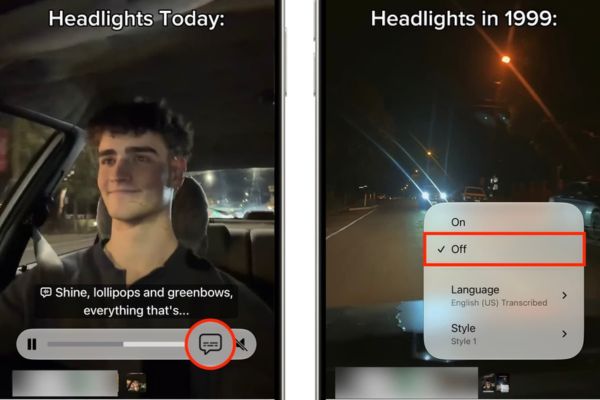
Step 1: While the video is playing on your iPhone, iPad, or Mac, tap or click the caption icon.
Step 2: Select item Off to stop displaying subtitles for the current video as well as all videos playing in that app in the future.
Additionally, if in some situations you still want to keep the subtitles for convenience but don’t like the default interface, you can also customize the language and text display style right in this area.
Method 2
Many of you will encounter a situation where you have chosen to turn off the video but sometimes the text still pops up. The reason is due to the above system iOS 27 and macOS 27 is programmed to automatically turn subtitles back on in three specific situations: when watching a video in another language, when the sound is muted, or when you press rewind the video a segment.
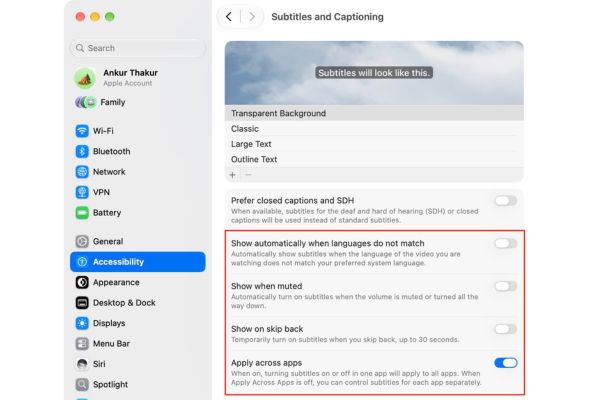
To completely stop this phenomenon, you need to intervene more deeply in the original settings through Accessibility. The steps are as follows:
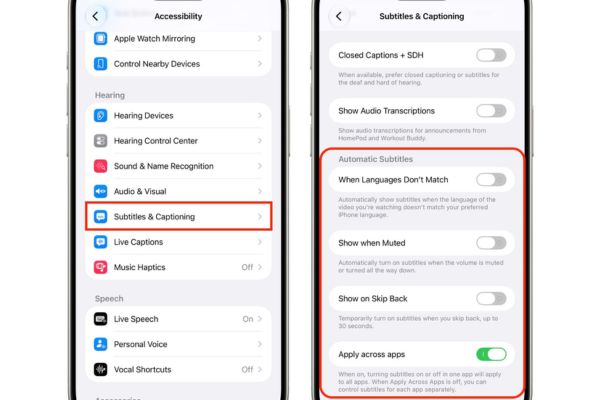
Step 1: Open Settings on iPhone, iPad running iOS 27, iPadOS 27 or open operating system System Settings on Macs using macOS 27 Golden Gate.
Step 2: Scroll to find and select the item Accessibility.
Step 3: Select item Subtitles & Captioning.
Step 4: In the Automatic Subtitles area, turn off the first three:
- When Languages Don’t Match: The system will not automatically translate and display subtitles even if the video you are watching is in a foreign language.
- Show When Muted: Subtitles will not pop out even if you reduce the video volume to mute.
- Show on Skip Back: The caption text will no longer appear every time you jump back a few seconds in the video.
At the same time, pay attention to the place Apply across apps (Apply across apps). If you toggle this item on, turning subtitles on or off in a single app (like Photos) will automatically apply to all other apps. If you turn off this switch, you can freely manage subtitles for each application independently according to your personal preferences.
How to restore subtitles when you need to watch?
Sometimes turning off subtitles can cause you some inconvenience if you accidentally watch a clip of a foreign document with difficult pronunciation. When needed, it only takes a few seconds to tap the captions icon on the player to reactivate captions for that video. Or you can just go back to the Accessibility section and turn back on the automatic switches you turned off before.
Conclusion
Know how Turn off automatic subtitles on iPhone and Macbook will help you no longer be inhibited every time you surf the web on Safari or reopen a video in Photos. Wishing you successful application and a truly eye-catching movie viewing experience!
FREQUENTLY ASKED QUESTIONS (Q&A)
1. Which applications does this automatic caption appear on?
This feature automatically activates on the Photos app, Safari browser, and any app that uses Apple’s default video player on iOS 27, iPadOS 27, or macOS 27 Golden Gate.
2. How to turn off subtitles for all applications at the same time?
Go to Settings or System Settings, access the Accessibility section, select Subtitles & Captions, then turn on the Apply across apps switch.
3. If I have turned off subtitles, can I turn them back on later?
Absolutely, just click on the caption icon on the video player you’re watching to reopen it, or go back to the Accessibility settings to turn on the automatic caption options.