• Home
  • News
  • Software
  • Knowledge
  • MMO
  • Tips
  • Security
  • Network
  • Office
AnonyViet - English Version
  • Home
  • News
  • Software
  • Knowledge
  • MMO
  • Tips
  • Security
  • Network
  • Office
No Result
View All Result
  • Home
  • News
  • Software
  • Knowledge
  • MMO
  • Tips
  • Security
  • Network
  • Office
No Result
View All Result
AnonyViet - English Version
No Result
View All Result

How to download all photos from Google Photos to transfer to another service

AnonyViet by AnonyViet
October 8, 2026
in Tips
0

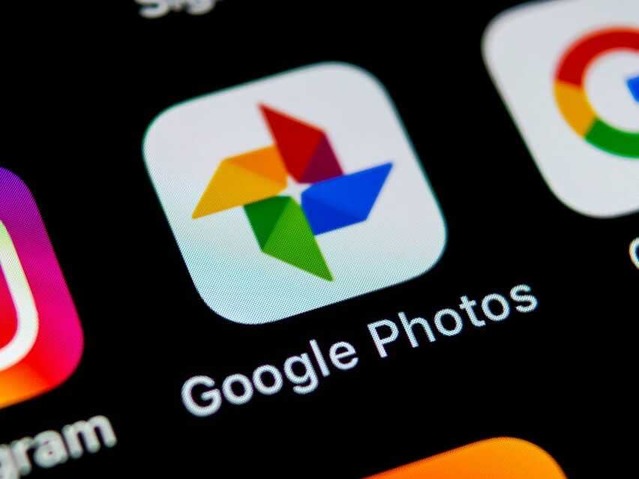
Google previously announced that it will stop supporting unlimited free high-quality storage for the Google Photos app from June 2021. So, I’m sure you’re looking for some Google Photos alternatives and how to download all photos from Google Photos, right?

📢 Join the channel Telegram belong to AnonyViet


👉 Go to Telegram AnonyViet

Update new articles, cool tools and IT tips fastest

How to download all photos from Google Photos to transfer to another service

There was a time when Google allowed unlimited original quality photo uploads on its Pixel devices. But from June 1, any photos or videos you upload will count towards your 15GB free storage. So, if you have used up all the space, I will guide you to download all photos from Google Photos to transfer to another service. You can choose 1 in 5 alternative photo hosting services as good as Google.

How to download all Google Photos data?

Downloading all images and videos from Google Photos will be very stable in one go. Google offers a feature called Takeout allows you to export all your Google Photos data.

Step 1: To use Takeout, first you need to log in this link on PC.

Step 2: Next, tap on the item Data & personalization in the menu on the left.
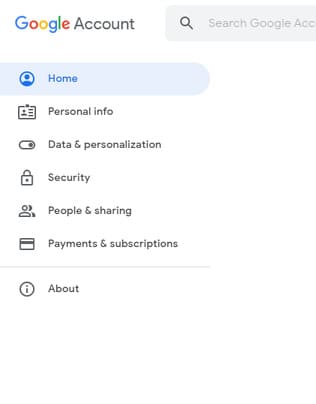
Data & personalization

Step 3: Scroll down and tap Download your data.
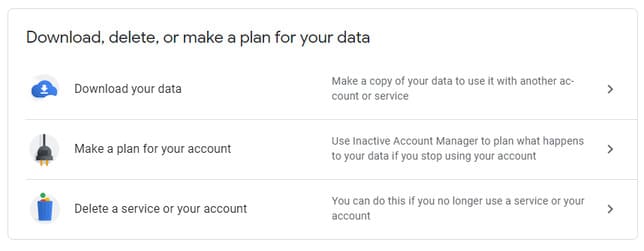
Download your data

Step 4: Next, Google Takeout will display a list of data that you can export. Click options Deselect all.
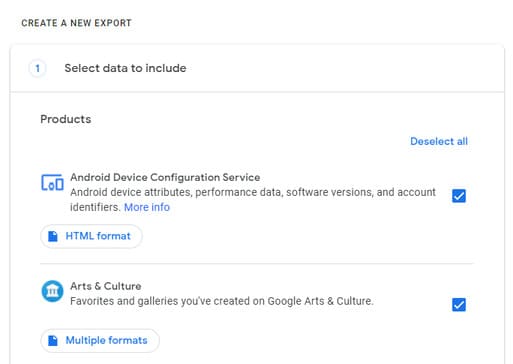
Deselect all

Step 5: Then scroll down and select Google Photos.
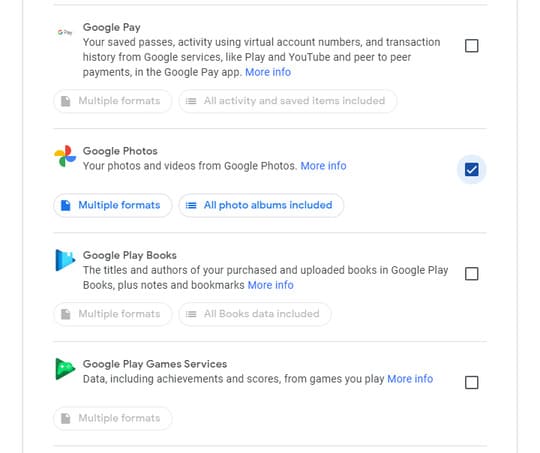
Google Photos

Step 6: Here, you can also download individual Google Photos albums by clicking a button All photo albums included.

Step 7: Scroll down and tap Next.

Step 8: Next, you need to choose download methods such as receiving an email link or transferring data directly to Dropbox or another cloud service. You can also decide how often the data will be uploaded, the file type and the minimum file size after which the data will be split into multiple files.
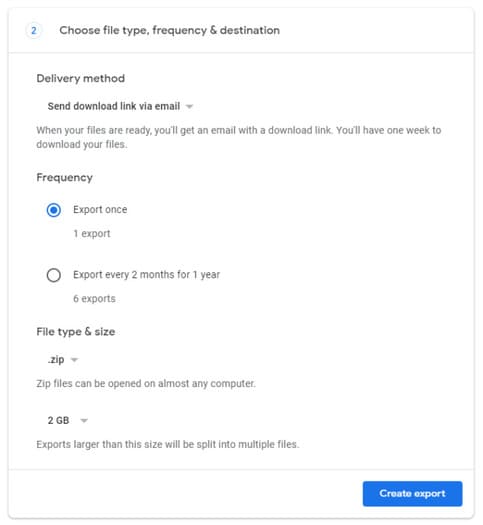
google photos photo download method

Step 9: Once you’re done, click the button Create Export. Depending on the amount of data, it can take Google a few hours to a few days to create the export file. If you are a photographer, the data must be hundreds of GB, right? At this point, waiting for Google to create an export file is just crying.
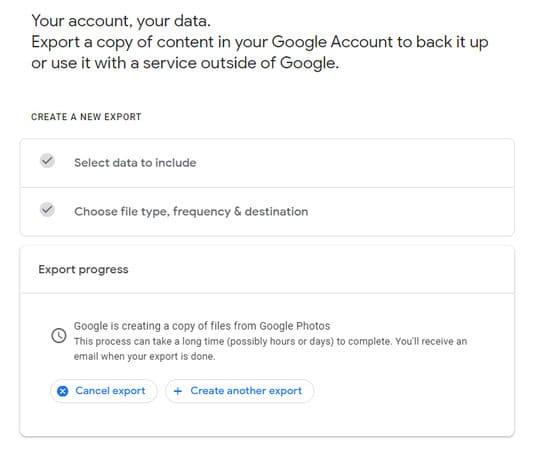
Create Export

That’s how you can download all your Google Photos images and videos to back them up elsewhere. You can return to the Google takeout page again to check the status of your export file.

How to transfer Google Photos data to other cloud services?

If your Google storage is running low, you can transfer your images and videos to other cloud services. You can refer to Step 8 above, Google can directly transfer your data to cloud services like Dropbox, OneDrive and Box.

For unsupported cloud services like Apple’s iCloud, you’ll have to download the data on your device and then upload it back to iCloud manually.
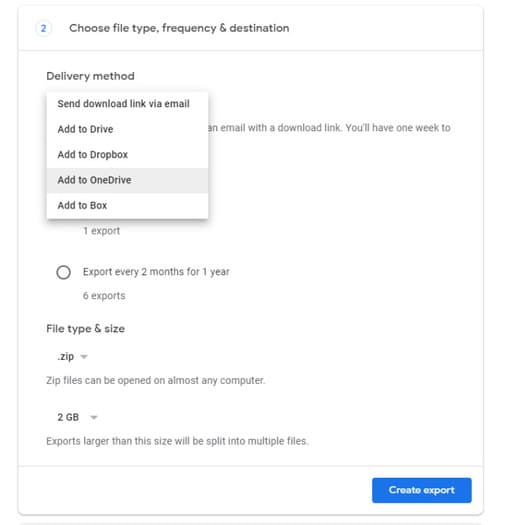
How to transfer Google Photos data to other cloud services?

And that’s all you need to know about how to get all your photos from Google Photos to another service. Additionally, you can learn more interesting facts about Google that you didn’t know here.

Frequently asked questions

Can I download all my photos and videos from Google Photos?

Yes, you absolutely can. Google offers a Takeout tool to export all your Google Photos data.

How to transfer photos from Google Photos to other cloud storage services?

Google Takeout allows transferring data directly to a number of services such as Dropbox, OneDrive and Box. For other services, you need to download data and then upload it manually.

How long does it take to download data from Google Photos?

Download time depends on data capacity. It can take from a few hours to a few days to complete the process.
Previous Post

How to use newly updated utilities on Windows 10

AnonyViet

AnonyViet

Related Posts

How to use newly updated utilities on Windows 10
Tips

How to use newly updated utilities on Windows 10

October 7, 2026
Stealth Reader – Web story reader with Excel interface without being detected by the boss
Tips

Stealth Reader – Web story reader with Excel interface without being detected by the boss

October 7, 2026
Tips for handling when JPG images cannot be saved in Photoshop
Tips

Tips for handling when JPG images cannot be saved in Photoshop

October 6, 2026
Windows 11 release date and new features
Tips

Windows 11 release date and new features

October 6, 2026
How to rename Columns or Rows in Google Sheets
Tips

How to rename Columns or Rows in Google Sheets

October 5, 2026
How to install the latest Windows 11
Tips

How to install the latest Windows 11

October 4, 2026
0 0 votes
Article Rating
Subscribe
Login
Notify of
guest

guest

0 Comments
Oldest
Newest Most Voted

Recent News

How to download all photos from Google Photos to transfer to another service

How to download all photos from Google Photos to transfer to another service

October 8, 2026
How to use newly updated utilities on Windows 10

How to use newly updated utilities on Windows 10

October 7, 2026
Stealth Reader – Web story reader with Excel interface without being detected by the boss

Stealth Reader – Web story reader with Excel interface without being detected by the boss

October 7, 2026
Tips for handling when JPG images cannot be saved in Photoshop

Tips for handling when JPG images cannot be saved in Photoshop

October 6, 2026
How to download all photos from Google Photos to transfer to another service

How to download all photos from Google Photos to transfer to another service

October 8, 2026
How to use newly updated utilities on Windows 10

How to use newly updated utilities on Windows 10

October 7, 2026
Stealth Reader – Web story reader with Excel interface without being detected by the boss

Stealth Reader – Web story reader with Excel interface without being detected by the boss

October 7, 2026
AnonyViet - English Version

AnonyViet

AnonyViet is a website share knowledge that you have never learned in school!

We are ready to welcome your comments, as well as your articles sent to AnonyViet.

Follow Us

Contact:

Email: anonyviet.com[@]gmail.com

Main Website: https://anonyviet.com

Recent News

How to download all photos from Google Photos to transfer to another service

How to download all photos from Google Photos to transfer to another service

October 8, 2026
How to use newly updated utilities on Windows 10

How to use newly updated utilities on Windows 10

October 7, 2026
  • Home
  • Home 2
  • Home 3
  • Home 4
  • Home 5
  • Home 6
  • Next Dest Page
  • Sample Page

say88 tỷ lệ kèo nhà cái kèo nhà cái 5 febet

No Result
View All Result
  • Home
  • News
  • Software
  • Knowledge
  • MMO
  • Tips
  • Security
  • Network
  • Office

say88 tỷ lệ kèo nhà cái kèo nhà cái 5 febet

wpDiscuz
0
0
Would love your thoughts, please comment.x
()
x
| Reply