JPG images cannot be saved in Photoshop This is a fairly common situation that confuses many new users of this software. In fact, the cause often stems from very small settings that we accidentally ignore while working. Let’s explore with AnonyViet how to thoroughly handle this problem.
📢 Join the channel Telegram belong to AnonyViet
Update new articles, cool tools and IT tips fastest
Why does an error occur when JPG images cannot be saved in Photoshop?
Format JPG has long become a “national” in the photo sharing world. Thanks to the advantage of compact capacity, easy to send via text message or post on social networks without wasting much time, JPG is always the priority choice of designers after completing their work. However, life is not like a dream. Sometimes you are busy editing a beautiful photo, press “Save As” and suddenly realize that the JPG has disappeared.
So why do you get an error of not being able to save JPG images in Photoshop? Below are two core causes leading to this ironic situation.
The photo is in the wrong color mode.
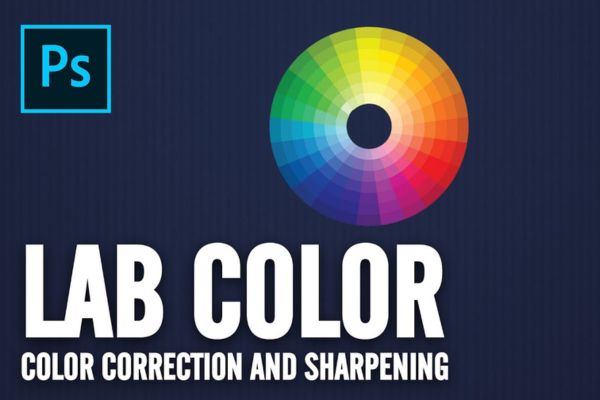
To put it simply, each image format created has its own “mission”. The JPG format is a popular compression standard, it is designed to be compatible with RGB color system (color system used to display on electronic screens such as phones and computers) and CMYK color system (used for basic printing needs).
If during the design process, you accidentally or intentionally set your file in more complex and specific color systems such as Lab Color, Multichannel or Indexed Color, then Photoshop will automatically hide the JPG extension. The reason is because the JPG format is too small, it is not strong enough to store all the huge color data of those other color systems. Therefore, the software hides it to prevent you from accidentally saving it and ruining the color of the photo.
Bit depth is too high
This is the most common culprit. The situation of not being able to save JPG images in Photoshop often happens when you open and edit extremely high quality image files, typically RAW images taken from professional cameras.
The nature of JPG is compression and capacity optimization. Therefore, its storage capacity is limited to the standard level of 8-bit/channel. Meanwhile, those high-end photos often have color depths of up to 16-bit or even 32-bit.
When you’re holding such a huge block of color data, Photoshop will absolutely not allow you to save straight to JPG. Instead, it forces you to save in other, heavier formats so as not to break or damage the complex color ranges you’ve worked hard to edit.
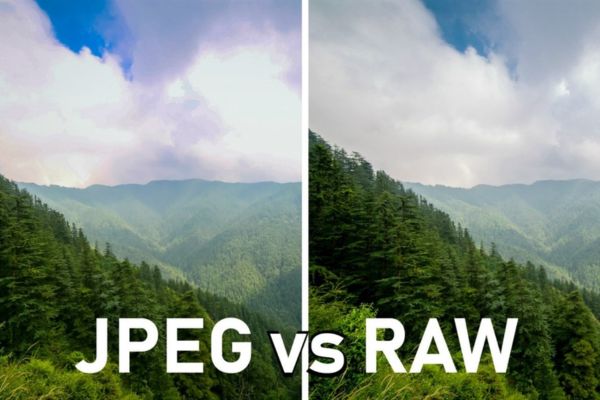
Compare parameters that affect saving JPG files
To make it easier for you to imagine, I have summarized the compatible and incompatible parameters with the JPG format through the table below:
| Test element | Supports saving JPG (Standard) | JPG saving is not supported (Causes an error) | Why does Photoshop hide JPGs? |
| Color Mode | RGB Color, CMYK Color | Lab Color, Multichannel, Indexed Color | JPG cannot contain data of these specific color systems. |
| Color Depth (Bit Depth) | 8 Bits/Channel | 16 Bits/Channel, 32 Bits/Channel | JPG is a compression standard, limited to maximum storage at 8-bit. |
How to handle when JPG images cannot be saved in Photoshop
To completely solve the problem of not being able to save JPG images in Photoshop, you just need to follow the following order:
Step 1: First, open the photo that is having an error that cannot be saved. Looking at the top menu bar of Photoshop, click on the item Imagethen drag the mouse to select the item Mode. A drop-down menu will appear with many parameters.
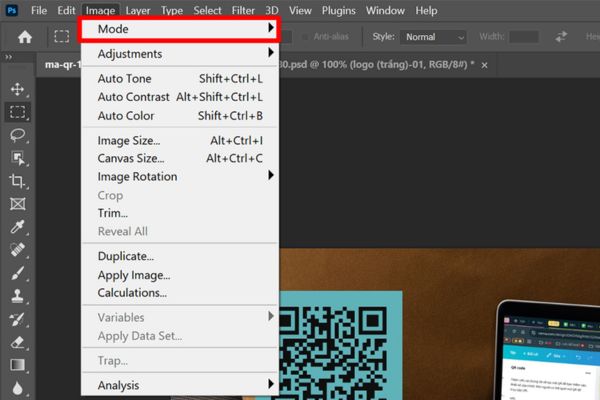
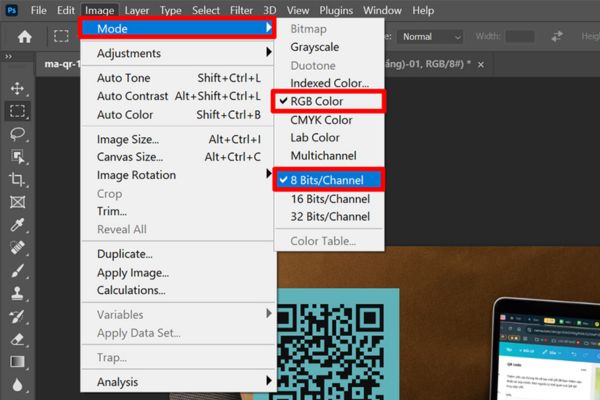
Step 2: In this menu, look at the top half. If you see tick marks in strange color systems, immediately click on the line RGB Color (if the photo is used for posting on the web or viewing on the phone) or CMYK Color (if you plan to print it).
Step 3: Continue looking down at the bottom half of that Mode menu. If you see the image is ticked in the 16 Bits/Channel or 32 Bits/Channel line, please feel free to click on the line. 8 Bits/Channel. Thanks to that, your photo has been brought to the correct compression standard.
Step 4: After you have set up the above 2 parameters, select the item File On the menu bar, click Next Save as.
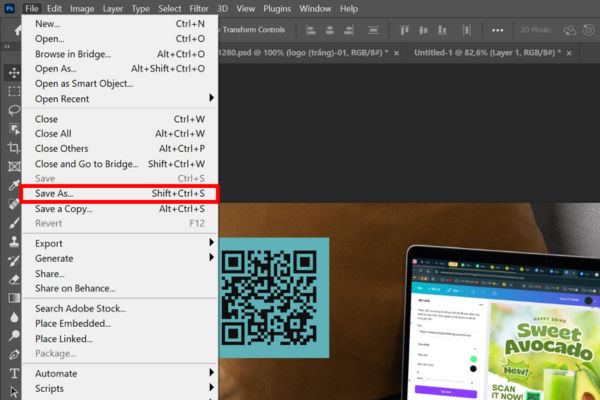
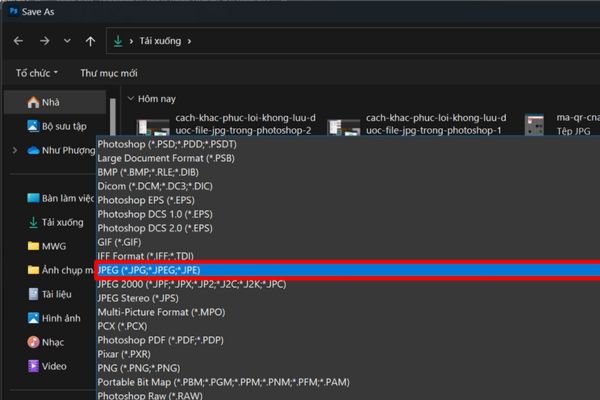
Now, in the file format section, you scroll down the list and boom! The JPG extension has reappeared. Finally, you just need to select the JPG format and click Save that’s it.
Conclusion
In short, work JPG images cannot be saved in Photoshop is just a software file protection mechanism, not a serious error. Just set the color system to RGB and lower it to 8-bit and you can export the file normally. I hope you apply it successfully and have truly satisfactory works.
Frequently Asked Questions (Q&A)
1. Why can’t RAW images taken from the camera be saved directly to JPG?
Because RAW images often contain huge amounts of color data with color depths up to 16-bit or 32-bit. Meanwhile, the JPG format only supports up to 8-bit, so Photoshop will block you from saving directly to avoid damaging the color range.
2. Will switching from 16-bit to 8-bit make my photos blurry or worse?
For normal viewing needs on phones, computers or social media posting, it is very difficult for the human eye to recognize the difference between 8-bit and 16-bit. Downgrading to 8-bit mainly helps optimize the capacity to save as JPG.
3. What color system should I set so that Photoshop will allow saving as JPG?
To save JPG images, you must set the color system to RGB Color (for screen display) or CMYK Color (for printing). Other color systems such as Lab Color or Indexed Color will not be supported.