• Home
  • News
  • Software
  • Knowledge
  • MMO
  • Tips
  • Security
  • Network
  • Office
AnonyViet - English Version
  • Home
  • News
  • Software
  • Knowledge
  • MMO
  • Tips
  • Security
  • Network
  • Office
No Result
View All Result
  • Home
  • News
  • Software
  • Knowledge
  • MMO
  • Tips
  • Security
  • Network
  • Office
No Result
View All Result
AnonyViet - English Version
No Result
View All Result

Instructions on how to convert text into QR codes in Word

AnonyViet by AnonyViet
October 5, 2026
in Office
0

How to convert text into QR code in Word is an extremely interesting trick that not everyone knows. Instead of having to use external websites, you can completely do this right in the familiar editor. Thanks to that, your work will become much more professional and faster. Let’s go together AnonyViet Discover now!

📢 Join the channel Telegram belong to AnonyViet


👉 Go to Telegram AnonyViet

Update new articles, cool tools and IT tips fastest

Benefits of creating QR codes in Word

Previously, every time we wanted to create a scan code containing personal information, we often had to open the browser, search for websites that supported code creation, then download the image and then insert it back into the document. This process is really time consuming and sometimes poses potential data security risks.

Instead, when you work directly on the editing software Word, All your data is kept completely private on your personal computer. Thanks to that, you no longer have to worry about sensitive information such as phone numbers or emails being leaked to the outside world.
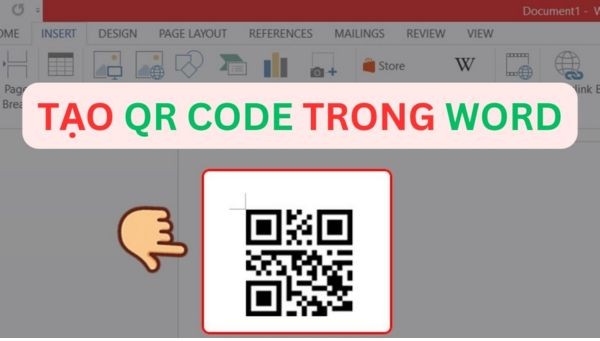
Instructions on how to convert text into QR codes in Word
Benefits of creating QR codes in Word

Instructions on how to convert text into QR codes in Word

Just follow the steps below and you will see that everything is as easy as eating candy.

Step 1: First, open a new document page. Here, you start typing the information you want others to read when they scan the code. Just type normally as you would when editing a regular piece of text.
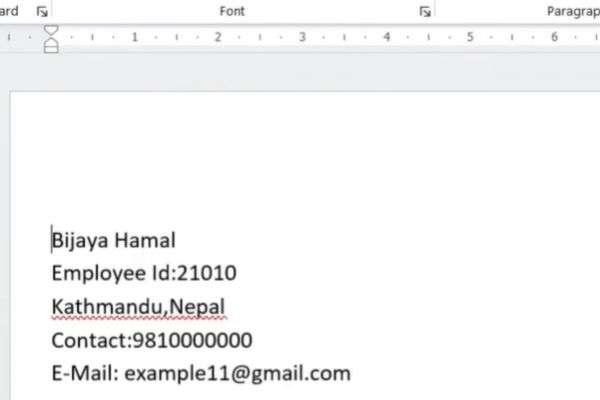
Type the information you want to create into Barcode

Step 2: More Displaybarcode“ “qr so that 2 quotes are between the information you want to create code.
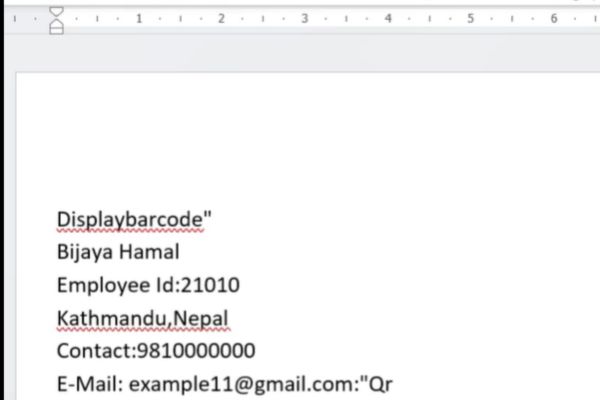
Add Displaybarcode“ “qr

Step 3: Use the mouse to highlight all the text. Then press the key combination Ctrl + F9 on the computer keyboard. Immediately, you will see your command line neatly encapsulated in a special pair of system curly braces.
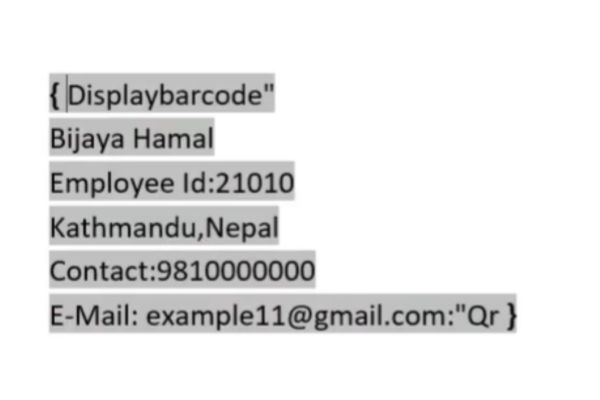
Press the key combination Ctrl + F9

Step 4: Right-click the text area that just closed the braces, then select the command line Toggle Field Codes Let the QR code display instead of the text line.
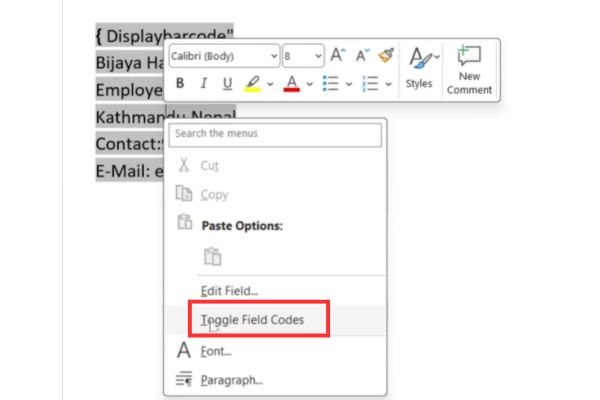
Select the Toggle Field Codes command line

So, with just a few simple and quick hand operations, you have an extremely fast and quality QR code that readers can easily scan with their smartphones.
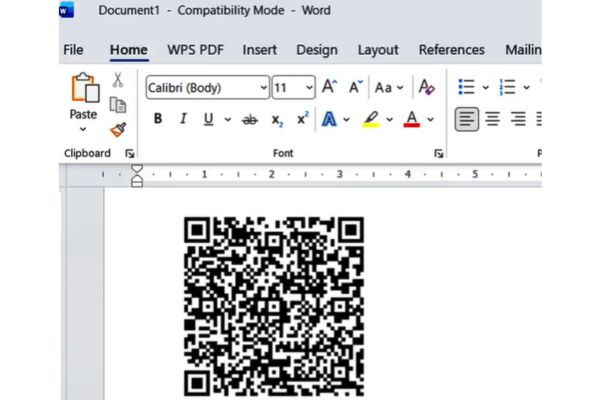
Instructions on how to convert text into QR codes in Word

Practical application of this tip at work

Actually, knowing how to convert text into QR codes in Word will help you a lot in real situations. For example, when you make a job application, instead of writing a long paragraph about the projects you have done, you just need to create a compact scan code in the corner of the page. Employers only need a quick scan to see your creativity and professionalism. In addition, when making business cards or employee cards, this trick also helps save maximum printing space.

Conclusion

Hopefully through this article, you have mastered it How to convert text into QR code in Word. Instead of fiddling with external tools, you can now do everything yourself right on your computer. Don’t forget to share this tip with your friends.

Frequently Asked Questions (Q&A)

1. Can this command be used on older versions?

This trick works best on versions from 2013 and above, older versions may not fully support this feature.

2. Can I change the color of this square code?

Unfortunately, the default command only creates images in basic black and white to ensure easiest reading by the scanner.

3. Does the generated code expire?

This code contains static data directly inside, so it will last forever and will never expire.
Tags: codesconvertInstructionstextword
Previous Post

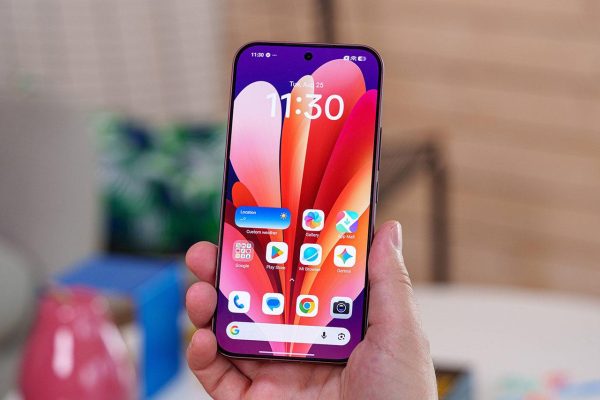
The truth about POCO F9 Ultra: Is this device really worth your money?

AnonyViet

AnonyViet

Related Posts

Tool to adjust the format of administrative documents according to Decree 30
Office

Tool to adjust the format of administrative documents according to Decree 30

October 1, 2026
How to add Watermark to Google Docs to protect copyright
Office

How to add Watermark to Google Docs to protect copyright

April 19, 2026
Instructions on how to hide formulas in Excel to secure data
Office

Instructions on how to hide formulas in Excel to secure data

February 6, 2026
Top who creates the most beautiful presentation slide today
Office

Top who creates the most beautiful presentation slide today

September 23, 2025
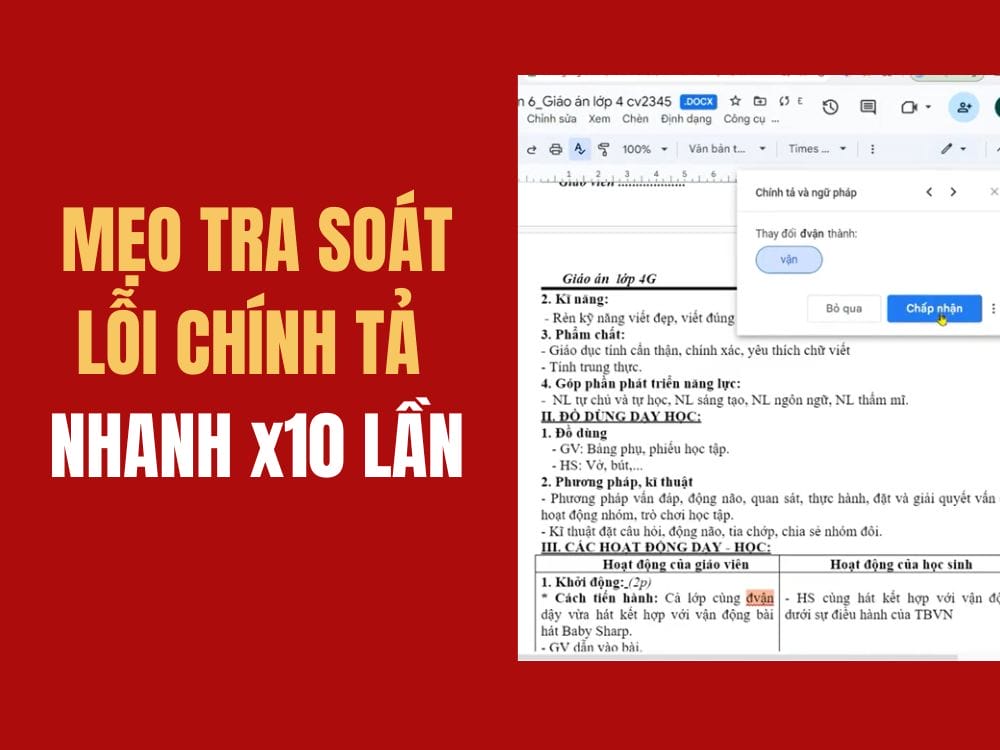
Automatically check and correct spelling errors on Google Docs
Office

Automatically check and correct spelling errors on Google Docs

February 23, 2025
Instructions for downloading Google Docs files easily on any device
Office

Instructions for downloading Google Docs files easily on any device

December 18, 2024
0 0 votes
Article Rating
Subscribe
Login
Notify of
guest

guest

0 Comments
Oldest
Newest Most Voted

Recent News

Instructions on how to convert text into QR codes in Word

Instructions on how to convert text into QR codes in Word

October 5, 2026
The truth about POCO F9 Ultra: Is this device really worth your money?

The truth about POCO F9 Ultra: Is this device really worth your money?

October 5, 2026
How to rename Columns or Rows in Google Sheets

How to rename Columns or Rows in Google Sheets

October 5, 2026
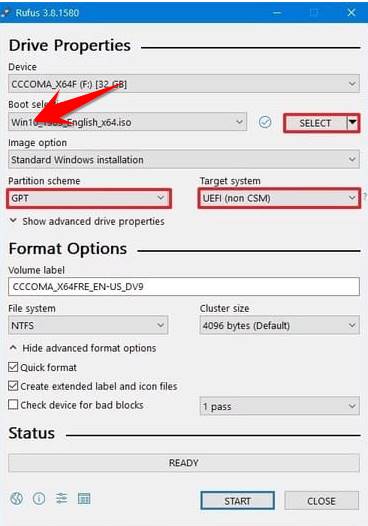
How to install the latest Windows 11

How to install the latest Windows 11

October 4, 2026
Instructions on how to convert text into QR codes in Word

Instructions on how to convert text into QR codes in Word

October 5, 2026
The truth about POCO F9 Ultra: Is this device really worth your money?

The truth about POCO F9 Ultra: Is this device really worth your money?

October 5, 2026
How to rename Columns or Rows in Google Sheets

How to rename Columns or Rows in Google Sheets

October 5, 2026
AnonyViet - English Version

AnonyViet

AnonyViet is a website share knowledge that you have never learned in school!

We are ready to welcome your comments, as well as your articles sent to AnonyViet.

Follow Us

Contact:

Email: anonyviet.com[@]gmail.com

Main Website: https://anonyviet.com

Recent News

Instructions on how to convert text into QR codes in Word

Instructions on how to convert text into QR codes in Word

October 5, 2026
The truth about POCO F9 Ultra: Is this device really worth your money?

The truth about POCO F9 Ultra: Is this device really worth your money?

October 5, 2026
  • Home
  • Home 2
  • Home 3
  • Home 4
  • Home 5
  • Home 6
  • Next Dest Page
  • Sample Page

say88 tỷ lệ kèo nhà cái kèo nhà cái 5 febet

No Result
View All Result
  • Home
  • News
  • Software
  • Knowledge
  • MMO
  • Tips
  • Security
  • Network
  • Office

say88 tỷ lệ kèo nhà cái kèo nhà cái 5 febet

wpDiscuz
0
0
Would love your thoughts, please comment.x
()
x
| Reply