How to turn off Write with Siri on iOS 27 will help you regain the familiar and neat typing interface on your iPhone. No matter how smart AI is, we don’t always need it to get involved in normal keyboard chats. Therefore hiding it is a completely reasonable choice. Let’s go together AnonyViet Find out how to handle this problem.
📢 Join the channel Telegram belong to AnonyViet
Update new articles, cool tools and IT tips fastest
The appearance of AI on the new keyboard
Recently Apple officially joined hands with Google. They used a custom Gemini model to upgrade Siri. Thanks to that, this virtual assistant is much smarter! Of course, Apple will not miss the opportunity to force us to pay attention to this new feature.
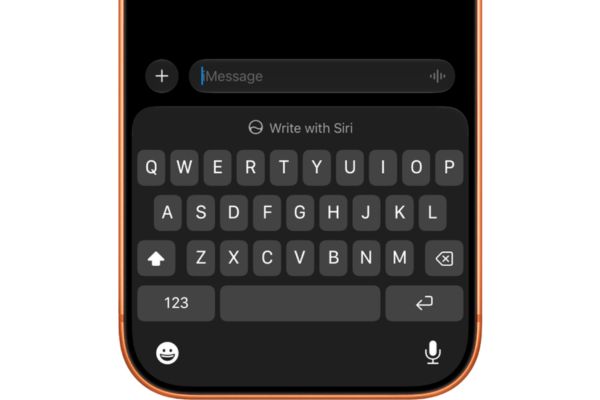
The most obvious change is that Siri blatantly takes over the vocabulary prediction area on the keyboard. As soon as you type a word, it shrinks into one Tiny icon in the corner. This experience immediately reminded me of the ungainly Copilot icon on the keyboard SwiftKey. I hate it when the writing support button keeps appearing on the default keyboard because it’s really distracting.
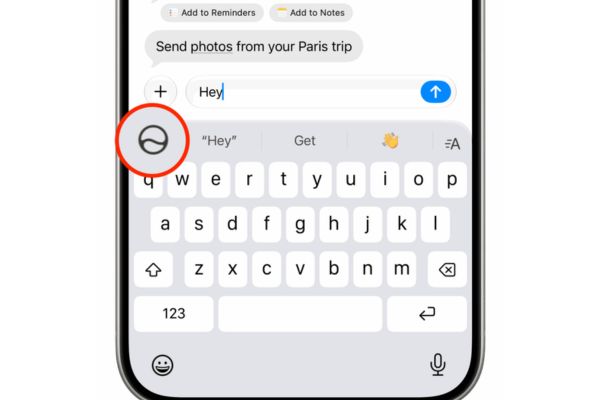
Why should you know how to turn off Write with Siri on iOS 27?
Of course, this feature is still useful in some specific cases. For example, when you are using the Pages application to draft long documents, it is quite reasonable to ask AI to read and detect spelling errors or rewrite a few sentences to make them smoother. But think about it, why do I have to click that button when I’m chatting normally with friends in the Messages app? It feels very redundant.
In addition, I always have an invisible fear that overusing these AI writing tools will gradually make myself and everyone around me become lazier and more incompetent over the years. I really don’t want to have to depend on artificial intelligence just to jot down a few thoughts or send an email to a colleague. Therefore, finding out how to turn off Write with Siri on iOS 27 is something I must do immediately.
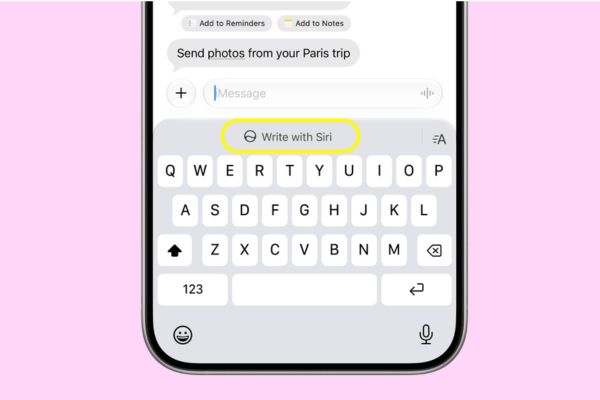
Instructions on how to turn off Write with Siri on iOS 27
Because Apple There is no simple switch designed in the Siri settings for us to quickly turn on and off, so everything will be a bit cumbersome. We’ll have to take a detour through the screen time limit feature. To successfully apply this method of turning off Write with Siri on iOS 27, you just need to follow the steps below:
Step 1: Open the application Settings.
Step 2: Scroll down and click on the item Screen Time.
Step 3: Continue searching and clicking on the section Content & Privacy Restrictions.
Step 4: Flip the switch to turn on the feature Content & Privacy Restrictions.
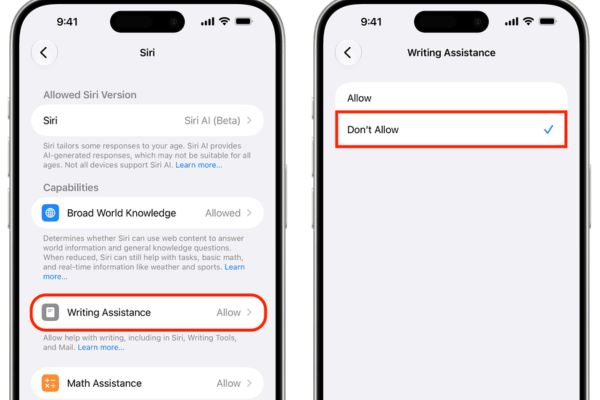
Step 5: Scroll down a bit and tap the item Siri.
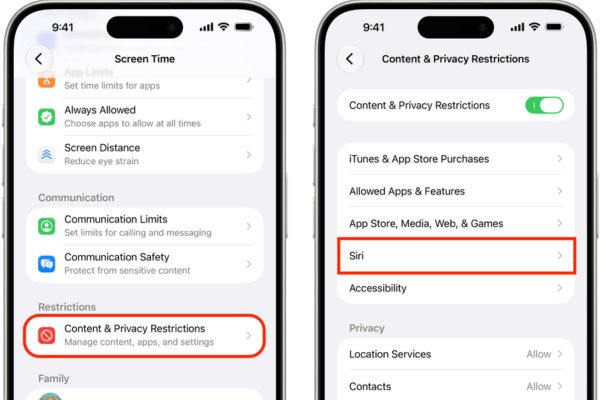
Step 6: Here you will see the section Writing Assistanceclick on it and set it to Don’t Allow (Not allowed).
Step 7: Finally, you just need to close the application you are typing and reopen it, or best of all, restart your iPhone.
Notes after hiding the AI icon
After completing the above steps, that annoying writing assistance button will no longer be sitting above your keyboard. Even the miniature Siri icon in the left corner of the word prediction row has disappeared. However, don’t worry too much because the Siri option will still appear in the menu panel every time you highlight a piece of text. Thanks to that, you can still call AI to correct article errors when really necessary.
In case you feel too tired with the current beta, there is still time to downgrade your device to iOS 26 version. But remember that when the new version is officially released in September, Apple will block signing of the old version. At that point, you won’t be able to turn back anymore.
Conclusion
So we have just gone through the instructions How to turn off Write with Siri on iOS 27 It’s extremely detailed. Thanks to that, you can freely type as you like without worrying about being dependent on artificial intelligence. Try applying it today.
Frequently Asked Questions (Q&A)
1. Will turning off this feature cause Siri to be lost?
Absolutely not. You’re just hiding the writing support button on the keyboard, while the Siri voice assistant and other features still work normally. When highlighting text, you can still call AI to correct errors.
2. Why is my Apple ID Sign Out button greyed out after following the instructions?
It’s a side effect of turning on Content and Privacy Restrictions in Screen Time. You just need to turn off this limited feature and the Log Out button will light up and can be pressed normally.
3. I’m using the beta version but I see too many errors, what should I do?
If you feel that the beta version is too unstable, you should quickly downgrade to iOS 26 version before Apple officially releases the new update in September and block signing of the old version.