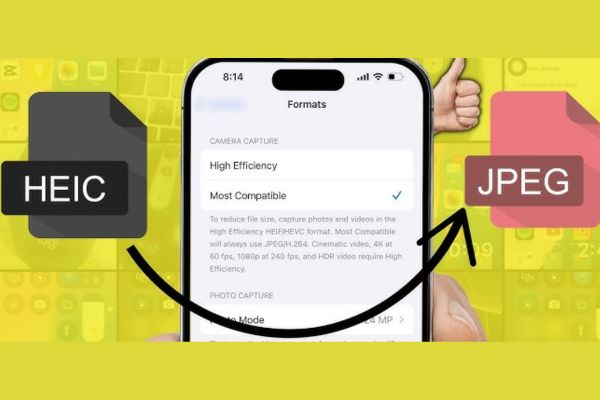
Have you ever had trouble sending photos from iPhone to a Windows computer or Android phone? The main reason is because of the HEIC format. How to convert HEIC photos to JPG on iPhone will completely solve this problem, making all your photos viewable anywhere. Let’s find out with AnonyViet right here.
📢 Join the channel Telegram belong to AnonyViet
Update new articles, cool tools and IT tips fastest
Instructions on how to convert HEIC photos to JPG on iPhone
Let your iPhone start taking photos in the format JPG Instead of HEIC, you just need to change a small setting in your device. This will affect all photos and videos taken after the change.
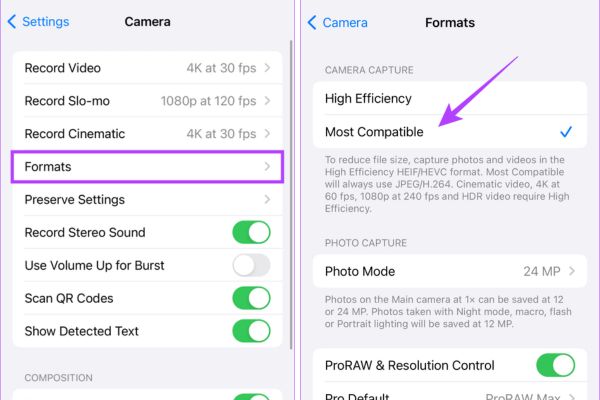
Step 1: From the home screen, open the Settings app.
Step 2: Scroll down and find the item Camera.
Step 3: Click on the line Format (Formats).
Step 4: Here, you will see two options. Please tick the item Most compatible (Most Compatible).
Important note: When you select “Most Compatible,” not only will photos be saved as JPG, but videos will also be recorded in MOV format (H.264 encoding) instead of HEVC (H.265). You can completely return to the “High Performance” setting at any time if you want.
Should or not? Compare pros and cons
The decision to convert the format depends greatly on your usage needs. Below is a quick comparison table and detailed analysis to give you an overview.
| Criteria | HEIC format (High Performance) | JPG Format (Most Compatible) |
| Capacity | Smaller, helps save significant storage space. | Bigger, fills up iPhone and iCloud storage faster. |
| Compatible | Low, mostly works well on new Apple devices. | Very high, supported by most devices and software. |
| Quality | Higher, supports wide color gamut and 16-bit color depth. | Good, but lower quality than HEIC, only supports 8-bit color. |
| Edit | New software updates are needed to support this format. | Almost all photo editing programs support it. |
Advantages of switching to JPG
- Enhance compatibility: This is the biggest benefit. JPG photos can be opened, viewed, and shared on nearly any device, from old Windows computers to Android phones, without any problems.
- Edit photos more easily: Most photo editing software, from professional to amateur, is built to work smoothly with JPG files. You will not need to worry about the software not recognizing your image file.
- MOV (H.264) video is more popular: Although MOV is an Apple format, the use of H.264 encoding makes the video easier to play on many non-Apple platforms than HEVC (H.265).
Disadvantages to consider
- Consumes more storage space: JPG photos and H.264 videos have significantly larger file sizes. This will quickly deplete your iPhone’s internal storage and 5GB of free iCloud storage, possibly forcing you to purchase more storage.
- Image quality may be worse: HEIC format preserves more color details and dynamic range better. When converting to JPG, you may lose some of this data, especially important if you are a heavy photo editor.
What will happen to previously taken HEIC photos?
One important thing to remember is that changing this setting will not automatically convert your entire old photo library. It only applies to photos and videos you took since the time of the change.
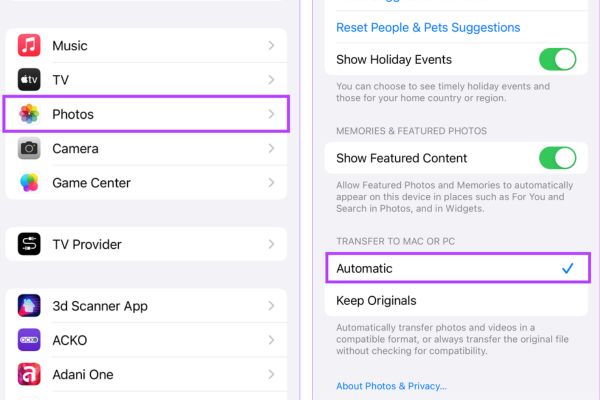
So how to convert old HEIC photos? Very simply, you can take advantage of the iPhone’s automatic conversion feature when copying photos to your computer:
Step 1: Enter Settings > Photos.
Step 2: Scroll down to the bottom, in the “Go to Mac or PC” (Transfer to Mac or PC).
Step 3: Select Automatic (Automatic).
With this setting, every time you connect your iPhone to your computer, HEIC files will be automatically converted to JPG during the copying process.
Conclusion
Application How to convert HEIC photos to JPG on iPhone brings undeniable convenience. However, if you are a professional photographer and care about maximum quality, consider keeping the HEIC format. The final choice depends entirely on your personal needs. Wish you success!
Frequently Asked Questions (Q&A)
1. What happens when sending HEIC photos via email?
When you attach and send a HEIC file via your iPhone’s default Mail app, it is automatically converted to a JPG format to ensure it can be opened by the recipient.
2. When did Apple start using the HEIC format?
Apple introduced the HEIC (High Efficiency Image Format) format for the first time in 2017, along with the launch of the iOS 11 operating system.
3. Are HEIC photos better than RAW photos?
Are not. Although HEIC has higher quality than JPG, RAW format is still the top choice to preserve maximum original image data for professional editing.