• Home
  • News
  • Software
  • Knowledge
  • MMO
  • Tips
  • Security
  • Network
  • Office
AnonyViet - English Version
  • Home
  • News
  • Software
  • Knowledge
  • MMO
  • Tips
  • Security
  • Network
  • Office
No Result
View All Result
  • Home
  • News
  • Software
  • Knowledge
  • MMO
  • Tips
  • Security
  • Network
  • Office
No Result
View All Result
AnonyViet - English Version
No Result
View All Result

How to use Clean Up on iPhone to remove excess objects extremely quickly

AnonyViet by AnonyViet
May 4, 2026
in Knowledge
0

How to use Clean Up on iPhone is the perfect solution for you to eliminate redundant details in commemorative photos. You don’t need to be a graphics expert to still create satisfactory photos. Let’s explore this interesting feature with AnonyViet now.

📢 Join the channel Telegram belong to AnonyViet


👉 Go to Telegram AnonyViet

Update new articles, cool tools and IT tips fastest

Why should you use the Clean Up feature?

This feature does more than simply delete photos, it also uses AI algorithms to fill in the gaps in the most natural way. Below is a comparison table between using Clean Up and third-party apps:

Criteria Clean Up feature 3rd party applications
Convenience Built-in, no installation required Need to download and register an account
Speed Instant processing Depends on network speed
Expense Free (according to device) Usually requires a fee
Naturalness Very high (Apple AI) Depending on the quality of the app

How to use Clean Up on iPhone to delete objects on photos

To start the experience, make sure your device has been updated to the latest iOS version. Then, follow the detailed steps below:

Step 1: Please open the application Photos on iPhone and select the photo you want to edit.

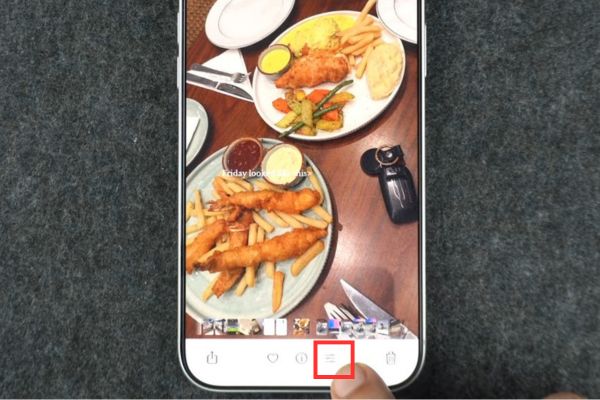
Step 2: Click the button Edit located in the toolbar at the bottom of the screen.
How to use Clean Up on iPhone to remove excess objects extremely quickly

Step 3: Find and select the tool Clean Up from the editing toolbar that appears.
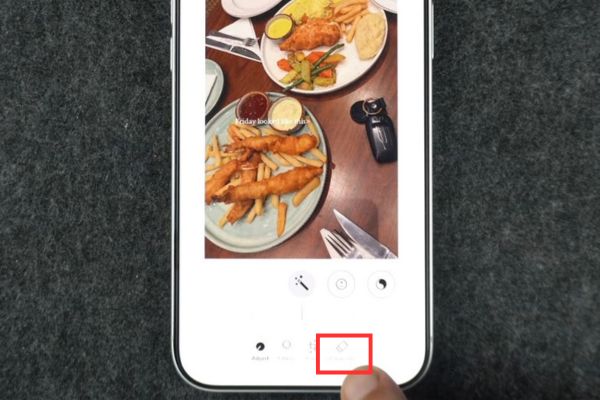
Select the Clean Up tool

Step 4: Use your finger to touch, smear, or circle the object or person you want to remove from the photo.

Area the object
Area the object

Step 5: The system will automatically analyze and delete that object. If you are not satisfied, you can do it again and again until the image area looks most natural.

How to use Clean Up on iPhone to remove excess objects extremely quickly

Important notes when editing photos

When applying the above Clean Up method iPhoneyou should do it in small sections if the photo has too many intricate details. This helps AI identify and process image areas more accurately, avoiding distortion or blurring of the image.

If you accidentally delete it by mistake or are not satisfied with the results, don’t worry too much. You just need to click the button Edit and choose Revert (Undo) to quickly return the photo to its original state.

Select Revert to return the photo to its original state

Conclusion

Thus, using Clean Up on iPhone is not as difficult as many people think. With just a few simple steps, you can transform your photos into more sparkling ones. Don’t forget to share this tip with your friends and relatives. Wishing you always have the most perfect photos.

Frequently Asked Questions (Q&A)

1. Does the Clean Up feature require payment?

No, this is a free feature built into the Photos app on iPhone models that support Apple Intelligence.

2. Why doesn’t my iPhone see the Clean Up tool?

This feature requires a new device (iPhone 15 Pro or later) and must be updated to iOS 18.1 or later.

3. Can I restore photos after using Clean Up?

Yes, you can completely restore the original image by clicking the Edit button and then selecting Revert to undo any changes made.


Tags: cleanexcessextremelyiPhoneobjectsQuicklyremove
Previous Post

Instructions on how to make money from personal Facebook

Next Post

TikTok Pro Tools: “all in one” utility for Top Top addicts

AnonyViet

AnonyViet

Related Posts

Tips for pinning the step counter to the iPhone screen to monitor your health
Knowledge

Tips for pinning the step counter to the iPhone screen to monitor your health

April 28, 2026
How to turn off password suggestions on iPhone: Prevent Safari from auto-filling passwords
Knowledge

How to turn off password suggestions on iPhone: Prevent Safari from auto-filling passwords

April 27, 2026
Tips to completely turn off CAPTCHA codes on iPhone and Mac are super simple
Knowledge

Tips to completely turn off CAPTCHA codes on iPhone and Mac are super simple

April 25, 2026
How to compress online videos for free without losing quality
Knowledge

How to compress online videos for free without losing quality

April 24, 2026
Common errors when using Bosch products and how to fix them
Knowledge

Common errors when using Bosch products and how to fix them

April 22, 2026
How to avoid Adblock detection on Youtube with 4 good tips
Knowledge

How to avoid Adblock detection on Youtube with 4 good tips

April 17, 2026
Next Post
TikTok Pro Tools: “all in one” utility for Top Top addicts

TikTok Pro Tools: "all in one" utility for Top Top addicts

0 0 votes
Article Rating
Subscribe
Login
Notify of
guest

guest

0 Comments
Oldest
Newest Most Voted
Inline Feedbacks
View all comments

Recent News

TikTok Pro Tools: “all in one” utility for Top Top addicts

TikTok Pro Tools: “all in one” utility for Top Top addicts

May 4, 2026
How to use Clean Up on iPhone to remove excess objects extremely quickly

How to use Clean Up on iPhone to remove excess objects extremely quickly

May 4, 2026
Instructions on how to make money from personal Facebook

Instructions on how to make money from personal Facebook

May 2, 2026
Create an avatar to celebrate April 30 with a beautiful red flag shirt with yellow stars

Create an avatar to celebrate April 30 with a beautiful red flag shirt with yellow stars

April 30, 2026
TikTok Pro Tools: “all in one” utility for Top Top addicts

TikTok Pro Tools: “all in one” utility for Top Top addicts

May 4, 2026
How to use Clean Up on iPhone to remove excess objects extremely quickly

How to use Clean Up on iPhone to remove excess objects extremely quickly

May 4, 2026
Instructions on how to make money from personal Facebook

Instructions on how to make money from personal Facebook

May 2, 2026
AnonyViet - English Version

AnonyViet

AnonyViet is a website share knowledge that you have never learned in school!

We are ready to welcome your comments, as well as your articles sent to AnonyViet.

Follow Us

Contact:

Email: anonyviet.com[@]gmail.com

Main Website: https://anonyviet.com

Recent News

TikTok Pro Tools: “all in one” utility for Top Top addicts

TikTok Pro Tools: “all in one” utility for Top Top addicts

May 4, 2026
How to use Clean Up on iPhone to remove excess objects extremely quickly

How to use Clean Up on iPhone to remove excess objects extremely quickly

May 4, 2026
No Result
View All Result
  • Home
  • News
  • Software
  • Knowledge
  • MMO
  • Tips
  • Security
  • Network
  • Office

wpDiscuz
0
0
Would love your thoughts, please comment.x
()
x
| Reply