• Home
  • News
  • Software
  • Knowledge
  • MMO
  • Tips
  • Security
  • Network
  • Office
AnonyViet - English Version
  • Home
  • News
  • Software
  • Knowledge
  • MMO
  • Tips
  • Security
  • Network
  • Office
No Result
View All Result
  • Home
  • News
  • Software
  • Knowledge
  • MMO
  • Tips
  • Security
  • Network
  • Office
No Result
View All Result
AnonyViet - English Version
No Result
View All Result

Lesson 152: How to use the Concatenate function in Excel

AnonyViet by AnonyViet
January 25, 2023
in Office
0

Using the CONCATENATE function in Excel for string concatenation. Instead of using CONCATENATE, you can also use the & operator.

Join the channel Telegram of the AnonyViet 👉 Link 👈

How to use the Concatenate function in Excel

1. The CONCATENATE function below concatenates the string in cell A1 and the string in cell B1.

Lesson 152: How to use the Concatenate function in Excel

2. Using the & operator gives the same result.

Lesson 152: How to use the Concatenate function in Excel 18

3. The CONCATENATE function below concatenates the string in cell A1, adding the word “and” (putting the text in quotes) and the string in cell B1.

Lesson 152: How to use the Concatenate function in Excel 19

4. Using the & operator gives the same result.

Lesson 152: How to use the Concatenate function in Excel 20

5. The CONCATENATE function below concatenates the string in cell A1, adding a space and the string in cell B1.

Lesson 152: How to use the Concatenate function in Excel 216. Using the & operator gives the same result.

Lesson 152: How to use the Concatenate function in Excel 22

The CONCAT function in Excel 2016 and later versions is similar to the CONCATENATE function. Just replace CONCATENATE with CONCAT in the formulas shown above.

7. The CONCAT function can also concatenate different strings.

Lesson 152: How to use the Concatenate function in Excel 23

The TEXTJOIN function in Excel 2016 and later combines a range of strings using a delimiter (first parameter).

8. First, see all the extra spaces in column E below when you drag the CONCATENATE function in cell E2 down to cell E11.

Lesson 152: How to use the Concatenate function in Excel 24

9. The beauty of the TEXTJOIN function is that it can ignore empty cells (if the second parameter is set to TRUE).

Lesson 152: How to use the Concatenate function in Excel 25

10. When using the CONCATENATE function, use the TEXT function to format numbers.Lesson 152: How to use the Concatenate function in Excel 26

Note: use 0 to display the nearest integer value. Use 0.0 for one decimal place. Use 0.00 for two decimal places,…

11. Use CHAR(10) to insert line breaks.

Lesson 152: How to use the Concatenate function in Excel 27

12. Let’s see one more interesting example of the TEXTJOIN function. First, the IF function below finds all members of Team 1.

Lesson 152: How to use the Concatenate function in Excel 28

Explanation: the IF function checks each cell in the Team area. If equal to the value in cell E3, it returns the equivalent in the Names area, otherwise it returns an empty string (double quotes with nothing in between).

13. The IF function returns an array constant stored in Excel’s memory. Select the formula in the formula bar and press F9 to see the array unchanged.

Lesson 152: How to use the Concatenate function in Excel 29

14. Add the TEXTJOIN function to concatenate these names. Use comma and space as separator (first parameter) and set second parameter to TRUE to remove empty strings. End the array formula by pressing CTRL + SHIFT + ENTER.

Lesson 152: How to use the Concatenate function in Excel 30In addition, you can also view many other excel articles here.
The article achieved: 5/5 – (100 votes)

Tags: ConcatenateExcelfunctionLesson
Previous Post

Tấn công DDoS là gì?

Next Post

Beware of Phishing form clicking on Links but accessing other Links

AnonyViet

AnonyViet

Related Posts

Instructions on how to convert text into QR codes in Word
Office

Instructions on how to convert text into QR codes in Word

October 5, 2026
Tool to adjust the format of administrative documents according to Decree 30
Office

Tool to adjust the format of administrative documents according to Decree 30

October 1, 2026
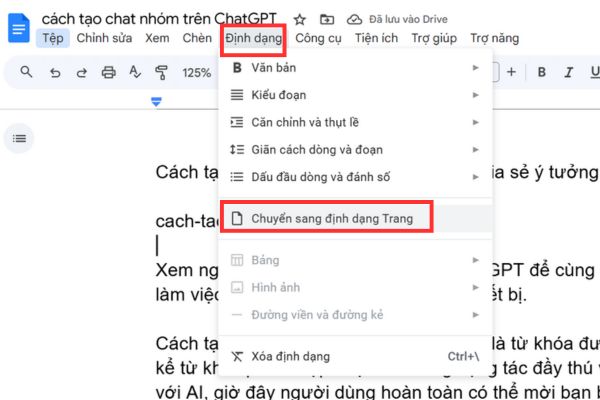
How to add Watermark to Google Docs to protect copyright
Office

How to add Watermark to Google Docs to protect copyright

April 19, 2026
Instructions on how to hide formulas in Excel to secure data
Office

Instructions on how to hide formulas in Excel to secure data

February 6, 2026
Top who creates the most beautiful presentation slide today
Office

Top who creates the most beautiful presentation slide today

September 23, 2025
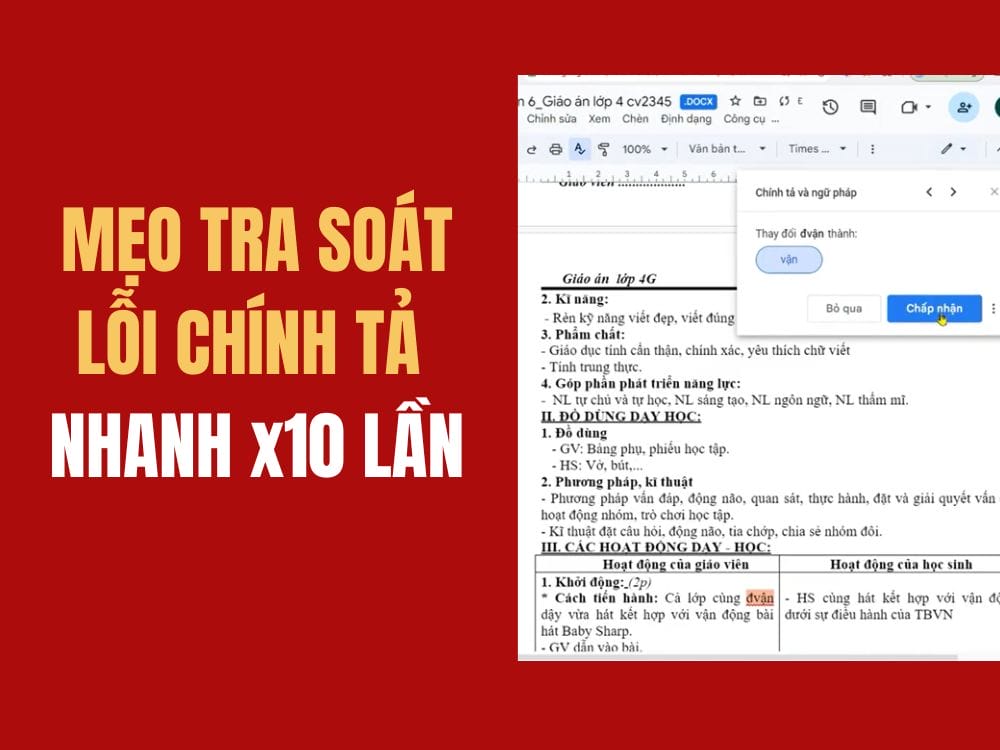
Automatically check and correct spelling errors on Google Docs
Office

Automatically check and correct spelling errors on Google Docs

February 23, 2025
Next Post
Beware of Phishing form clicking on Links but accessing other Links

Beware of Phishing form clicking on Links but accessing other Links

0 0 votes
Article Rating
Subscribe
Login
Notify of
guest

guest

0 Comments
Oldest
Newest Most Voted

Recent News

How to get 0 in Docker credits to run AI Agent for free

How to get $250 in Docker credits to run AI Agent for free

November 3, 2026
Experience Galaxy Tab S12 Ultra: Price of 40 million is a worthy investment to replace a laptop

Experience Galaxy Tab S12 Ultra: Price of 40 million is a worthy investment to replace a laptop

November 2, 2026
Cách Đăng ký Nhận Code ChatGPT Business

Cách Đăng ký Nhận Code ChatGPT Business

November 2, 2026
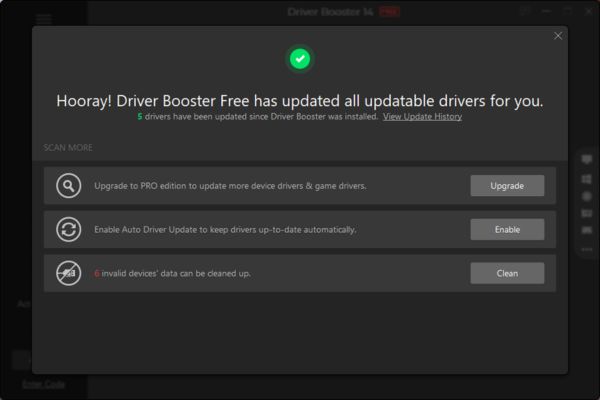
Receive Driver Booster 14 license key immediately for free for 6 months

Receive Driver Booster 14 license key immediately for free for 6 months

November 1, 2026
How to get 0 in Docker credits to run AI Agent for free

How to get $250 in Docker credits to run AI Agent for free

November 3, 2026
Experience Galaxy Tab S12 Ultra: Price of 40 million is a worthy investment to replace a laptop

Experience Galaxy Tab S12 Ultra: Price of 40 million is a worthy investment to replace a laptop

November 2, 2026
Cách Đăng ký Nhận Code ChatGPT Business

Cách Đăng ký Nhận Code ChatGPT Business

November 2, 2026
AnonyViet - English Version

AnonyViet

AnonyViet is a website share knowledge that you have never learned in school!

We are ready to welcome your comments, as well as your articles sent to AnonyViet.

Follow Us

Contact:

Email: anonyviet.com[@]gmail.com

Main Website: https://anonyviet.com

Recent News

How to get 0 in Docker credits to run AI Agent for free

How to get $250 in Docker credits to run AI Agent for free

November 3, 2026
Experience Galaxy Tab S12 Ultra: Price of 40 million is a worthy investment to replace a laptop

Experience Galaxy Tab S12 Ultra: Price of 40 million is a worthy investment to replace a laptop

November 2, 2026
  • Home
  • Home 2
  • Home 3
  • Home 4
  • Home 5
  • Home 6
  • Next Dest Page
  • Sample Page

say88 tỷ lệ kèo nhà cái kèo nhà cái 5 febet

No Result
View All Result
  • Home
  • News
  • Software
  • Knowledge
  • MMO
  • Tips
  • Security
  • Network
  • Office

say88 tỷ lệ kèo nhà cái kèo nhà cái 5 febet

wpDiscuz
0
0
Would love your thoughts, please comment.x
()
x
| Reply