Windows 10 updates deliver the latest features and improve the security of your operating system. For this reason, you may want to update your PC more frequently. But before the update process begins, Windows will check whether your disk space is enough for the new update. If you see the message “Windows needs more space” it means your hard drive doesn’t have enough space. Here are 4 ways to fix the above error.
📢 Join the channel Telegram belong to AnonyViet
Update new articles, cool tools and IT tips fastest

If you don’t have enough disk space, you’ll see a message that says, Windows needs more space. And in this article, I will guide you to fix that problem.
How much space do you need to update Windows 10?
According to Microsoft, you need at least 32GB of free disk space to upgrade to the latest version of Windows 10 – whether you’re using a 32 or 64-bit Windows OS. If you have less disk space, you may encounter the “Windows needs more space” error.
On some devices, such as Windows 10 tablets with only 16GB or 32GB of storage, you can save more disk space by installing Windows 10 Compact OS.
If you don’t want to use Windows 10 Compact OS, here are 4 ways to free up disk space and continue upgrading your Windows to the latest version.
1. Clean up the drive
When you don’t have enough disk space for the Windows 10 update, you can create more space by cleaning the drive where Windows 10 is installed, usually the C drive.
Windows 10’s Disk Cleanup tool can help you do this. Disk Cleanup will quickly scan the drive to find unnecessary junk files for the PC system.
Using the Disk Cleanup tool is the best way to create more disk space without affecting your important files. To use this tool, you need to do the following steps:
- Open Start Menu and search Disk Cleanupselect the first result:
- When the window Disk Cleanup: Drive Selection appears, select drive C: and press OK.
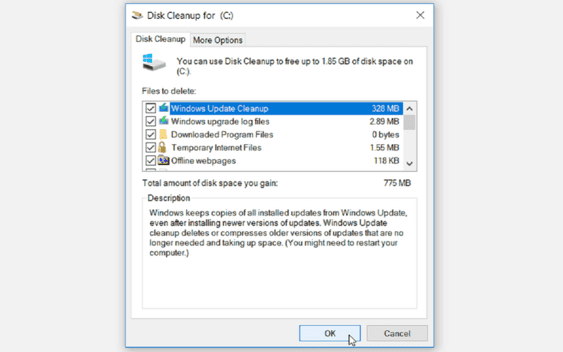
- You will see the window Disk Cleanup for Drive (C:) appears, then press Clean up system files.
- Select all the files you want to delete and click OK.
To create more space for C: drive, you can manually delete some files that you don’t need anymore.
You can start by deleting the folder named Windows.oldcontains all the old data from the previous Windows update version. This is a folder that is automatically created whenever you upgrade Windows 10. Only delete this folder if you are completely satisfied with your current version of Windows 10 and have no intention of going back to the old version.
2. Increase C: drive capacity using Disk Management
If you cannot free up enough disk space on your PC, you should expand your disk. This should give you enough space for the Windows 10 update. Of course, this only works if you have unallocated space on your drive, but you should still give it a try.
- Keyword search disk part on the Start Menu and select the first result.
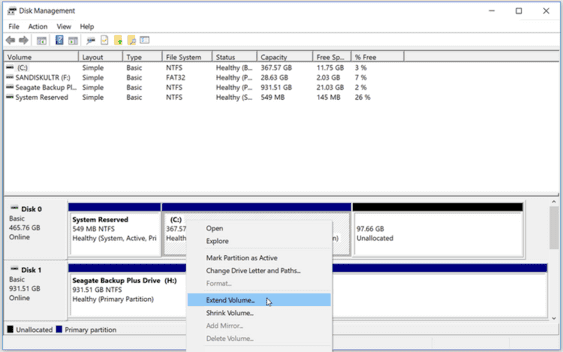
- When the window Disk Management appears, check if you have unallocated space on your C: drive. If you have some unallocated space, right click on C: drive and select Extend Volume to add unallocated space to C drive:
3. Create more space using external storage
If you don’t have enough disk space on your PC, you can use an external storage device to complete the Windows 10 update. You’ll need an external storage device with about 10GB or more of free space, depending on how much additional space you need.
Next, access Start > Settings > Update & Security > Windows Update > Check for Updates.
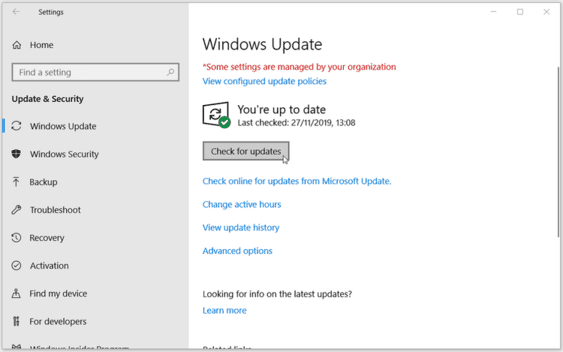
Windows will display the error message “Windows needs more space”. On the Windows update page, select Fix issues. This will launch the Windows update tool that allows you to update your PC using an external storage device. From here, follow these steps:
- Connect an external storage device with enough free space to your computer.
- On the Windows update page, you will see the option External Storage Device in the drop-down menu. Select your external storage device from the menu, then click Next to continue.
- Follow the on-screen instructions to complete the update installation. Once the installation is complete, you can remove your external storage device and restart your PC.
4. Find and remove major programs using third-party software
You can also delete large software to free up space on your hard drive. Windows 10 also has its own uninstall tool, but it cannot completely remove the software. So 3rd party uninstallation tools like IObit Uninstaller would be a much better choice.
You can use the free version of IObit Uninstaller To remove large pieces of software that are no longer in use:
- Download and install the free version of IObit Uninstaller Or use the PRO license key shared by AnonyViet.
- Open IObit Uninstaller Go up and select the major software you want to uninstall.
- After selecting, press the button Uninstall.
- A window will appear with the content “Are you sure you want to uninstall the selected programs?” You will have two options: create a restore point and automatically delete leftover files. Click Uninstall to uninstall selected software.
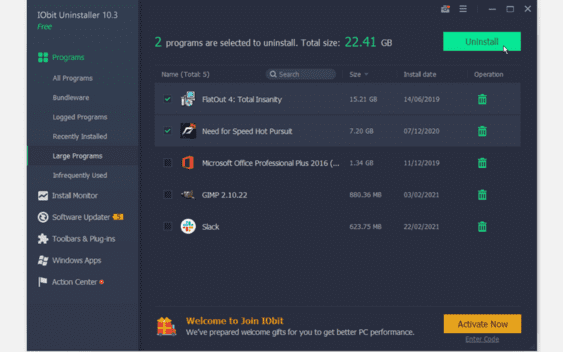
Removing large programs with a tool like IObit Uninstaller will ensure that no folders, files, and Registry are left behind. However, if you find large files and don’t want to delete them, you can move them to an external storage device or cloud storage to free up disk space.
Update your Windows 10 at any time
Updating Windows 10 is something you should do regularly. This helps protect your PC from system errors and malware attacks. And create more errors for you to fix, a specialty of Windows 10. You can use the above methods to fix the “Windows needs more space” error, but I think the best way is to buy an additional hard drive to install Windows 10. I’m dividing about 150GB into C: drive, how about you?
Frequently asked questions
How much free space do I need to update Windows 10?
According to Microsoft, you need at least 32GB of free space on the system drive to update to the latest version of Windows 10.
Can I use external storage to update?
Yes, you can use an external storage device (USB, portable hard drive…) with enough capacity to store the update file. Windows will let you choose an external storage device during the update process.
How to free up disk space quickly?
You can use the built-in Disk Cleanup tool in Windows 10 to delete temporary and unnecessary files. Additionally, you can also uninstall programs you no longer use.