Instructions for installing Google TV onto USB will help you solve the problem of not being able to access your favorite movie watching applications when traveling or working away from home. With just a USB and a few simple installation steps, you will immediately own a “Smart TV” running directly on your laptop without affecting computer data. Let’s find out the detailed steps with AnonyViet.
📢 Join the channel Telegram belong to AnonyViet
Update new articles, cool tools and IT tips fastest
Things to prepare
Before going into the technical steps, you need to make sure you have the following tools for the installation process to go smoothly:
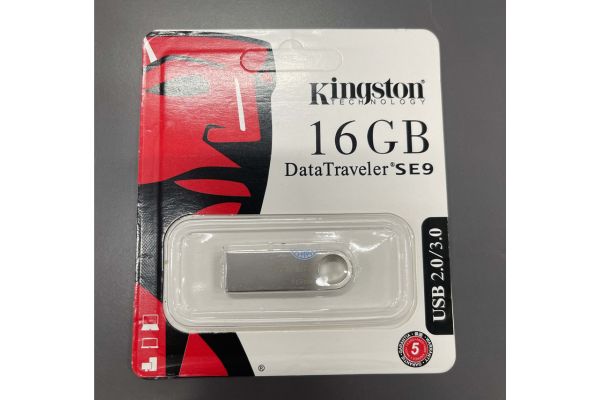
- USB: The larger the capacity, the better, but must be at least 16GB (USB 3.0 recommended for faster speed).
- Google TV OS files: You need to download the operating system file (usually a RAR compressed file containing the ISO file and Storages folder).
- Rufus software: Tool used to create USB boot.
- Windows computers: To perform partition division and file copy operations.
Instructions for installing Google TV onto USB
This process requires precision, especially in the partition processing stage to ensure the USB has enough space to store applications.
Step 1: Create a bootable USB with Rufus software
First, we need to load the ISO file onto USB.
- Download and decompress Google TV OS files. You will see the ISO file in the extracted folder.
- Plug the USB into the computer and open it Rufus software.
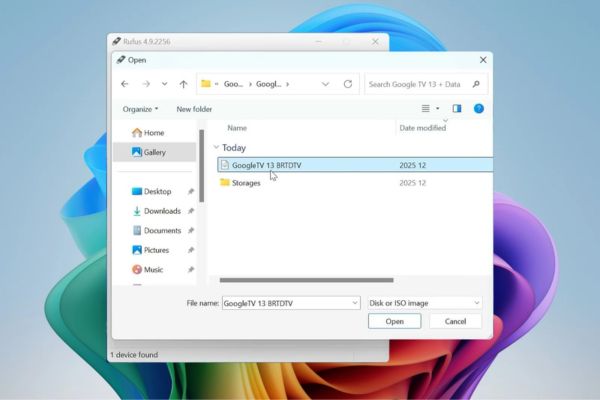
- Press the button Select and select the Google TV ISO file you just extracted.
- At the slider Persistent partition sizedrag it all the way to the right (Max). This is important to leave room for future editing.
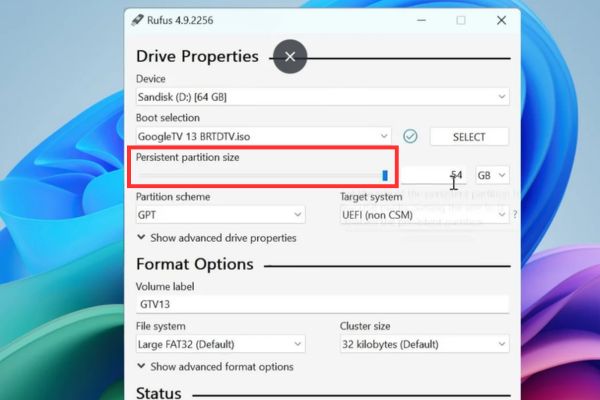
- In the Partition Scheme section, select GPT (for newer UEFI devices) or MBR (for older BIOS machines).
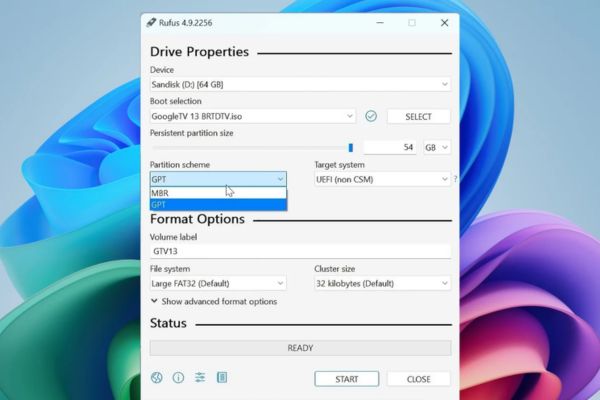
- Press Start to get started. If there is a data deletion warning, select it OK.
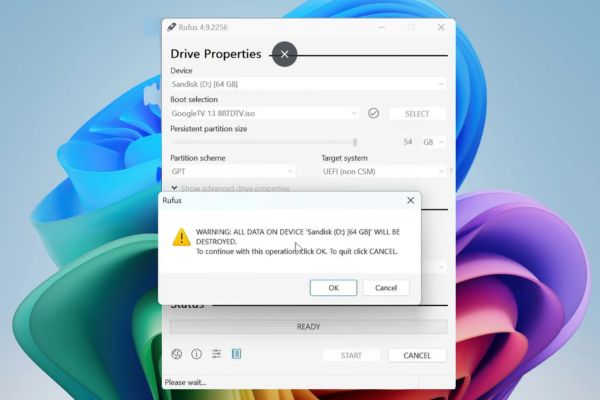
Step 2: Convert partition format to exFAT
By default, Rufus will format it as FAT32, limiting files to less than 4GB. To follow the instructions for installing Google TV on USB most effectively, you need to switch exFAT.
- Press the Windows key, type “Disk Management” and open the drive management tool. Find your USB drive.
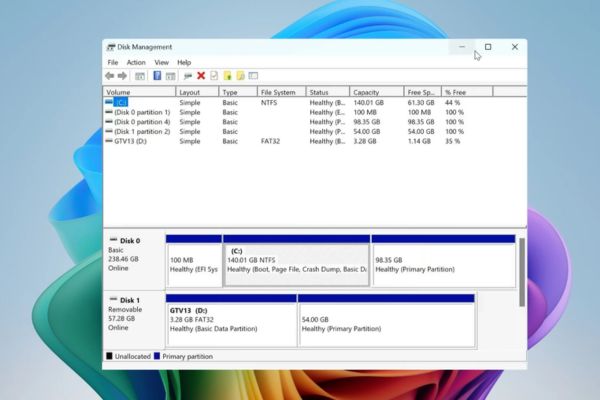
- Right click on the large partition (usually named persistence) and select Delete Volume. Select Yes to confirm.
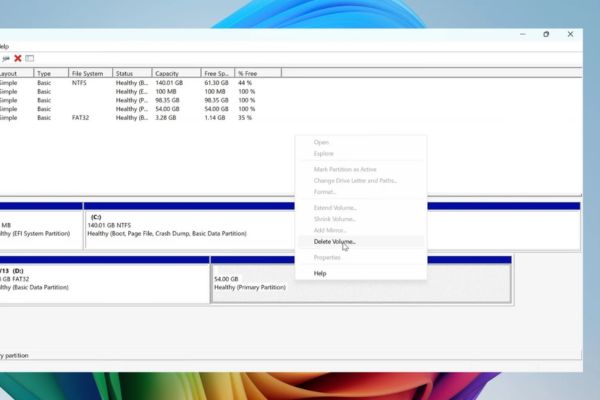
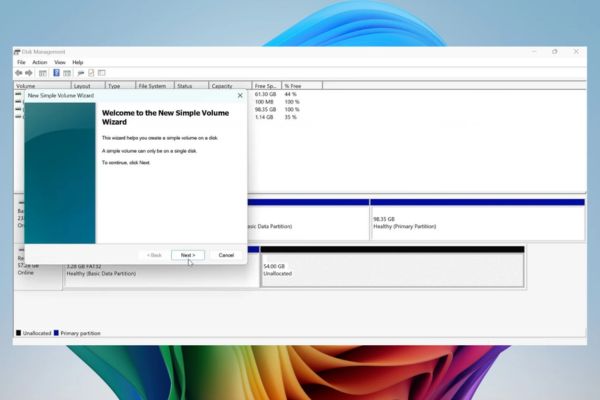
- Now that area will become “Unallocated”. Right click on it and select New Simple Volume.
- Press Next Continue to the Format section.
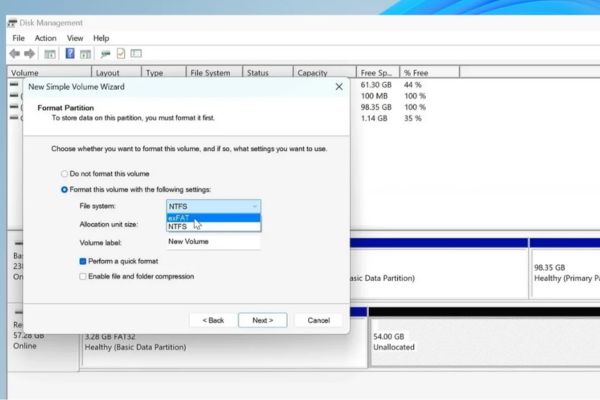
- In the File System section, change from FAT32 to exFAT.
- Name the label (Label). System then press Finish.
Step 3: Copy Google TV files to USB
This is an important step for the operating system to operate smoothly.
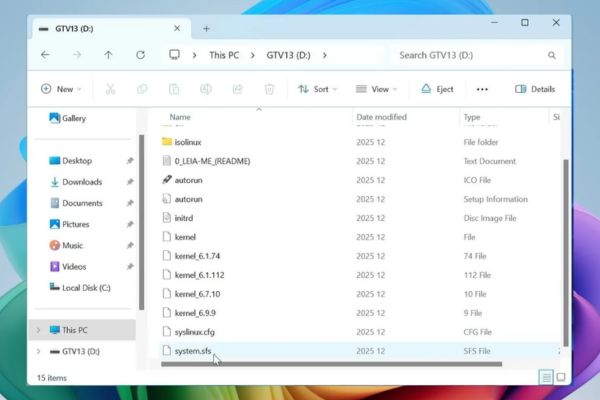
- First, open File Explorer (This PC), access the USB drive. You will see 2 partitions: Boot partition and System partition (just created).
- Go to the Boot partition, find the file system.sfs. Press Ctrl + X.
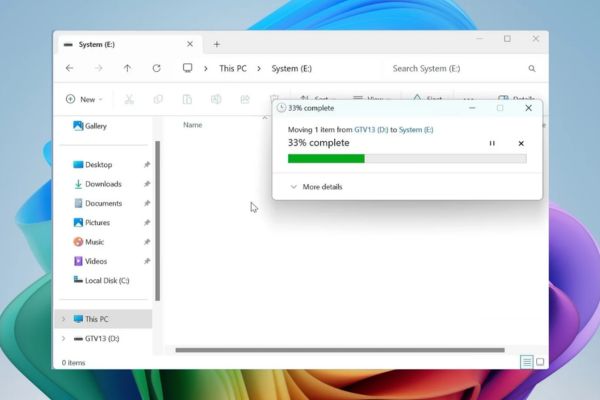
- Go to System partition (exFAT), press Ctrl + V to transfer files here.
Go back to the Google TV OS folder you downloaded on your computer initially, find the folder Storages. Choose the compressed file suitable for your USB capacity:
- USB 64GB: Select the 32GB data file.
- USB 32GB: Select the 16GB data file.
- USB 16GB: Select the 8GB data file.
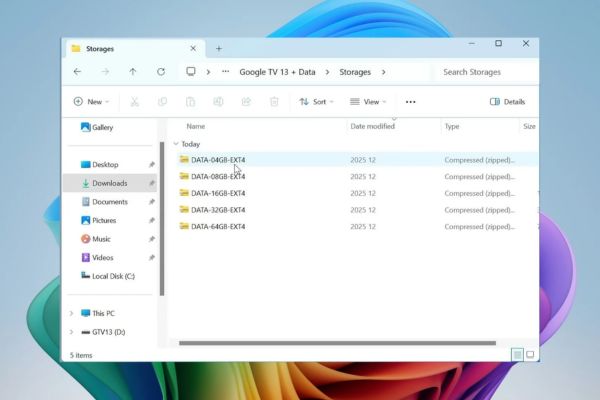
- Unzip that file to get the data.img file. Copy files data.img and paste it into the System partition on the USB (located with the system.sfs file).
Step 4: Set up BIOS and boot
Once the USB is ready, you need to boot the computer from this USB.
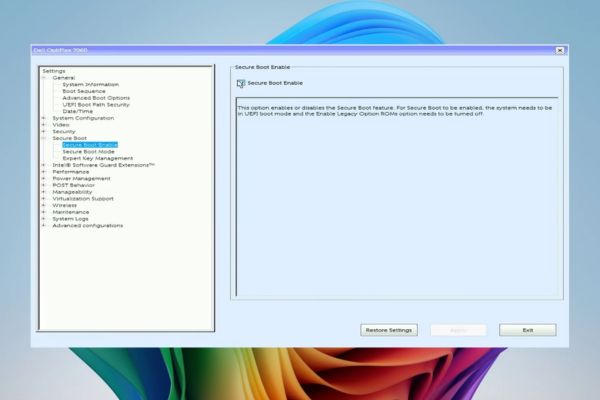
- Restart the PC, continuously press the BIOS shortcut (F2, F12 or Del… depending on the model).
- Find the Secure Boot section and select it Disabled (Turn off). Save and exit.
- Restart and go to Boot Menu, select boot from USB Drive.
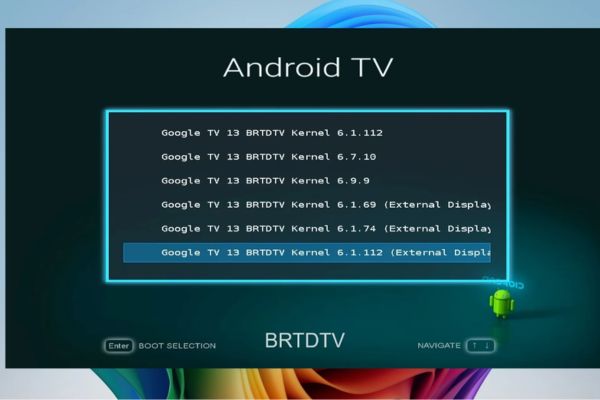
The kernel selection screen appears:
- Select the first line if using a normal laptop.
- Select line “External Display” if you are plugging in a laptop to output to the TV via HDMI.
Step 5: Set up account and experience
The first boot will take some time for the system to set up.
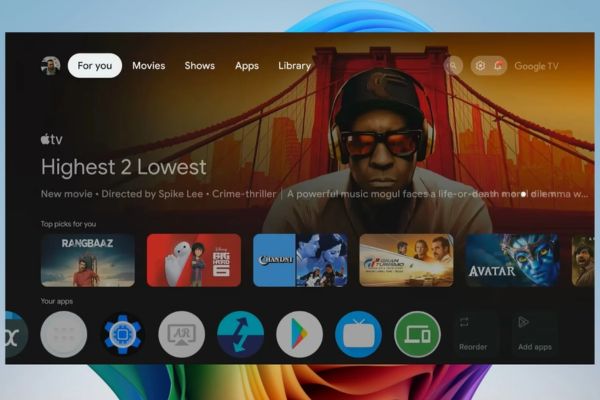
- When the Google TV interface appears, follow the on-screen instructions.
- Connect to Wi-Fi and sign in to your Google account.
- Access CH Play and download your favorite apps.
By choosing the exFAT format as in this guide to installing Google TV on USB, you will have ample storage space to install Netflix, YouTube and even some light games for entertainment.
Compare FAT32 and exFAT formats when installing Google TV
Why in this guide to installing Google TV on USB do we advise you to switch to exFAT? See the comparison table below:
| Criteria | FAT32 (Rufus default) | exFAT (Recommended) |
| File size limit | Maximum 4GB | No real limits |
| App storage capabilities | Limited, difficult to install heavy games | Feel free to install many Apps and Games |
| Compatible with Google TV | You may encounter a memory full error | Stable and smooth operation |
| Performance on USB | Medium | Better for large system files |
Conclusion
So, you have completely completed the steps in the instructions for installing Google TV on USB. Now, the tiny USB has become a powerful entertainment device that you can take anywhere. Hope you will have wonderful relaxing moments with this mobile operating system.
Q&A: Frequently asked questions
1. Will installing Google TV on USB cause data loss on the computer hard drive?
No, if you follow the instructions correctly and only choose to boot from USB, the Windows operating system and data on your computer’s hard drive are still absolutely safe. Google TV operating system runs independently on USB.
2. What type of USB should I use to run Google TV smoothly?
You should use standard USB 3.0 or 3.1 with high read and write speed. Old USB 2.0 will cause the operating system to run very slowly and often lag when watching movies.
3. Why can’t I connect to Wi-Fi on Google TV USB?
Some newer or older Wi-Fi cards on laptops may not be supported by drivers in this version of Google TV. You can try using a wired network (LAN) or using a separate USB Wi-Fi receiver to fix the problem.