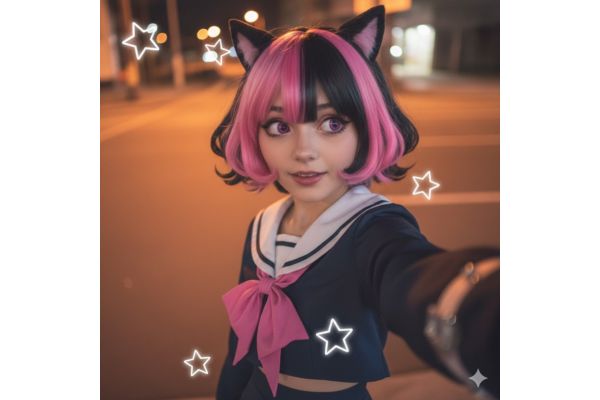
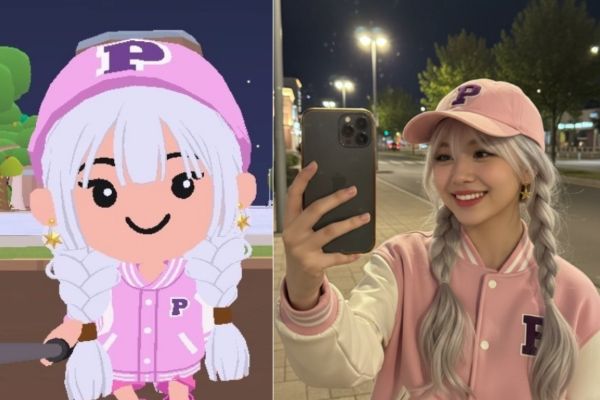
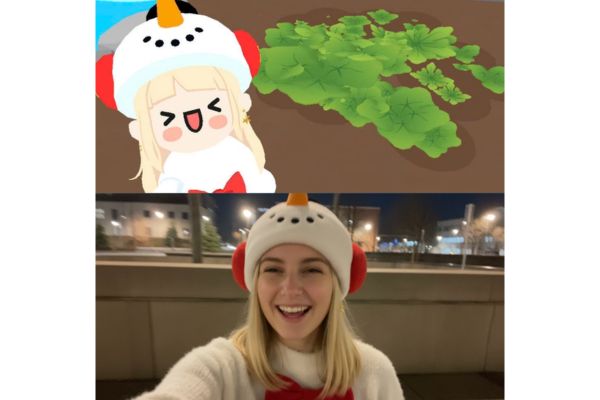
Prompt turns Play Together characters into real people Helps players see the “flesh” version of their favorite character. Instead of familiar chibi images, AI will recreate an extremely emotional photo taken under a streetlight. Let’s explore this photo-creating formula that is causing a stir.
📢 Join the channel Telegram belong to AnonyViet
Update new articles, cool tools and IT tips fastest
Prepare before creating photos
The trend of “time travel” from the virtual world to real life is making waves in the community Play Together. No need for complicated photoshop skills, just an AI tool and accurate commands, you can create extremely “artistic” selfies.
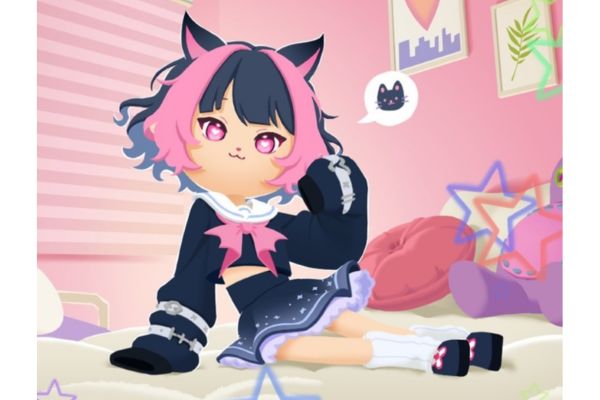
For AI to work effectively, input image preparation plays a decisive role. You can’t just throw a command in and expect nice results right away. Go into the game, choose the outfit you like best and find a well-lit shooting angle.
Experience is to take close-up portraits, clearly showing the face and upper body. This helps AI easily analyze details such as hairstyle, shirt color or accessories, thereby recreating it more accurately in a real human version.
Instructions for using prompts to turn Play Together characters into real people
To successfully implement this trend without errors, please follow the detailed 3-step process below.
Step 1: Upload sample images to the tool
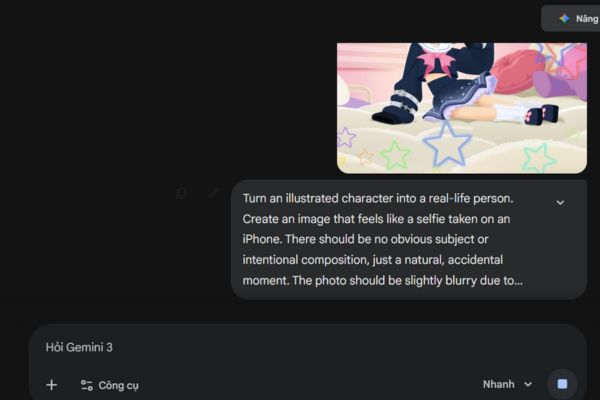
First, let’s visit Google Gemini (or similar AI tools that support image analysis). At the chat interface, you upload the photo of the game character you just took. This will be the reference “raw material” (Reference Image) for AI to draw based on.
Step 2: Enter additional descriptions
Before pasting the main command, help the AI understand better by typing a few more lines of brief descriptions about the character. For example: “Girl with pink hair tied in two sides, wearing a blue hoodie.” This helps guide the AI, avoiding cases where the returned image has too many color or outfit style deviations from the original.
Step 3: Paste the standard command
This is the most important step. Please copy the English paragraph below and paste it after the description. This command has been optimized to create a blurry, natural selfie effect like taken with a phone.
Turn an illustrated character into a real-life person. Create an image that feels like a selfie taken on an iPhone. There should be no obvious subject or intentional composition, just a natural, accidental moment. The photo should be slightly blurry due to movement and evenly lit by streetlights. The aspect ratio is 9:16. Overall, it must look like a real photo, not something generated by AI.
Take note to get the best photo
Although today’s AI is very smart, it still sometimes has difficulty with the game’s specific body proportions. Below are a few tips to help you fix common errors.
Dealing with body proportion issues
Play Together uses Chibi graphics with a large head and small body. When switching to real-life style, the AI can get confused and create photos with odd proportions. If you encounter this situation, try taking photos of the game from a closer angle of your face (only from the shoulders up) to eliminate disturbing factors related to body proportions.
Patiently try again many times
Generative AI is highly random. If the first time the results are not the same or the face is defective, don’t be discouraged. Press the Regenerate button a few times or change the outfit description a bit. Sometimes, changing to a simpler outfit in the game also makes it easier for the AI to recognize and transition to a real person more smoothly.
Conclusion
Application prompt turns Play Together characters into real people brings a very interesting experience, shortening the gap between games and real life. With just a little patience and ingenuity, you will immediately own great selfie photos.