

How to prioritize 5G Wifi reception is a great trick to help you make the most of the Internet speed that a dual-band router provides. Although the 5GHz band is significantly faster, many Windows laptops default to connecting to the familiar 2.4GHz band. Don’t worry! AnonyViet will guide you in detail on the steps to “force” your laptop to always prioritize connecting to the powerful 5G band, helping to significantly improve your work and entertainment experience.
| Join the channel Telegram belong to AnonyViet 👉 Link 👈 |
Why should you prioritize the 5GHz Wifi band?
In the world of wireless connectivity, the two most popular frequency bands are 2.4GHz and 5GHz. Each type has its own advantages and disadvantages, understanding them will help you make the best choice.
2.4GHz band It is likened to a busy highway. It has a longer range and is better able to penetrate walls and obstacles. However, because there are so many devices (wireless mice, bluetooth speakers, microwaves, etc.) using this band, it is susceptible to interference, leading to unstable and slower connection speeds, usually only reaching a maximum of about 450-600Mbps.
5GHz band It’s like a modern highway, with less traffic. It provides outstanding data transfer speeds, up to 1300Mbps or higher, and at the same time less susceptible to interference. Its only weakness is that the coverage range is narrower and the signal is easily weakened by obstacles.
If your laptop supports the 5GHz band, setting priority will help you enjoy the highest speed when in coverage area.
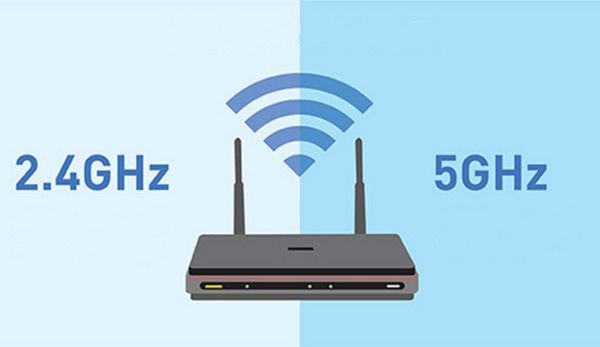
Instructions on how to prioritize 5G Wifi reception on Windows
Let your laptop always prioritize connection WiFi network 5GHz, you just need to follow these 3 simple steps.
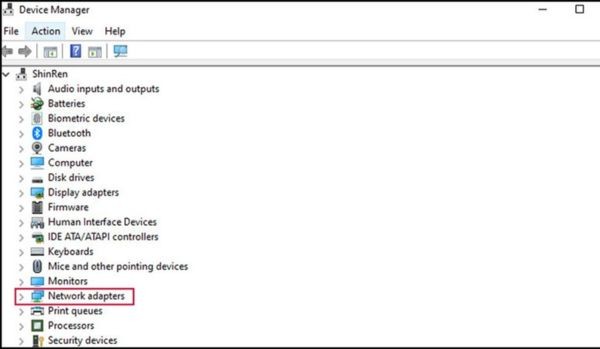
Step 1: First, press the key Windows On the keyboard, type in the keyword search box Device Manager and press Enter.
When the new window appears, find the section called Network Adapters and click on it to see a list of network cards installed on the machine.
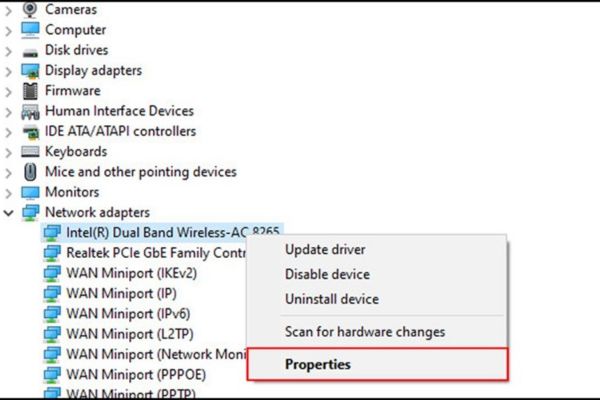
Step 2: In the newly expanded list, determine the correct Wifi card that your computer is using. Next, right-click on the name of that Wifi card and select the item Properties from the context menu.
Step 3: A new window will appear, here you select the tab Advanced. In the list Property On the left, find an item called Preferred Band or Band.
Finally, you look at the box Value on the right, click the drop-down menu and select options Prefer 5GHz bandthen press OK to save changes.
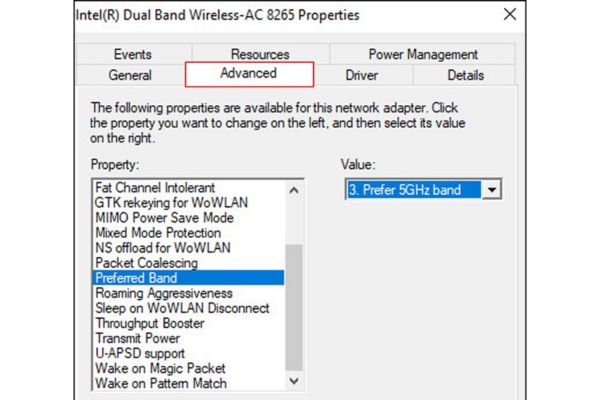
After clicking OK, the Wifi connection may be disconnected for a moment and automatically reconnected. From now on, your computer will always prioritize finding and connecting to the 5GHz band whenever available.
Conclusion
With just a few simple steps, you’re done How to prioritize 5G Wifi reception so that your laptop always connects to the fastest band. This will significantly improve your web surfing, watching movies or playing games experience, making everything smoother and uninterrupted. Wish you success and enjoy outstanding Internet speed!







