Do you long for an iPhone with unique ringtones instead of the familiar default sounds? Now, the job Create iPhone ringtones from the Music app on Mac has become extremely simple and interesting. Forget about complicated barriers, this article will step by step guide you to turn your favorite tunes into your own unique ringtone.
| Join the channel Telegram belong to AnonyViet 👉 Link 👈 |
How to create iPhone ringtones from the Music app on Mac
- To start the process of creating iPhone ringtones from the Music app on Mac, the most important thing is that you need a music file not DRM encrypted (Digital Rights Management).
Note: Songs downloaded from Apple Music often contain DRM and cannot be used. So you can search for free music or use personal music files without DRM.
- Once you have the desired music file (for example, MP3), drag and drop it directly into the Music app above Mac to add to your library.
- Open the Music app on Mac and select the song you plan to convert into a ringtone. Listen carefully and Note down the start and end times of the piece of music you want to use, make sure it doesn’t exceed 30 seconds – this is the limit for iPhone ringtones.

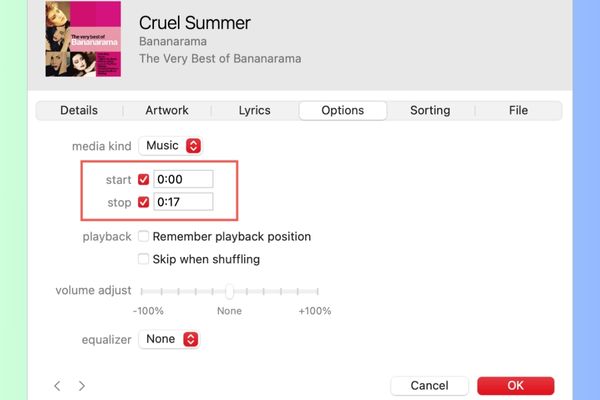
- Next, right click Go to that song and select the item Get Info. In the new window that appears, navigate to the card Options. Here, you check the “Start” and “Stop” boxes, then enter the exact time noted in the corresponding fields. Press OK to save changes.
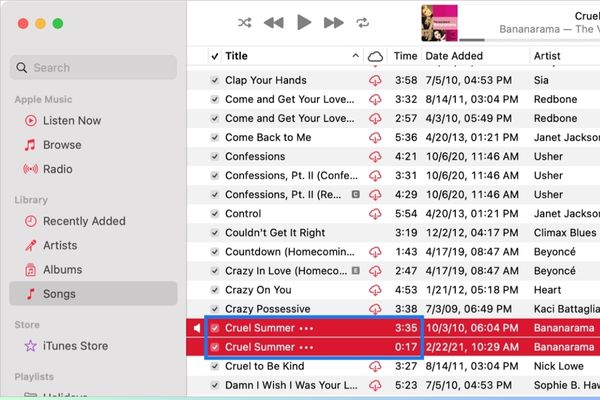
- Once you’ve set the time, from your Mac’s top menu bar, select File > Convert > Create AAC Version. The Music app will create a copy of the cut music for the duration you selected.
Note: If the song has DRM, you’ll receive an error message and won’t be able to continue.
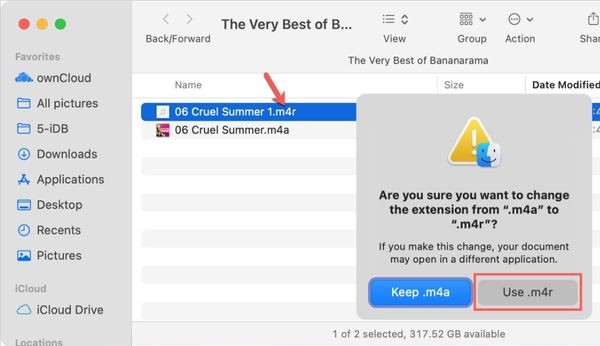
- Right-click the newly created copy of the track in the Music app and select Show in Finder. In the Finder window, you need to change the file extension from .m4a to .m4r. When the system asks for confirmation, select Use .m4r.
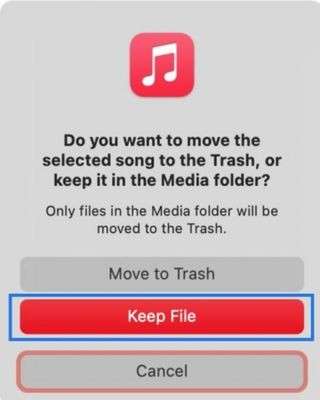
- Return to the Music app, right-click on the created copy of the music and select Delete From Library. When you’re prompted if you want to move the file to the trash, select it Keep File. This ensures your .m4r file remains intact in the Finder.
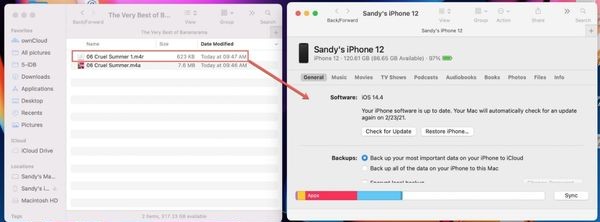
- Using a USB-C or Lightning cable, connect your iPhone or iPad to your Mac > Open a new Finder window on your Mac and select your iOS device from the list of locations in the sidebar.
- Drag and drop the .m4r ringtone file you just created from its location in the Finder iPhone or iPad icon in your Finder window. The ringtone file will be automatically transferred to your device.
To test and install new iPhone ringtones, follow these simple steps:
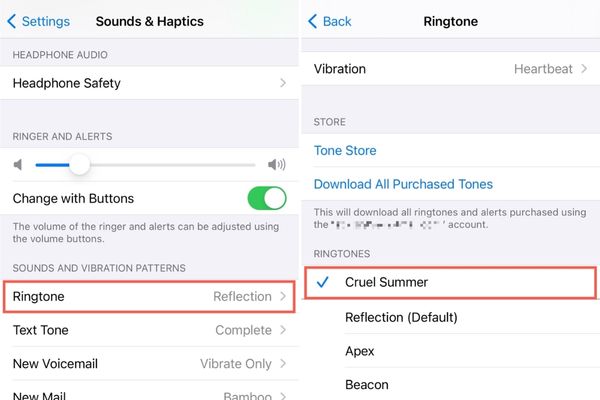
- On your iPhone or iPad, open the app Settings.
- Scroll down and select Sounds & Haptics or Sounds.
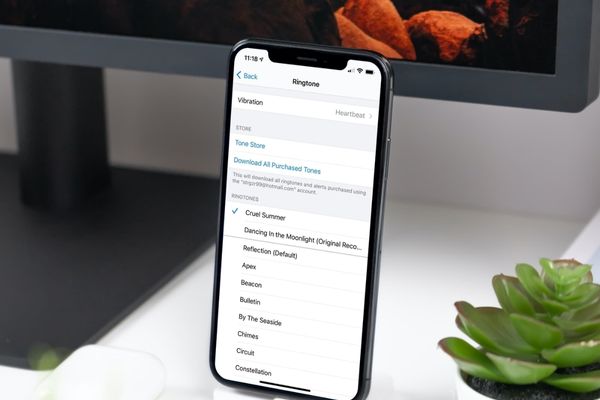
- Touch Ringtone. You’ll see the name of the song you just created appear in the list of available ringtones. Select it to set it as your new ringtone and give it a listen if you want.
- When done, disconnect your iPhone or iPad from your Mac by clicking the eject icon in Finder.
Conclude
Procedure Create iPhone ringtones from the Music app on Mac It may look complicated at first, but is actually quite simple and quick after a few practices. Now, you can completely create your own unique ringtones from any song you love!