• Home
  • News
  • Software
  • Knowledge
  • MMO
  • Tips
  • Security
  • Network
  • Office
AnonyViet - English Version
  • Home
  • News
  • Software
  • Knowledge
  • MMO
  • Tips
  • Security
  • Network
  • Office
No Result
View All Result
  • Home
  • News
  • Software
  • Knowledge
  • MMO
  • Tips
  • Security
  • Network
  • Office
No Result
View All Result
AnonyViet - English Version
No Result
View All Result

Instructions to change the Windows 10 boot logo to another image of your choice

AnonyViet by AnonyViet
January 12, 2026
in Tips
0

When you press the Power button to start the computer, you will see a Windows logo Logo appear a few seconds after the Load is completed and it will go to the Desktop. However, if you are bored with the default Windows logo on the boot screen, you can add your own custom logo to the boot screen. In this article, AnonyViet will guide you to change the Windows 10 boot logo to another image as you like.

Join the channel Telegram belong to AnonyViet 👉 Link 👈

It’s quite easy to do, you just need to prepare a picture to make the Windows boot logo. Please follow the instructions below change boot logo in Windows 10 .

Some notes when changing the Boot Logo:

Before making any changes, make sure you know and follow the list below.

  • Important: You should back up Windows to avoid incorrect operations, leading to Windows errors and not being able to boot.
  • Windows will run in UEFI mode.
  • If Windows is running on UEFI, make sure the feature is disabled. Secure Boot. When Secure Boot is enabled in UEFI, you cannot change the boot logo.
  • Cannot select gif image (animated image) to make windows boot logo.
  • Prepare the image you want to set as your startup logo. Images cannot be larger 300px x 300px.
  • You should run Administrator rights to change the Windows Boot Logo
  • This guide only Applies to Windows 10.
  • Use the page https://www.iloveimg.com/resize-image to resize images online to standard.

Once you are sure about everything in the above list, follow the next section.

Instructions for changing the Windows Boot Logo

Because Windows does not have the ability to change the Boot Logo, we will use a third-party free and open source tool called HackBGRT.

1. Now, open the extracted folder, click right mouse to the file “setup.exe”and select option ” Run as administrator“.

The above action will launch the application’s command line tool. Here, press the key i.

Instructions to change the Windows 10 boot logo to another image of your choice 11

2. As soon as you press the key, the program’s configuration file will be opened in Notepad. You just need turn off Notepad by clicking on the ” icon X” in the upper right corner.

download windows boot logo

3. When you close Notepad, HackBGRT will open the Paint application with its own default startup logo. Here, click on “Paste” drop-down button and select “Paste from“.

Instructions to change the Windows 10 boot logo to another image of your choice 12

3. Now, find the image you want to set as your new Windows startup logo, select it and click the “ buttonOpen“.

Quick tip: Since the Startup Logo does not support transparent images, change the background color of your transparent image to black before adding it to the Paint application.

Instructions to change the Windows 10 boot logo to another image of your choice 13

4. The startup logo will be added to Paint. If necessary, resize the image by clicking the “Resize” button.

computer boot image

5. Once done, select the option “File → Save” to save the file. After saving, close the Paint application.

Save logos

6. As soon as you close the application, you are done installing HackBGRT. Now press any key to close this window.

Change Windows Boot Logo HackBGRT

7. Now that you boot into Windows, you will see your new custom boot logo instead of the default Windows logo.

Instructions to change the Windows 10 boot logo to another image of your choice

Restore Windows default boot Logo

If you want to restore the default Windows 10 logo, open the HackBGRT application again.

1. First, open the HackBGRT folder, right-click on the “setup.exe” file and select the “Run as administrator” option.

2. Since the app is already installed in your system, you will see additional options.

Instructions to change the Windows 10 boot logo to another image of your choice 14

3. To completely remove HackBGRT and restore the original boot logo, press r. If you want to disable the app and restore the original boot logo, tap d. In my case, I want to remove it completely. So I pressed r.

Instructions to change the Windows 10 boot logo to another image of your choice 15

4. As soon as you press the key, HackBGRT will restore the original boot logo.

5. Just reboot the system and you will see the initial Windows boot logo.

Instructions to change the Windows 10 boot logo to another image of your choice 16

It’s simple to change the Windows boot logo or add a custom boot logo. If you are having trouble or need some help, comment below and we will help you.

Frequently asked questions

Can I use a GIF as my startup logo?

No, this guide only supports still images. GIF images (animated images) are not supported.

What is the ideal image size for a startup logo?

Images should have a maximum size of 300px x 300px to ensure good display.

If I want to restore the default Windows boot logo, what should I do?

Open the HackBGRT app again and press “r” to completely remove HackBGRT and restore the default logo, or press “d” to just kill the app and restore the logo.

Previous Post

What is ChatGPT Health and the fastest way to join the waiting list

Next Post

How to get ChatGPT K-12 Teacher for free

AnonyViet

AnonyViet

Related Posts

How to cancel Facebook Plus package to avoid automatic renewal
Tips

How to cancel Facebook Plus package to avoid automatic renewal

November 23, 2026
How to unlock iPhone Duo face on iOS 27.3 Beta 2
Tips

How to unlock iPhone Duo face on iOS 27.3 Beta 2

November 23, 2026
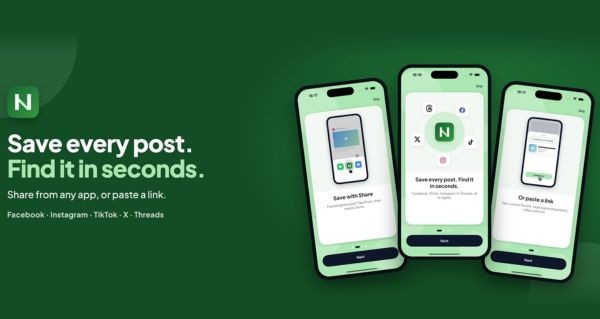
Naykia: App saves posts across multiple platforms, keeping the post intact even if the original post is deleted
Tips

Naykia: App saves posts across multiple platforms, keeping the post intact even if the original post is deleted

November 22, 2026
Free CNSF certification exam guide from Red Team Leaders
Tips

Free CNSF certification exam guide from Red Team Leaders

November 21, 2026
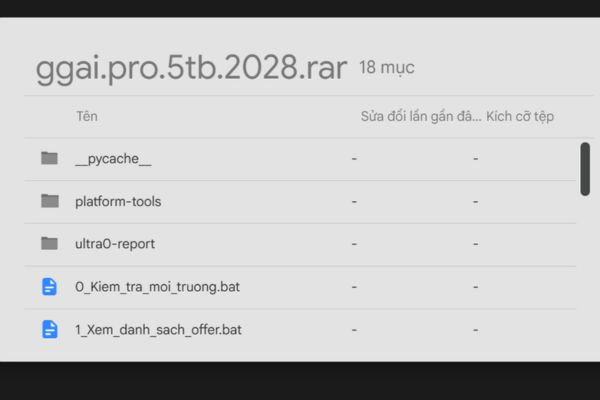
Instructions for registering Google AI Pro for 2 years for free until 2028
Tips

Instructions for registering Google AI Pro for 2 years for free until 2028

November 21, 2026
Instructions for registering for free Google AI Ultra + Youtube Premium
Tips

Instructions for registering for free Google AI Ultra + Youtube Premium

November 18, 2026
Next Post
How to get ChatGPT K-12 Teacher for free

How to get ChatGPT K-12 Teacher for free

0 0 votes
Article Rating
Subscribe
Login
Notify of
guest

guest

0 Comments
Oldest
Newest Most Voted

Recent News

How to cancel Facebook Plus package to avoid automatic renewal

How to cancel Facebook Plus package to avoid automatic renewal

November 23, 2026
SSHWATCH: Dashboard to see realtime VPS attacks using Honeypot

SSHWATCH: Dashboard to see realtime VPS attacks using Honeypot

November 23, 2026
Detailed review of realme C01: Breaking the stereotype of cheap smartphones with 6,500 mAh battery and 120Hz screen

Detailed review of realme C01: Breaking the stereotype of cheap smartphones with 6,500 mAh battery and 120Hz screen

November 23, 2026
Purple Team: How to verify that the monitoring system can actually detect attacks

Purple Team: How to verify that the monitoring system can actually detect attacks

November 23, 2026
How to cancel Facebook Plus package to avoid automatic renewal

How to cancel Facebook Plus package to avoid automatic renewal

November 23, 2026
SSHWATCH: Dashboard to see realtime VPS attacks using Honeypot

SSHWATCH: Dashboard to see realtime VPS attacks using Honeypot

November 23, 2026
Detailed review of realme C01: Breaking the stereotype of cheap smartphones with 6,500 mAh battery and 120Hz screen

Detailed review of realme C01: Breaking the stereotype of cheap smartphones with 6,500 mAh battery and 120Hz screen

November 23, 2026
AnonyViet - English Version

AnonyViet

AnonyViet is a website share knowledge that you have never learned in school!

We are ready to welcome your comments, as well as your articles sent to AnonyViet.

Follow Us

Contact:

Email: anonyviet.com[@]gmail.com

Main Website: https://anonyviet.com

Recent News

How to cancel Facebook Plus package to avoid automatic renewal

How to cancel Facebook Plus package to avoid automatic renewal

November 23, 2026
SSHWATCH: Dashboard to see realtime VPS attacks using Honeypot

SSHWATCH: Dashboard to see realtime VPS attacks using Honeypot

November 23, 2026
  • Home
  • Home 2
  • Home 3
  • Home 4
  • Home 5
  • Home 6
  • Next Dest Page
  • Sample Page

say88 tỷ lệ kèo nhà cái kèo nhà cái 5 febet

No Result
View All Result
  • Home
  • News
  • Software
  • Knowledge
  • MMO
  • Tips
  • Security
  • Network
  • Office

say88 tỷ lệ kèo nhà cái kèo nhà cái 5 febet

wpDiscuz
0
0
Would love your thoughts, please comment.x
()
x
| Reply