• Home
  • News
  • Software
  • Knowledge
  • MMO
  • Tips
  • Security
  • Network
  • Office
AnonyViet - English Version
  • Home
  • News
  • Software
  • Knowledge
  • MMO
  • Tips
  • Security
  • Network
  • Office
No Result
View All Result
  • Home
  • News
  • Software
  • Knowledge
  • MMO
  • Tips
  • Security
  • Network
  • Office
No Result
View All Result
AnonyViet - English Version
No Result
View All Result

How to display FPS on Windows 10 without installing additional software

AnonyViet by AnonyViet
January 11, 2026
in Tips
0

Windows 10 has a counter FPS built into the Xbox Game Bar was upgraded with the Windows 10 October 2019 update but is little known. Probably because everyone is used to using msi afterburner. Xbox Game Bar is a powerful gaming support feature that you can use in all PC games. Knowing those advantages, I will guide you how to display FPS when playing games on Windows 10 without installing 3rd party software.

Join the channel Telegram belong to AnonyViet 👉 Link 👈

How to display FPS on Windows 10 without installing additional software

The FPS display feature is a feature of Game Bar. To open it, you just need to press Windows + G. (If the Game Bar doesn’t appear, go in Settings > Gaming > Xbox Game Bar and make sure this feature is turned to “On”. You can also choose another custom shortcut to launch it from here).

What is FPS?

Short for “frames per second,” it represents the number of frames your graphics card can display per second. or how many frames your monitor can display per second. The former depends on the processing power of the graphics card, while the latter depends entirely on the refresh rate of the screen.

So the higher the FPS, the clearer the displayed image and smoother the game play. To display FPS on Windows 10, you just need to do the following steps:

How to display FPS on Windows 10

Turn on the feature “Performance” on the Game Bar.
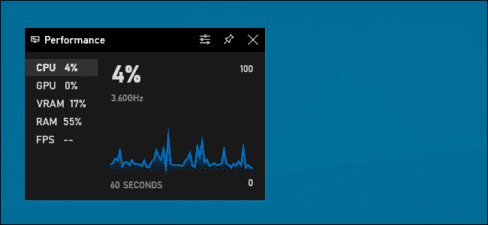
View FPS on Windows 10

If you don’t see the Performance panel appear, click it menu button on the Game Bar at the top of the screen and click “Performance” to display.
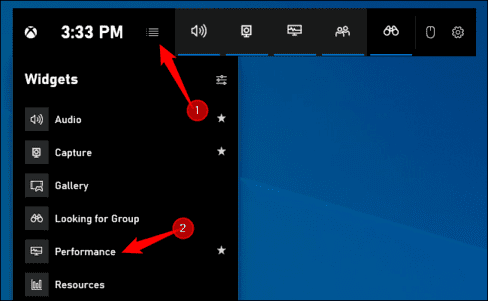
Performance

Click on the option “FPS” in the window Performance. The first time you open this feature, you’ll see a message stating that you need user account control access (User Account Control) to access the game’s FPS information.

Click “Request Access” to continue. A UAC window will appear asking if you agree to this action. You just need to press “Yes” is okay.

After confirming UAC permissions, you need to restart your PC to enable this feature. The FPS counter will not work until you restart your device.
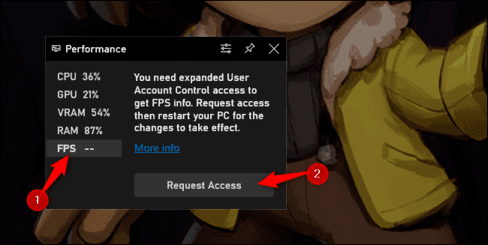
Request Access FPS Windows 10

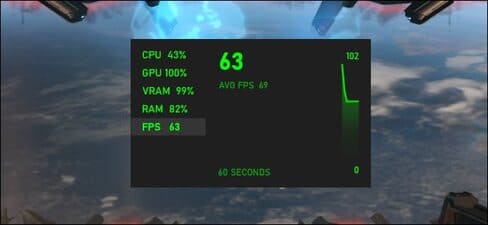
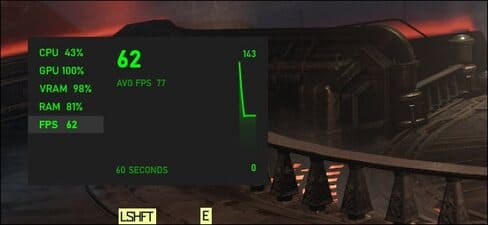
After restarting your PC, launch the game and open the Game Bar (Windows + G). The Performance feature will display your frames per second (FPS) along with your CPU, GPU, VRAM, and RAM usage.

To see a graph of FPS over time, click on the category “FPS“. Click on the (“>”) to display the graph if the Performance window is displayed in minimized mode.

To keep FPS visible on the screen at all times, click on the “Battery” at the top of the Performance window. Now, even if you hide the Game Bar, it will remain on screen and always appear at the top of your gameplay until you unpin it.

How to display FPS on Windows 10 without installing additional software

You can move the Performance window on your screen by dragging it around the Game Bar. You can also change its size.
Game Bar FPS

To exit the Performance window, return to the Game Bar (Windows + G) and click the “Unpin” button. That’s it, you can now view fps parameters in the game without having to install external software.

If you want to use third-party software, you can try it FPS Monitorhas more advanced features.

Frequently asked questions

What software do I need to install to display FPS?

You don’t need to install any software. The FPS display feature has been built into the Xbox Game Bar of Windows 10 (October 2019 update or later).

How to enable FPS display?

Press the Windows + G key combination to open Xbox Game Bar. Turn on the “Performance” feature and select “FPS” in the Performance window. It may be necessary to restart the computer after granting access.

If I don’t see the Xbox Game Bar, what do I do?

Check your settings: Settings > Gaming > Xbox Game Bar and make sure this feature is turned on (“On”). You can also customize the keyboard shortcut to launch the Game Bar.


Previous Post

Top 7+ best AI storyboard creation tools, worth trying

Next Post

Instructions for receiving ChatGPT Plus for 1 month for free with a Korean UnionPay card

AnonyViet

AnonyViet

Related Posts

How to record reaction videos with Android phones, no app needed
Tips

How to record reaction videos with Android phones, no app needed

June 1, 2026
Instructions on how to get Google AI Pro 1 year for free for new accounts
Tips

Instructions on how to get Google AI Pro 1 year for free for new accounts

June 1, 2026
Top free AI tools to help write, test and optimize content
Tips

Top free AI tools to help write, test and optimize content

June 1, 2026
Instructions for receiving Lovable Pro 12 months for free
Tips

Instructions for receiving Lovable Pro 12 months for free

May 29, 2026
Instructions for receiving 1 month of ElevenLabs Creator for free worth
Tips

Instructions for receiving 1 month of ElevenLabs Creator for free worth $22

May 25, 2026
How to create beautiful studio-like preschool graduation photos for your child
Tips

How to create beautiful studio-like preschool graduation photos for your child

May 21, 2026
Next Post
Instructions for receiving ChatGPT Plus for 1 month for free with a Korean UnionPay card

Instructions for receiving ChatGPT Plus for 1 month for free with a Korean UnionPay card

0 0 votes
Article Rating
Subscribe
Login
Notify of
guest

guest

0 Comments
Oldest
Newest Most Voted
Inline Feedbacks
View all comments

Recent News

How to check network speed on Apple TV when the image is jerky or lagging

How to check network speed on Apple TV when the image is jerky or lagging

June 3, 2026
Instructions on how to prevent acquaintances from seeing your Tiktok

Instructions on how to prevent acquaintances from seeing your Tiktok

June 2, 2026
How to record reaction videos with Android phones, no app needed

How to record reaction videos with Android phones, no app needed

June 1, 2026
Instructions on how to get Google AI Pro 1 year for free for new accounts

Instructions on how to get Google AI Pro 1 year for free for new accounts

June 1, 2026
How to check network speed on Apple TV when the image is jerky or lagging

How to check network speed on Apple TV when the image is jerky or lagging

June 3, 2026
Instructions on how to prevent acquaintances from seeing your Tiktok

Instructions on how to prevent acquaintances from seeing your Tiktok

June 2, 2026
How to record reaction videos with Android phones, no app needed

How to record reaction videos with Android phones, no app needed

June 1, 2026
AnonyViet - English Version

AnonyViet

AnonyViet is a website share knowledge that you have never learned in school!

We are ready to welcome your comments, as well as your articles sent to AnonyViet.

Follow Us

Contact:

Email: anonyviet.com[@]gmail.com

Main Website: https://anonyviet.com

Recent News

How to check network speed on Apple TV when the image is jerky or lagging

How to check network speed on Apple TV when the image is jerky or lagging

June 3, 2026
Instructions on how to prevent acquaintances from seeing your Tiktok

Instructions on how to prevent acquaintances from seeing your Tiktok

June 2, 2026
No Result
View All Result
  • Home
  • News
  • Software
  • Knowledge
  • MMO
  • Tips
  • Security
  • Network
  • Office

wpDiscuz
0
0
Would love your thoughts, please comment.x
()
x
| Reply