• Home
  • News
  • Software
  • Knowledge
  • MMO
  • Tips
  • Security
  • Network
  • Office
AnonyViet - English Version
  • Home
  • News
  • Software
  • Knowledge
  • MMO
  • Tips
  • Security
  • Network
  • Office
No Result
View All Result
  • Home
  • News
  • Software
  • Knowledge
  • MMO
  • Tips
  • Security
  • Network
  • Office
No Result
View All Result
AnonyViet - English Version
No Result
View All Result

Instructions on how to get Gemini Faculty certificate

AnonyViet by AnonyViet
January 3, 2026
in Knowledge
0

How to get Gemini Faculty certificate is a topic of particular interest to the teacher community recently. Owning this certificate not only affirms skills in using AI but also opens up many new opportunities in a modern educational environment. The article below AnonyViet will guide you through a specific roadmap to help you complete the exam easily.

Join the channel Telegram belong to AnonyViet 👉 Link 👈

Instructions on how to get Gemini Faculty certificate

To help the exam process go smoothly and without any problems, test takers need to follow the instructions below sequentially.

Step 1: Access Google’s exam system

First, users need to visit the official Google for Education certificate management page HERE.

At the main interface, find and select “Register for an exam” to begin the exam account registration process.
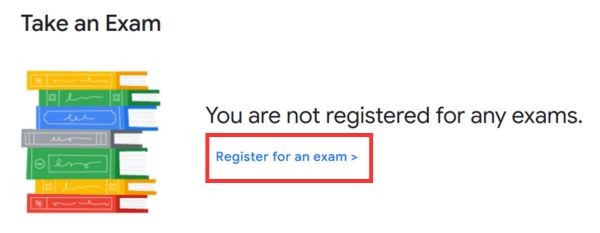
Select item "Register for an exam"
Select “Register for an exam”

Step 2: Choose the Gemini Faculty exam

In the list of available tests, look for the section titled “Gemini Faculty“. Here, the user clicks on the ” buttonRegister” (Register) to let the system record your desire to participate in this competency test for lecturers.

Step 3: Complete your personal profile

The system will ask for some basic personal information to authenticate the contestant’s identity. After filling out all required information fields, click “Next” to move to the next step and select “Take Exam” to confirm readiness to take the test.
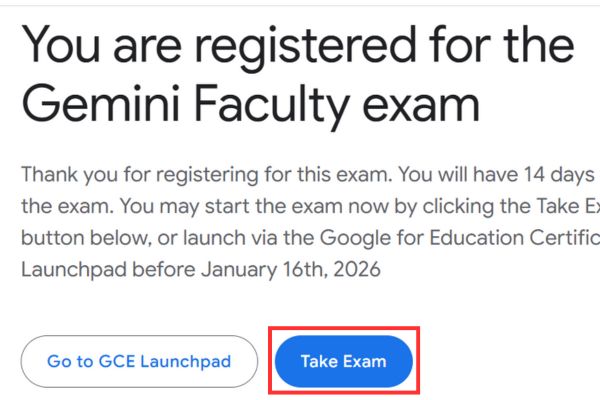
Select "Take Exam"
Select “Take Exam”

Step 4: Take the test online

When ready, press the “ buttonLaunch” to open the test interface and start answering multiple-choice questions. To support the review process and refer to knowledge, test takers can view the answers at LINK FOLLOWS (Note: There will be some questions in the answer)
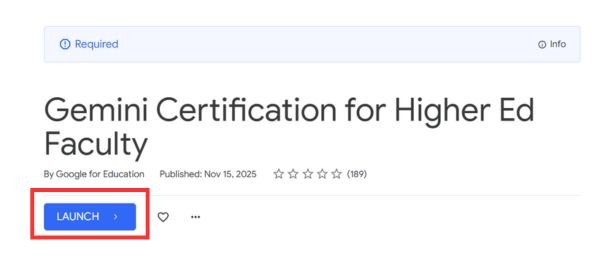
Press the button "Launch"
Press the “Launch” button

Step 5: View results and download certificate

After completing the exam, to check the results and receive the certificate, the user visits the page again https://educations.google/my-results

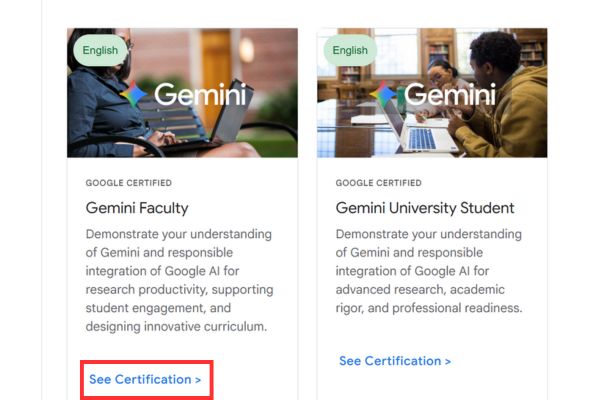
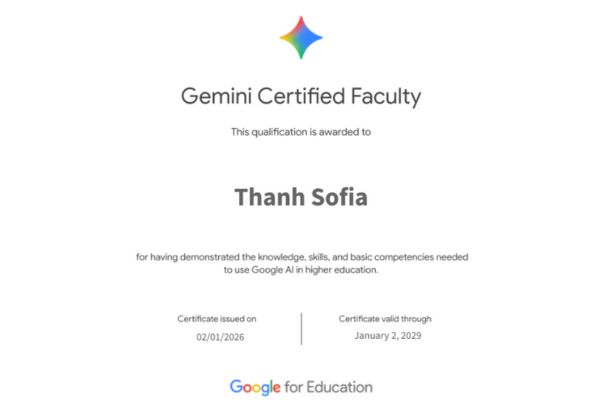
At the Gemini Faculty section, just select “See Certification” is to be able to view and download the certificate to your device for use.
Select "See Certification"
Select “See Certification”
Instructions on how to get Gemini Faculty certificate

Things to know when getting Gemini Faculty certificate

In addition to understanding the registration and test-taking process, preparing your mind and background knowledge also plays a key role in making the exam process go as smoothly as possible.

  • Reference answer documents should only serve as a thinking guide; test takers should not rely entirely on them because the order of questions and detailed content may change over time.
  • The name displayed on the certificate will be taken directly from your Google for Education account information, so make sure your full name is entered correctly to avoid having to retake the exam just because of a spelling mistake.

Conclusion

Hopefully with the above instructions, you have mastered it How to get Gemini Faculty certificate quickly and effectively. This badge will be a big plus in any educator’s portfolio. Wishing you excellent completion of the exam and good application of AI in your work.


Tags: CertificateFacultyGeminiInstructions
Previous Post

How to specify the window opening position on Windows

Next Post

11 Chrome extensions to increase study productivity for Students

AnonyViet

AnonyViet

Related Posts

Tips for pinning the step counter to the iPhone screen to monitor your health
Knowledge

Tips for pinning the step counter to the iPhone screen to monitor your health

April 28, 2026
How to turn off password suggestions on iPhone: Prevent Safari from auto-filling passwords
Knowledge

How to turn off password suggestions on iPhone: Prevent Safari from auto-filling passwords

April 27, 2026
Tips to completely turn off CAPTCHA codes on iPhone and Mac are super simple
Knowledge

Tips to completely turn off CAPTCHA codes on iPhone and Mac are super simple

April 25, 2026
How to compress online videos for free without losing quality
Knowledge

How to compress online videos for free without losing quality

April 24, 2026
Common errors when using Bosch products and how to fix them
Knowledge

Common errors when using Bosch products and how to fix them

April 22, 2026
How to avoid Adblock detection on Youtube with 4 good tips
Knowledge

How to avoid Adblock detection on Youtube with 4 good tips

April 17, 2026
Next Post
11 Chrome extensions to increase study productivity for Students

11 Chrome extensions to increase study productivity for Students

0 0 votes
Article Rating
Subscribe
Login
Notify of
guest

guest

0 Comments
Oldest
Newest Most Voted
Inline Feedbacks
View all comments

Recent News

How to install the cute Bongo Cat mouse pointer for Windows

How to install the cute Bongo Cat mouse pointer for Windows

April 29, 2026
Tips for pinning the step counter to the iPhone screen to monitor your health

Tips for pinning the step counter to the iPhone screen to monitor your health

April 28, 2026
How to turn off password suggestions on iPhone: Prevent Safari from auto-filling passwords

How to turn off password suggestions on iPhone: Prevent Safari from auto-filling passwords

April 27, 2026
Instructions for looking up prescriptions on VNeID instead of paper medical books

Instructions for looking up prescriptions on VNeID instead of paper medical books

April 26, 2026
How to install the cute Bongo Cat mouse pointer for Windows

How to install the cute Bongo Cat mouse pointer for Windows

April 29, 2026
Tips for pinning the step counter to the iPhone screen to monitor your health

Tips for pinning the step counter to the iPhone screen to monitor your health

April 28, 2026
How to turn off password suggestions on iPhone: Prevent Safari from auto-filling passwords

How to turn off password suggestions on iPhone: Prevent Safari from auto-filling passwords

April 27, 2026
AnonyViet - English Version

AnonyViet

AnonyViet is a website share knowledge that you have never learned in school!

We are ready to welcome your comments, as well as your articles sent to AnonyViet.

Follow Us

Contact:

Email: anonyviet.com[@]gmail.com

Main Website: https://anonyviet.com

Recent News

How to install the cute Bongo Cat mouse pointer for Windows

How to install the cute Bongo Cat mouse pointer for Windows

April 29, 2026
Tips for pinning the step counter to the iPhone screen to monitor your health

Tips for pinning the step counter to the iPhone screen to monitor your health

April 28, 2026
No Result
View All Result
  • Home
  • News
  • Software
  • Knowledge
  • MMO
  • Tips
  • Security
  • Network
  • Office

wpDiscuz
0
0
Would love your thoughts, please comment.x
()
x
| Reply