• Home
  • News
  • Software
  • Knowledge
  • MMO
  • Tips
  • Security
  • Network
  • Office
AnonyViet - English Version
  • Home
  • News
  • Software
  • Knowledge
  • MMO
  • Tips
  • Security
  • Network
  • Office
No Result
View All Result
  • Home
  • News
  • Software
  • Knowledge
  • MMO
  • Tips
  • Security
  • Network
  • Office
No Result
View All Result
AnonyViet - English Version
No Result
View All Result

Instructions on how to turn off memories on Facebook in just 1 minute

AnonyViet by AnonyViet
December 24, 2025
in Tips
0

How to turn off memories on Facebook is a useful trick to help you master your news feed. Although the “This Day in the Past” feature helps recall beautiful moments, sometimes it brings unwanted annoyance or brings back memories you don’t want to remember. Don’t worry, AnonyViet This guide will guide you to completely disable this feature easily.

Join the channel Telegram belong to AnonyViet 👉 Link 👈

Instructions on how to turn off memories on Facebook

Celebration feature of Facebook sometimes interrupting your concentration or covering up really important notifications. If you want to pause or turn them off completely, follow these steps:

Step 1: First, you need to open the Facebook application on your phone, click on the menu icon with the image three dashes (usually in the upper or lower right corner of the screen). Next, scroll down and find the item Celebrate.

At the main interface of Memories, you will see the icon pinion (Settings) in the upper right corner, tap it to start customizing.
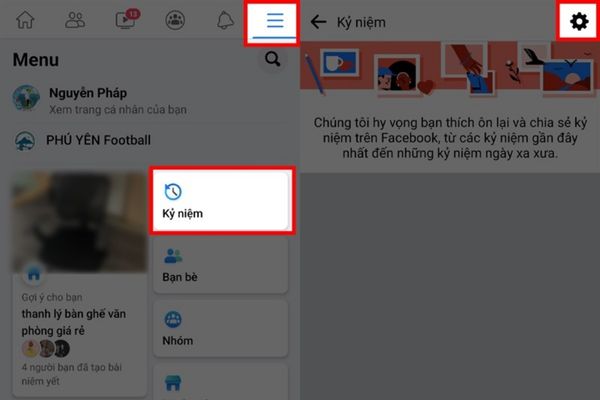
Instructions on how to turn off memories on Facebook

Step 2: Here, Facebook gives you options to control notifications. To turn it off completely, you just need to select the item Do not have. From now on, Facebook will no longer send any anniversary notifications.

If you still want to revisit those special moments, go for it Outstanding to only receive notifications about important videos or images that Facebook considers noteworthy.
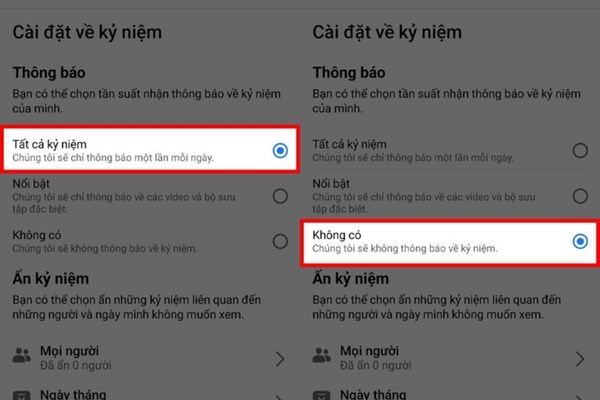
Select None
Select None

How to customize and hide unwanted memories

In addition to turning off notifications, Facebook It also gives you further control by hiding memories related to specific people or times that you don’t want to see.

Hide memories from specific people

There are memories you just want to keep for yourself or don’t want to remind about someone. Facebook understands that and allows you to hide them from certain people.

  • In the Memories settings, find the section Hide memories and choose Everybody.
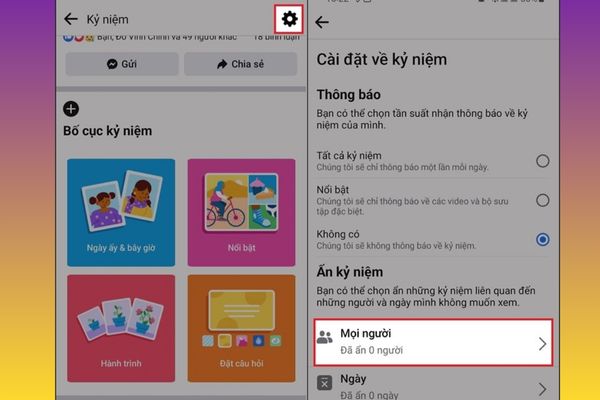
Find the Hide Memories section
  • Here, you just need to enter the Facebook account name of the person you want to hide and select them from the list. You can repeat this operation to add more people to the hidden list.
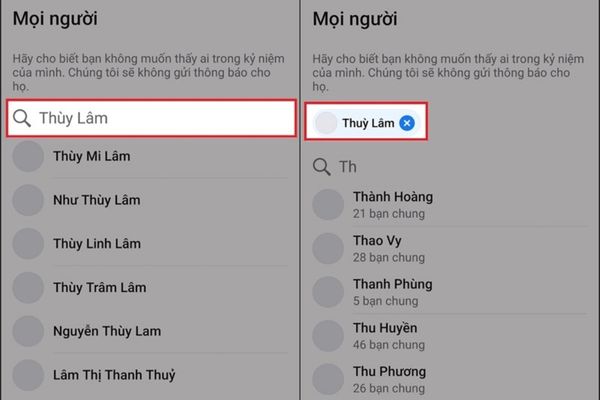
Hide memories from specific people

Hide memories by date or time period

If there are days or times in the past that you don’t want to recall, this feature is for you.

  1. Still in section Hide memoriesyou select the section Day.
  2. A calendar interface will appear, allowing you to select a start date and an end date to create a period of time to hide.
  3. After selecting, press Save and Facebook will never show memories from those days again.
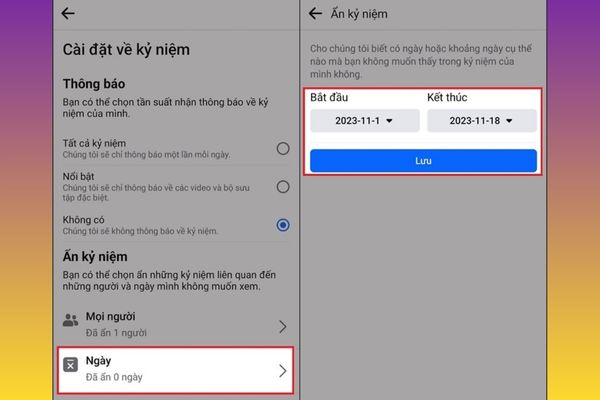
Hide memories by date or time period

Conclusion

Knowing How to turn off memories on Facebook Not only does it help you avoid annoying notifications, but it also provides a more positive and proactive experience using social networks. Wish you success and have comfortable moments surfing Facebook


Tags: FacebookInstructionsmemoriesminuteturn
Previous Post

8 best Linux operating systems you should try today

Next Post

Is it necessary to replace Windows 7 now?

AnonyViet

AnonyViet

Related Posts

Collection of Windows 11 wallpapers for computers and phones
Tips

Collection of Windows 11 wallpapers for computers and phones

July 26, 2026
Don’t install leaked Windows 11
Tips

Don’t install leaked Windows 11

July 25, 2026
Microsoft announced the end of support date for Windows 10
Tips

Microsoft announced the end of support date for Windows 10

July 24, 2026
Microsoft confirms leaked Windows 11 is real
Tips

Microsoft confirms leaked Windows 11 is real

July 22, 2026
HeroSMS là gì? Cách thuê số điện thoại ảo nhận SMS OTP online không cần SIM
Tips

HeroSMS là gì? Cách thuê số điện thoại ảo nhận SMS OTP online không cần SIM

July 22, 2026
How to download documents on 123doc for free
Tips

How to download documents on 123doc for free

July 21, 2026
Next Post
Is it necessary to replace Windows 7 now?

Is it necessary to replace Windows 7 now?

0 0 votes
Article Rating
Subscribe
Login
Notify of
guest

guest

0 Comments
Oldest
Newest Most Voted

Recent News

Collection of Windows 11 wallpapers for computers and phones

Collection of Windows 11 wallpapers for computers and phones

July 26, 2026
Don’t install leaked Windows 11

Don’t install leaked Windows 11

July 25, 2026
Instructions on how to get 1 year of VIP Hidely VPN for free

Instructions on how to get 1 year of VIP Hidely VPN for free

July 25, 2026
Instructions on how to block strange devices from accessing your home Wifi

Instructions on how to block strange devices from accessing your home Wifi

July 25, 2026
Collection of Windows 11 wallpapers for computers and phones

Collection of Windows 11 wallpapers for computers and phones

July 26, 2026
Don’t install leaked Windows 11

Don’t install leaked Windows 11

July 25, 2026
Instructions on how to get 1 year of VIP Hidely VPN for free

Instructions on how to get 1 year of VIP Hidely VPN for free

July 25, 2026
AnonyViet - English Version

AnonyViet

AnonyViet is a website share knowledge that you have never learned in school!

We are ready to welcome your comments, as well as your articles sent to AnonyViet.

Follow Us

Contact:

Email: anonyviet.com[@]gmail.com

Main Website: https://anonyviet.com

Recent News

Collection of Windows 11 wallpapers for computers and phones

Collection of Windows 11 wallpapers for computers and phones

July 26, 2026
Don’t install leaked Windows 11

Don’t install leaked Windows 11

July 25, 2026
  • Home
  • Home 2
  • Home 3
  • Home 4
  • Home 5
  • Home 6
  • Next Dest Page
  • Sample Page

say88 tỷ lệ kèo nhà cái kèo nhà cái 5 febet

No Result
View All Result
  • Home
  • News
  • Software
  • Knowledge
  • MMO
  • Tips
  • Security
  • Network
  • Office

say88 tỷ lệ kèo nhà cái kèo nhà cái 5 febet

wpDiscuz
0
0
Would love your thoughts, please comment.x
()
x
| Reply