RAM is a very important component inside a computer, but do you really know how many GB of RAM you need? If you install too little, the device will lag. If you install too much, it will cost you money? This article will show you how to calculate the correct RAM capacity for your computer needs.
| Join the channel Telegram belong to AnonyViet 👉 Link 👈 |
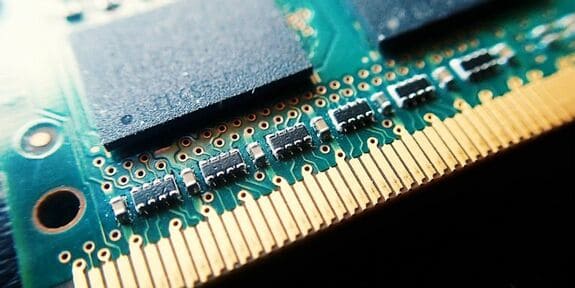
Let’s learn how to see how much RAM you have available, how much RAM is suitable for different users, and some advice if you need more RAM.
What is RAM?
I have a detailed article about it Find out what RAM is? Before looking at how much RAM you need, you need to know what RAM is first. Watch the video above for more details, I’ll just make it short and easy to understand for you.
RAM, or random access memory, is a form of short-term storage in your computer. That’s where the operating system keeps processes for open programs. When you turn off the computer, the contents of RAM are erased.
Because RAM allows quick access, you can switch between open programs quickly. Switching between programs running in RAM is much more efficient than pulling them from your drive.
How to check how much RAM your computer has
Next, we will see how much RAM you have in the system to easily compare with the examples and objects in the article.
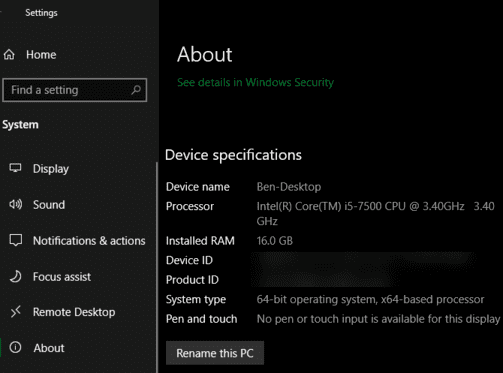
Above Windows 10come in Settings > System > About. In Device specificationsyou will see the line Installed RAM. Note that if your system is 32bit, you can only use 4GB of RAM no matter how much RAM you have in the machine. You will need to use 64-bit Windows to use more than 4GB of RAM.
For Windows 7right-click My Computer and select Properties. See Installed Memory (RAM).
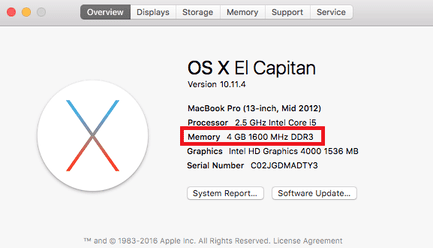
Above macOSopen Apple menu at the top left of the screen and select About this Mac. On tabs Overviewyou will see the line Memory shows how much RAM you are using.
If you use Linuxyou can enter commands free in Terminal to display RAM information. However, this command will display the amount of memory in kilobytes, which is a bit inconvenient. You just need to use it free -h to display RAM information in gigabytes or megabytes.
How much RAM does a computer need?
Now that you know how much RAM your computer has, let’s look at some common memory capacities to see how much is right for your needs.
2GB or less: Weak
You can hardly find a modern computer with only 2GB of RAM. While this amount of RAM will be able to handle a simple task, such as basic web browsing, anything beyond simple multitasking will slow down systems with 2GB of RAM.
Most low-cost smartphones today use even more RAM. You should avoid buying a computer with 2GB of RAM, and if your current machine has less RAM, consider upgrading when possible.
4GB RAM: Enough for basic needs

For a while, 4GB of RAM was considered the baseline for most computers. Although the world is now moving towards the 8GB standard, you will still find some cheap laptops using 4GB of memory. But is 4GB of RAM good?
4GB of RAM is enough if you only use your computer for basic tasks like web browsing, light word processing or spreadsheet work, and emailing. It’s not enough for many modern games and will struggle if you have multiple Chrome tabs open or running dozens of programs at once.
8GB RAM: Standard for the future
Most mid-range computers today have 8GB of RAM. Notably, all Apple MacBook models use at least 8GB of RAM.
8GB is a good modern standard for RAM. It’s enough to perform multiple tasks at the same time without slowing down and is also enough for gaming.
You may want more RAM if you regularly edit 4K videos, live stream heavy games, or always have a lot of resource-hungry programs open. But if you are not a heavy computer user, 8GB of RAM is more than enough.
16GB RAM: For professionals

16GB of RAM is a great amount if you use your computer for heavy tasks. Design software, video editing, and AAA games require more hardware if you have 16GB of RAM.
However, it’s overkill if you don’t have the above needs. People who only open a few browser tabs and don’t play games or work with large files can use less RAM (I have a brother who bought over 20 gaming laptops just to surf Facebook and watch YouTube :v).
32GB+: For graphics people + virtual machines
32GB or more memory is only necessary for super pro users. If you regularly edit 4K (or higher) video and want to work on other tasks while your computer is editing the video, you’ll need a large amount of memory. For most others it’s a waste and you might be better off spending that money upgrading your PC.
Most games today do not need 32GB of RAM. You can watch this article To know how much RAM you need to play any game.
Video RAM is different from RAM
We learned about RAM above. However, if you have a dedicated graphics card in your PC, you should know that this card has its own memory. Called video RAM, or VRAM.
VRAM holds the information the game needs to display and transfers it to your screen efficiently. Even if you have plenty of RAM, game performance (or high-end design software) can suffer if you don’t have enough VRAM.
How to increase RAM
The fastest way is to visit https://downloadmoreram.com/ to download RAM. Just kidding, please read below.
The only way to get more RAM to use is to buy more for your computer. It’s relatively cheap and will make a big difference if you’re doing work that requires more RAM than it does today (RAM is much cheaper now than it used to be).
Trying a temporary solution is Increase RAM using USByou should only use it in urgent situations.
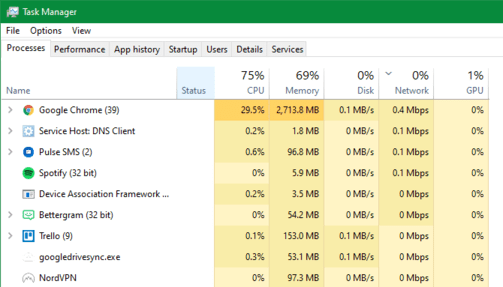
However, if you are currently unable to upgrade the memory, you can free up available RAM on your Windows computer with some tricks. Most importantly, close programs if you’re not using them, so they don’t take up all your available RAM.
Don’t forget to upgrade other components
If you’re looking to upgrade your current machine or build a new PC, remember that RAM isn’t the only component worth buying. Unused RAM is wasted RAM. There’s no point buying 32GB of memory when you’re only going to use 4GB, because the extra RAM never works. You can also run RAPID or use iGPU.
How much RAM does a computer need?
We’ve learned how to check the RAM in your computer, how much RAM you need for different tasks, and how to get the most out of your current memory. In short, aim for 8GB as a baseline and 16GB of RAM if you’re a pro. If used for graphics or virtual machines, you can think about upgrading to 32Gb or 64Gb
Frequently asked questions
How much RAM do I need for my computer?
The amount of RAM needed depends on how you use your computer. 4GB is enough for basic tasks, 8GB is a good standard for multitasking and gaming, 16GB or more is for video editing and professional graphic design.
How to check the amount of RAM available on my computer?
On Windows, go to Settings > System > About. On macOS, open Apple menu > About This Mac. On Linux, use the command free -h in Terminal.
How can I increase my computer’s RAM?
The only way to increase RAM is to buy more RAM sticks and install them in your computer. The solution to increasing RAM using USB is only temporary and ineffective.