Knowing tricks to help your presentation file shine brightly will make your presentation a success. Presentations are the most intuitive way to share complex ideas with the audience, although they are quite bland and ugly when the author does not know how to implement the idea and design. So, in this article, I will introduce some tips to help with presentations PowerPoint Yours becomes more beautiful and interesting.
| Join the channel Telegram belong to AnonyViet 👉 Link 👈 |

What is the goal of the presentation?

First you must determine the purpose of the presentation. Is it informative and easy to understand? Or is it a sales pitch, intended to persuade the audience and lead them to a specific result?
This is the problem most presentations face when it comes to not being able to identify the best arguments to support our goals. For example, the main goals include: to entertain, to provide information or share data, to argue or present an issue. Use facts, figures and images to support your presentation.
I recommend introducing the ending first. When the audience knows the end of your presentation, they will be able to see what they memorized and analyzed to get to your conclusion. From there, they will focus and listen to your presentation more.
Use Templates
Of course, using a beautiful PowerPoint template will make your presentation more impressive. So AnonyViet has shared quite a lot Beautiful free Powerpoint templates with many topics such as business, study, job application…
If you really don’t know how to design or create layouts, Templates will save you. My favorite PowerPoint Templates page is SlideGo. Because it’s beautiful and free. But Slide is just a tool to help you present better. Remember, it all depends on your presentation skills.
The simpler, the more beautiful
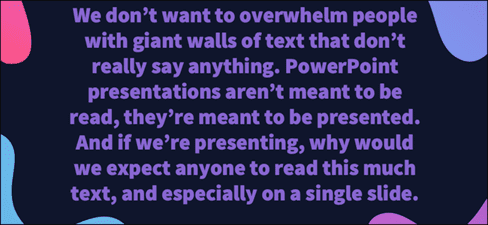
Post PowerPoint Yours shouldn’t contain everything. Let’s introduce a topic on Slide, a topic that we can explain through a presentation. The more redundant information, the easier it is for the audience to get distracted. It makes the presentation less attractive and less interesting, and no one will pay attention to you, because what they are focusing on now is reading a bunch of information on your Slide. Make the audience pay attention to you, Slide is just an auxiliary tool for your presentation, remember.
This applies to Slides as shown above. In fact, there is nothing worse than when the presenter just reads the information on the Slide. Your audience is capable of reading and they will most likely finish reading the Slide before you. Remember to avoid putting text on the Slide.
Consider typography
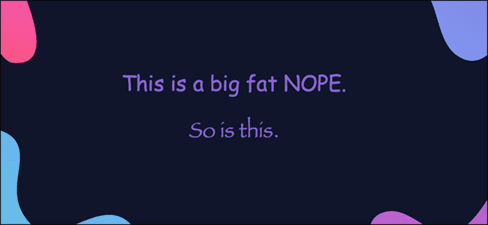
I recommend that you do not use Papyrus and Comic Sans in all PowerPoint presentations. Additionally, you need to consider the typeface you’re using, the presenter, and the PowerPoint Slide itself.
Consider choosing between readability over aesthetics and avoid fancy fonts that can be distracting. A good Slide needs two fonts: serif and sans-serif. Use one for titles and one for content, lists, and the like. Veranda, Helvetica, Arial, and even Times New Roman are safe choices.
First line symbol
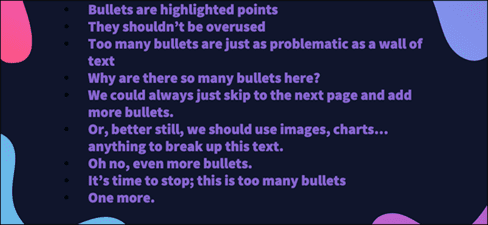
Bullet points assist the presenter, making the information easier for the audience to read. In fact, the best slides should have little or no text at all. As a presenter, it’s your job to talk about the issues that need to be presented, but that doesn’t mean we need to highlight every talking point.
Instead, divide your content into lists of 3 or 4 bullet points. Be careful when using bullet points, you need to ensure the content of the bullet point and don’t make it too long. If you can’t, remember that there’s no limit to the number of slides in a presentation. You can always divide a list of 12 bullet points into three Slides, each with four bullets.
Limit the use of effects
The effect, when used properly, will maximize its effectiveness. It breaks down Slide movements and adds actions to the elements used. But it should be used with caution.
For example, adding a left to right transition effect between every Slide or animating each bullet point will create a feeling of inhibition and discomfort for the audience. Viewers quickly get bored and the effects gradually become scary.
That doesn’t mean you can’t use animations and transitions, just that you need to be careful when using them. Use them for specific purposes, or you want to clarify a certain idea in your presentation.
Skip text if possible

Sometimes images will help us express things easier than text. Your goal is to be as detailed as possible without forcing the user to read too much. In these cases, well-designed visuals, like charts, will communicate better.
A suitable image in the right context helps your presentation be more summarized, clear, clear and intuitive. For example, boring statistical tables, try turning them into lively charts with representative images that will be much more interesting. This is also a term in cinema that you can apply: “Show don’t tell”.
Color combination

Color is also one of the deciding factors for your presentation. If you mix the colors correctly, it will be easier for the audience to pay attention and focus on your presentation. But if you don’t know how to mix colors or mix them wrong, before you even speak, you’ve already failed. So, I will introduce to you a website that helps us coordinate PowerPoint colors extremely beautifully happyhues or colorhunt.
Arrange Slides
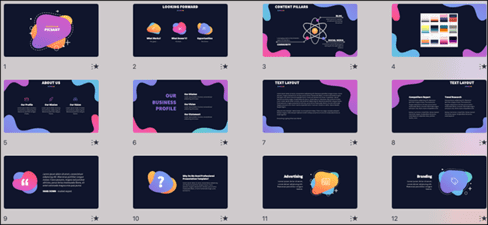
Spend some time in Slide Sorter before you finish your presentation. By clicking the four squares at the bottom left of the Slide, you can view multiple slides at once and see how each Slide works. Alternatively, you can click “View” on the ribbon and select “Slide Sorter”.
From this mode, you can review and rearrange the order of appearance of each Slide. The difference between a good presentation and a bad one really comes down to preparation and execution. People who follow the process and plan carefully — not just the entire presentation, but every slide — are successful.
Frequently asked questions
What should I prepare before I start creating a PowerPoint presentation?
First of all, clearly define the goal of the presentation. What information do you want to convey? How do you want the audience to act after listening? This will help you shape the content and structure of your presentation more effectively.
How to make my PowerPoint presentation more engaging?
Use a beautiful template, keep the content short and easy to understand, limit text and use lots of illustrations. Choosing an easy-to-read typeface and harmonious color scheme is also important.
Should I use a lot of transitions and animations in my presentation?
Effects should be used sparingly. Too many effects will annoy and distract the viewer. Use only when necessary to emphasize important points.