• Home
  • News
  • Software
  • Knowledge
  • MMO
  • Tips
  • Security
  • Network
  • Office
AnonyViet - English Version
  • Home
  • News
  • Software
  • Knowledge
  • MMO
  • Tips
  • Security
  • Network
  • Office
No Result
View All Result
  • Home
  • News
  • Software
  • Knowledge
  • MMO
  • Tips
  • Security
  • Network
  • Office
No Result
View All Result
AnonyViet - English Version
No Result
View All Result

How to add emoji to Macbook folder to easily distinguish

AnonyViet by AnonyViet
October 30, 2025
in Tips
0

Add emoji to Macbook folder is a way to make your workspace more lively and recognizable. Instead of monotonous blue folders, you can assign emojis to visually classify documents. This article AnonyViet will guide you through the steps to do it in the simplest way.

Join the channel Telegram belong to AnonyViet 👉 Link 👈

Why should you add emoji to your Macbook folder?

Attaching a small emoji to a folder is not only an aesthetic change, but also brings practical benefits such as:

Superfast visual organization

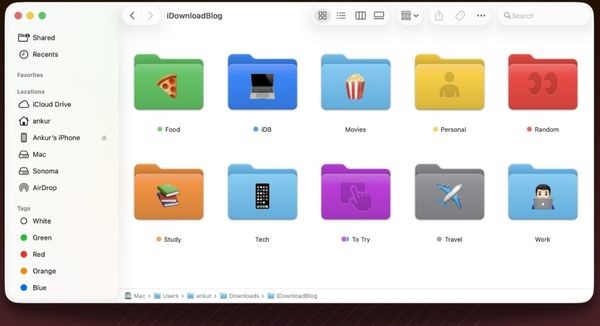
Our brains process images much faster than text. Instead of having to search for folder names, a ✈️ icon for the “Travel Plans” folder or a 💼 icon for “Client Projects” will help you locate them at a glance.
Why should you add emoji to your Macbook folder?

Create a unique memory system

You can build your own “language”. For example, emoji 💡 for new ideas, 💰 for finance-related folders, and 🎓 for all study materials. Adding emoji to the Macbook folder this way makes the classification more scientific and easier to remember.

Instructions for adding emoji to Macbook folder

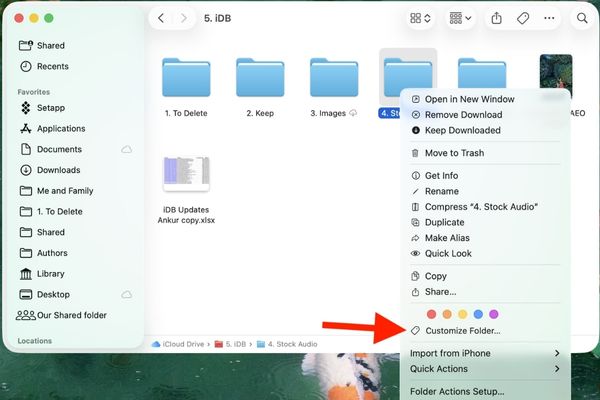
Step 1: First, simply right-click (or Control-click) on any folder you want to customize. Then find and select Customize Folders.
Select Customize Folder

Step 2: Now it will give you two main options:

  • Built-in icons: Browse hundreds of symbols pre-categorized by Apple by topics such as Animals, Food, Activities, Objects, etc.
  • Emoji Keyboard: Click the Emoji button to open up the familiar emoji keyboard. You can use the search bar to quickly find the emoji you want, for example type “book” to find 📚 or “camera” to find 📷.

Step 3: Once you’ve chosen the emoji you like, just click out of that window to close it. Immediately, the icon you choose will be “printed” neatly in the middle of the folder, replacing the default interface.
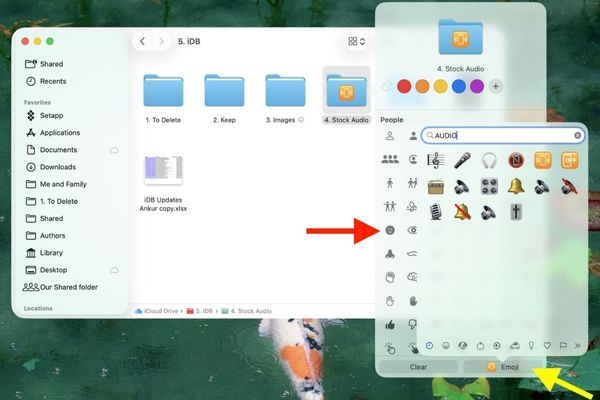
Instructions for adding emoji to Macbook folder

How to “color” MacOS folders

Besides adding icons, the new update also upgrades a familiar feature: Color tags (Tags).

Previously, assigning a color tag to a folder only showed a tiny colored dot next to the name. But now, when you right-click on a folder and select a color in the “Tags” section, the entire folder will be colored accordingly. A red “Urgent” folder or a green “Done” folder will become more prominent and easier to manage than ever.
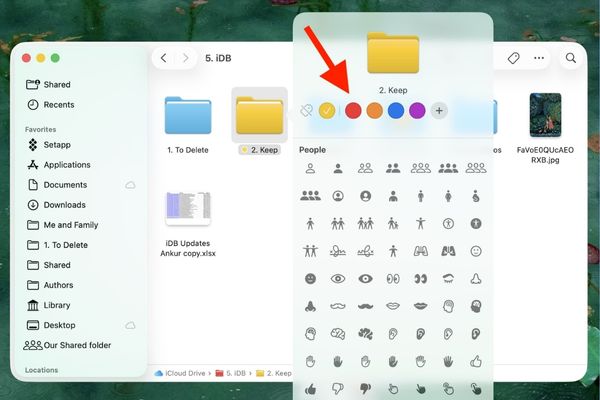
How to
How to “color” MacOS folders

How to delete emoji and colors from Macbook folder

If you want to go back to the classic look, restoring is easy:

  • Delete emojis: Right-click the folder, select Customize Folder again, then click the Clear button. The icon will disappear.
  • Remove color: Right-click on the folder, move to “Tags” and uncheck the color being applied. The folder will return to its default blue color.
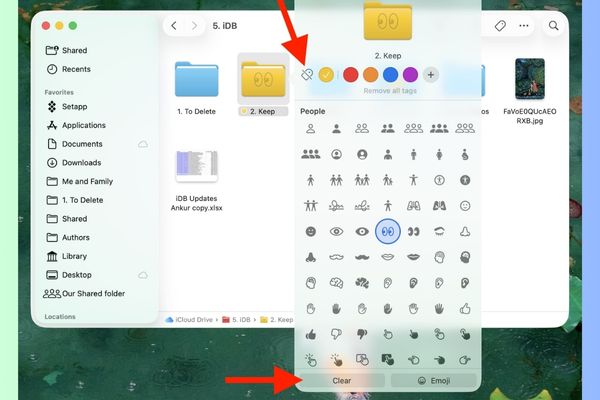
How to delete emoji and colors from Macbook folder

Synchronize emoji on Macbook folder with iPhone and iPad

One of the biggest pluses of this feature is the seamless synchronization across the ecosystem Apple. When you add emoji to a Macbook folder stored on iCloud Drive, these changes will automatically update and display on the Files app of iPhone and iPad (requires compatible operating system version).

This means your visual organization goes with you on every device, making your work and file management experience consistent and efficient. However, currently these customizations may not appear on iCloud for Windows or the web version.
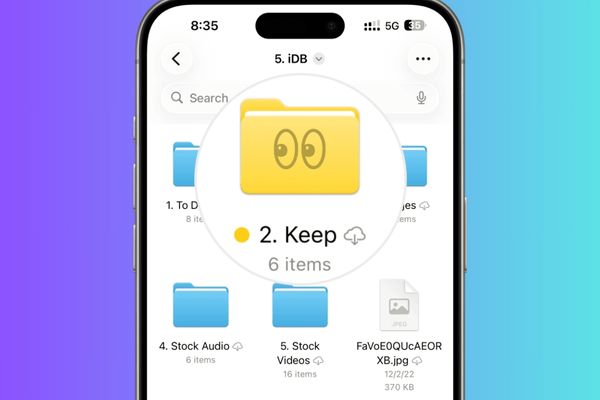
Synchronize emoji on Macbook folder with iPhone and iPad

Conclusion

Add emoji to Macbook folder Obviously a small but powerful feature, making file management more interesting and effective. With the above instructions, hopefully you are ready to experience and refresh your workspace. Wish you success!

Tags: AddDistinguisheasilyEmojiFolderMacBook
Previous Post

What is Direct Connect AWS? Benefits when businesses use Direct Connect AWS

Next Post

What chip does the iPhone 17 series use? Power of A19 and A19 Pro

AnonyViet

AnonyViet

Related Posts

Some reasons I don’t like Windows 11
Tips

Some reasons I don’t like Windows 11

July 27, 2026
Instructions on how to get free Facebook white ticks
Tips

Instructions on how to get free Facebook white ticks

July 27, 2026
Collection of Windows 11 wallpapers for computers and phones
Tips

Collection of Windows 11 wallpapers for computers and phones

July 26, 2026
Don’t install leaked Windows 11
Tips

Don’t install leaked Windows 11

July 25, 2026
Microsoft announced the end of support date for Windows 10
Tips

Microsoft announced the end of support date for Windows 10

July 24, 2026
Microsoft confirms leaked Windows 11 is real
Tips

Microsoft confirms leaked Windows 11 is real

July 22, 2026
Next Post
What chip does the iPhone 17 series use? Power of A19 and A19 Pro

What chip does the iPhone 17 series use? Power of A19 and A19 Pro

0 0 votes
Article Rating
Subscribe
Login
Notify of
guest

guest

0 Comments
Oldest
Newest Most Voted

Recent News

Samsung Galaxy Z Fold 8 Ultra and Z Fold 7: Is it worth upgrading?

Samsung Galaxy Z Fold 8 Ultra and Z Fold 7: Is it worth upgrading?

July 28, 2026
Some reasons I don’t like Windows 11

Some reasons I don’t like Windows 11

July 27, 2026
Instructions on how to get free Facebook white ticks

Instructions on how to get free Facebook white ticks

July 27, 2026
How to delete hidden files on Samsung phones, free up device space

How to delete hidden files on Samsung phones, free up device space

July 27, 2026
Samsung Galaxy Z Fold 8 Ultra and Z Fold 7: Is it worth upgrading?

Samsung Galaxy Z Fold 8 Ultra and Z Fold 7: Is it worth upgrading?

July 28, 2026
Some reasons I don’t like Windows 11

Some reasons I don’t like Windows 11

July 27, 2026
Instructions on how to get free Facebook white ticks

Instructions on how to get free Facebook white ticks

July 27, 2026
AnonyViet - English Version

AnonyViet

AnonyViet is a website share knowledge that you have never learned in school!

We are ready to welcome your comments, as well as your articles sent to AnonyViet.

Follow Us

Contact:

Email: anonyviet.com[@]gmail.com

Main Website: https://anonyviet.com

Recent News

Samsung Galaxy Z Fold 8 Ultra and Z Fold 7: Is it worth upgrading?

Samsung Galaxy Z Fold 8 Ultra and Z Fold 7: Is it worth upgrading?

July 28, 2026
Some reasons I don’t like Windows 11

Some reasons I don’t like Windows 11

July 27, 2026
  • Home
  • Home 2
  • Home 3
  • Home 4
  • Home 5
  • Home 6
  • Next Dest Page
  • Sample Page

say88 tỷ lệ kèo nhà cái kèo nhà cái 5 febet

No Result
View All Result
  • Home
  • News
  • Software
  • Knowledge
  • MMO
  • Tips
  • Security
  • Network
  • Office

say88 tỷ lệ kèo nhà cái kèo nhà cái 5 febet

wpDiscuz
0
0
Would love your thoughts, please comment.x
()
x
| Reply