Job Receive email when someone logged into the computer As an active security layer that you should set today. You will no longer have to worry about someone illegally accessing your personal data when you are absent. The article will guide you step by step to install this useful feature.
| Join the channel Telegram belong to Anonyviet 👉 Link 👈 |
Why should you set to send mail when someone logged into the computer
Increase computer security
You will know immediately if there is an unauthorized access, allowing you to act in time such as changing passwords or locking accounts remotely.
Absolute peace of mind
Whether you are traveling, on business trips or simply going out to drink coffee, you will no longer have to worry about the computer at home. An email notification is all you need to know everything is safe.
Effective monitoring
If you are a parent, this is a great tool to know when your children use a computer, helping you manage your child’s online time in a healthy way.
Discover suspicious activities
Receive email login at 3 am? It is a red warning sign that your account may have been infringed or a computer being controlled by malware.
How to receive email when someone logs into the computer
This process consists of two main parts: Create a script (Script) to send emails and schedule that script automatically runs. Do not worry if you are not technology people, just follow the steps below and you will succeed.
Step 1: The first step in receiving email when someone logged into the computer is to create a file. This order file contains email account information and warning content you want to receive.
This script will save your email password as a text. To ensure absolute safety for the main account, you should Create a whole new email account Just to serve this purpose. Moreover, if the account has two factors (2FA), you are required to create a “app password” and use it instead of a normal password.
Perform:
- Access Notepad above Windows 11.
- Copy and paste the following code below to Notepad:
# Email Settings
$smtpServer = "smtp.youremailprovider.com"
$smtpPort = "587"
$smtpUser = "[email protected]"
$smtpPass = "youremailpassword"
$toEmail = "[email protected]"
$subject = "Login Alert on $env:COMPUTERNAME"
$body = "User $env:USERNAME has just logged in at $(Get-Date)."

# Send Email
$msg = New-Object System.Net.Mail.MailMessage $smtpUser, $toEmail, $subject, $body
$smtp = New-Object Net.Mail.SmtpClient($smtpServer, $smtpPort)
$smtp.EnableSsl = $true
$smtp.Credentials = New-Object System.Net.NetworkCredential($smtpUser, $smtpPass)
$smtp.Send($msg)
Remember to customize according to your information:
$ Smtpserver: SMTP server address of email provider. (Example: Smtp.gmail.com for Gmail, SMTP.Office365.com for Outlook).
$ Smtpuser: The extra email address you just created to send the warning.
$ smtppass: The application password you created for the extra email account.
$ toemail: Your main email address, where you want to receive a warning.
$ subject and $ body: Title and email content. You can customize for easy to understand.
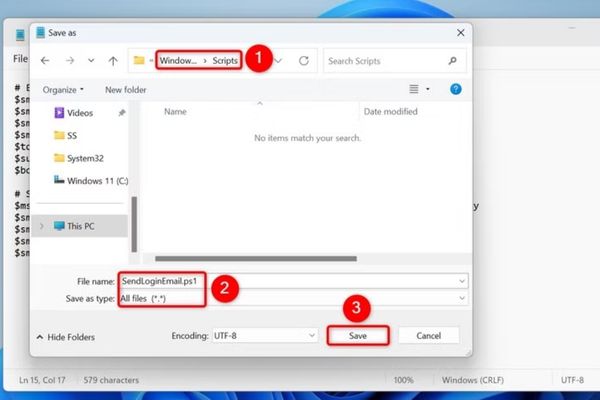
- Select File> Save as To save the file again> select a folder to save, for example, create C: \ hethong folder.
- At Save as type, change to All files (*.*).
- At the Name file line, name the file with tail .ps1Example: canhbaodangnhap.ps1> press Save.
Step 2: Now, we will use Windows’s available tools, Task Scheduler to command the script automatically runs every time someone logs in.
- Open Task Scheduler (Press the Windows key, type Task Scheduler and open it).
- In the right frame, choose Create Task….
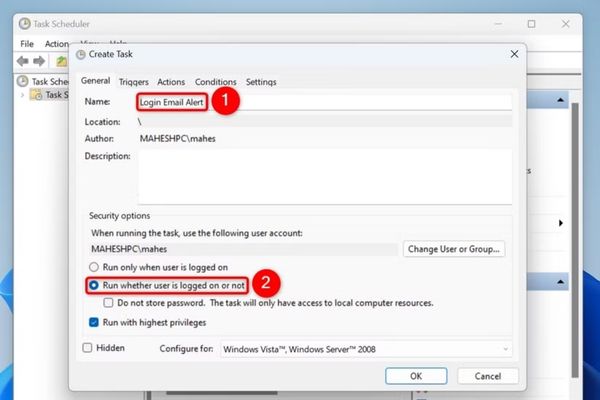
In the General tab:
- Name: Name the task, for example: GUI email is located.
- Choose in the box Run Whether User is logged on or not and Run with highest privateges.
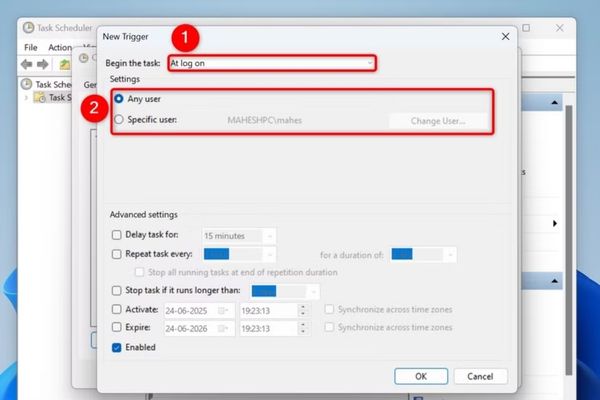
Click to Triggers tab> select New.
- In the section Begin The Task, select At log on.
- You can choose Any user To track all accounts.
- Press OK.
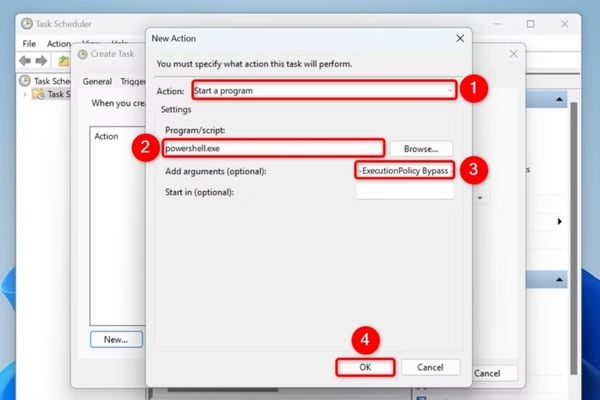
Switch to the Actions tab and select New.
- The Action must be Start a program.
- Program/script: Type PowerShell.exe.
- Uper Arguments (Optional): paste the following command line, remember to replace the file link correctly.
-Executionpolicy bypass -file “C: \ scripts \ Sendloginemail.ps1”
- Press OK.
- Press OK Last and enter your computer password if required.
From now on, how to get email when someone logged into the computer has been activated!
How to send mail silently
By default, whenever running, a window PowerShell will flash on the screen. To make this process completely invisible, take the following step:
- Open application Notepad and paste the following code:
Set objShell = CreateObject("Wscript.Shell")
objShell.Run "powershell.exe -ExecutionPolicy Bypass -File ""C:\Scripts\SendLoginEmail.ps1""", 0, False
Note: Make sure the .ps1 file in the code is correct.
- Save this file with the tail .vbs (Remember to choose Save as type as All files).
- Back to Task Scheduler, reopen the task you have created.
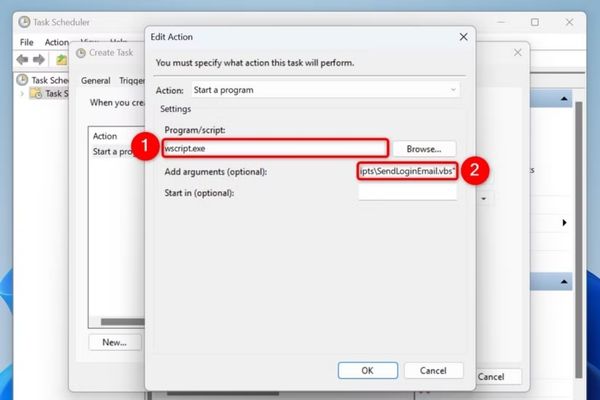
- Go to the Actions tab, select action and press Edit….
Program/script: WSCRIPT.EXE
Add Arguments (Optional): “C: \ scripts \ Sendloginemail.vbs”(The path to your .vbs file).
- Press OK To save.
Now, your system will work silently and professionally.
Frequently asked questions
Does this feature work on Windows 10?
Yes, the steps are completely similar on Windows 10
I don’t get an email, what to do?
Please check again:
1) Is the application password correct?
2) Is the SMTP server information accurate?
3) Check the spam/spam directory.
4) Is the firewall blocking connectivity?
How to turn off this feature?
Very simple. Just open Task Scheduler, find the task you have created, right click and choose Disable (Pause) or Delete (deleted).
Conclusion
Set to nHate email when someone logged into the computer Actually simpler you think a lot. With just a few steps, you have an effective warning system without any cost. This is a small trick but brings huge security value. Wish you apply successfully!