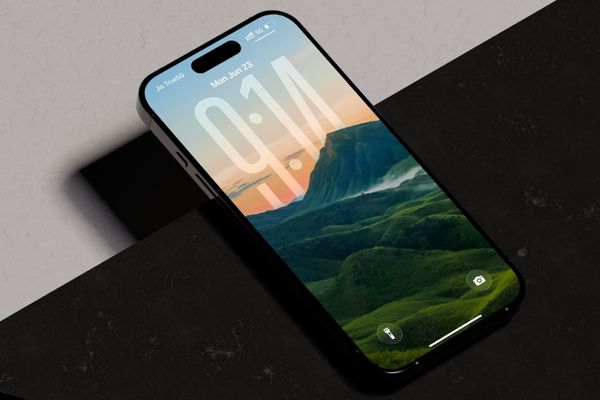
Zoom in iPhone lock screen clock It is the perfect solution if you feel the default is too small and boring. With just a few steps, you can completely change the appearance of your phone. Please follow the following steps from the following steps Anonyviet To perform successfully!
| Join the channel Telegram belong to Anonyviet 👉 Link 👈 |
Watching the iPhone lock screen clock for?
This is not only a small aesthetic change, but also enhances your use experience such as:
- A large, bold watch with favorite colors will show your own taste and personality.
- For older or poor vision users, the zooming in the clock helps to see the time faster and much easier without having to squint or find glasses.
- An impressive design will become the center of the lock screen. In particular, when combined with depth effect, the clock can be subtly hidden behind the subject of the image, creating an extremely eye -catching 3D effect.
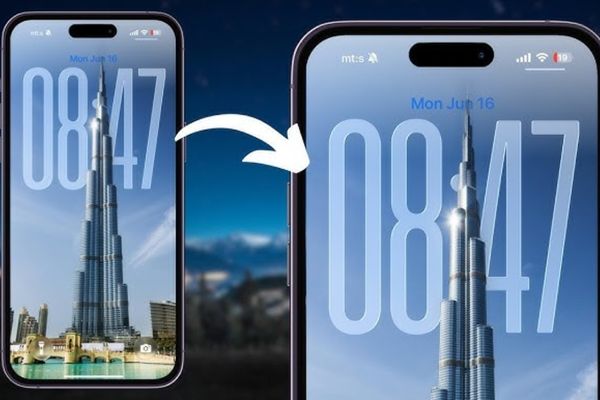
Instructions on how to enlarge iPhone lock screen clock
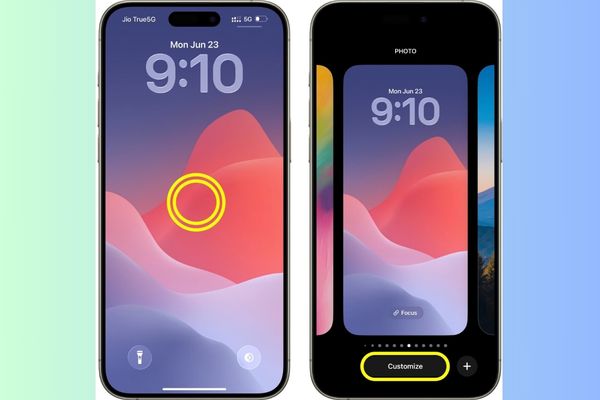
Step 1: First, wake up your iPhone screen. Instead of stroking up to unlock it completely, press and hold into any space on the lock screen. Hold for 1-2 seconds until the screen shrinks and the button appears Customize At the bottom.
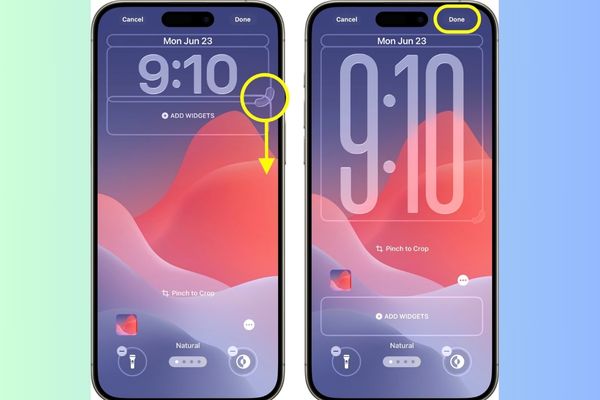
Step 2: Now, you will see the components on the lock screen surrounded by a border. Click on the clock display area. You will see A small round bow (Pull Tab) appears in the lower right corner of the watch frame.
Hold and pull this bow down. The further the pull, the bigger the clock will be. You can pull the clock to occupy nearly half of the screen, or stop at a size that you like.
Step 3: After being satisfied with the new size of the clock, click the button Done In the upper right corner of the screen.
Error cannot enlarge clock: Causes and solutions
You are using iOS 26/ ipasos 26 and have followed the above steps but not dots to pull? Do not worry, this is a fairly common problem and how to fix it is also very simple. The main reason is usually because you are using a font or type that does not support dynamic size.
Not all fonts Apple Supply all have elasticity. Only certain fonts support this feature. The steps are very simple:
- Back to the lock screen customization mode.
- Click on the clock area to open the board Font & Color.
- In the upper left corner of this table, you will see one Globe icon. Click on it.
- Choose the set of characters Arabic, Western.
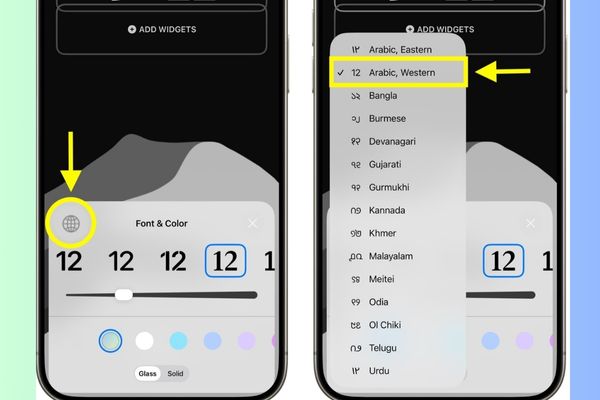
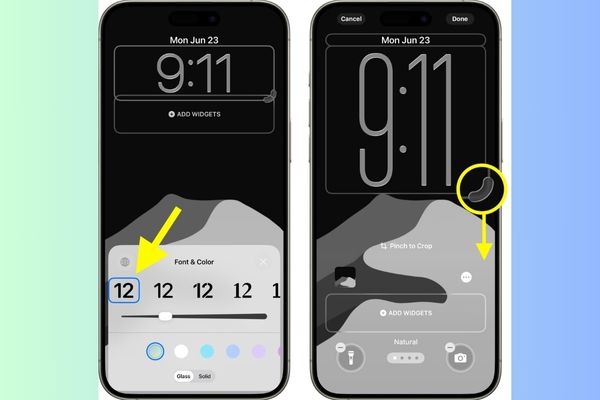
- After choosing, look at the fonts. The most important thing is to choose The first font on the left side. This is the default font that supports the size change feature.
- Immediately, you will see the round tab reappear. Now you can pull to enlarge the iPhone lock screen clock easily!
Some other important notes
- In some cases, if you have a widget right below the clock, it can cover the pull area. The solution is to drag that widget a bit lower to create space, then try to zoom in.
- This feature only allows you to enlarge the clock. Friend inexcusable It is more than the standard size.
- If you are playing music and click on the album cover photo on the key (Now Playing), the clock will temporarily shrink to prioritize displaying cover photos throughout the screen.
Conjugate
Job zoom in iPhone lock screen clock Not only helps you see the time more convenient but also a great way to refresh your phone every day. With a few simple steps that Anonyviet has guided, you can completely design a unique lock screen by yourself. Do not hesitate to test with different fonts, colors and wallpapers to find your own perfect combination!