Automatically erase the web history after escaping is one of the most effective ways to protect your privacy in the digital world. Every time you close the browser, all traces of accessed websites, monitoring cookies and session data will completely disappear. Let’s explore how to set this powerful feature on popular browsers to regain personal data control offline!
|
Join the channel Telegram belong to Anonyviet 👉 Link 👈 |
Why automatically erase the web history after escaping?
Before going into the instructions, let’s find out the not to be missed benefits of this number:
- Supreme privacy: This is the most obvious benefit. No one can be curious about your online activity. This is especially useful on shared devices.
- Effective anti -monitoring: By deleting cookies and website data each session, you have made significant difficulties for advertisers and third parties in monitoring and building your profile.
- Enhance security: The automatically logging out of websites such as email, social networks, banks, … after each use will minimize the risk of unauthorized access if you forget to log in manually.
- Web experience “clean”: Start each web browser session as a blank page, not affected by old search or data.
Instructions to automatically delete the web history after escaping
For Brave and Microsoft Edge
Good news for those who are using Brave and Microsoft Edge! Both browsers have built -in automatically deleting the web history after escaping visually.
The steps done on Brave are as follows:
- Open Brave browser, click the icon Three dashes (menu) in the upper right corner and select Settings.
- In the left menu, choose History> Click Delete Browsing Data.
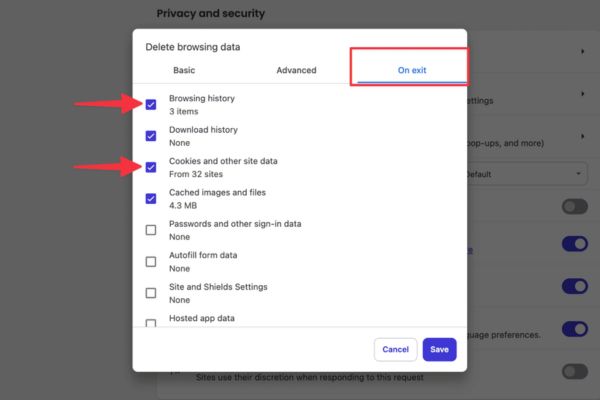
- A new window will appear, switch to the tab On exit (When escaping).
- Here, you only need to accumulate the cells corresponding to the data you want to delete, such as Browsing History (Web browsing history), Cookies and other site data (Cookies and other website data), …
- Press Save And everything is ready. From now on, Brave will automatically clean every time you close the browser.
Steps performed on Microsoft Edge:
- Open Edge, click the icon Three dots In the upper right corner and select Settings.
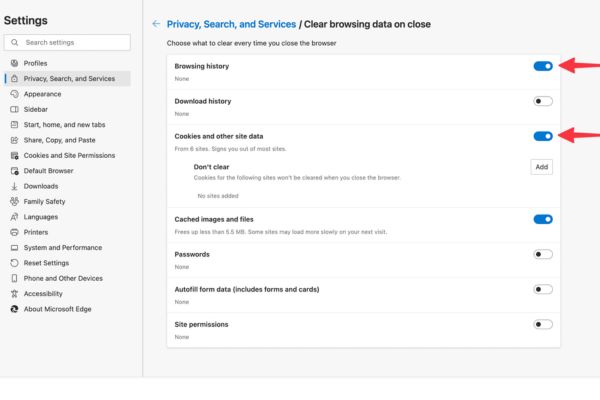
- Navigate to the item Privacy, Search, and Services in the left bar.
- Roll down the “Delete Browsing Data” section and click Choose What to Clear Every Time You Close The Browser (Select the content that will delete every time you close the browser).
- Switching switches Bounce For the items you want to delete automatically, such as browsing history, cookies and other site data, files and images stored in cache.
For Google Chrome
A fairly surprising thing Google ChromeAlthough the option “Delete data data has been saved to your device when you close all the windows”, but through the actual test, this feature does not delete the web browsing history.
Do not worry, the perfect solution for Chrome users lies in extensions. One of the most appreciated utilities is Close & Clean.
- Go to online Chrome store and search “Close & Clean“, Then add it to the browser or access quickly HERE.

- Click on the puzzle icon on the toolbar, find Close & Clean, click three -dot and choose Options.
- In the installation page, please accumulate the items you want to clean automatically, like Clear Browsing History and Delete Cookies. You can also choose the range of time to delete (for example: up to now).
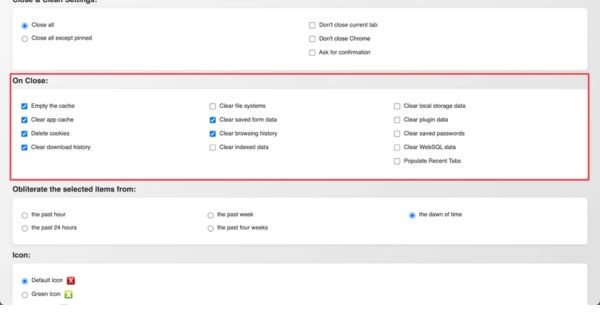
- Close this settings tab. From now on, every time you get rid of Chrome, the utility will silently perform the task of cleaning you.
For Safari
Safari On MacOS does not provide a direct button to automatically delete the web history after escaping. However, users of Apple ecosystem have alternative options as follows:
Use private browsing mode (private browsing)
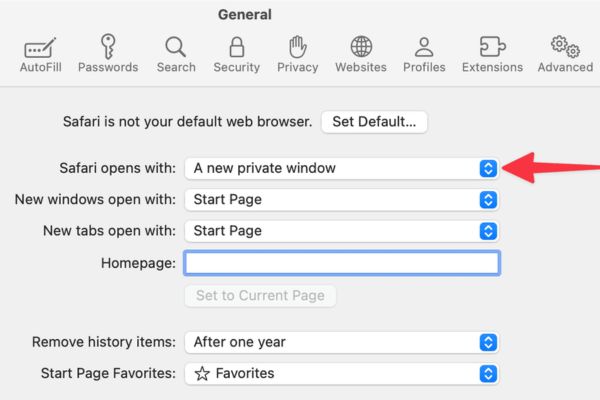
This is the simplest way. When you browse the web in a private window (shortcut Shift + Command + N), Safari will not save history, cookies or any data after you close the window. You can even install so that Safari always boots in this mode Safari> Settings> General. In the Safari Open with, you choose A New Private Window.
Set up periodic history
Safari allows you to automatically delete history after a certain period of time. Please enter Safari> Settings> Generallook to the remove history items section (delete the historical items) and select “After one day (After one day) ”, although it is not immediately deleted, this is also a way to keep your history neat.
Take advantage of guest mode (guest mode)
If you regularly lend to others, activate your guest account. All activities, download files, and browsing history in the guest’s session will be deleted as soon as they log out.

Conclusion
By applying the instructions Automatically erase the web history after escaping Above, you have built a firm protective barrier in front of curious eyes and troublesome monitoring. Turn this habit into a part of your web surfing journey to always feel safe and confident!