How to use Facetime on Apple TV Being one of the most popular features for users of Apple ecosystem, turning your living room into a connection center. Now, you can easily make high quality video calls on the big screen, bringing a sense of closer and more vivid than ever.
| Join the channel Telegram belong to Anonyviet 👉 Link 👈 |
What you need to prepare before starting
To connect and use Facetime above Apple TV Taking place smoothly, you need to make sure you meet the following basic requirements:
Apple TV: You need Apple TV 4K (2nd generation or more) has been updated to TVOS 17 or newer.
iPhone or iPad: This device will act as a webcam and smart wireless microphone for your Apple TV through the Continity Camera feature. These devices must run the latest iOS or iPados version and include:
- iPhone XR, iPhone SE (2nd generation) or more.
- iPad Pro 12.9-inch (3rd generation or more), iPad Pro 11-inch (all lives).
- iPad Air (generation 3 and above).
- iPad (generation 8 and above).
- iPad mini (generation 5 or higher).
The same Apple ID account: Make sure both your Apple TV and iPhone/iPad are logging into the same Apple ID account.
Network connection: Turn on Wi-Fi and Bluetooth on both devices. They need to be on the same network to be able to “recognize” each other.
Facetime setting: Ensuring the Facetime application on iPhone/iPad has been clicked
Activation and you are using Apple ID for Facetime (not just using phone numbers).
Instructions on how to use Facetime on Apple TV
Once prepared, it is really simple to start a call. Please follow these steps:
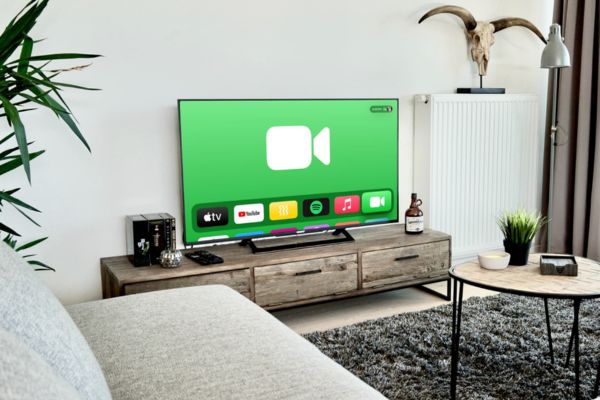
Open the Facetime application on the main screen of Apple TV.
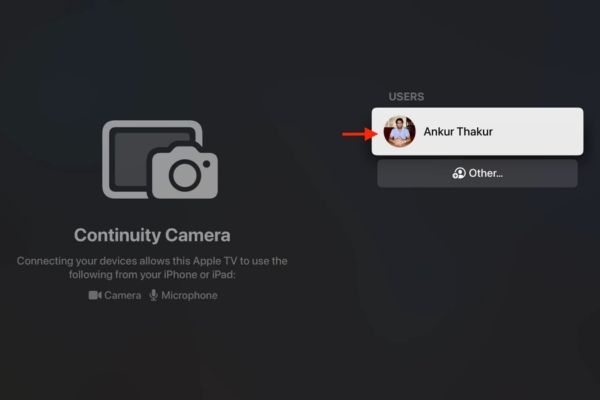
Step 1: In the item “Users“, Choose your name. If not, choose” Other “and use the camera application on iPhone/iPad to scan the QR code on the TV.
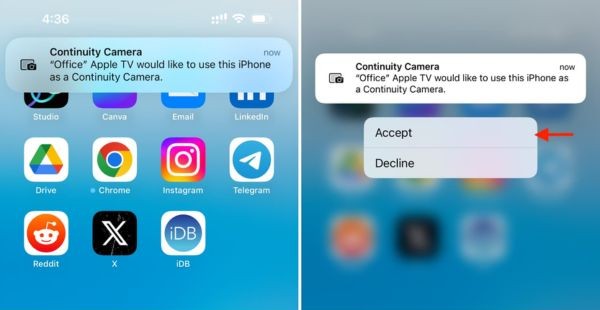
Step 2: Immediately, a notice will appear on your iPhone/iPad, requesting the use of the camera to make the camera. Please press Accept.
Step 3: Now, put your iPhone horizontally, directing the rear camera cluster towards you. You can put it on a shelf or support above or below the TV to have the best rotation angle. The iPhone screen will display the notice “connected to Apple TV”.
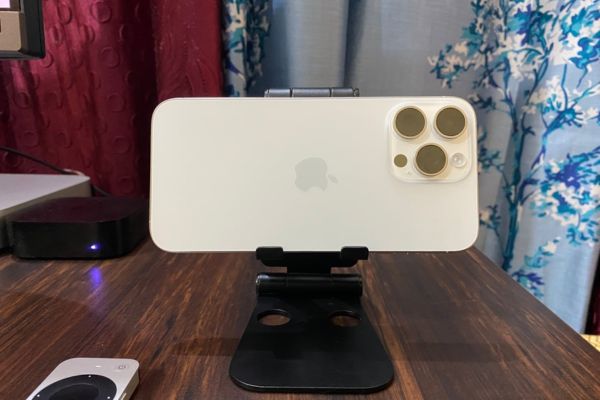
Step 4: The familiar Facetime interface will appear on TV. Now you can:
- Choose a person on the recent call list to call back.
- Click the icon plus sign (+) To find a person in the contacts and start video or audio calls.
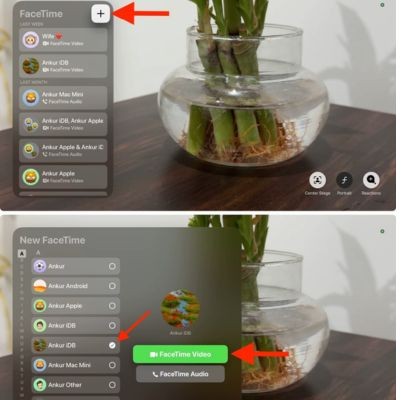
- When the conversation is over, you can press red button To end the call on the TV screen or on your iPhone.

Useful features in Facetime calls on TV
Experience Facetime on the big screen is not just about the size. Apple has integrated many smart features to enhance your call:
- Center Stage (central stage): This feature automatically adjusts the frame for you to always be at the center, even when you move. If there is more participants in the frame, it will automatically shrink to get everyone.
- Portrait (Portrait): Fuzzy background behind, helping you become more prominent in the call.
- Reactions (reaction effect): One of the most interesting features! You can use your hand to create beautiful 3D effects. For example, raising two thumbs (thumbs-ups) will create a fireworks effect, or create heart-shaped with two hands that will release the hearts flying.
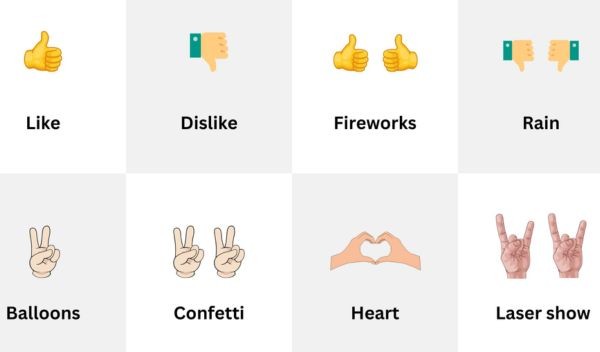
- SharePlay: Let’s watch a movie, a TV program or listen to music with people on the other end. Everything will be perfectly synchronized.
Use multitasking Facetime with the image mode in the picture (PIP)
You do not want to miss the fascinating football match just because you are calling videos for your family? No problem! While in the Facetime call, just press the button Back (<) on Siri Remote control. The call will be reduced into a Picture-in-Picture (PIP) window at the corner of the screen, allowing you to continue watching other content.
You can hold down the TV button on the control to customize this pip window, such as moving location, changing the layout or finishing the call.
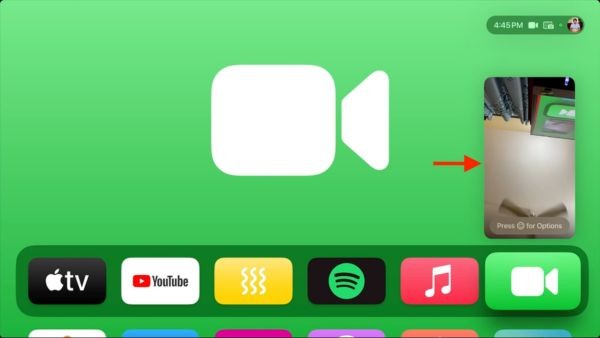
How to transfer Facetime calls from iPhone/iPad to Apple TV
If you are having a Facetime call on the iPhone and want to transfer it to the big screen, this is extremely easy.
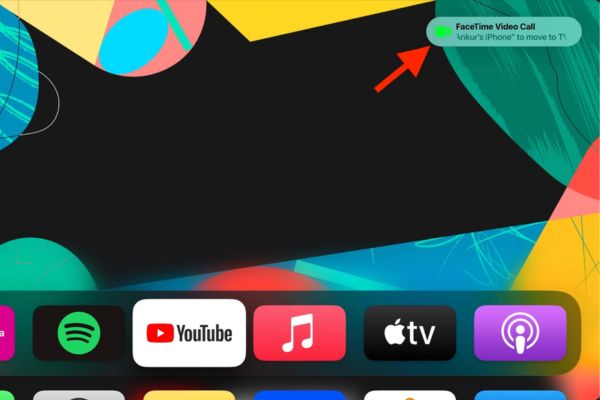
- Method 1 (automatic): When you approach Apple TV, a notice may automatically appear on the TV, asking you to transfer the call. Just follow the instructions.
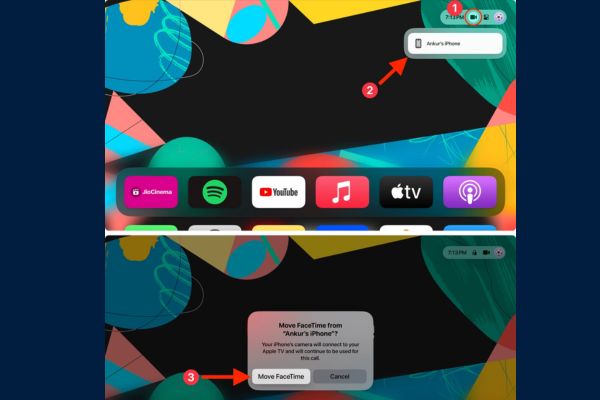
- Method 2 (manual): Press and hold the TV button on the control to open the Control Center, select the Camera tab, select your iPhone/iPad and click “Move Facetime”.
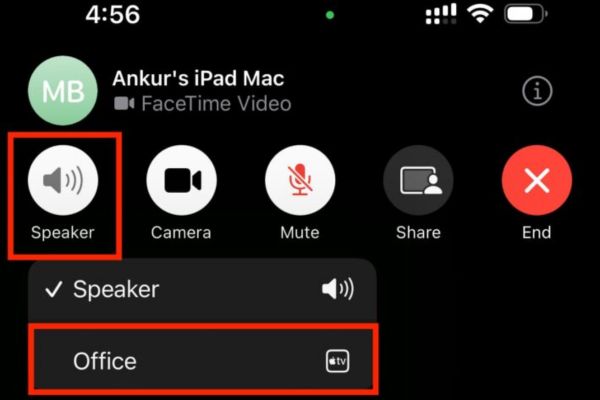
- Method 3 (from iPhone): On the iPhone Facetime call screen, click on the speaker icon and select your Apple TV from the device list.
How to transfer calls from Apple TV back to iPhone/iPad
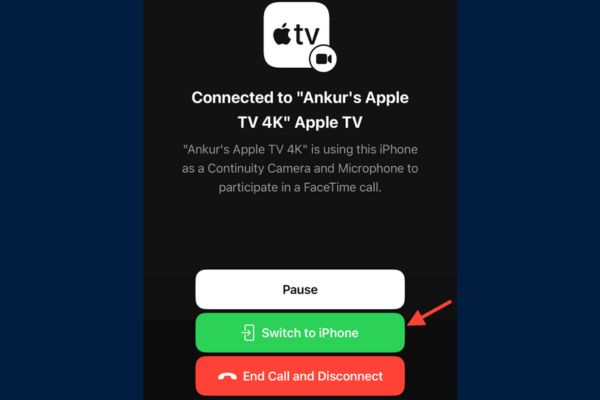
When you need to move and want to bring a call, just pick up the iPhone/iPad being used as a camera, the screen will be bright and display a button “Switch to iphone”(Switch to iPhone). Click on it and the call will be seamlessly transferred to your mobile device.
How to receive Facetime calls on Apple TV
When someone calls Facetime for you, a small notice will appear in the upper right corner of the TV screen. You just need to press the TV button on the control and select Accept. Apple TV will automatically connect to your iPhone/iPad to start calls on the big screen.

Conclusion
How to use Facetime on Apple TV Really opened a new way to connect, erasing all physical gap with a monumental image experience. With the detailed instructions in the article, hope you can confidently set up and enjoy meaningful conversations with family and friends.