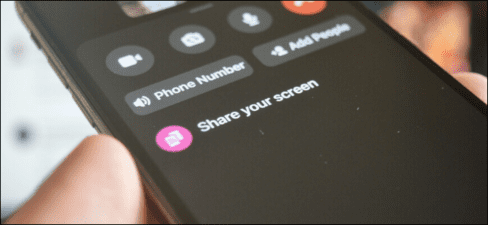
• Home
  • News
  • Software
  • Knowledge
  • MMO
  • Tips
  • Security
  • Network
  • Office
AnonyViet - English Version
  • Home
  • News
  • Software
  • Knowledge
  • MMO
  • Tips
  • Security
  • Network
  • Office
No Result
View All Result
  • Home
  • News
  • Software
  • Knowledge
  • MMO
  • Tips
  • Security
  • Network
  • Office
No Result
View All Result
AnonyViet - English Version
No Result
View All Result

How to share a phone screen with Facebook Messenger for others

AnonyViet by AnonyViet
May 29, 2025
in Tips
0

When you are trying to help someone fix the problem on your phone, accessing their screen will make things much easier. Instead of installing a specialized screen sharing application, you can share the phone screen with Facebook Messenger. The method is quite simple because almost everyone has pre -installed Messenger on the phone.

Join the channel Telegram belong to Anonyviet 👉 Link 👈

How to share a phone screen with Facebook Messenger for others

Share phone screen with Facebook Messenger on Android

Like Skype, Facebook Messenger also allows you to share your screen right from Android smartphone.

Start by opening Facebook Messenger application on Android And choose a conversation. Then click the “Video” button to start the video call.
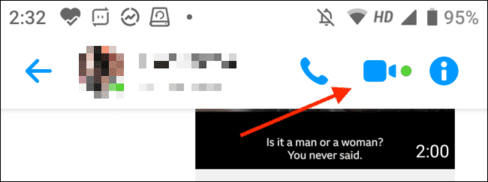
See other people's phone screen with Messenger

After the video call starts (this feature works for group video calls and Facebook chat), swipe up from the bottom toolbar to display more options.
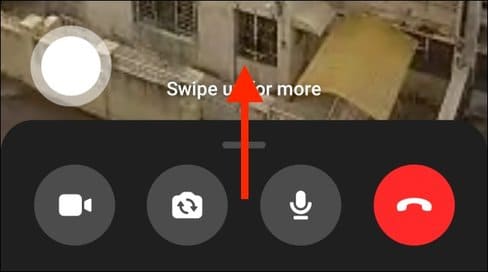
Share screen with Messenger

Here, click the “Share your screen” button.
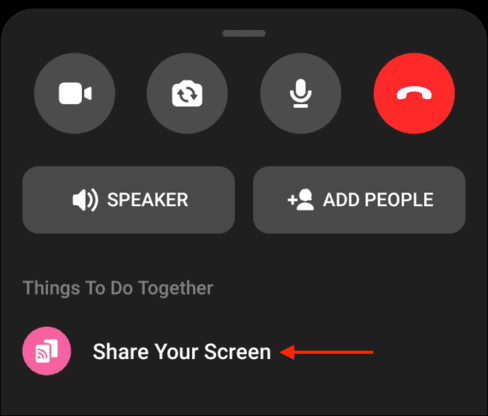
Share smartphone screen with Messenger

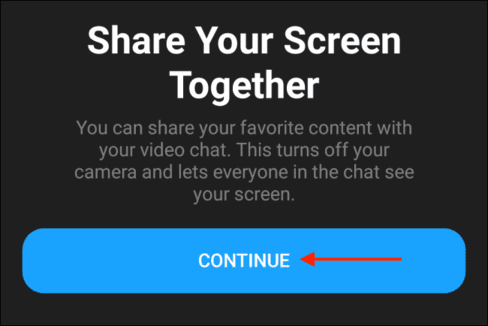
When using this feature for the first time, you will see the introduction table about the feature. Click “Continue” here. (You will not see this screen again)
How to share a phone screen with Facebook Messenger for others 12

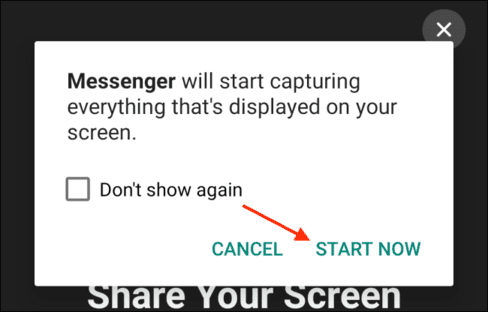
Now, Android will ask if you want to share your screen with the Messenger app. Click the “Start now” button.
How to share a phone screen with Facebook Messenger for others 13

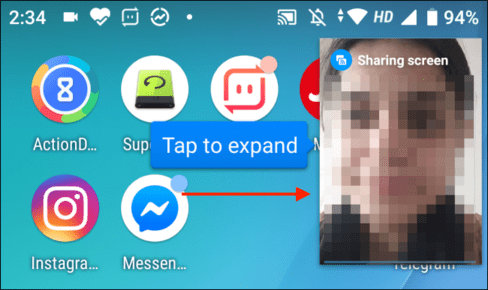
Now, Messenger will start sharing your screen. You can swipe up or press the “main screen” button to move to the main screen of the device. You can browse around and navigate to any screen you want to share. After you start sharing the screen, Messenger will turn off your camera.

You will see (s) other participants in the image window in the photo. You can click on it to expand the window and return to the full screen mode.
How to share phone screens with Facebook Messenger for others 14

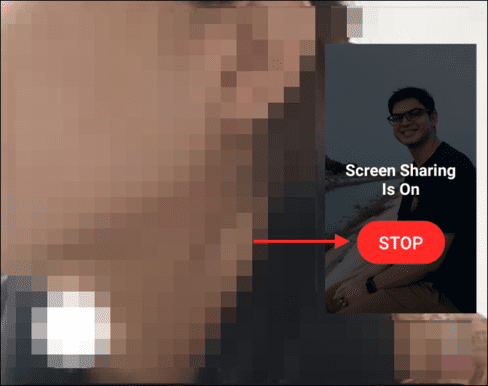
To stop sharing your screen, go back to the Messenger app and click the “Stop” button from the floating box.
How to share phone screens with Facebook Messenger for others 15

Now you will return to normal video calls, work as usual.

View phone screen on Messenger with iPhone

The screen sharing process on iPhone is a bit different.

Open Facebook Messenger application on your iPhone, Then open the conversation you want to share your screen. Then, click the “Video” button in the upper right corner of the screen to start video calls.
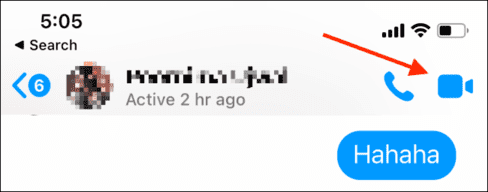
How to share your screen on Messenger for iPhone

When they pick up the phone, the video call will begin. Now, swipe up to display more options.
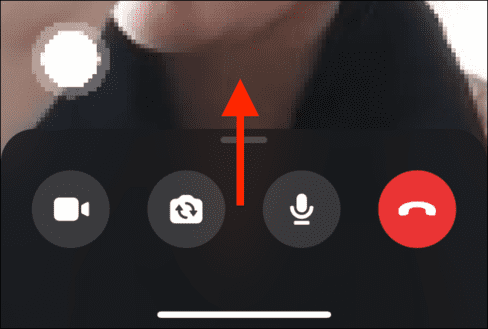
How to share phone screens with Facebook Messenger for others 16

Here, click the “Share your screen” button.
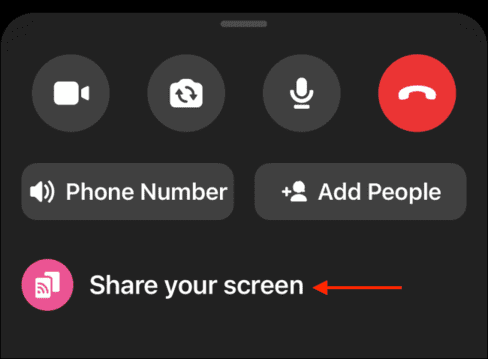
View phone screen on Messenger with iPhone

From the overlooking window, select the “Start Share” option.
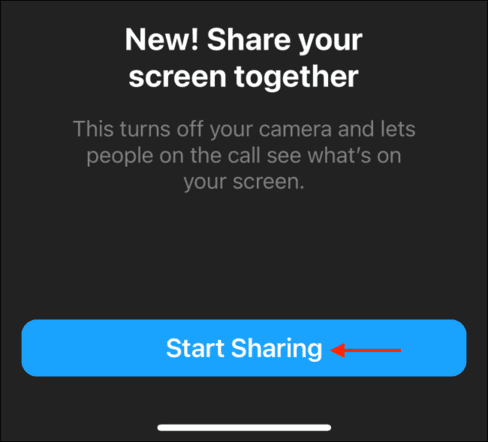
How to share phone screens with Facebook Messenger for others 17

You will see the default iOS broadcasting window used to share your iPhone screen with different applications. Here, make sure the Messenger application has been selected, then click the “Start broadcast” button.
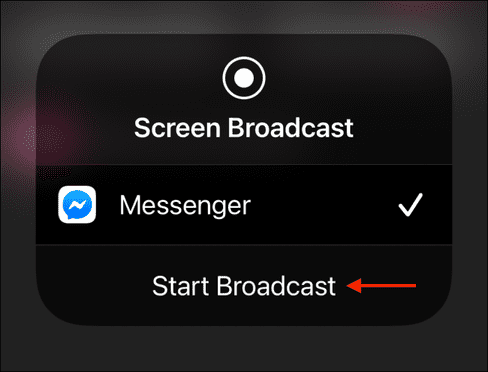
How to share a phone screen with Facebook Messenger for others 18

The Messenger app will now turn off your camera and it will start sharing your screen. You can move to the main screen and navigate to different applications to share your screen.

Unlike Android, the Messenger application does not display the image window in the photo of other participants in the call. While sharing the screen, you will not be able to watch their videos but you can still hear what they say.

If you see a red tablet in the upper left corner of the iPhone, that means you are sharing the screen.

Once completed, go back to the Messenger application. From the video call interface, click the “Stop” button from the floating box.
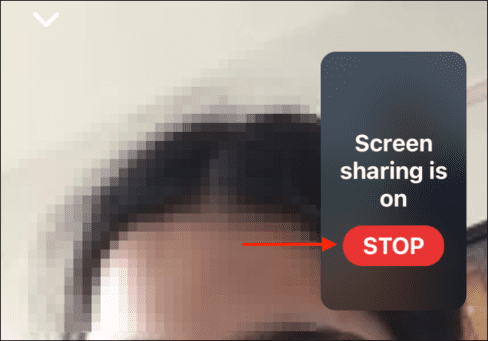
How to share phone screens with Facebook Messenger for others 19

Messenger will stop sharing your iPhone screen.


Not everyone uses Facebook Messenger. If you want to share your screen with colleagues, you can also do the same in zoom or google meeting.


Previous Post

Instructions for creating free Gemini Pro to experience 3

Next Post

Discover 3: AI tools turn ideas into professional movies

AnonyViet

AnonyViet

Related Posts

Instructions for creating Minecraft-style food photos
Tips

Instructions for creating Minecraft-style food photos

June 9, 2026
Get free Cambridge courses to prepare for IELTS, Starters, Movers
Tips

Get free Cambridge courses to prepare for IELTS, Starters, Movers

June 4, 2026
How to record reaction videos with Android phones, no app needed
Tips

How to record reaction videos with Android phones, no app needed

June 1, 2026
Instructions on how to get Google AI Pro 1 year for free for new accounts
Tips

Instructions on how to get Google AI Pro 1 year for free for new accounts

June 1, 2026
Top free AI tools to help write, test and optimize content
Tips

Top free AI tools to help write, test and optimize content

June 1, 2026
Instructions for receiving Lovable Pro 12 months for free
Tips

Instructions for receiving Lovable Pro 12 months for free

May 29, 2026
Next Post
Discover 3: AI tools turn ideas into professional movies

Discover 3: AI tools turn ideas into professional movies

0 0 votes
Article Rating
Subscribe
Login
Notify of
guest

guest

0 Comments
Oldest
Newest Most Voted
Inline Feedbacks
View all comments

Recent News

Instructions for creating Minecraft-style food photos

Instructions for creating Minecraft-style food photos

June 9, 2026
How to buy in-game items for free on iPhone

How to buy in-game items for free on iPhone

June 8, 2026
Practical use of Xiaomi 17T Pro: This is a good phone in 2026

Practical use of Xiaomi 17T Pro: This is a good phone in 2026

June 8, 2026
Instructions to receive 6 months of IObit Malware Fighter 13 Pro for free

Instructions to receive 6 months of IObit Malware Fighter 13 Pro for free

June 7, 2026
Instructions for creating Minecraft-style food photos

Instructions for creating Minecraft-style food photos

June 9, 2026
How to buy in-game items for free on iPhone

How to buy in-game items for free on iPhone

June 8, 2026
Practical use of Xiaomi 17T Pro: This is a good phone in 2026

Practical use of Xiaomi 17T Pro: This is a good phone in 2026

June 8, 2026
AnonyViet - English Version

AnonyViet

AnonyViet is a website share knowledge that you have never learned in school!

We are ready to welcome your comments, as well as your articles sent to AnonyViet.

Follow Us

Contact:

Email: anonyviet.com[@]gmail.com

Main Website: https://anonyviet.com

Recent News

Instructions for creating Minecraft-style food photos

Instructions for creating Minecraft-style food photos

June 9, 2026
How to buy in-game items for free on iPhone

How to buy in-game items for free on iPhone

June 8, 2026
  • Home
  • Home 2
  • Home 3
  • Home 4
  • Home 5
  • Home 6
  • Next Dest Page
  • Sample Page

6789 kv999

No Result
View All Result
  • Home
  • News
  • Software
  • Knowledge
  • MMO
  • Tips
  • Security
  • Network
  • Office

6789 kv999

wpDiscuz
0
0
Would love your thoughts, please comment.x
()
x
| Reply