• Home
  • News
  • Software
  • Knowledge
  • MMO
  • Tips
  • Security
  • Network
  • Office
AnonyViet - English Version
  • Home
  • News
  • Software
  • Knowledge
  • MMO
  • Tips
  • Security
  • Network
  • Office
No Result
View All Result
  • Home
  • News
  • Software
  • Knowledge
  • MMO
  • Tips
  • Security
  • Network
  • Office
No Result
View All Result
AnonyViet - English Version
No Result
View All Result

Delete cache on Smart TV to watch TV faster

AnonyViet by AnonyViet
March 14, 2025
in Knowledge
0

Smart TV has become an indispensable entertainment device in every modern family. However, after a period of use, you may notice that the TV works slowly, the application is suspended or has an error. The main cause often comes from the full cushion memory. So how to fix it? Let's find out how Remove cache on Smart TV To keep your device smooth and stable.


Join the channel Telegram belong to Anonyviet 👉 Link 👈

What is cushion memory and why need to be deleted?

Cache (cache) is the temporary storage of data and websites, helping Smart TV access faster in the next use. However, over time, this data can accumulate too much, become obsolete and occupy storage space. This leads to decreased TV performance, slow applications or even errors.

The removal of cache on Smart TV not only helps to release memory but also improves the processing speed, fixes application errors and enhances security by deleting the saved login information.

What is cushion memory and why need to be deleted?

Detailed instructions on how to remove cache on Smart TV

Each Smart TV manufacturer has different interfaces and implementation. Below is a detailed guide for some popular brands such as Samsung, LG and Android TV.

1. Remove cache on Samsung TV

Step 1: Access Settings (Install) from the main menu.
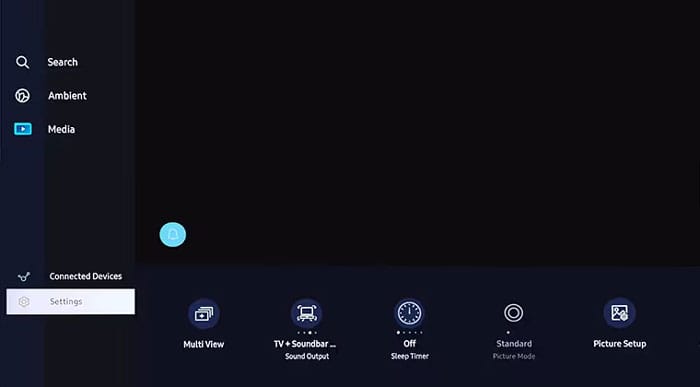
Access to Settings
Access to Settings

Step 2: Select All settings.

Select All Settings
Select All Settings

Step 3: Select Support (Support)> Device Care (Equipment care).
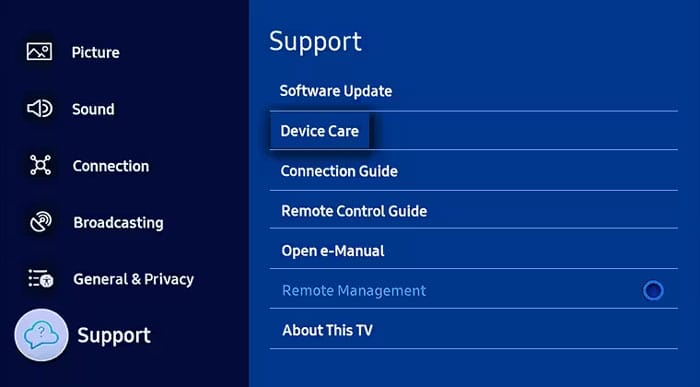
Select Device Care
Select Device Care

Step 4: Click Manage Storage (Capacity management).
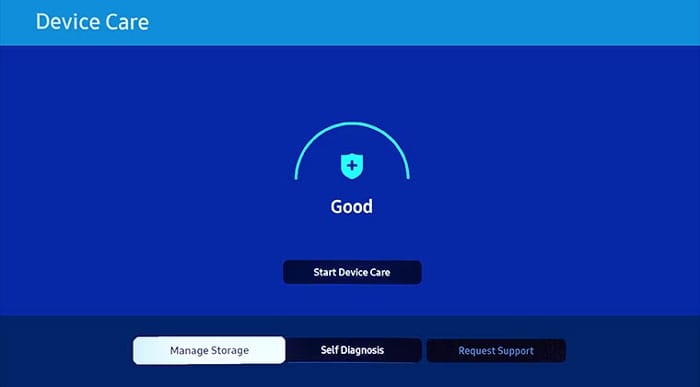
Click Manage Storage

Step 5: Select the application you want to delete the cushion memory.

Step 6: Press View detalls (See details).
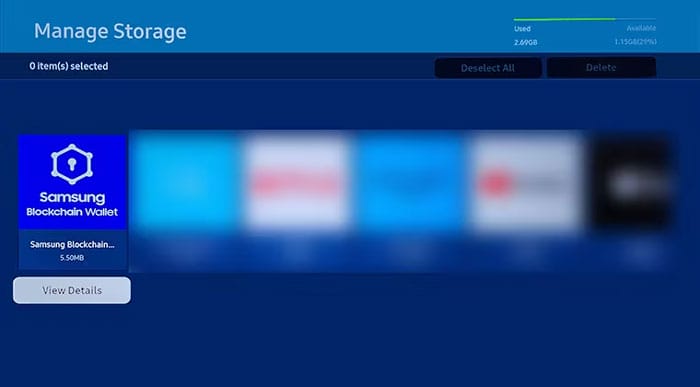
Click View Detalls
Click View Detalls

Step 7: Select Clear data (Data deletion) and Clear cache (Delete cache).
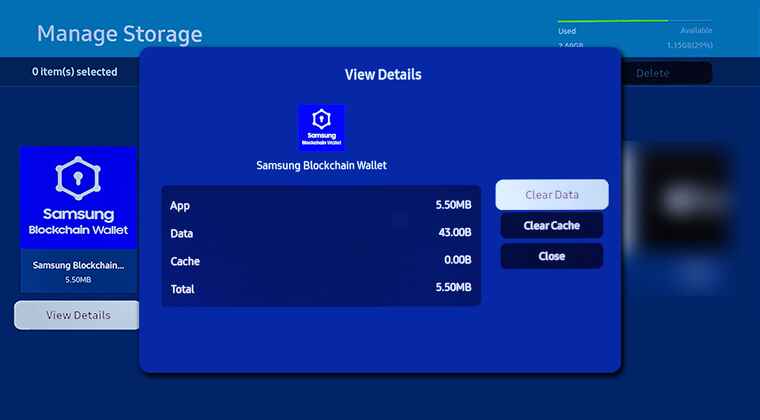
Select Clear Cache
Select Clear Cache

2. Remove cache on LG TV

Step 1: Press the button Home on control.

Step 2: Select Setting > Shared.

Step 3: Click Memory.

Step 4: Select Delete caching memory To complete.

3. Remove cache on Android TV/Google TV

Step 1: Access Setting From the main menu.

Step 2: Select Application > See all applications.

Step 3: Select the application you want to delete the cushion memory.

Step 4: Click Delete caching memory.

Note: Delete cache is different from deleting application data. Delete data will reset the application to the original state, ask you to log in and reinstall the options.

See also: Instructions to connect macbook with TV

When should you delete cache on Smart TV?

You should perform the cache removal on the smart TV periodically or when the following problems:

  • TV works slowly, the application takes a lot of time to download.
  • Application is suspended, frozen or no response.
  • Low storage warning appears.
  • You want to increase security by deleting the saved login information.
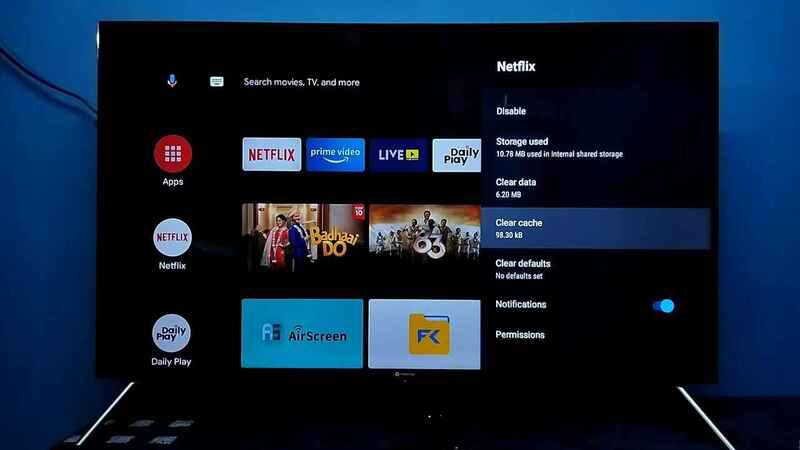
When should you delete cache on Smart TV?

Benefits of regular cache removal

  • Help TV work smoother and more stable.
  • Create storage space for new applications and data.
  • Solving problems such as hanging, freezing or not loading content.
  • Delete login and personal data saved.
Benefits of regular cache removal

See also: Instructions for registering YouTube Premium for free on Samsung TV

Conclusion

Job Remove cache on Smart TV is a simple but effective operation in maintaining the optimal performance for the device. By periodic implementation, you will have a smooth and uninterrupted entertainment experience. Apply the instructions above to keep your Smart TV work like new offline!


Tags: CachedeletefasterSmartWatch
Previous Post

How to fix broken MP4 video files

Next Post

How to download livestream video on Facebook to avoid being deleted

AnonyViet

AnonyViet

Related Posts

Instructions for turning off automatic subtitles on iPhone and Macbook
Knowledge

Instructions for turning off automatic subtitles on iPhone and Macbook

October 20, 2026
MBTI, Big Five, DISC or Holland: which personality test should you choose?
Knowledge

MBTI, Big Five, DISC or Holland: which personality test should you choose?

October 15, 2026
Super virtual way to change the photography angle using AI on iPhone
Knowledge

Super virtual way to change the photography angle using AI on iPhone

October 9, 2026
How to create Safari extension on iOS 27 and macOS 27
Knowledge

How to create Safari extension on iOS 27 and macOS 27

October 3, 2026
How to write the word Hoa Ki on Casio calculator
Knowledge

How to write the word Hoa Ki on Casio calculator

October 3, 2026
Instructions on how to increase the font size on Apple TV are extremely easy
Knowledge

Instructions on how to increase the font size on Apple TV are extremely easy

October 1, 2026
Next Post
How to download livestream video on Facebook to avoid being deleted

How to download livestream video on Facebook to avoid being deleted

0 0 votes
Article Rating
Subscribe
Login
Notify of
guest

guest

0 Comments
Oldest
Newest Most Voted

Recent News

Instructions for turning off automatic subtitles on iPhone and Macbook

Instructions for turning off automatic subtitles on iPhone and Macbook

October 20, 2026
How to report a fraudulent website on Weebly

How to report a fraudulent website on Weebly

October 19, 2026
How to view Facebook stories without others knowing

How to view Facebook stories without others knowing

October 18, 2026
Instructions for registering a .tech domain name for free for 1 year

Instructions for registering a .tech domain name for free for 1 year

October 18, 2026
Instructions for turning off automatic subtitles on iPhone and Macbook

Instructions for turning off automatic subtitles on iPhone and Macbook

October 20, 2026
How to report a fraudulent website on Weebly

How to report a fraudulent website on Weebly

October 19, 2026
How to view Facebook stories without others knowing

How to view Facebook stories without others knowing

October 18, 2026
AnonyViet - English Version

AnonyViet

AnonyViet is a website share knowledge that you have never learned in school!

We are ready to welcome your comments, as well as your articles sent to AnonyViet.

Follow Us

Contact:

Email: anonyviet.com[@]gmail.com

Main Website: https://anonyviet.com

Recent News

Instructions for turning off automatic subtitles on iPhone and Macbook

Instructions for turning off automatic subtitles on iPhone and Macbook

October 20, 2026
How to report a fraudulent website on Weebly

How to report a fraudulent website on Weebly

October 19, 2026
  • Home
  • Home 2
  • Home 3
  • Home 4
  • Home 5
  • Home 6
  • Next Dest Page
  • Sample Page

say88 tỷ lệ kèo nhà cái kèo nhà cái 5 febet

No Result
View All Result
  • Home
  • News
  • Software
  • Knowledge
  • MMO
  • Tips
  • Security
  • Network
  • Office

say88 tỷ lệ kèo nhà cái kèo nhà cái 5 febet

wpDiscuz
0
0
Would love your thoughts, please comment.x
()
x
| Reply