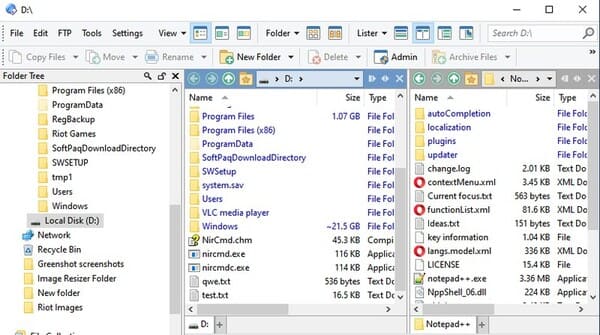
Transferring Files between Windows and Linux or vice versa, sounds complicated. But it’s extremely simple. Actually, sharing Files from Windows to Linux is easy, but only if you know how. So in this article, I will show you 4 ways to transfer files from Windows to Linux.
| Join the channel Telegram of the AnonyViet 👉 Link 👈 |
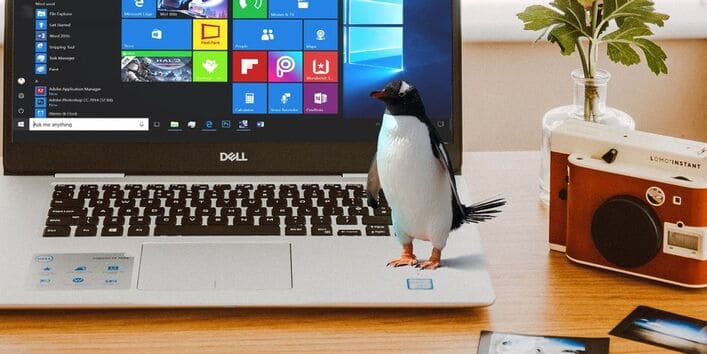
4 ways to share and transfer files between Windows and Linux
If you want to transfer data between Windows and Linux operating systems, then you have 4 ways to do it as follows:
- Copy files securely over SSH
- Transfer Files from Windows to Linux using FTP
- Share data with sync software
- Using shared folders in a Linux virtual machine
With each of these methods, you will be able to easily transfer files between operating systems.
1. Copy Files between Windows and Linux via SSH
When turned on SSH on Linux, you can send data through the terminal from one computer to another. However, to do so, you need to set up an SSH server on your Linux machine.
Start by opening Terminal and updating/upgrading the operating system.
sudo apt update
Once done, install the SSH server. The OpenSSH server is a good choice.
sudo apt install openssh-server
Wait a moment for it to finish installing. To check that the OpenSSH server is running, use the command:
sudo service ssh status
To transfer data from Windows, use an SSH client like PuTTY. You need to download the PSCP tool to your Windows system to run with PuTTY. You can find both of these tools on PuTTY homepage.
Note that although PuTTY needs to be installed, PSCP does not. Instead, save the downloaded pscp.exe File in the root directory of the Windows C:\ drive, or set it as an environment variable. You will also need to confirm the IP address of the Linux device. Get the IP address on Linux with the command:
hostname -I
Once the connection is established, you can transfer files from Windows to Linux as follows:
c:\pscp c:
ome\path\to\a\file.txt user@remoteIP:\home\user
ome\path
ewname.txt
You will be prompted to enter your password for your Linux computer before the transfer begins.
Want to copy data from Linux to Windows in the same SSH session? This command will download the specified File to the current directory:
c:\pscp user@remoteIP:\home\user
ome\file.txt .
2. How to Transfer Files from Linux to Windows using FTP
An SSH-enabled File Transfer Protocol (FTP) application can also be used for this. Transferring files over SFTP in a mouse-driven user interface is arguably easier than relying on terminal commands.
Again, the SSH server must be running on the Linux machine before you begin. You should also make sure that you have installed an FTP client on Windows like FileZilla, which supports SFTP.
To use the way, run FileZilla, and follow these steps:
1. Open File > Site Manager
2. Create New Site
3. Set Protocol to SFTP
4. Add target IP address in Host
5. Specify Username and Password
6. Set Logon Type to thường
7. Click Connect when ready
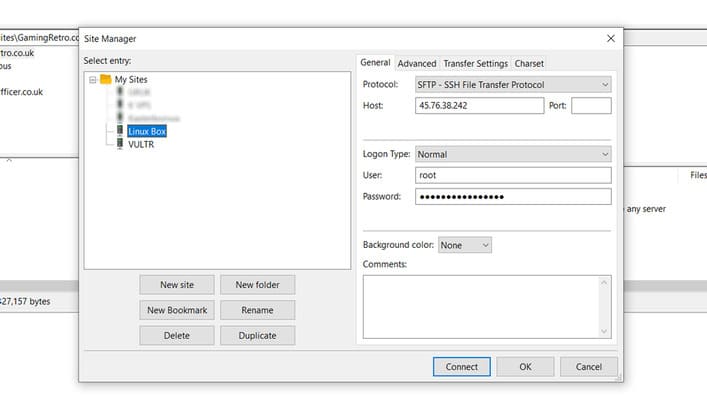
You can then use an FTP client to move files from Windows to Linux by drag and drop.
3. Share Files Between Linux and Windows Using Resilio Sync
Another option you should consider is a File synchronization program. They are often cross-platform and use encryption keys to manage connections between devices.
All you need to do is install the app, specify a sync folder, then generate the key. Set it up like that on your second PC and your data will be synced. Two good options for this are
- Resilio Sync: formerly known as BitTorrent Sync, Resilio is available on almost any platform. There is a paid version, but the free option is enough to sync two devices
- SyncThing: for Linux, Windows, macOS and Android offers similar functionality to Resilio Sync at no extra cost
4. How to Transfer Files from Windows to Linux Virtual Machine
Instead of running a separate PC, people often run Linux or Windows in a virtual machine (VM). With VirtualBox, you can create a virtual shared folder to synchronize data.
If you’re running Windows in a virtual machine on Linux (or vice versa), VirtualBox has a built-in setup for sharing data. Make sure you have Guest Additions installed on your virtual machine before continuing.
In the VirtualBox manager, select the VM, then follow these steps:
1. Select Start > Headless Start (or with the virtual machine running, Devices > Shared Folders)
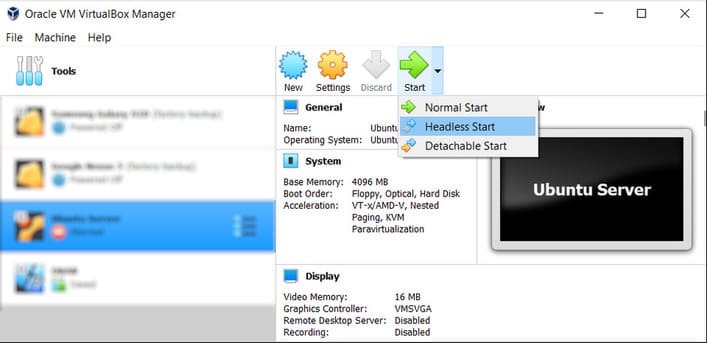
2. After running, right click on the virtual machine and select Settings > Shared Folders
3. Select Machine Folders
4. Click the + icon on the right side (or right click and select Add Shared Folder)
5. Find the folder you want to use
6. Give a name (if necessary) then press OK
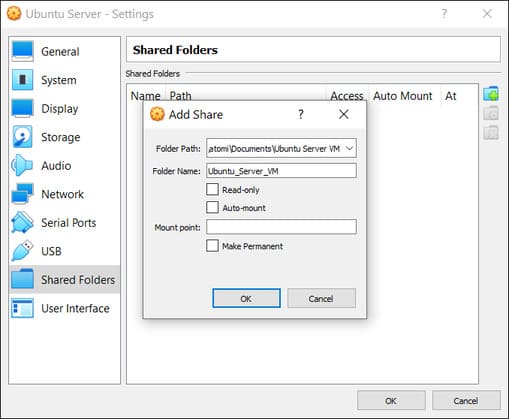
7. Select Auto-mount to make sure the share is available whenever the virtual machine is running
8. Click OK again to confirm and exit
When you restart the virtual machine, the share is ready to transfer data between the host and the virtual machine.
In addition, there is also a simpler way if you run dualboot is to use software Linux reader.