• Home
  • News
  • Software
  • Knowledge
  • MMO
  • Tips
  • Security
  • Network
  • Office
AnonyViet - English Version
  • Home
  • News
  • Software
  • Knowledge
  • MMO
  • Tips
  • Security
  • Network
  • Office
No Result
View All Result
  • Home
  • News
  • Software
  • Knowledge
  • MMO
  • Tips
  • Security
  • Network
  • Office
No Result
View All Result
AnonyViet - English Version
No Result
View All Result

How to remove Bloatware on Windows 11 in just a snap

AnonyViet by AnonyViet
September 5, 2024
in Tips
0

In today's technological world, knowing How to remove Bloatwaresystem optimization is a need of many users. Bloatware not only takes up valuable storage space but also affects the performance of the computer. But don't worry, the solution is ready below to help you free up space and speed up your computer.

Join the channel Telegram belong to AnonyViet 👉 Link 👈

Bloatware Problem on Windows 11

Windows 11 users often encounter problems with unnecessary pre-installed apps and services, also known as “Bloatware”. These software not only take up storage space but also affect the performance of the computer.
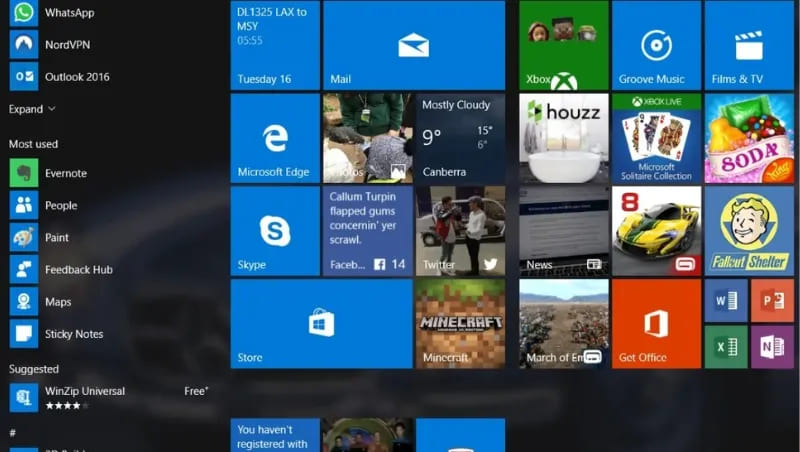
Bloatware Problem on Windows 11

Remove Bloatware Super Fast with Win11Debloat

While Bloatware removal can be done the traditional way, it requires a lot of time and effort. A more convenient solution is to use Win11Debloat – a PowerShell script created by developer Jeffrey Raphire that improves performance. Windows 11 by removing unnecessary apps, services, and features that Microsoft has built in.
How to Remove Bloatware Easily with Win11Debloat

Win11Debloat offers an intuitive and convenient user interface, allowing you to easily remove default applications and customize the interface to eliminate annoying elements such as ads and redundant components. Furthermore, Win11Debloat provides registry files, allowing users to restore the original settings if needed.

How to Remove Bloatware Using Win11Debloat

Step 1: Access the link HERE to download the latest Win11Debloat update, then extract the .ZIP file to a folder of your choice.

Step 2: Open the Win11Debloat folder, right-click on the Run.bat file and select Run as Administrator.

Step 3: A PowerShell window will appear, displaying the Win11Debloat menu, where you can choose to automatically or custom remove apps.
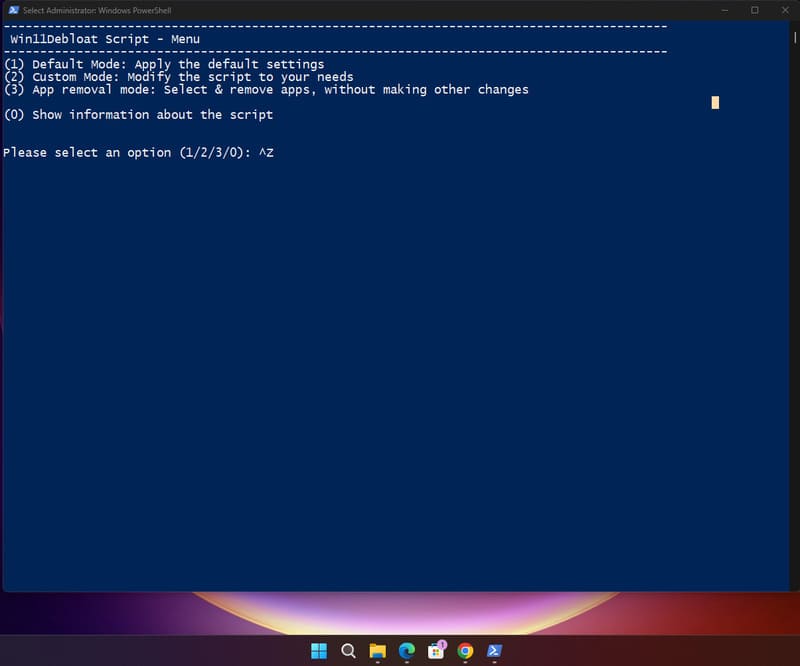
Choose automatic or custom removal of applications

Step 4: Select removal mode and press Enter to start the process, then restart your computer to apply the changes.
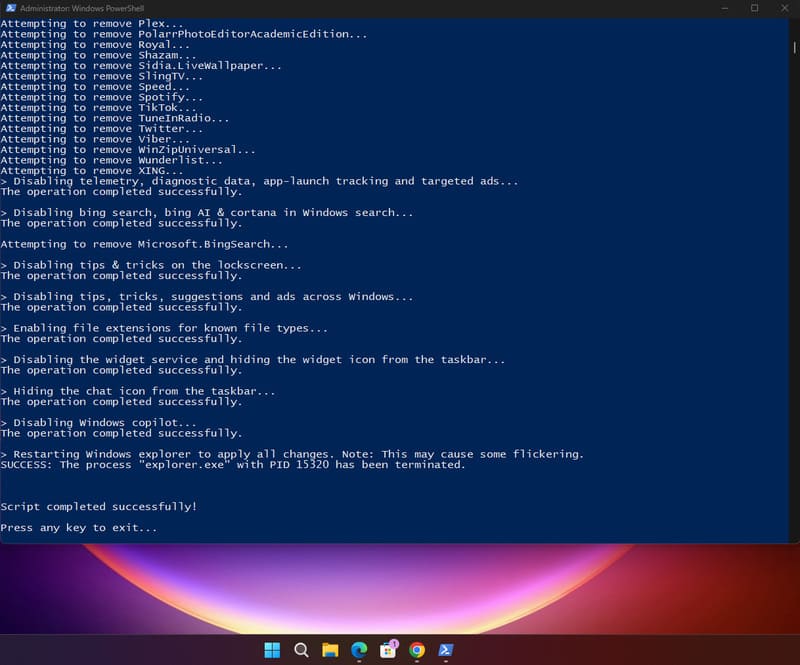
Removal process in progress

Win11Debloat Default Mode

When using default mode, Win11Debloat will perform the following operations:

  • Remove unnecessary pre-installed applications.
  • Prevent collection of personal data, diagnostic data, app tracking and advertising.
  • Turn off tips, hints, suggestions, and ads in the Start Menu, Settings, Notifications, Windows Explorer, and on the lock screen.
  • Remove Bing and Cortana from Windows search.
  • Disable Windows Copilot (if you are using Copilot, consider using application kill mode so as not to disable Copilot).
  • Show file extensions of file types.
  • Hide the “3D Objects” folder from “This PC” in Windows Explorer (Windows 10 only).
  • Disable Widget service and hide the icon on the toolbar.
  • Hide the “Chat” icon on the toolbar.
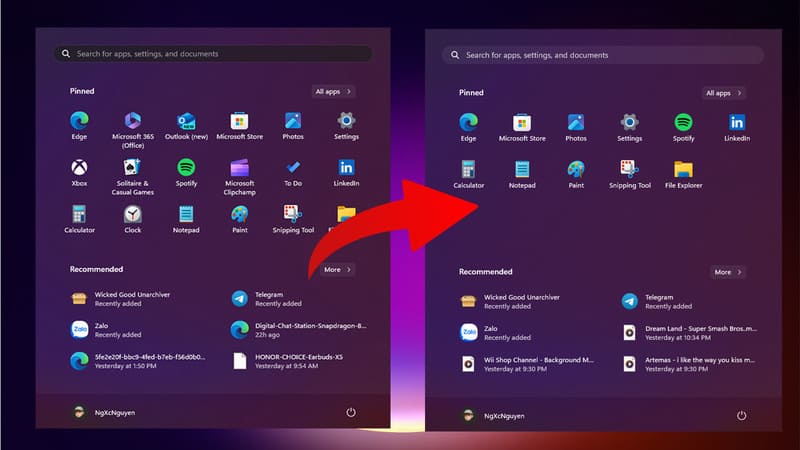
Before and After Knowing How to Remove Bloatware

Note: Make sure you understand the changes Win11Debloat will make before proceeding, to avoid accidentally deleting important apps.

Conclusion

So, with Win11Debloat, knowing How to remove Bloatware from Windows 11 is now simpler and more efficient than ever. Enjoy a clean, fast, and optimized operating system with changes in just a few clicks. Good luck!


Tags: BloatwareremoveSnapWindows
Previous Post

How to use Airplay to project iPhone screen to Windows PC

Next Post

Create your own “unique” Zalo stickers with zSticker AI

AnonyViet

AnonyViet

Related Posts

How to add sliders to Facebook Stories to easily rewind videos
Tips

How to add sliders to Facebook Stories to easily rewind videos

April 21, 2026
How to change the default font on Windows 10
Tips

How to change the default font on Windows 10

April 13, 2026
5 tips for using a Browser to replace an App (helps save RAM, time and money)
Tips

5 tips for using a Browser to replace an App (helps save RAM, time and money)

April 13, 2026
How to make funny MeMe photos without Photoshop within 10 seconds
Tips

How to make funny MeMe photos without Photoshop within 10 seconds

April 11, 2026
How to quickly design your own Logo without Photoshop
Tips

How to quickly design your own Logo without Photoshop

April 10, 2026
How to convert Website into App on Windows
Tips

How to convert Website into App on Windows

April 9, 2026
Next Post
Create your own “unique” Zalo stickers with zSticker AI

Create your own "unique" Zalo stickers with zSticker AI

0 0 votes
Article Rating
Subscribe
Login
Notify of
guest

guest

0 Comments
Oldest
Newest Most Voted
Inline Feedbacks
View all comments

Recent News

Top 5+ utilities to install for Gmail to speed up work processing

Top 5+ utilities to install for Gmail to speed up work processing

April 22, 2026
Decoding the problem of 4GB RAM and processing performance

Decoding the problem of 4GB RAM and processing performance

April 21, 2026
How to add sliders to Facebook Stories to easily rewind videos

How to add sliders to Facebook Stories to easily rewind videos

April 21, 2026
Reputable LG repair service in Hanoi & Ho Chi Minh City with LGservicecenter

Reputable LG repair service in Hanoi & Ho Chi Minh City with LGservicecenter

April 21, 2026
Top 5+ utilities to install for Gmail to speed up work processing

Top 5+ utilities to install for Gmail to speed up work processing

April 22, 2026
Decoding the problem of 4GB RAM and processing performance

Decoding the problem of 4GB RAM and processing performance

April 21, 2026
How to add sliders to Facebook Stories to easily rewind videos

How to add sliders to Facebook Stories to easily rewind videos

April 21, 2026
AnonyViet - English Version

AnonyViet

AnonyViet is a website share knowledge that you have never learned in school!

We are ready to welcome your comments, as well as your articles sent to AnonyViet.

Follow Us

Contact:

Email: anonyviet.com[@]gmail.com

Main Website: https://anonyviet.com

Recent News

Top 5+ utilities to install for Gmail to speed up work processing

Top 5+ utilities to install for Gmail to speed up work processing

April 22, 2026
Decoding the problem of 4GB RAM and processing performance

Decoding the problem of 4GB RAM and processing performance

April 21, 2026
No Result
View All Result
  • Home
  • News
  • Software
  • Knowledge
  • MMO
  • Tips
  • Security
  • Network
  • Office

wpDiscuz
0
0
Would love your thoughts, please comment.x
()
x
| Reply