• Home
  • News
  • Software
  • Knowledge
  • MMO
  • Tips
  • Security
  • Network
  • Office
AnonyViet - English Version
  • Home
  • News
  • Software
  • Knowledge
  • MMO
  • Tips
  • Security
  • Network
  • Office
No Result
View All Result
  • Home
  • News
  • Software
  • Knowledge
  • MMO
  • Tips
  • Security
  • Network
  • Office
No Result
View All Result
AnonyViet - English Version
No Result
View All Result

3 tips to restore open tabs when restarting Chrome

AnonyViet by AnonyViet
April 11, 2024
in Tips
0

Chrome is the most popular web browser today, with many useful and highly customizable features. The browser also provides a few ways you can restore open tabs when restarting Chrome. Because sometimes you may encounter a situation where you need to restart for some reasons such as errors, crashes, updates, etc. At that time, you may worry that you will lose all open tabs, especially those Important tabs related to your work or study.

Join the channel Telegram belong to AnonyViet 👉 Link 👈

How to restore open tabs when restarting Chrome

Method 1: Restore recently closed tabs

The first and simplest way to restart Chrome without losing open tabs is to use the restore recently closed tabs function. This function allows you to review and reopen tabs that you closed in your last session, even if you have turned off or restarted Chrome.

If you want to use this function, follow the steps below:

Step 1: Open Chrome, click the three vertical dots menu icon in the top right corner of the screen. Next, click on “History,” and then look under “Recently closed tags.”
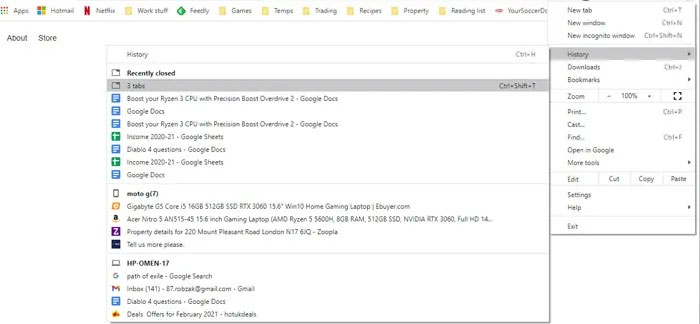
restore open tabs
Click on the “History” section

Step 2: You'll see a list of Chrome tabs you've recently closed. If you accidentally close Chrome with multiple tabs open, you will see entries like “4 tabs” or “12 tabs,” (depending on how many tabs you have open). You just need to click on it, all the tabs you closed last time will be restored intact.

Method 2: Set up Chrome to always start with previous tabs

The second way to restart Chrome without losing open tabs is to set Chrome to always start with the same tabs you opened in the previous session. This is a feature available in Chrome's settings that allows you to continue from where you left off each time you open the browser.

If you want to enable this function, follow the steps below:

Step 1: Open Chrome, click the three vertical dots menu icon in the top right corner of the screen click Settings.
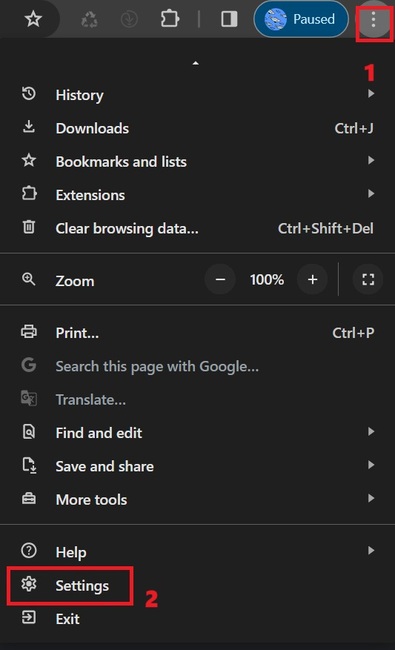
restore open tabs
Click the three-dot menu > Settings.

Step 2: In the settings menu, scroll down to the “On startup” section. Here, you click on the “Continue where you left off” option.

From now on, every time you open the browser, Chrome will automatically reopen all the tabs you opened the last time you worked.
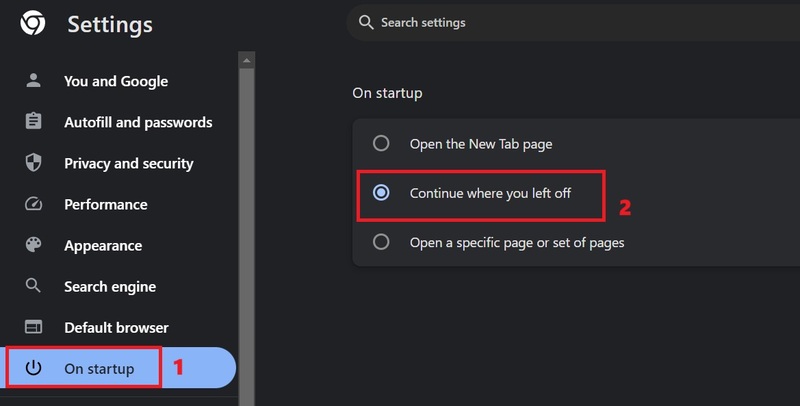
restore open tabs
Click Continue where you left off

Method 3: Use Onetab extension

With this extension, you will have a visual list of all your open tabs.

You can download this utility HERE

restore open tabs
Use the Onetab extension

Even if you turn Chrome off and on again, OneTab will still show you a list of tabs that you have previously opened. You can choose to restore all tabs (Restore All), delete all tabs (Delete All), convert tabs into web pages for sharing and more.
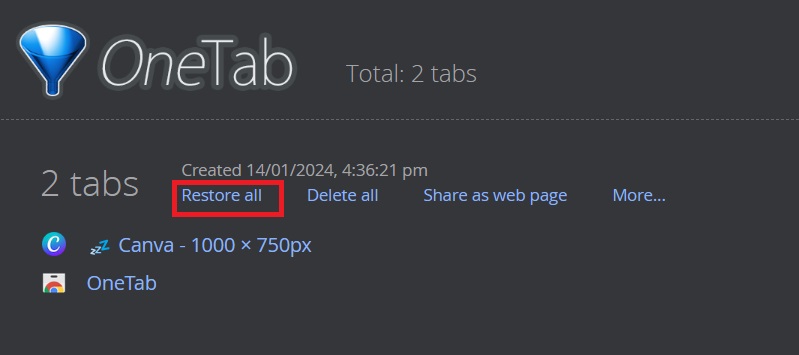
restore open tabs
Click Restore All to restore all tabs

Epilogue

Above are the 3 simplest ways for you to do restore open tabs when restarting Chrome. Hope you can choose a satisfactory solution for yourself and apply it successfully!
The article scored: 5/5 – (100 votes)

Tags: ChromeopenrestartingrestoreTabstips
Previous Post

What benefits does Traffic user Traffic download service bring to businesses?

Next Post

Learn about SSDs – Part 2

AnonyViet

AnonyViet

Related Posts

How to change the default font on Windows 10
Tips

How to change the default font on Windows 10

April 13, 2026
5 tips for using a Browser to replace an App (helps save RAM, time and money)
Tips

5 tips for using a Browser to replace an App (helps save RAM, time and money)

April 13, 2026
How to make funny MeMe photos without Photoshop within 10 seconds
Tips

How to make funny MeMe photos without Photoshop within 10 seconds

April 11, 2026
How to quickly design your own Logo without Photoshop
Tips

How to quickly design your own Logo without Photoshop

April 10, 2026
How to convert Website into App on Windows
Tips

How to convert Website into App on Windows

April 9, 2026
Instructions for getting 3 months of Adobe Express Pro for free
Tips

Instructions for getting 3 months of Adobe Express Pro for free

April 9, 2026
Next Post
Learn about SSDs – Part 2

Learn about SSDs - Part 2

0 0 votes
Article Rating
Subscribe
Login
Notify of
guest

guest

0 Comments
Oldest
Newest Most Voted
Inline Feedbacks
View all comments

Recent News

How to intercept traffic using Burp Suite to analyze HTTP/HTTPS

How to intercept traffic using Burp Suite to analyze HTTP/HTTPS

April 18, 2026
How to avoid Adblock detection on Youtube with 4 good tips

How to avoid Adblock detection on Youtube with 4 good tips

April 17, 2026
How to transfer ChatGPT data to Claude is extremely simple

How to transfer ChatGPT data to Claude is extremely simple

April 16, 2026
How to authenticate the owner’s SIM on VNeID from April 15

How to authenticate the owner’s SIM on VNeID from April 15

April 15, 2026
How to intercept traffic using Burp Suite to analyze HTTP/HTTPS

How to intercept traffic using Burp Suite to analyze HTTP/HTTPS

April 18, 2026
How to avoid Adblock detection on Youtube with 4 good tips

How to avoid Adblock detection on Youtube with 4 good tips

April 17, 2026
How to transfer ChatGPT data to Claude is extremely simple

How to transfer ChatGPT data to Claude is extremely simple

April 16, 2026
AnonyViet - English Version

AnonyViet

AnonyViet is a website share knowledge that you have never learned in school!

We are ready to welcome your comments, as well as your articles sent to AnonyViet.

Follow Us

Contact:

Email: anonyviet.com[@]gmail.com

Main Website: https://anonyviet.com

Recent News

How to intercept traffic using Burp Suite to analyze HTTP/HTTPS

How to intercept traffic using Burp Suite to analyze HTTP/HTTPS

April 18, 2026
How to avoid Adblock detection on Youtube with 4 good tips

How to avoid Adblock detection on Youtube with 4 good tips

April 17, 2026
No Result
View All Result
  • Home
  • News
  • Software
  • Knowledge
  • MMO
  • Tips
  • Security
  • Network
  • Office

wpDiscuz
0
0
Would love your thoughts, please comment.x
()
x
| Reply