• Home
  • News
  • Software
  • Knowledge
  • MMO
  • Tips
  • Security
  • Network
  • Office
AnonyViet - English Version
  • Home
  • News
  • Software
  • Knowledge
  • MMO
  • Tips
  • Security
  • Network
  • Office
No Result
View All Result
  • Home
  • News
  • Software
  • Knowledge
  • MMO
  • Tips
  • Security
  • Network
  • Office
No Result
View All Result
AnonyViet - English Version
No Result
View All Result

How to restore File Explorer's ribbon interface on Windows 11

AnonyViet by AnonyViet
April 7, 2024
in Tips
0

Restore File Explorer's ribbon interface is one of the things that many Windows 11 users want. The ribbon interface is a multi-purpose toolbar that allows you to quickly access commonly used functions of File Explorer. However, the ribbon interface has been hidden on Windows 11, replaced by a simpler toolbar, with only a few basic buttons.

Join the channel Telegram belong to AnonyViet 👉 Link 👈

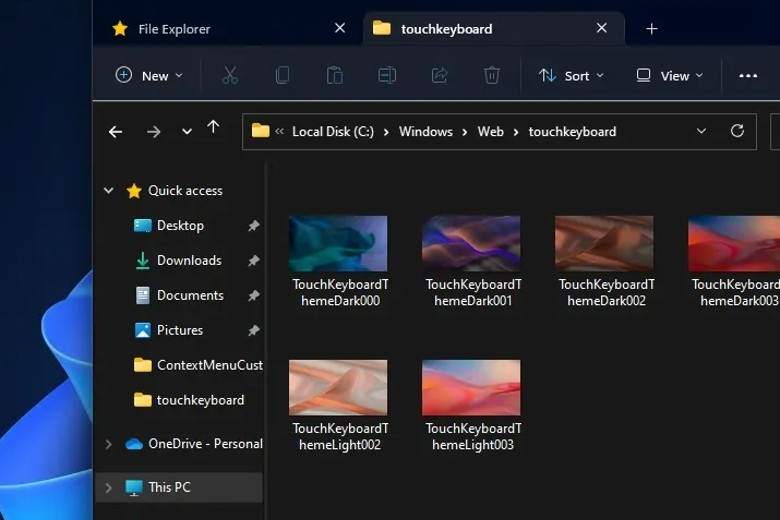
Windows 11 has a minimalist File Explorer interface

Windows 11 is the latest version of the Windows operating system, bringing many changes in interface, features and performance compared to Windows 10. One of the notable changes is the interface. File Explorera tool to manage files and folders on your computer.
restore File Explorer's ribbon interface
Windows 11 has a minimalist File Explorer interface

File Explorer on Windows 11 is redesigned with a simple, modern and minimalist interface. Instead of using a ribbon interface with many command buttons and menus, the new File Explorer only has a compact toolbar with commonly used buttons such as Cut, Copy, Paste, Rename, Share, Delete, New Folder, Sort by, Layout and More options.
restore File Explorer's ribbon interface
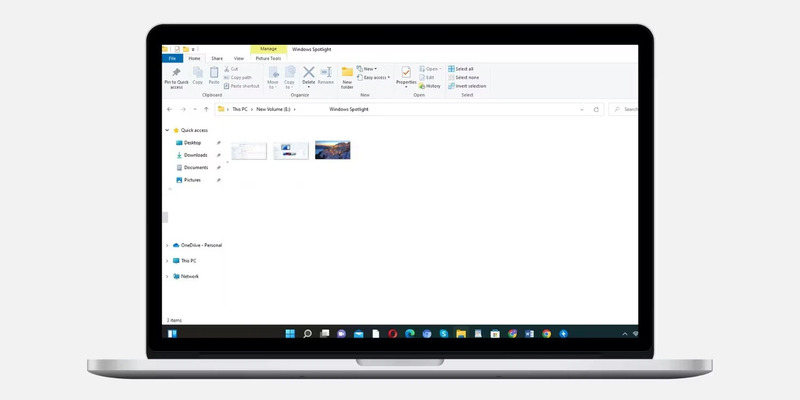
Windows 10 ribbon interface

The new File Explorer interface on Windows 11 aims to increase touch interaction, optimize screen space and synchronize with other applications. However, not everyone likes this change, because the new interface may reduce File Explorer's features and customization capabilities.

Many users are still familiar with Windows 10's traditional ribbon interface, as it allows quick and easy access to various commands and options.

Tips to restore File Explorer's ribbon interface on Windows 11

If you don't like the new design of File Explorer on Windows 11, you can return to the traditional ribbon interface, similar to Windows 10. To do this, you need to make some changes in the Windows Registry, where system settings and information are stored. Here are the detailed instructions:

Note: Before making any changes in the Windows Registry, you should create a full backup of the Windows 11 Registry. If something goes wrong, you can restore the Registry using this backup.

Step 1: Right click on the Windows icon > Select Run.

Step 2: Enter the regedit command in the Run box and press the OK button or Enter key to launch the Registry Editor.
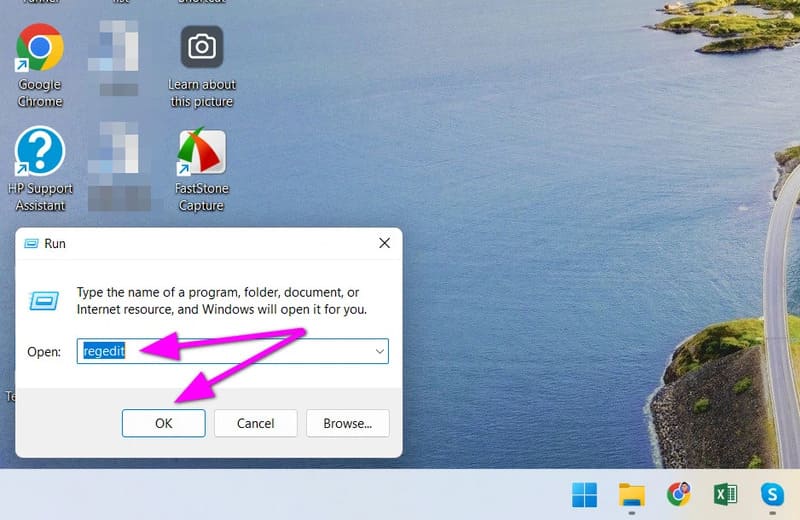
restore File Explorer's ribbon interface
Enter the regedit command

Step 3: Copy the path below and paste it into the Registry Editor's address bar and press Enter:

HKEY_LOCAL_MACHINE\SOFTWARE\Microsoft\Windows\CurrentVersion\Shell Extensions
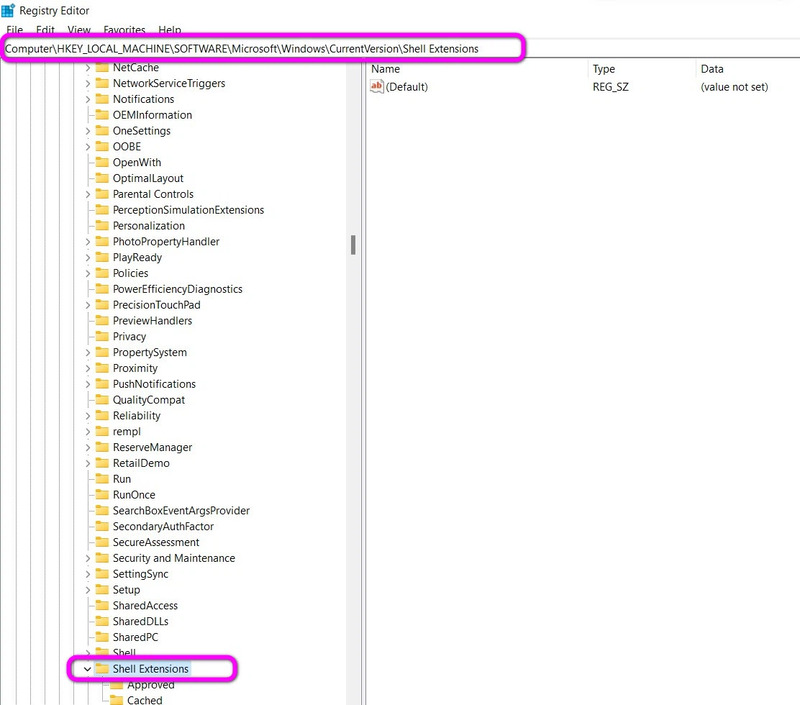
restore File Explorer's ribbon interface
Navigate to the address above

Step 4: Right-click the Shell Extensions folder and select New > Key.
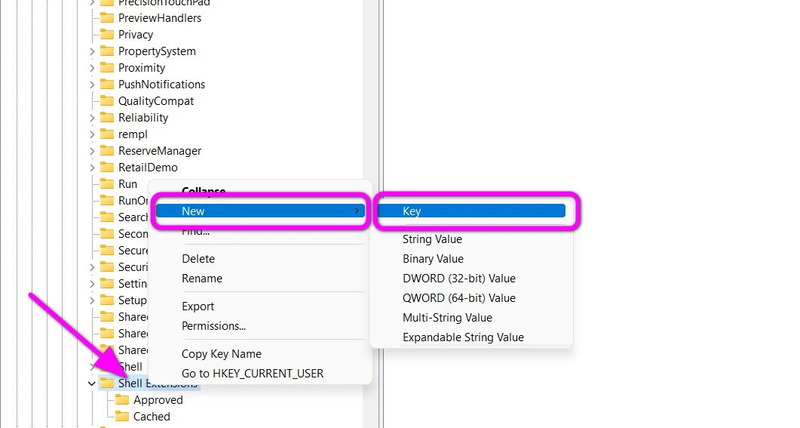
restore File Explorer's ribbon interface
Right-click Shell Extensions and select New > Key.

Step 5: Name the newly created folder Blocked.
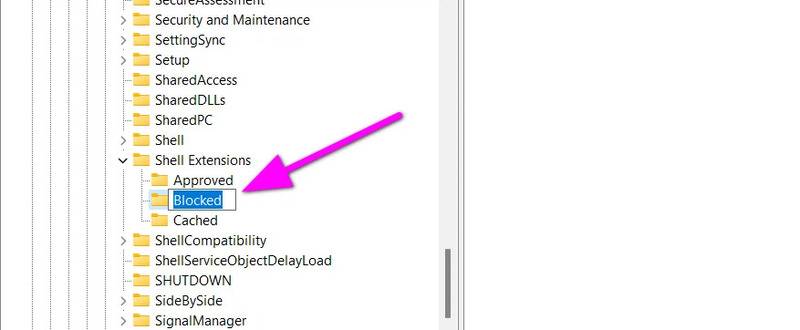
restore File Explorer's ribbon interface
Name the newly created folder Blocked.

Step 6: In the Blocked folder, right-click and select New > String Value to create a subkey.
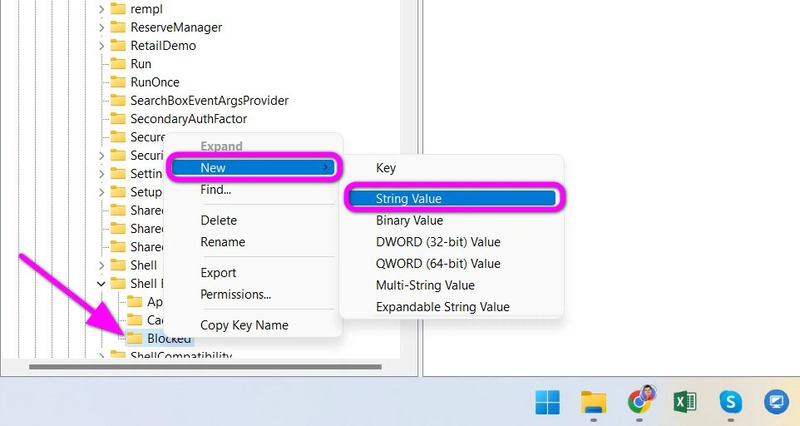
restore File Explorer's ribbon interface
Right click and select New > String Value

Step 7: Name the newly created subkey {e2bf9676-5f8f-435c-97eb-11607a5bedf7}.
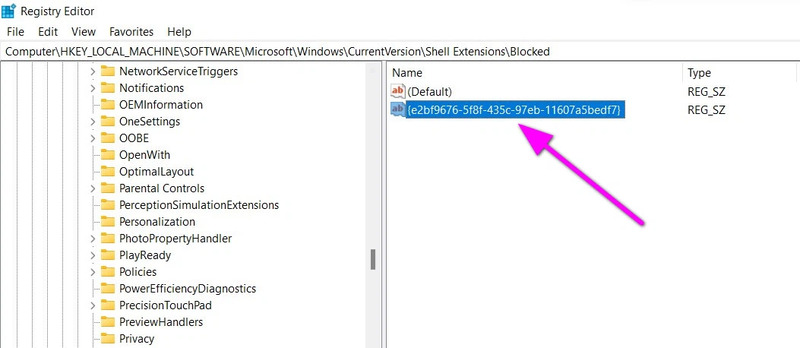
restore File Explorer's ribbon interface
Name the newly created subkey

Close the Registry Editor window, then restart your computer, open File Explorer and you will see its ribbon interface.
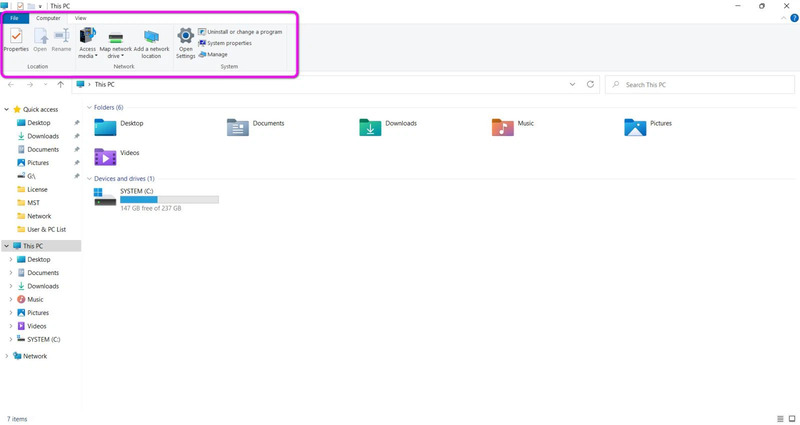
restore File Explorer's ribbon interface
Successfully restored File Explorer's ribbon interface

If you want to return to the original File Explorer interface of Windows 11, you just need to do the above and delete the Blocked folder and the subkeys in it and you're done.

Epilogue

Above are instructions on how restore File Explorer's ribbon interface on Windows 11. Hopefully this article can help you customize the File Explorer interface to your liking. If you have any questions or comments, please comment below. Good luck!


The article scored: 5/5 – (100 votes)

Tags: Explorer39sfileinterfacerestoreRibbonWindows
Previous Post

Tool Troll Hack Facebook and Gmail Part 2

Next Post

How to completely turn off or delete Copilot on Windows 11

AnonyViet

AnonyViet

Related Posts

Windows 7/8.1/10 users will be upgraded to Windows 11 for free
Tips

Windows 7/8.1/10 users will be upgraded to Windows 11 for free

July 30, 2026
Instructions for receiving ChatGPT Plus for 1 month for free in 2026
Tips

Instructions for receiving ChatGPT Plus for 1 month for free in 2026

July 28, 2026
Some reasons I don’t like Windows 11
Tips

Some reasons I don’t like Windows 11

July 27, 2026
Instructions on how to get free Facebook white ticks
Tips

Instructions on how to get free Facebook white ticks

July 27, 2026
Collection of Windows 11 wallpapers for computers and phones
Tips

Collection of Windows 11 wallpapers for computers and phones

July 26, 2026
Don’t install leaked Windows 11
Tips

Don’t install leaked Windows 11

July 25, 2026
Next Post
How to completely turn off or delete Copilot on Windows 11

How to completely turn off or delete Copilot on Windows 11

0 0 votes
Article Rating
Subscribe
Login
Notify of
guest

guest

0 Comments
Oldest
Newest Most Voted

Recent News

Windows 7/8.1/10 users will be upgraded to Windows 11 for free

Windows 7/8.1/10 users will be upgraded to Windows 11 for free

July 30, 2026
Instructions for receiving the free Certified LLM Security Expert certificate

Instructions for receiving the free Certified LLM Security Expert certificate

July 30, 2026
MSI laptops are not just for gamers: Which line is suitable for students, office workers and creative people?

MSI laptops are not just for gamers: Which line is suitable for students, office workers and creative people?

July 29, 2026
What is quantum resistant cryptography? Why must the Internet change?

What is quantum resistant cryptography? Why must the Internet change?

July 29, 2026
Windows 7/8.1/10 users will be upgraded to Windows 11 for free

Windows 7/8.1/10 users will be upgraded to Windows 11 for free

July 30, 2026
Instructions for receiving the free Certified LLM Security Expert certificate

Instructions for receiving the free Certified LLM Security Expert certificate

July 30, 2026
MSI laptops are not just for gamers: Which line is suitable for students, office workers and creative people?

MSI laptops are not just for gamers: Which line is suitable for students, office workers and creative people?

July 29, 2026
AnonyViet - English Version

AnonyViet

AnonyViet is a website share knowledge that you have never learned in school!

We are ready to welcome your comments, as well as your articles sent to AnonyViet.

Follow Us

Contact:

Email: anonyviet.com[@]gmail.com

Main Website: https://anonyviet.com

Recent News

Windows 7/8.1/10 users will be upgraded to Windows 11 for free

Windows 7/8.1/10 users will be upgraded to Windows 11 for free

July 30, 2026
Instructions for receiving the free Certified LLM Security Expert certificate

Instructions for receiving the free Certified LLM Security Expert certificate

July 30, 2026
  • Home
  • Home 2
  • Home 3
  • Home 4
  • Home 5
  • Home 6
  • Next Dest Page
  • Sample Page

say88 tỷ lệ kèo nhà cái kèo nhà cái 5 febet

No Result
View All Result
  • Home
  • News
  • Software
  • Knowledge
  • MMO
  • Tips
  • Security
  • Network
  • Office

say88 tỷ lệ kèo nhà cái kèo nhà cái 5 febet

wpDiscuz
0
0
Would love your thoughts, please comment.x
()
x
| Reply