• Home
  • News
  • Software
  • Knowledge
  • MMO
  • Tips
  • Security
  • Network
  • Office
AnonyViet - English Version
  • Home
  • News
  • Software
  • Knowledge
  • MMO
  • Tips
  • Security
  • Network
  • Office
No Result
View All Result
  • Home
  • News
  • Software
  • Knowledge
  • MMO
  • Tips
  • Security
  • Network
  • Office
No Result
View All Result
AnonyViet - English Version
No Result
View All Result

Samsung has Circle To Search, Microsoft Edge has Circle To Copilot

AnonyViet by AnonyViet
March 16, 2024
in Tips
0

Did you know that the Microsoft Edge Canary browser on Windows computers has added a hidden feature called Circle To Copilot? With this feature, you can circle the circle to quickly search for information on the browser. This is a new and exciting feature that can help you save time and enhance your browsing experience. Let's learn about the Circle To Copilot feature on Microsoft Edge with AnonyViet in this article!

Join the channel Telegram belong to AnonyViet 👉 Link 👈

What is Circle To Copilot?

Circle To Copilot is a feature that allows you to hold down the right mouse button and search an area to search for any image or information in the browser. The image surrounded by the circle will be immediately sent by Microsoft Edge to the Copilot assistant. Here, you can ask Copilot about the information in the photo, such as product name, price, reviews, etc.

Circle To Copilot is a feature similar to Samsung's Circle to Search, allowing you to circle any content on the screen to search through the virtual assistant Copilot. But this feature is not yet complete, so the search and display speed is not as smooth as Circle to Search.

Circle To Copilot
Circle to Search feature on Galaxy S24 series

What do you need to do to enable Circle To Copilot?

To be able to experience Circle To Copilot, you need to update Microsoft Edge Canary to the latest version. After the update is complete, follow the steps below to enable this hidden feature:

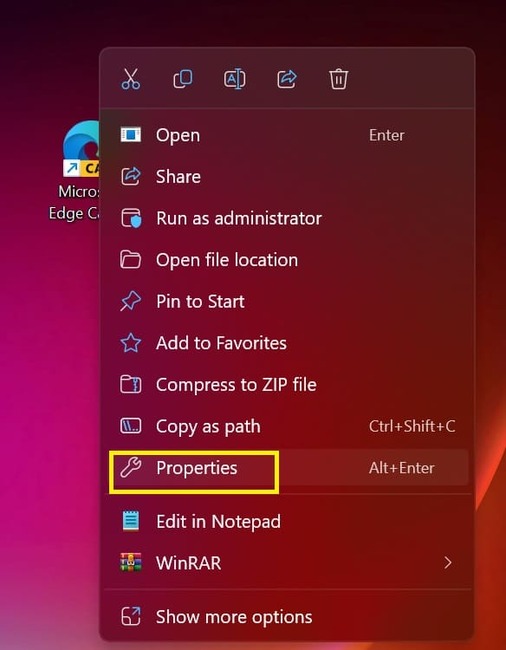
Step 1: Right-click Microsoft Edge Canary > Select Properties.
Circle To Copilot
Right-click Microsoft Edge Canary > Select Properties.

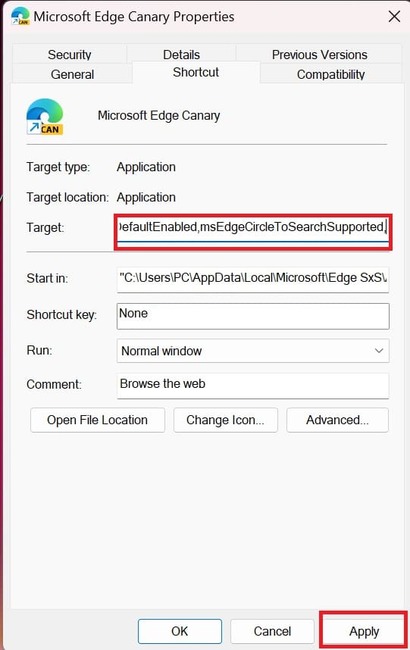
Step 2: Paste the link below in the Target section after the existing link. Note that you must add SPACES before pasting:

–enable-features=msEdgeCircleToSearchDefaultEnabled,msEdgeCircleToSearchSupported,
Circle To Copilot
Paste the link into the Target section

Step 3: Once pasted, click Apply > OK.

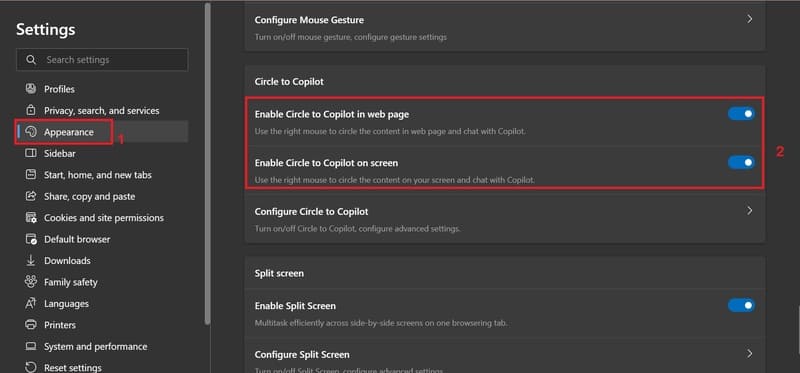
Step 4: Open Edge Canary, go to Settings > Appearance > Turn on the options “Enable Circle to Copilot in web page” and “Enable Circle to Copilot on screen”
Circle To Copilot
Enable 2 options

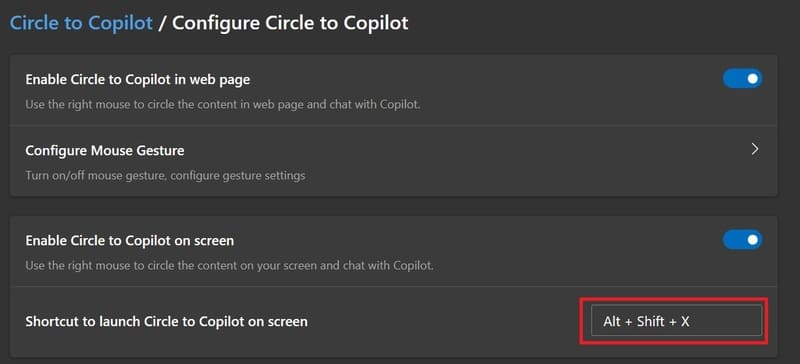
You can go to Configure Circle to Copilot to set up a shortcut for it
Circle To Copilot
Set up keyboard shortcuts for Circle To Copilot

To use, you just need to press the shortcut key combination > Hold down the right mouse button and select an area to search for any image or information on the browser, immediately the Copilot panel will appear with the image > Type “ what is this?” to search for information
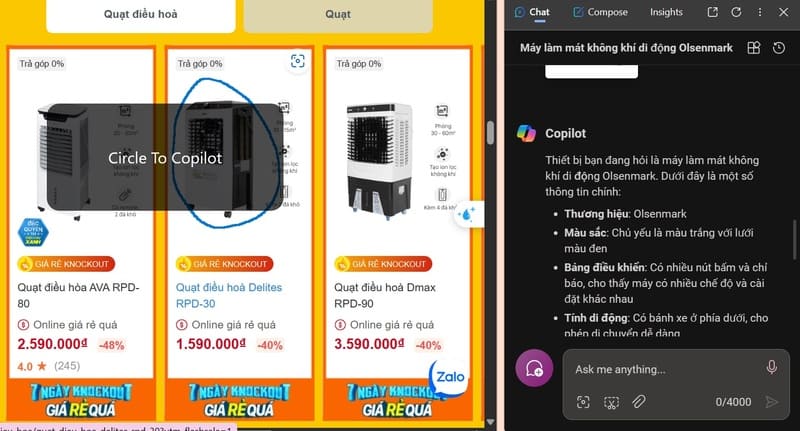
Circle To Copilot
How to use Circle To Copilot

The current results are only at the level of image description, without authentic information about the object. However, this feature is just being tested and I believe Microsoft will try to perfect it to get better results when officially launched.

Epilogue

Circle To Copilot is a new and useful feature on the Microsoft Edge Canary browser, helping you find information quickly and conveniently. However, this feature still has many limitations and has not been completed. Hopefully in the future, Microsoft will improve and upgrade this feature to bring a better experience to users. You can download Microsoft Edge Canary to experience the Circle To Copilot feature!


The article scored: 5/5 – (100 votes)

Tags: CircleCopilotEdgeMicrosoftSamsungsearch
Previous Post

True Tone feature on iPhone: Is it really necessary?

Next Post

Instructions for experiencing iOS 17 features on Android

AnonyViet

AnonyViet

Related Posts

How to add sliders to Facebook Stories to easily rewind videos
Tips

How to add sliders to Facebook Stories to easily rewind videos

April 21, 2026
How to change the default font on Windows 10
Tips

How to change the default font on Windows 10

April 13, 2026
5 tips for using a Browser to replace an App (helps save RAM, time and money)
Tips

5 tips for using a Browser to replace an App (helps save RAM, time and money)

April 13, 2026
How to make funny MeMe photos without Photoshop within 10 seconds
Tips

How to make funny MeMe photos without Photoshop within 10 seconds

April 11, 2026
How to quickly design your own Logo without Photoshop
Tips

How to quickly design your own Logo without Photoshop

April 10, 2026
How to convert Website into App on Windows
Tips

How to convert Website into App on Windows

April 9, 2026
Next Post
Instructions for experiencing iOS 17 features on Android

Instructions for experiencing iOS 17 features on Android

0 0 votes
Article Rating
Subscribe
Login
Notify of
guest

guest

0 Comments
Oldest
Newest Most Voted
Inline Feedbacks
View all comments

Recent News

Create an avatar to celebrate April 30 with a beautiful red flag shirt with yellow stars

Create an avatar to celebrate April 30 with a beautiful red flag shirt with yellow stars

April 30, 2026
How to get 2 months of Super Duolingo for free worth 300k

How to get 2 months of Super Duolingo for free worth 300k

April 30, 2026
How to create a Face Sticker Collection using ChatGPT

How to create a Face Sticker Collection using ChatGPT

April 29, 2026
How to install the cute Bongo Cat mouse pointer for Windows

How to install the cute Bongo Cat mouse pointer for Windows

April 29, 2026
Create an avatar to celebrate April 30 with a beautiful red flag shirt with yellow stars

Create an avatar to celebrate April 30 with a beautiful red flag shirt with yellow stars

April 30, 2026
How to get 2 months of Super Duolingo for free worth 300k

How to get 2 months of Super Duolingo for free worth 300k

April 30, 2026
How to create a Face Sticker Collection using ChatGPT

How to create a Face Sticker Collection using ChatGPT

April 29, 2026
AnonyViet - English Version

AnonyViet

AnonyViet is a website share knowledge that you have never learned in school!

We are ready to welcome your comments, as well as your articles sent to AnonyViet.

Follow Us

Contact:

Email: anonyviet.com[@]gmail.com

Main Website: https://anonyviet.com

Recent News

Create an avatar to celebrate April 30 with a beautiful red flag shirt with yellow stars

Create an avatar to celebrate April 30 with a beautiful red flag shirt with yellow stars

April 30, 2026
How to get 2 months of Super Duolingo for free worth 300k

How to get 2 months of Super Duolingo for free worth 300k

April 30, 2026
No Result
View All Result
  • Home
  • News
  • Software
  • Knowledge
  • MMO
  • Tips
  • Security
  • Network
  • Office

wpDiscuz
0
0
Would love your thoughts, please comment.x
()
x
| Reply