• Home
  • News
  • Software
  • Knowledge
  • MMO
  • Tips
  • Security
  • Network
  • Office
AnonyViet - English Version
  • Home
  • News
  • Software
  • Knowledge
  • MMO
  • Tips
  • Security
  • Network
  • Office
No Result
View All Result
  • Home
  • News
  • Software
  • Knowledge
  • MMO
  • Tips
  • Security
  • Network
  • Office
No Result
View All Result
AnonyViet - English Version
No Result
View All Result

How to automatically turn off Bluetooth on iPhone when disconnecting AirPods, speakers,…

AnonyViet by AnonyViet
February 18, 2024
in Software
0

How to automatically turn off Bluetooth on iPhone When disconnecting AirPods is a good tip that many iPhone users don't know. If you regularly use AirPods to listen to music, make phone calls, or watch videos, you will find that your iPhone's battery will drain faster than usual. This is because Bluetooth is always active in the background when connected and consumes a lot of power. So how to automatically turn off Bluetooth on iPhone when you don't need it AirPods again?

Join the channel Telegram belong to AnonyViet 👉 Link 👈

Why should you turn off Bluetooth when not using AirPod?

Bluetooth is a wireless technology that allows devices to be connected to each other, such as iPhones and AirPods. However, Bluetooth is also one of the reasons why phone batteries run out quickly.

When you use AirPods to listen to music, make phone calls or watch videos, Bluetooth will continuously transmit data, consuming energy from both devices. Therefore, when you no longer need to use AirPods, you should turn off Bluetooth to save phone battery.

How to automatically turn off Bluetooth on iPhone when disconnecting AirPods, speakers, etc.

iPhone doesn't have a feature to automatically turn off Bluetooth when AirPods are disconnected, but you can create a Shortcuts app to do this. Shortcuts is an Apple app that allows you to create action sequences to automate tasks on your iPhone.

To create a Shortcut app to turn off Bluetooth when disconnecting AirPods, follow these steps:

Step 1: You access the Shortcuts application on iPhone. If your device doesn't have this app yet, you can download it from the App Store here.

Step 2: Click the + icon in the upper right corner of the screen, then select New Automation.

How to automatically turn off Bluetooth on iPhone
Select New Automation.

Step 3: Enter “Bluetooth” in the search bar, then select Bluetooth.
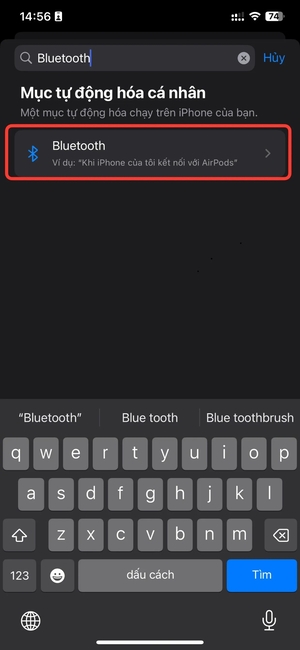
How to automatically turn off Bluetooth on iPhone
Select Bluetooth.

Step 4: Tap Devices and select your AirPods, then tap Done. You select 'Disconnected' and 'Run immediately', then press 'Next'.
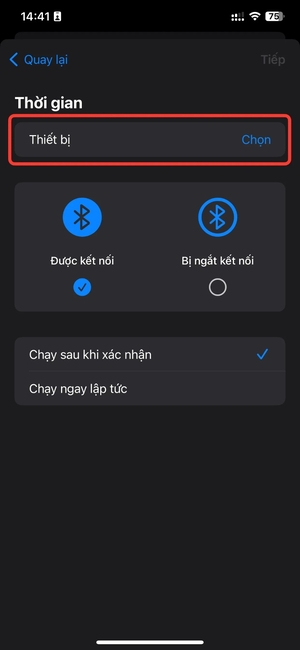
How to automatically turn off Bluetooth on iPhone
Select 'Disconnected' and 'Instant Run'

Step 5: Select 'New Empty Automation Item'.
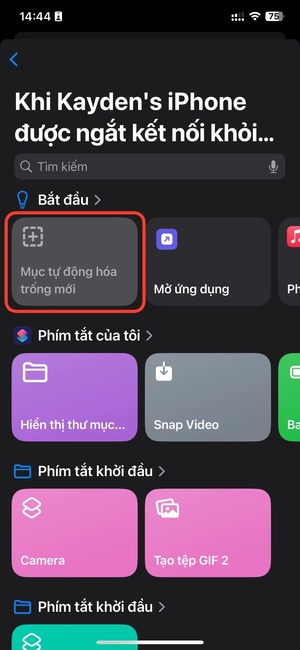
How to automatically turn off Bluetooth on iPhone
Select 'New Empty Automation Item'.

Step 6: Type “Bluetooth” in the search bar and select 'Set Bluetooth'.
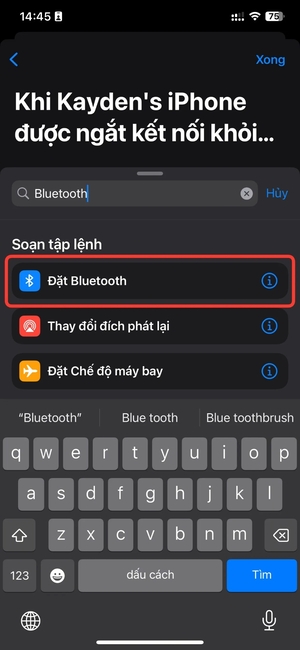
How to automatically turn off Bluetooth on iPhone
Select 'Set Bluetooth'.

Step 7: Adjust 'Switch Bluetooth to Off' as shown in the picture > Done
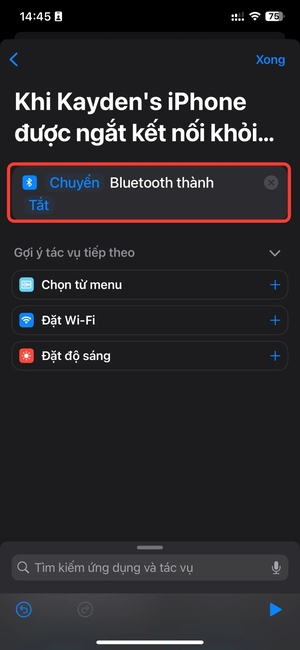
How to automatically turn off Bluetooth on iPhone
Adjust 'Switch Bluetooth to Off'

Note: You can use this Automation for speakers and other Bluetooth devices besides AirPods.

From now on, when you disconnect your AirPods, you will receive a confirmation message that Automation is active and your iPhone will also automatically disconnect the Bluetooth connection.

Epilogue

How to automatically turn off Bluetooth on iPhone Disconnecting AirPods is a very useful way, you won't have to worry about the battery draining quickly when using wireless devices anymore. Wishing you a successful application!


The article scored: 5/5 – (100 votes)

Tags: AirPodsAutomaticallyBluetoothdisconnectingiPhonespeakersturn
Previous Post

Winlator: The application helps you play PC games on Android super cool

Next Post

Sora: Awesome text-based video creation AI tool from OpenAI

AnonyViet

AnonyViet

Related Posts

Instructions on how to prevent acquaintances from seeing your Tiktok
Software

Instructions on how to prevent acquaintances from seeing your Tiktok

June 2, 2026
TruyenDrive: Turn Google Drive into a professional manga reader
Software

TruyenDrive: Turn Google Drive into a professional manga reader

May 31, 2026
How to extract text from photos using Zalo is super simple
Software

How to extract text from photos using Zalo is super simple

May 29, 2026
HONOR 600 in hand – High-end design, 200MP camera, not cheap price
Software

HONOR 600 in hand – High-end design, 200MP camera, not cheap price

May 28, 2026
Instructions for getting 4 months of Adobe copyright for free
Software

Instructions for getting 4 months of Adobe copyright for free

May 28, 2026
The truth about the 7,000 mAh battery on Xiaomi 17T Pro: What benefits do users get?
Software

The truth about the 7,000 mAh battery on Xiaomi 17T Pro: What benefits do users get?

May 28, 2026
Next Post
Sora: Awesome text-based video creation AI tool from OpenAI

Sora: Awesome text-based video creation AI tool from OpenAI

0 0 votes
Article Rating
Subscribe
Login
Notify of
guest

guest

0 Comments
Oldest
Newest Most Voted
Inline Feedbacks
View all comments

Recent News

How to check network speed on Apple TV when the image is jerky or lagging

How to check network speed on Apple TV when the image is jerky or lagging

June 3, 2026
Instructions on how to prevent acquaintances from seeing your Tiktok

Instructions on how to prevent acquaintances from seeing your Tiktok

June 2, 2026
How to record reaction videos with Android phones, no app needed

How to record reaction videos with Android phones, no app needed

June 1, 2026
Instructions on how to get Google AI Pro 1 year for free for new accounts

Instructions on how to get Google AI Pro 1 year for free for new accounts

June 1, 2026
How to check network speed on Apple TV when the image is jerky or lagging

How to check network speed on Apple TV when the image is jerky or lagging

June 3, 2026
Instructions on how to prevent acquaintances from seeing your Tiktok

Instructions on how to prevent acquaintances from seeing your Tiktok

June 2, 2026
How to record reaction videos with Android phones, no app needed

How to record reaction videos with Android phones, no app needed

June 1, 2026
AnonyViet - English Version

AnonyViet

AnonyViet is a website share knowledge that you have never learned in school!

We are ready to welcome your comments, as well as your articles sent to AnonyViet.

Follow Us

Contact:

Email: anonyviet.com[@]gmail.com

Main Website: https://anonyviet.com

Recent News

How to check network speed on Apple TV when the image is jerky or lagging

How to check network speed on Apple TV when the image is jerky or lagging

June 3, 2026
Instructions on how to prevent acquaintances from seeing your Tiktok

Instructions on how to prevent acquaintances from seeing your Tiktok

June 2, 2026
No Result
View All Result
  • Home
  • News
  • Software
  • Knowledge
  • MMO
  • Tips
  • Security
  • Network
  • Office

wpDiscuz
0
0
Would love your thoughts, please comment.x
()
x
| Reply