• Home
  • News
  • Software
  • Knowledge
  • MMO
  • Tips
  • Security
  • Network
  • Office
AnonyViet - English Version
  • Home
  • News
  • Software
  • Knowledge
  • MMO
  • Tips
  • Security
  • Network
  • Office
No Result
View All Result
  • Home
  • News
  • Software
  • Knowledge
  • MMO
  • Tips
  • Security
  • Network
  • Office
No Result
View All Result
AnonyViet - English Version
No Result
View All Result

How to delete the shortcut icon arrow in Windows

AnonyViet by AnonyViet
February 10, 2024
in Tips
0

Do you know How to delete shortcut icon arrow on the desktop or in a folder to make the screen look neater? If yes, follow this article to learn how to do it easily and quickly.

Join the channel Telegram belong to AnonyViet 👉 Link 👈

You may have noticed the little arrows on the icons shortcut on the Windows desktop. They indicate that the file or folder is a shortcut to the corresponding application or file. However, for most of us, these arrows are useless and quite annoying.

Unfortunately, Windows currently doesn't have a built-in option to disable those arrows directly. However, you don't need to worry, because we have three methods to help you remove those arrows from shortcut icons to make your desktop look neater and more professional. Let's explore!

How to delete the shortcut icon arrow on Windows

Method 1: Modify the Registry

The Windows Registry is a database that stores configuration settings for the computer. You can edit the Registry to change how your computer looks and behaves. This includes removing shortcut arrows on icons in Windows.

Editing the Windows Registry is high risk, because if you do it wrong, you can damage your computer or make it unbootable. Therefore, be sure to back up the Registry before editing. Then, follow the steps below to hide the shortcut icon on your Windows computer:

Step 1: Open the Run box by pressing Windows + R on the keyboard. Type regedit and press Enter.
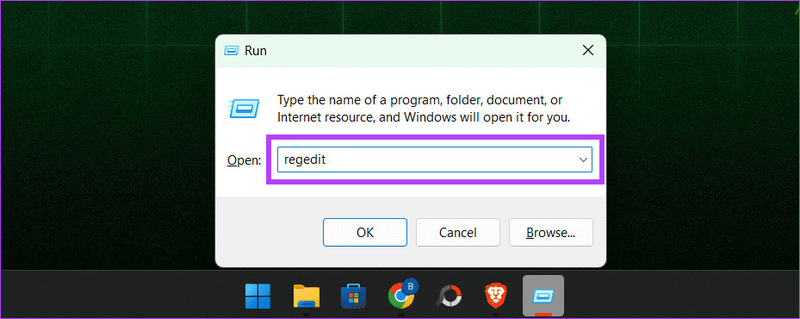
How to delete shortcut icon arrow
Press Windows + R > Type regedit

Step 2: In the left pane, go to HKEY_LOCAL_MACHINE > SOFTWARE > Microsoft.
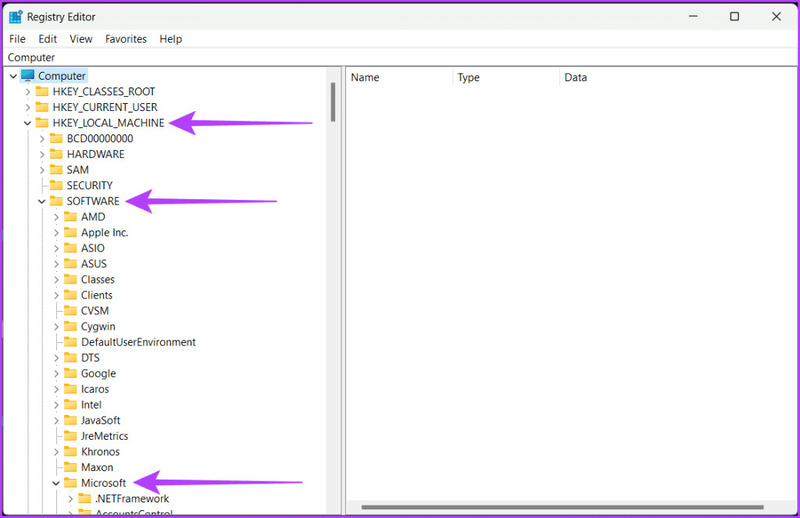
How to delete shortcut icon arrow
Go to HKEY_LOCAL_MACHINE > SOFTWARE > Microsoft.

Step 3: Select Windows > CurrentVersion.
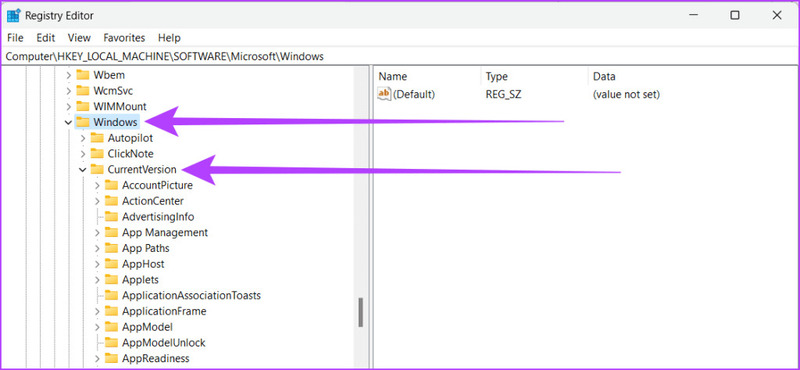
How to delete shortcut icon arrow
Select Windows > CurrentVersion.

Step 4: Find and select Explorer. Right click on it and select New, then select Key.
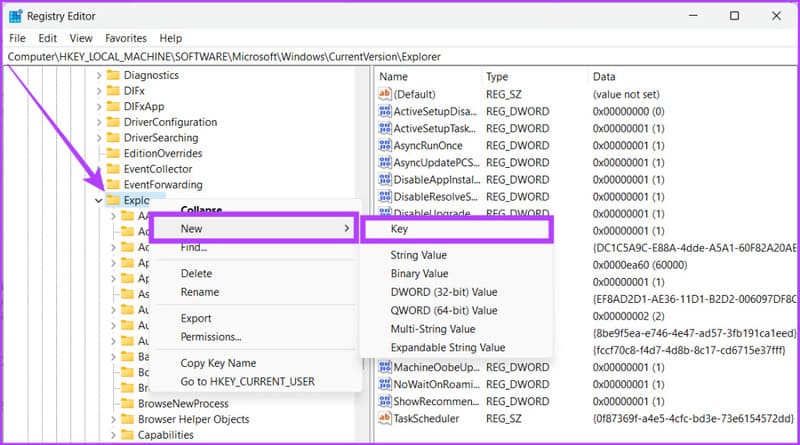
How to delete shortcut icon arrow
Right-click Explorer and select New > Key.

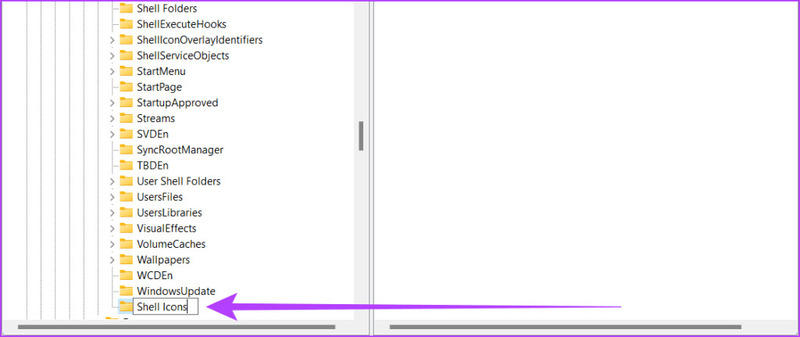
Step 5: Rename to Shell Icons.

How to delete shortcut icon arrow
Rename to Shell Icons.

Step 6: Right-click an empty area in the right pane to select New > String Value.
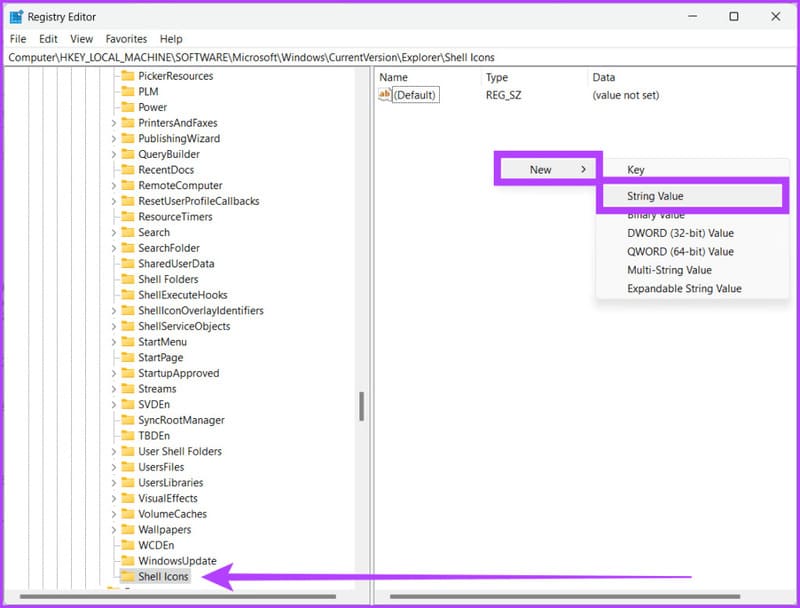
How to delete shortcut icon arrow
Select New > String Value.

Step 7: Name the new String 29. Double-click string 29 to open the Edit String window.
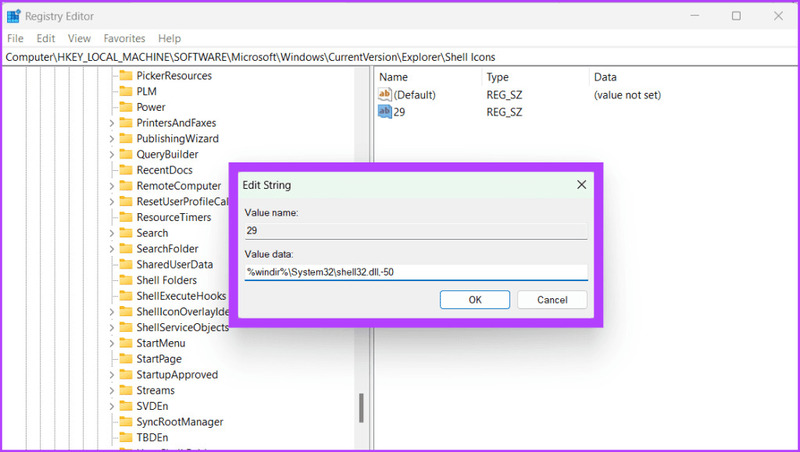
How to delete shortcut icon arrow
Name the new String 29

Step 8: Next to Value data, type the following and press Enter.
%windir%\System32\shell32.dll,-50

Step 9: Close Registry Editor by clicking the x icon in the upper left corner of the window.

Step 10: Restart your computer to save changes.

It is done! You have successfully removed the shortcut arrow on your Windows computer.

Method 2: Use a third-party tool

If you're not a tech person and don't want the hassle of multiple mouse clicks or the risk of editing Registry files, you can use third-party tools to save time and effort. These tools make it easy to remove small arrows and customize your desktop quickly.

Step 1: Download and install ShortcutArrow Changer software using the link The following.
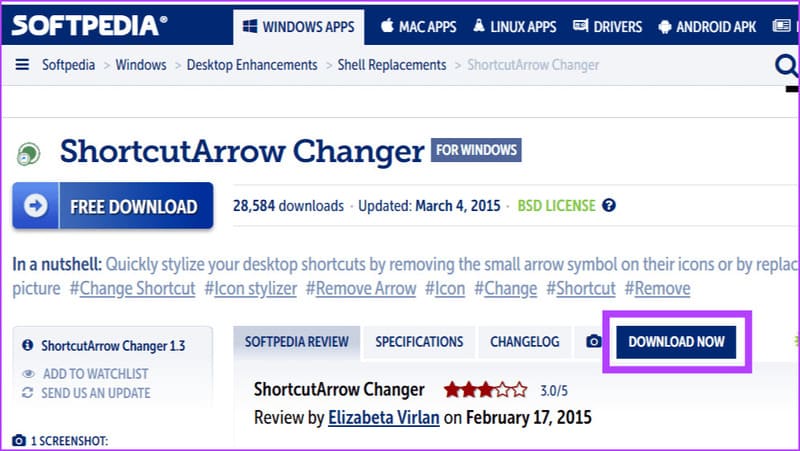
How to delete shortcut icon arrow
Install ShortcutArrow Changer software

Step 2: Press Windows + S on the keyboard. Or you can also click the Windows icon.

Step 3: Type Shortcutarrow Changer, and on the right pane, click Run as administrator.
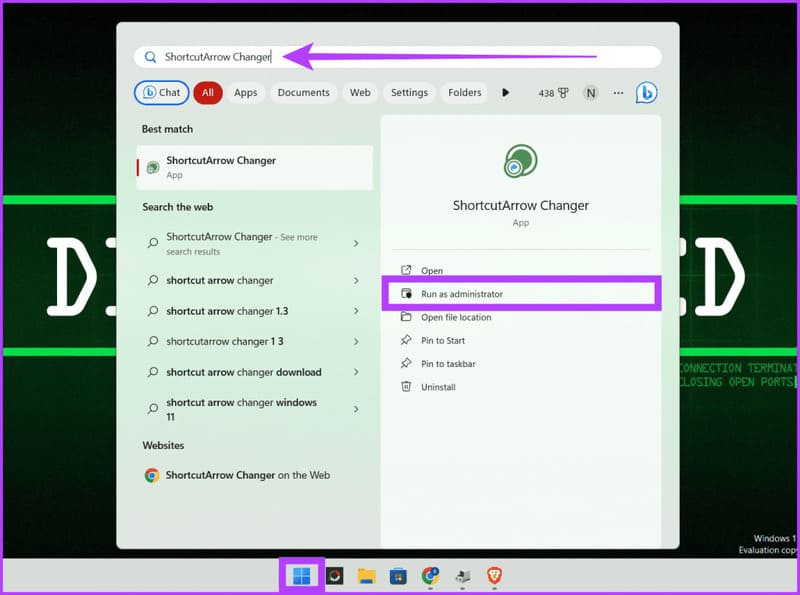
How to delete shortcut icon arrow
Type Shortcutarrow Changer > Run as administrator.

Step 4: On the pop-up window, click Yes to allow the software to modify the computer.

Step 5: Select the Remove shortcut arrow icon and click Apply.
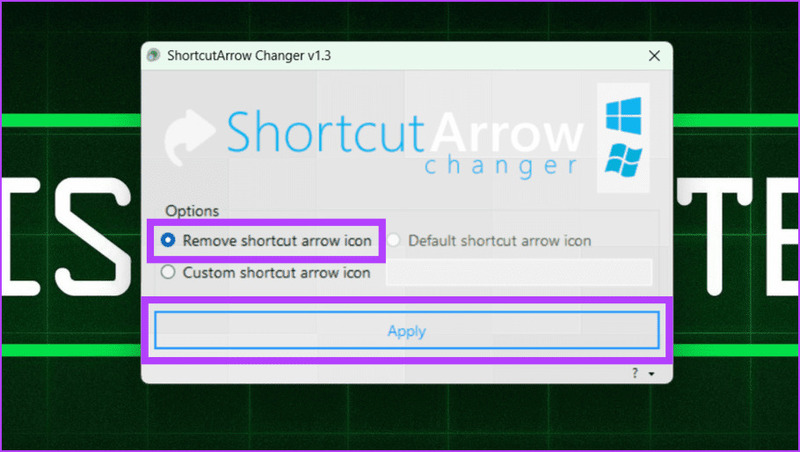
How to delete shortcut icon arrow
Select Remove shortcut arrow > Apply.

It is done. Additionally, you can also use Winaero Tweakeranother popular tool for removing shortcut arrows on Windows icons.

Method 3: Use Registry hack

You don't need to edit the Registry yourself, just follow the steps below.

Step 1: Open any web browser and download the Registry file The following

Step 2: Unzip the downloaded Registry file.

Step 3: Double click on the file 'remove_shortcut_arrow_icon'
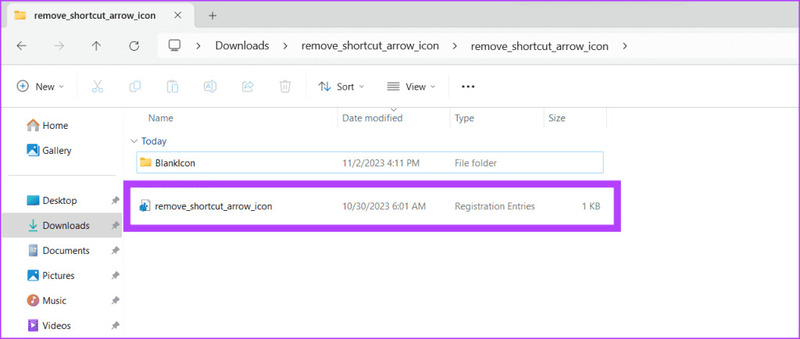
How to delete shortcut icon arrow
Double click on the file 'remove_shortcut_arrow_icon'

Step 4: Click Run and follow the on-screen instructions.
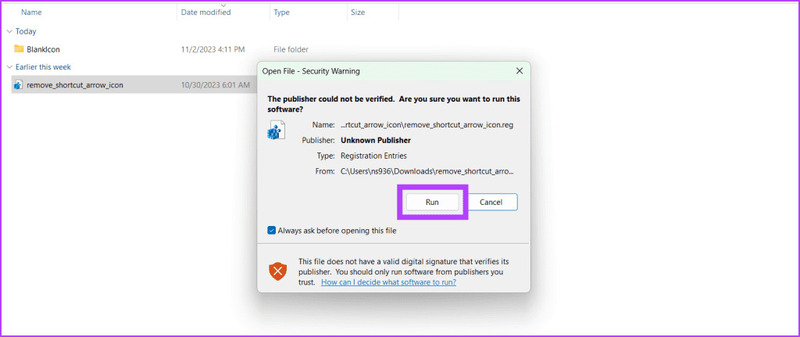
How to delete shortcut icon arrow
Click Run

Step 5: Restart your computer.

Epilogue

Those are the steps for you to know How to delete shortcut icon arrow on the computer. If you have any questions or suggestions, please leave a comment below. Good luck!


The article scored: 5/5 – (100 votes)

Tags: ArrowdeleteIconShortcutWindows
Previous Post

How to receive free Tet gifts from Viettel and Vinaphone

Next Post

Unfriend people on Facebook the fastest with Friends Removal

AnonyViet

AnonyViet

Related Posts

Quét lỗ hổng bảo mật cho Vide Coding bằng Security Audit Skill
Tips

Quét lỗ hổng bảo mật cho Vide Coding bằng Security Audit Skill

October 27, 2026
Instructions for registering for OxionAI Pro for 1 year with many powerful AI models
Tips

Instructions for registering for OxionAI Pro for 1 year with many powerful AI models

October 24, 2026
How are Windows 11 Pro and Windows 10 Pro different?
Tips

How are Windows 11 Pro and Windows 10 Pro different?

October 23, 2026
Instructions for using CleanYourTV: Remove ads on Android TV, Google TV
Tips

Instructions for using CleanYourTV: Remove ads on Android TV, Google TV

October 23, 2026
How to use Messenger without a Facebook account
Tips

How to use Messenger without a Facebook account

October 22, 2026
The website helps you draw beautifully like TikToker Viet My
Tips

The website helps you draw beautifully like TikToker Viet My

October 21, 2026
Next Post
Unfriend people on Facebook the fastest with Friends Removal

Unfriend people on Facebook the fastest with Friends Removal

Recent News

Cách hạn chế Synology NAS bị Ransomware .L0CK3D: Cách khắc phục

Cách hạn chế Synology NAS bị Ransomware .L0CK3D: Cách khắc phục

October 30, 2026
Instructions for installing CleanYourTv to remove Android TV ads

Instructions for installing CleanYourTv to remove Android TV ads

October 29, 2026
How to play the mosquito swatter game, calling students’ names and asking them to return their homework

How to play the mosquito swatter game, calling students’ names and asking them to return their homework

October 28, 2026
Quét lỗ hổng bảo mật cho Vide Coding bằng Security Audit Skill

Quét lỗ hổng bảo mật cho Vide Coding bằng Security Audit Skill

October 27, 2026
Cách hạn chế Synology NAS bị Ransomware .L0CK3D: Cách khắc phục

Cách hạn chế Synology NAS bị Ransomware .L0CK3D: Cách khắc phục

October 30, 2026
Instructions for installing CleanYourTv to remove Android TV ads

Instructions for installing CleanYourTv to remove Android TV ads

October 29, 2026
How to play the mosquito swatter game, calling students’ names and asking them to return their homework

How to play the mosquito swatter game, calling students’ names and asking them to return their homework

October 28, 2026
AnonyViet - English Version

AnonyViet

AnonyViet is a website share knowledge that you have never learned in school!

We are ready to welcome your comments, as well as your articles sent to AnonyViet.

Follow Us

Contact:

Email: anonyviet.com[@]gmail.com

Main Website: https://anonyviet.com

Recent News

Cách hạn chế Synology NAS bị Ransomware .L0CK3D: Cách khắc phục

Cách hạn chế Synology NAS bị Ransomware .L0CK3D: Cách khắc phục

October 30, 2026
Instructions for installing CleanYourTv to remove Android TV ads

Instructions for installing CleanYourTv to remove Android TV ads

October 29, 2026
  • Home
  • Home 2
  • Home 3
  • Home 4
  • Home 5
  • Home 6
  • Next Dest Page
  • Sample Page

say88 tỷ lệ kèo nhà cái kèo nhà cái 5 febet

No Result
View All Result
  • Home
  • News
  • Software
  • Knowledge
  • MMO
  • Tips
  • Security
  • Network
  • Office

say88 tỷ lệ kèo nhà cái kèo nhà cái 5 febet