• Home
  • News
  • Software
  • Knowledge
  • MMO
  • Tips
  • Security
  • Network
  • Office
AnonyViet - English Version
  • Home
  • News
  • Software
  • Knowledge
  • MMO
  • Tips
  • Security
  • Network
  • Office
No Result
View All Result
  • Home
  • News
  • Software
  • Knowledge
  • MMO
  • Tips
  • Security
  • Network
  • Office
No Result
View All Result
AnonyViet - English Version
No Result
View All Result

6 steps to clean your laptop to welcome Lunar New Year to attract fortune

AnonyViet by AnonyViet
January 20, 2024
in Tips
0

6 steps to clean your laptop Celebrating Tet is a necessary task that you should do before the new year arrives. By cleaning your laptop, you not only clean and speed up your computer, but also protect important data and avoid unwanted risks.

Join the channel Telegram belong to AnonyViet 👉 Link 👈

6 steps to clean your laptop for Lunar New Year 2024

Lunar New Year 2024 is coming, have you prepared anything for your laptop? If you want your computer to work better, look cleaner and newer, try applying the following 6 simple but effective steps to clean your laptop!

Note: The steps below were performed on Windows 11, operations may differ slightly depending on the operating system version.

Step 1: Clean and organize the Desktop screen

The Desktop is where you regularly access and store files, folders, applications, etc. But if you leave too many icons on the Desktop, the computer will run slower and lose its aesthetics. You should:

  • Remove unnecessary icons, move files to appropriate folders, and keep only the most used applications.
  • Automatically sort icons by name, type, size, etc. by right-clicking on the desktop and selecting Sort by.
6 steps to clean your laptop
Arrange icons on the Desktop to look neater
  • Change the desktop wallpaper to create a new feeling and match the Tet atmosphere. You can download beautiful wallpapers from the Internet or use your personal images.

Step 2: Clean up temporary files

Temporary files are files created when you use applications, browsers, or install software. These files take up hard drive space and reduce computer performance.

You should delete temporary files regularly to free up hard drive space and speed up your computer. You can do this by using computer cleaning software like CCleaner, Glary Utilities,… or do it manually as follows:

  • Press 'Windows + R' to open the Run dialog box
  • Type Prefetch in the dialog box and press Enter.
6 steps to clean your laptop
Clean up temporary files
  • Press Ctrl + A to select all
  • Right-click and select Delete.

Step 3: Delete Recent places history

Recent places is a Windows feature that helps you quickly access folders, files, applications, etc. that you have used recently. However, if you do not want to save these histories, you can delete them as follows:

  • Press the combination 'Windows + R'
  • Enter Recent places in the dialog box and press Enter.
6 steps to clean your laptop
Delete Recent places history
  • Press Ctrl + A to select all
  • Right-click and select Delete to delete them

Step 4: Clear Cache memory

Cache memory is a temporary storage space on your computer, helping you access information, applications, websites, etc. that you have used before. However, when the Cache memory is too full, the computer will slow down and may cause errors.

You should periodically clear Cache memory to free up space and increase computer performance by:

  • Press the Windows + R key combination to access the Run dialog box
  • Enter %temp% in the dialog box and press Enter
6 steps to clean your laptop
Clear Cache
  • Press Ctrl + A to select all
  • Click Delete to delete it

Step 5: Clean up files in the trash

The Recycle Bin is the place where deleted files are stored on the computer. If you don't delete files in the trash, they will take up space on your hard drive and reduce your computer's performance. Here's how:

Right click on Recycle Bin > Select 'Empty Recycle Bin'

6 steps to clean your laptop
Right click > Select 'Empty Recycle Bin'

Step 6: Remove unused software

If you have a lot of unnecessary software and files on your computer, you should remove them to:

  • Expand hard drive capacity and increase computer processing speed.
  • Avoid software and files that are infected with viruses, malware, spyware, etc.
  • Easily manage and search for necessary software and files.

Here's how:

  • Click on the Windows icon next to the keyboard > Select 'Settings'
6 steps to clean your laptop
Select 'Settings'
  • Select 'Installed apps'
6 steps to clean your laptop
Select 'Installed apps'
  • Click on the … sign and select 'Uninstall' to uninstall unnecessary software.
6 steps to clean your laptop
Click on the … sign and select 'Uninstall'

Epilogue

Here it is all 6 steps to clean your laptop Simple but effective for you to celebrate Tet. You can perform these steps on a regular basis to keep your computer clean and performing at its best. Wishing you a new year full of joy and happiness!


The article scored: 5/5 – (100 votes)

Tags: attractcleanfortuneLaptopLunarstepsyear
Previous Post

Create presentation slides with AI Gamma in just 5 seconds? Really?!

Next Post

AI has appeared that translates calls in real time – Eliminates all language barriers

AnonyViet

AnonyViet

Related Posts

How to cancel Facebook Plus package to avoid automatic renewal
Tips

How to cancel Facebook Plus package to avoid automatic renewal

November 23, 2026
How to unlock iPhone Duo face on iOS 27.3 Beta 2
Tips

How to unlock iPhone Duo face on iOS 27.3 Beta 2

November 23, 2026
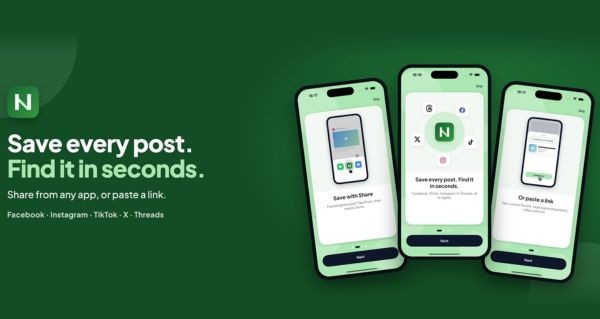
Naykia: App saves posts across multiple platforms, keeping the post intact even if the original post is deleted
Tips

Naykia: App saves posts across multiple platforms, keeping the post intact even if the original post is deleted

November 22, 2026
Free CNSF certification exam guide from Red Team Leaders
Tips

Free CNSF certification exam guide from Red Team Leaders

November 21, 2026
Instructions for registering Google AI Pro for 2 years for free until 2028
Tips

Instructions for registering Google AI Pro for 2 years for free until 2028

November 21, 2026
Instructions for registering for free Google AI Ultra + Youtube Premium
Tips

Instructions for registering for free Google AI Ultra + Youtube Premium

November 18, 2026
Next Post
AI has appeared that translates calls in real time – Eliminates all language barriers

AI has appeared that translates calls in real time - Eliminates all language barriers

0 0 votes
Article Rating
Subscribe
Login
Notify of
guest

guest

0 Comments
Oldest
Newest Most Voted

Recent News

How to cancel Facebook Plus package to avoid automatic renewal

How to cancel Facebook Plus package to avoid automatic renewal

November 23, 2026
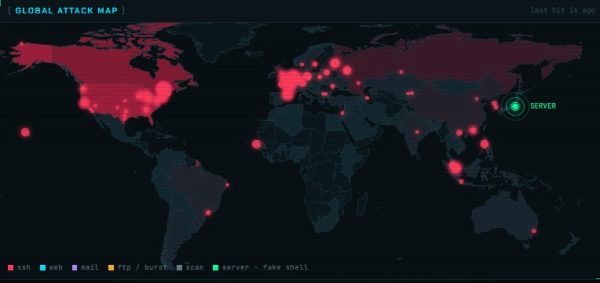
SSHWATCH: Dashboard to see realtime VPS attacks using Honeypot

SSHWATCH: Dashboard to see realtime VPS attacks using Honeypot

November 23, 2026
Detailed review of realme C01: Breaking the stereotype of cheap smartphones with 6,500 mAh battery and 120Hz screen

Detailed review of realme C01: Breaking the stereotype of cheap smartphones with 6,500 mAh battery and 120Hz screen

November 23, 2026
Purple Team: How to verify that the monitoring system can actually detect attacks

Purple Team: How to verify that the monitoring system can actually detect attacks

November 23, 2026
How to cancel Facebook Plus package to avoid automatic renewal

How to cancel Facebook Plus package to avoid automatic renewal

November 23, 2026
SSHWATCH: Dashboard to see realtime VPS attacks using Honeypot

SSHWATCH: Dashboard to see realtime VPS attacks using Honeypot

November 23, 2026
Detailed review of realme C01: Breaking the stereotype of cheap smartphones with 6,500 mAh battery and 120Hz screen

Detailed review of realme C01: Breaking the stereotype of cheap smartphones with 6,500 mAh battery and 120Hz screen

November 23, 2026
AnonyViet - English Version

AnonyViet

AnonyViet is a website share knowledge that you have never learned in school!

We are ready to welcome your comments, as well as your articles sent to AnonyViet.

Follow Us

Contact:

Email: anonyviet.com[@]gmail.com

Main Website: https://anonyviet.com

Recent News

How to cancel Facebook Plus package to avoid automatic renewal

How to cancel Facebook Plus package to avoid automatic renewal

November 23, 2026
SSHWATCH: Dashboard to see realtime VPS attacks using Honeypot

SSHWATCH: Dashboard to see realtime VPS attacks using Honeypot

November 23, 2026
  • Home
  • Home 2
  • Home 3
  • Home 4
  • Home 5
  • Home 6
  • Next Dest Page
  • Sample Page

say88 tỷ lệ kèo nhà cái kèo nhà cái 5 febet

No Result
View All Result
  • Home
  • News
  • Software
  • Knowledge
  • MMO
  • Tips
  • Security
  • Network
  • Office

say88 tỷ lệ kèo nhà cái kèo nhà cái 5 febet

wpDiscuz
0
0
Would love your thoughts, please comment.x
()
x
| Reply