• Home
  • News
  • Software
  • Knowledge
  • MMO
  • Tips
  • Security
  • Network
  • Office
AnonyViet - English Version
  • Home
  • News
  • Software
  • Knowledge
  • MMO
  • Tips
  • Security
  • Network
  • Office
No Result
View All Result
  • Home
  • News
  • Software
  • Knowledge
  • MMO
  • Tips
  • Security
  • Network
  • Office
No Result
View All Result
AnonyViet - English Version
No Result
View All Result

Try now 5 ways to open full screen mode in Windows 11

AnonyViet by AnonyViet
January 9, 2024
in Tips
0

How to open full screen mode in Windows 11 is one of the new features that many users are interested in. Full screen mode lets you focus on the content of an app window, web page, game, or video without being distracted by other elements on the screen. In this article, we will show you how to enable and disable full screen mode for different types of apps and programs on Windows 11.

Join the channel Telegram belong to AnonyViet 👉 Link 👈

5 ways to open full screen mode in Windows 11

Use keyboard shortcuts

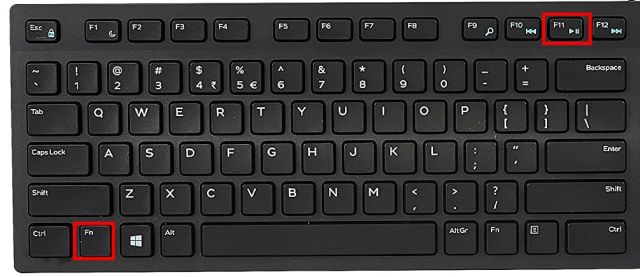
You can easily expand a window to full screen using keyboard shortcuts in Windows 11. First, press the “F11” or “Fn + F11” key. This will certainly expand the current window and make it full screen.
How to open full screen mode in Windows 11
Use keyboard shortcuts

You can use the F11 key to enter full-screen mode in the web browser, File Explorer, Control Panel, and other system applications, and to exit full-screen mode, simply press the F11 key again.

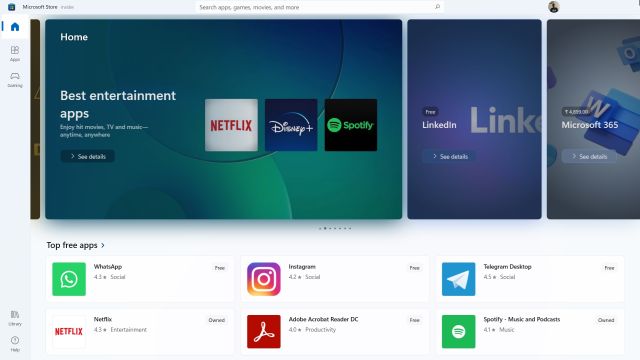
Additionally, apps installed from the Microsoft Store can enter full-screen mode using the keyboard shortcut “Windows + Shift + Enter”.
How to open full screen mode in Windows 11
With Microsoft Store apps, you can press “Windows + Shift + Enter”.

Some classic Windows applications support full-screen mode via the “Alt + Enter” keyboard shortcut.

Hide the Taskbar

You can automatically hide the Taskbar to enter full screen mode in applications and windows on your Windows 11 computer. The good thing about this method is that it works for all active windows and applications and always brings you a wonderful full-screen experience. Here's how you can enable it.

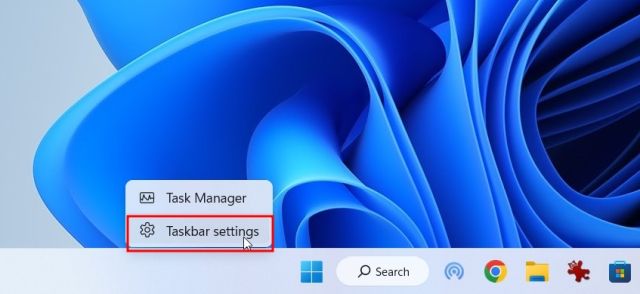
Step 1: Right click on the Taskbar and select 'Taskbar settings'
How to open full screen mode in Windows 11
Right click on the Taskbar and select 'Taskbar settings'

Step 2: Next, expand the 'Taskbar behaviors' menu and check the box 'Automatically hide the taskbar'
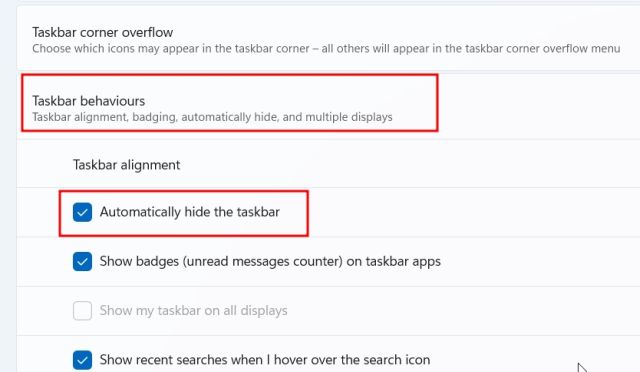
How to open full screen mode in Windows 11
Check the box 'Automatically hide the taskbar'

Now, when the Taskbar is not in use, you will always have full screen mode in any window or application.
How to open full screen mode in Windows 11
Full screen mode in Windows 11

Open full screen mode in Chrome, Edge, and Firefox

  • With Chrome: If you want to go full screen in Chrome on your computer, open the three-dot menu in the upper right corner and click the full screen button. You can also use the keyboard shortcut “F11” or “Fn + F11” to enter or exit full screen mode.
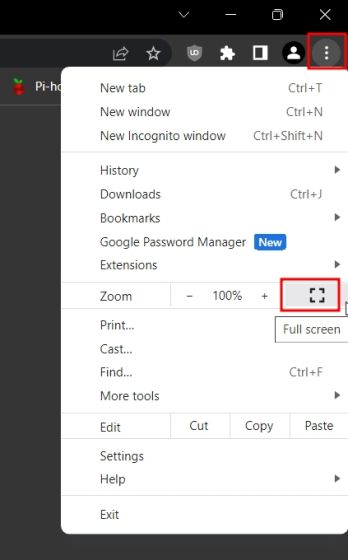
How to open full screen mode in Windows 11
Open full screen mode in Chrome
  • With Microsoft Edge: Click the three dots and click the full screen button.
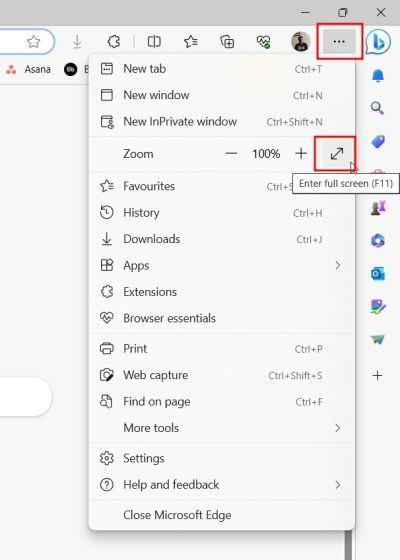
How to open full screen mode in Windows 11
Open full screen mode in Edge
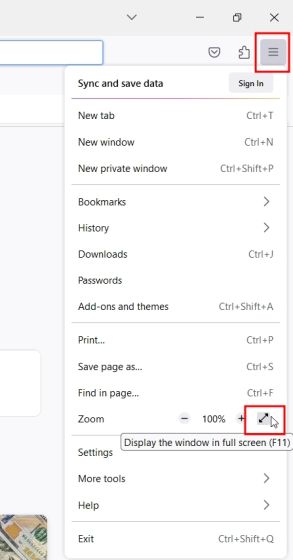
  • Same with Firefox, you open the menu by clicking on the 3 dashes and selecting full screen mode.
How to open full screen mode in Windows 11
Open full screen mode in Firefox

Open full screen mode when watching movies online

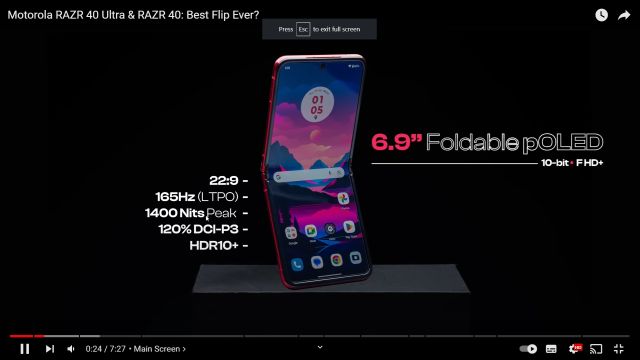
In case you are watching content on Netflix, Prime Video, Hotstar, YouTube, etc. you can easily press the “F” key to enter full screen mode. And press the “F” key or “Esc” key again to exit full screen mode.
How to open full screen mode in Windows 11
Open full screen mode when watching movies online

Open full screen mode in Microsoft Word and PowerPoint

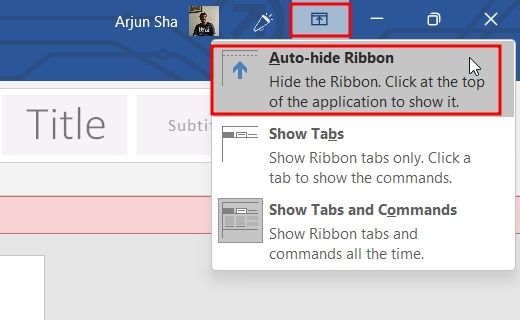
If you are using Microsoft Word on Windows 11 and want to enter full-screen mode, you click on the toolbar display option and select 'Auto-hide Ribbon'. This will hide all toolbars and tabs so you have a distraction-free writing experience in Microsoft Word. By the way, this also applies to other Office applications like PowerPoint, Excel, etc.
How to open full screen mode in Windows 11
Open full screen mode in Microsoft Word and PowerPoint

The second option 'Show Tabs' will only show tabs without any toolbars. Finally, 'Show Tabs and Commands' will restore all menus.

How to open full screen mode in Windows 11
Full screen in Word

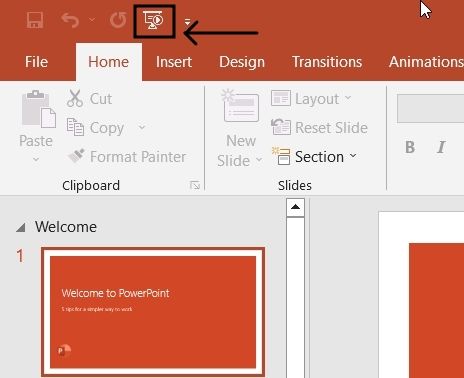
If you are using Microsoft PowerPoint on Windows 11, you can enter full screen mode by clicking the “slideshow” button in the top left corner. Press the “Esc” key to exit full screen mode.
How to open full screen mode in Windows 11
Click the “slideshow” button to display it full screen

Here are 5 different ways to enter full screen mode in Windows 11. Thanks to that, you can enter full screen mode in any window, application or website.

Epilogue

How to open full screen mode in Windows 11 is a useful feature of Windows 11, helping you make the most of screen space and increase concentration. You can easily turn full screen mode on and off for any app, browser, game or video. Good luck!


The article scored: 5/5 – (100 votes)

Tags: FullModeopenscreenwaysWindows
Previous Post

What's special about the Samsung S24 camera? What chipset to use?

Next Post

How Hackers Bypass AV Infiltrate Windows with Autoit

AnonyViet

AnonyViet

Related Posts

How to create Guest mode Shortcuts for Chrome and Edge
Tips

How to create Guest mode Shortcuts for Chrome and Edge

October 13, 2026
Test what breed of dog you are through 10 multiple choice questions
Tips

Test what breed of dog you are through 10 multiple choice questions

October 13, 2026
Fliqlo – Create digital clock screens on Windows and phones
Tips

Fliqlo – Create digital clock screens on Windows and phones

October 12, 2026
SynthID Detector: Genuine AI checking tool from Google
Tips

SynthID Detector: Genuine AI checking tool from Google

October 11, 2026
Microsoft is preparing to launch Windows 11
Tips

Microsoft is preparing to launch Windows 11

October 9, 2026
How to download all photos from Google Photos to transfer to another service
Tips

How to download all photos from Google Photos to transfer to another service

October 8, 2026
Next Post
How Hackers Bypass AV Infiltrate Windows with Autoit

How Hackers Bypass AV Infiltrate Windows with Autoit

0 0 votes
Article Rating
Subscribe
Login
Notify of
guest

guest

0 Comments
Oldest
Newest Most Voted

Recent News

How to create Guest mode Shortcuts for Chrome and Edge

How to create Guest mode Shortcuts for Chrome and Edge

October 13, 2026
Test what breed of dog you are through 10 multiple choice questions

Test what breed of dog you are through 10 multiple choice questions

October 13, 2026
Simple Logic Hidden in Every Forex Quote That Newbies Often Read Backwards

Simple Logic Hidden in Every Forex Quote That Newbies Often Read Backwards

October 12, 2026
3 valuable upgrades on Samsung Galaxy A08 compared to its predecessor A07

3 valuable upgrades on Samsung Galaxy A08 compared to its predecessor A07

October 12, 2026
How to create Guest mode Shortcuts for Chrome and Edge

How to create Guest mode Shortcuts for Chrome and Edge

October 13, 2026
Test what breed of dog you are through 10 multiple choice questions

Test what breed of dog you are through 10 multiple choice questions

October 13, 2026
Simple Logic Hidden in Every Forex Quote That Newbies Often Read Backwards

Simple Logic Hidden in Every Forex Quote That Newbies Often Read Backwards

October 12, 2026
AnonyViet - English Version

AnonyViet

AnonyViet is a website share knowledge that you have never learned in school!

We are ready to welcome your comments, as well as your articles sent to AnonyViet.

Follow Us

Contact:

Email: anonyviet.com[@]gmail.com

Main Website: https://anonyviet.com

Recent News

How to create Guest mode Shortcuts for Chrome and Edge

How to create Guest mode Shortcuts for Chrome and Edge

October 13, 2026
Test what breed of dog you are through 10 multiple choice questions

Test what breed of dog you are through 10 multiple choice questions

October 13, 2026
  • Home
  • Home 2
  • Home 3
  • Home 4
  • Home 5
  • Home 6
  • Next Dest Page
  • Sample Page

say88 tỷ lệ kèo nhà cái kèo nhà cái 5 febet

No Result
View All Result
  • Home
  • News
  • Software
  • Knowledge
  • MMO
  • Tips
  • Security
  • Network
  • Office

say88 tỷ lệ kèo nhà cái kèo nhà cái 5 febet

wpDiscuz
0
0
Would love your thoughts, please comment.x
()
x
| Reply