• Home
  • News
  • Software
  • Knowledge
  • MMO
  • Tips
  • Security
  • Network
  • Office
AnonyViet - English Version
  • Home
  • News
  • Software
  • Knowledge
  • MMO
  • Tips
  • Security
  • Network
  • Office
No Result
View All Result
  • Home
  • News
  • Software
  • Knowledge
  • MMO
  • Tips
  • Security
  • Network
  • Office
No Result
View All Result
AnonyViet - English Version
No Result
View All Result

6 great tips to save iPhone battery on iOS 17.2.1

AnonyViet by AnonyViet
January 3, 2024
in Software
0

Did you know that your iPhone can last 1 to 2 hours longer if you apply these tips? save iPhone battery on iOS 17.2.1? Battery is one of the factors that determine iPhone user experience. On the latest version, Apple has significantly improved the battery life of its devices. However, you can still get the most out of your iPhone's battery by doing a few simple things.

Join the channel Telegram belong to AnonyViet 👉 Link 👈

6 effective tips to save iPhone iOS 17.2.1 battery

1. Turn off vibration when typing

This feature helps you feel more interactive when typing on iPhone. However, it also consumes a lot of battery. You can turn this feature off by doing the following:

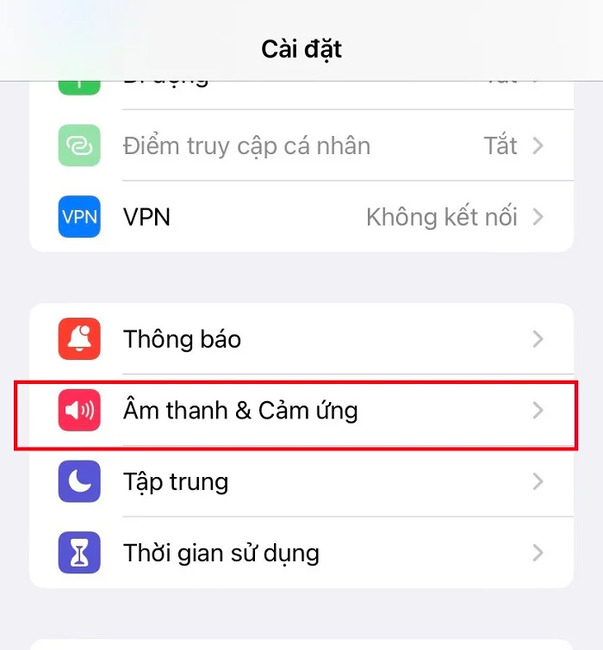
Step 1: Go to Settings > Select 'Sound and touch'
save iPhone battery
Go to Settings > Select 'Sound and touch'

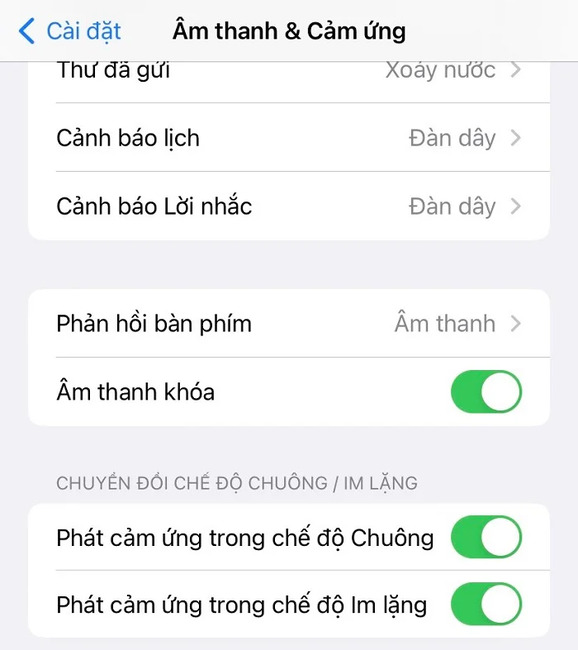
Step 2: Click 'Keyboard feedback'
save iPhone battery
Click 'Keyboard feedback'

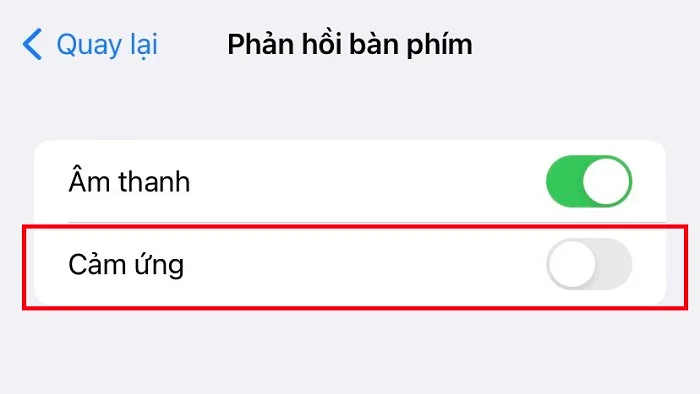
Step 3: Turn off 'Touch' when typing.
save iPhone battery
Toggle 'Touch' off

2. Turn off AirDrop when not in use

AirDrop is a feature that allows you to share data between Apple devices quickly and easily. However, if you leave AirDrop on all the time, it will constantly search for nearby devices and drain your battery. You should turn off AirDrop when not in use by:

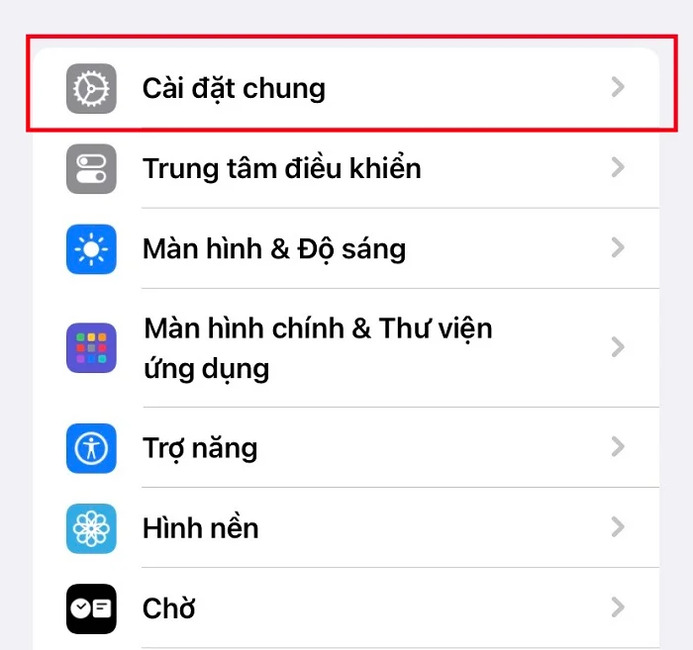
Step 1: Go to Settings > Click 'General Settings'
save iPhone battery
Select 'General Settings'

Step 2: Tap 'AirDrop'
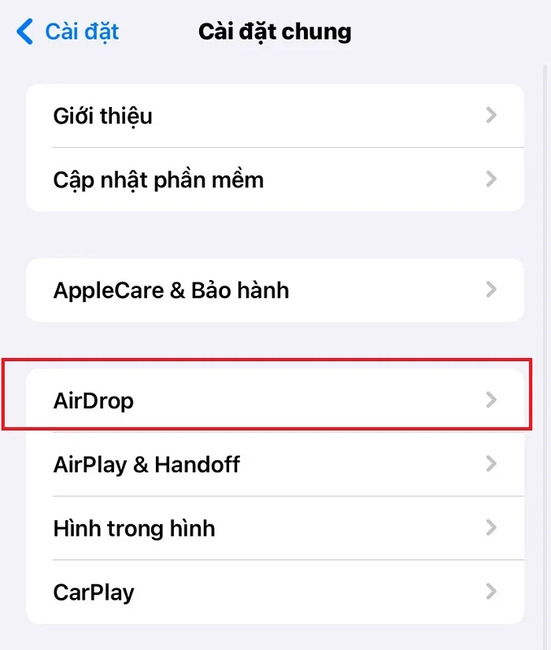
save iPhone battery
Tap 'AirDrop'

Step 3: Deactivate 'Bring devices together'
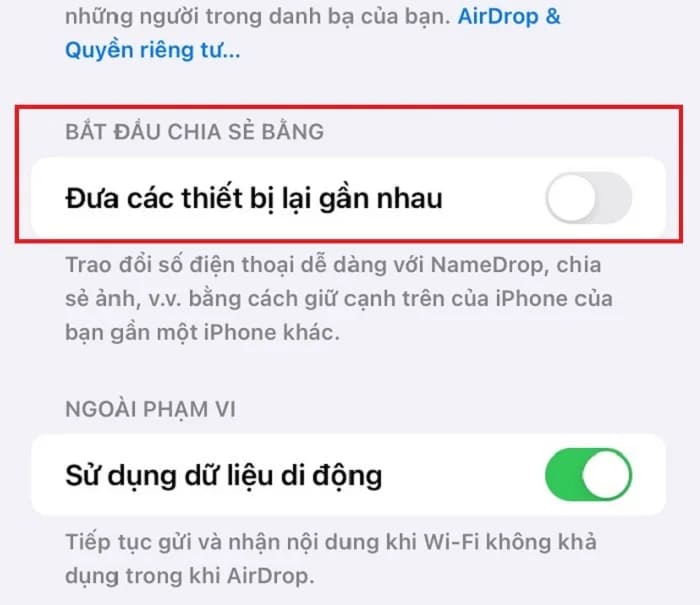
save iPhone battery
Deactivate 'Bring devices together'

3. Turn off Live Activities

Live Activities is a new feature on iOS 17.2.1, allowing apps to display continuous notification schedules on the lock screen or Dynamic Island.

For example, when you order food or a ride through apps like Grab, Uber, Shopee Food,… you will see the estimated time on the lock screen. This is a very convenient feature, but it also drains the battery a lot because it has to operate continuously in the background.

Step 1: Click Settings > Select 'Face ID and Passcode'
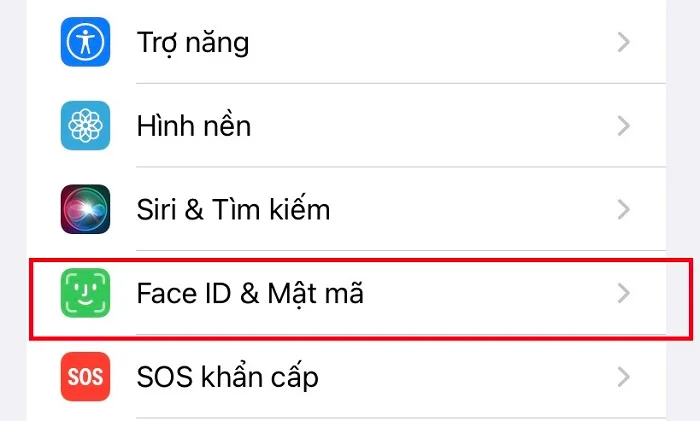
save iPhone battery
Select 'Face ID and Passcode'

Step 2: Turn off 'Live Operations'
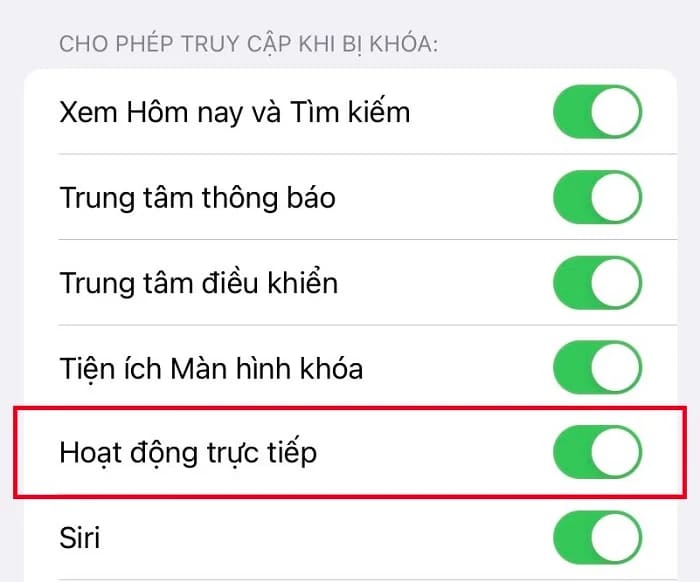
save iPhone battery
Turn off 'Live Operations'

4. Turn off Always On Display

Always On Display is a feature only available on iPhone 14 Pro and above, allowing you to see the time, date, battery and important notifications without unlocking the device. This is a very useful feature, but it also consumes a lot of battery because the screen is always on.

Step 1: Go to Settings > Display and Brightness.
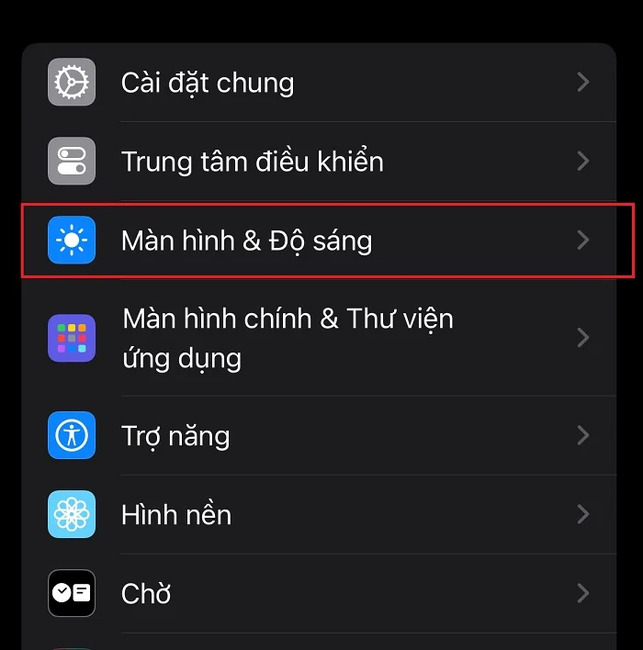
save iPhone battery
Go to Settings > Display and Brightness.

Step 2: Deactivate 'Always-on display'
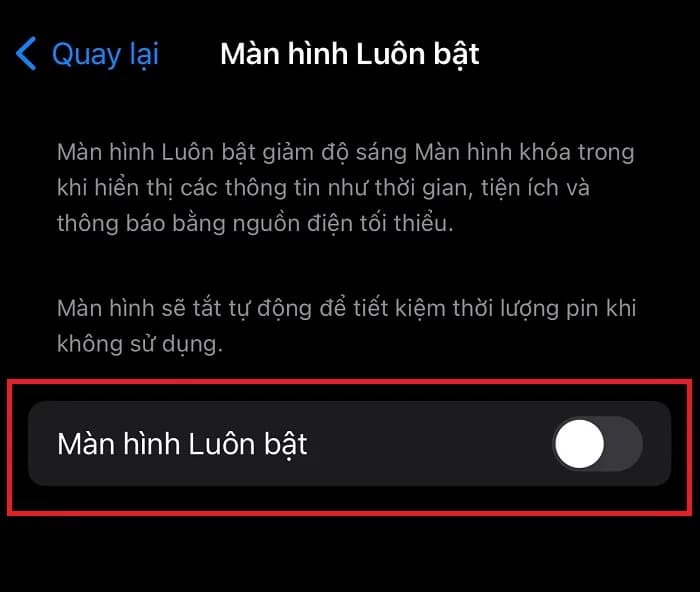
save iPhone battery
Deactivate 'Always-on display'

5. Use Focus mode

Focus mode lets you limit notifications from certain apps and contacts. Thanks to that, you will not be bothered by unimportant notifications and save your device's battery. You can set different Focus modes for work hours, driving, private time, sleep, etc. You can enable this mode by:

Step 1: Swipe down from the top right corner to open Control Center.

Step 2: Tap and hold the Focus icon.

Step 3: Select the Focus mode you want to enable.
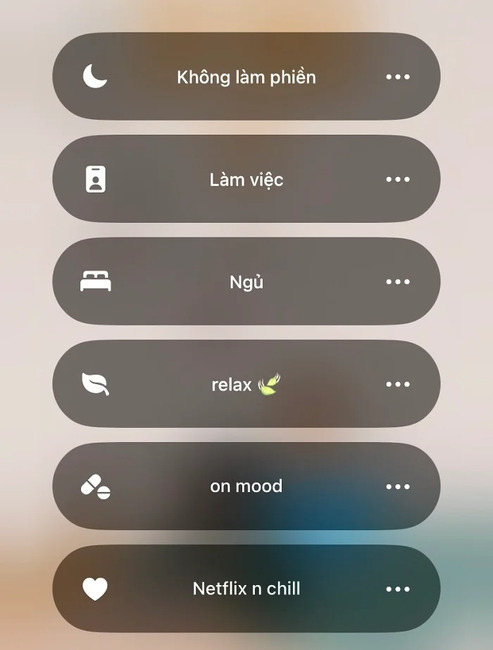
save iPhone battery
Select the Focus mode you want to enable.

6. Enable low power mode

Low power mode is a familiar feature on the iPhone, helping you extend battery life when the device is low on battery. When this mode is enabled, the iPhone will limit background activities, reduce the screen refresh rate to 60Hz, turn off unnecessary features such as Siri, AirDrop, iCloud Photos, etc. You can turn on low power mode by:

Step 1: Go to Settings > Battery.
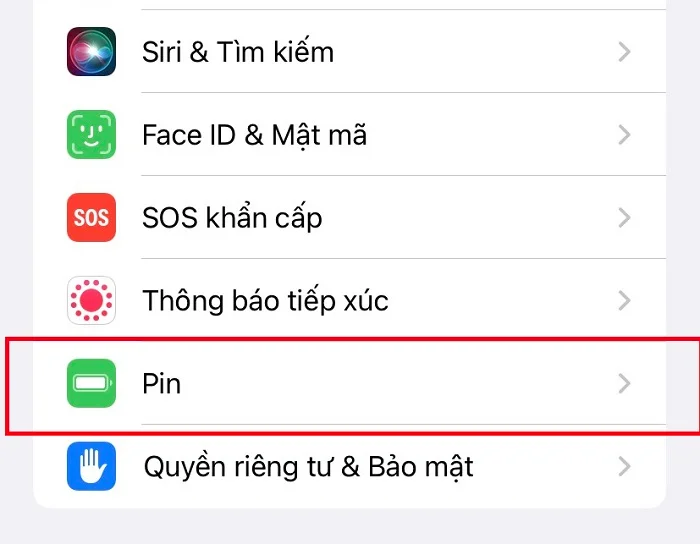
save iPhone battery
Go to Settings > Battery

Step 2: Enable 'Low Power Mode' activation
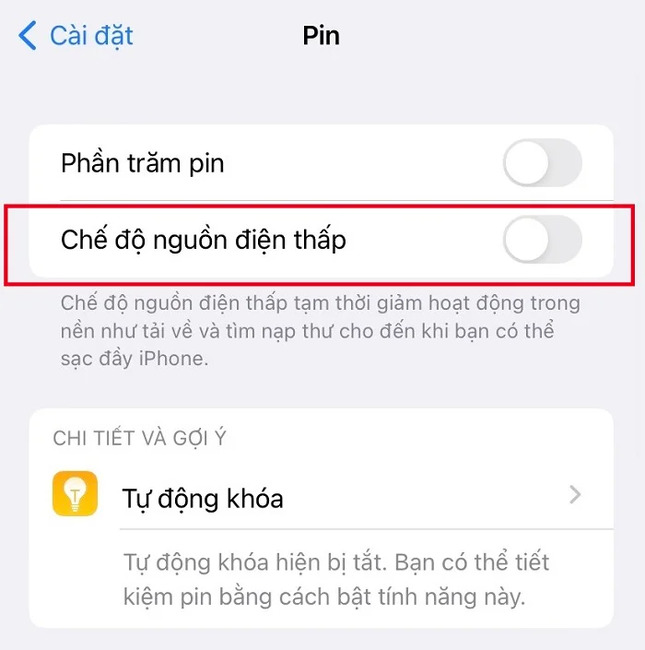
save iPhone battery
Enable 'Low Power Mode' activation

Epilogue

The tips above will help you save iPhone battery effectively on iOS 17.2.1. Hopefully those little tricks will help you use your phone more optimally. Good luck!


The article scored: 5/5 – (100 votes)

Tags: 17.2.1batterygreatiOSiPhonesavetips
Previous Post

ClonewebX – Clone the look and feel of your favorite website with just a few clicks

Next Post

Get the license to COLOR projects 6 Pro – Professional image processing software

AnonyViet

AnonyViet

Related Posts

Instructions on how to prevent acquaintances from seeing your Tiktok
Software

Instructions on how to prevent acquaintances from seeing your Tiktok

June 2, 2026
TruyenDrive: Turn Google Drive into a professional manga reader
Software

TruyenDrive: Turn Google Drive into a professional manga reader

May 31, 2026
How to extract text from photos using Zalo is super simple
Software

How to extract text from photos using Zalo is super simple

May 29, 2026
HONOR 600 in hand – High-end design, 200MP camera, not cheap price
Software

HONOR 600 in hand – High-end design, 200MP camera, not cheap price

May 28, 2026
Instructions for getting 4 months of Adobe copyright for free
Software

Instructions for getting 4 months of Adobe copyright for free

May 28, 2026
The truth about the 7,000 mAh battery on Xiaomi 17T Pro: What benefits do users get?
Software

The truth about the 7,000 mAh battery on Xiaomi 17T Pro: What benefits do users get?

May 28, 2026
Next Post
Get the license to COLOR projects 6 Pro – Professional image processing software

Get the license to COLOR projects 6 Pro - Professional image processing software

0 0 votes
Article Rating
Subscribe
Login
Notify of
guest

guest

0 Comments
Oldest
Newest Most Voted
Inline Feedbacks
View all comments

Recent News

How to check network speed on Apple TV when the image is jerky or lagging

How to check network speed on Apple TV when the image is jerky or lagging

June 3, 2026
Instructions on how to prevent acquaintances from seeing your Tiktok

Instructions on how to prevent acquaintances from seeing your Tiktok

June 2, 2026
How to record reaction videos with Android phones, no app needed

How to record reaction videos with Android phones, no app needed

June 1, 2026
Instructions on how to get Google AI Pro 1 year for free for new accounts

Instructions on how to get Google AI Pro 1 year for free for new accounts

June 1, 2026
How to check network speed on Apple TV when the image is jerky or lagging

How to check network speed on Apple TV when the image is jerky or lagging

June 3, 2026
Instructions on how to prevent acquaintances from seeing your Tiktok

Instructions on how to prevent acquaintances from seeing your Tiktok

June 2, 2026
How to record reaction videos with Android phones, no app needed

How to record reaction videos with Android phones, no app needed

June 1, 2026
AnonyViet - English Version

AnonyViet

AnonyViet is a website share knowledge that you have never learned in school!

We are ready to welcome your comments, as well as your articles sent to AnonyViet.

Follow Us

Contact:

Email: anonyviet.com[@]gmail.com

Main Website: https://anonyviet.com

Recent News

How to check network speed on Apple TV when the image is jerky or lagging

How to check network speed on Apple TV when the image is jerky or lagging

June 3, 2026
Instructions on how to prevent acquaintances from seeing your Tiktok

Instructions on how to prevent acquaintances from seeing your Tiktok

June 2, 2026
No Result
View All Result
  • Home
  • News
  • Software
  • Knowledge
  • MMO
  • Tips
  • Security
  • Network
  • Office

wpDiscuz
0
0
Would love your thoughts, please comment.x
()
x
| Reply