• Home
  • News
  • Software
  • Knowledge
  • MMO
  • Tips
  • Security
  • Network
  • Office
AnonyViet - English Version
  • Home
  • News
  • Software
  • Knowledge
  • MMO
  • Tips
  • Security
  • Network
  • Office
No Result
View All Result
  • Home
  • News
  • Software
  • Knowledge
  • MMO
  • Tips
  • Security
  • Network
  • Office
No Result
View All Result
AnonyViet - English Version
No Result
View All Result

How to split your MacBook screen in half to work more efficiently

AnonyViet by AnonyViet
December 11, 2023
in Tips
0

Do you know How to split MacBook screen in half to be able to work with multiple applications at the same time? This is a very convenient and useful feature for people who often face many different tasks on the computer. By splitting the screen in half, you can take advantage of maximum display space, easily switch between applications and increase productivity.

Join the channel Telegram belong to AnonyViet 👉 Link 👈

How to split MacBook screen in half

Use the Split View feature

Split View is a feature built into the macOS operating system, allowing you to split the screen in half MacBook into two equal parts or different proportions, depending on your preference. To use this feature, you need to follow these steps:

Step 1: Start the applications that you need to use to split the MacBook screen in half.

Step 2: Click the green button in the upper left corner of the application window. You will see two options: Tile Window to Left of Screen (Place the window to the left side of the screen) and Tile Window to Right of Screen (Place the window to the right side of the screen). You choose which position is right for your job.
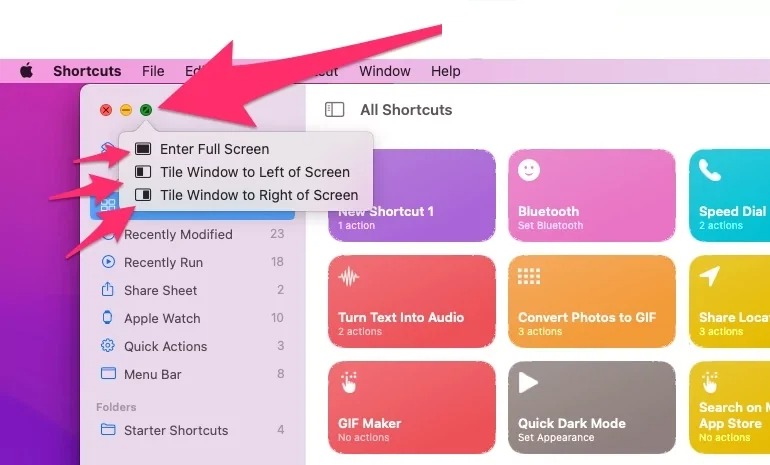
How to split MacBook screen in half
Click the green button

Step 3: The screen will be divided into two halves, one half displaying a different application.

Step 4: You can change the size of each half by dragging the screen separation bar in the middle.
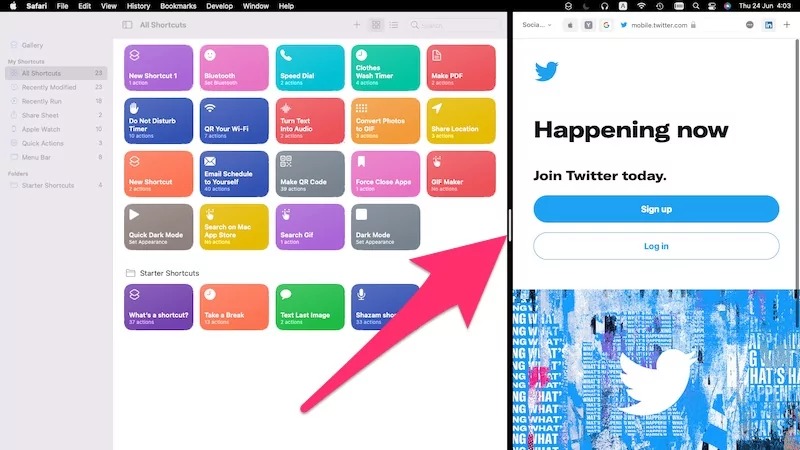
How to split MacBook screen in half
Drag the screen separation bar to change the ratio

Step 5: To exit Split View mode, simply drag the application window out of the screen split or press the Esc key.

Use Mission Control

You can resize application windows on your MacBook screen using Mission Control, a feature of Apple's macOS operating system. Mission Control helps you manage and control multiple application windows effectively on the screen.

You can also quickly switch between apps and see all the open windows on the MacBook screen because they are clearly categorized.

Here's how:

Step 1: Turn on the applications you want to display on the screen.

Step 2: Press the F3 key or tap four fingers on the trackpad to activate Mission Control.
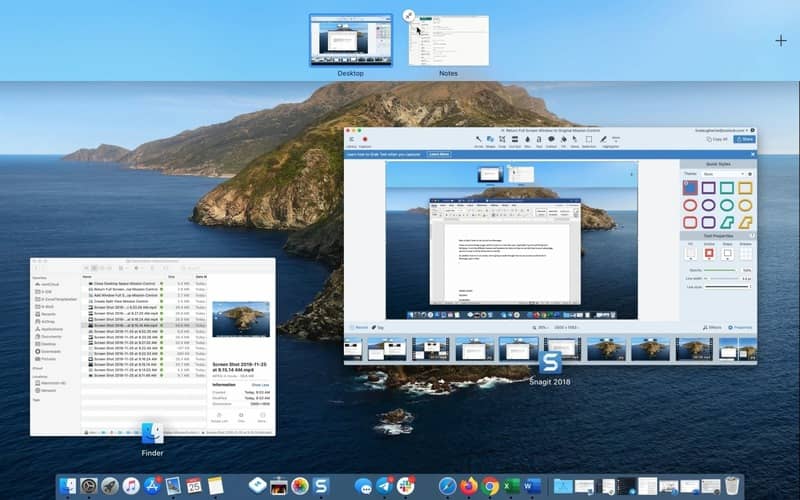
How to split MacBook screen in half
Activate Mission Control.

Step 3: In the Mission Control screen, drag application windows to the screen areas you like.
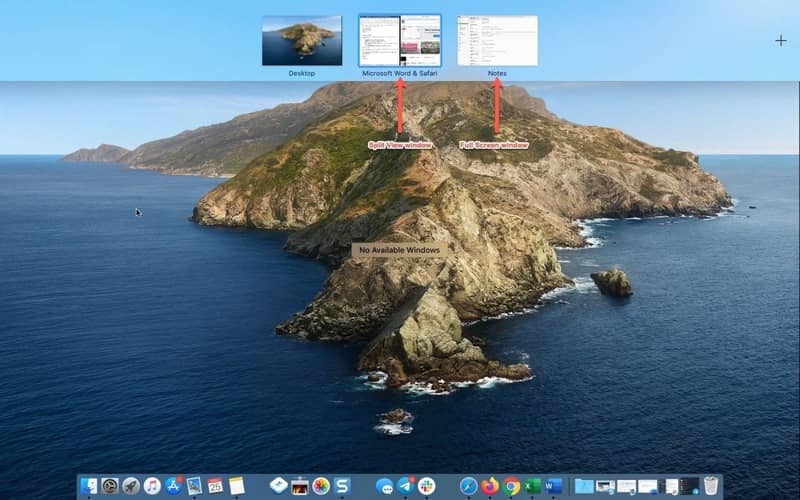
How to split MacBook screen in half
Drag application windows to screen areas

Step 4: Mission Control will automatically resize windows to fit the screen you have selected.

What is the effect of splitting the MacBook screen in half?

When you split your MacBook screen in half, you'll find that you can work with multiple programs more easily, instead of using just one window for each program and having to switch constantly. Specifically, you will get the following benefits:

More efficient at work

You can conveniently multitask, such as browsing the web in one window to find relevant information for a document you're editing in another window on the screen.

The space of the MacBook screen is optimally utilized

MacBooks have smaller screens than desktops, so when you split the screen in half, you won't waste space in case you're not using an external monitor.

Productivity is enhanced

When you use multiple apps at once, you get work done faster and more efficiently.

Learning is more convenient

If you are taking online courses and want to refer to more information while still watching the video of that course, you can split the MacBook screen in half very quickly.

Epilogue

How to split MacBook screen in half is a useful trick that helps you work more efficiently with multiple applications at the same time. Splitting your screen not only saves time and workspace, but also helps you focus and improve productivity. Try applying the MacBook split screen method to your work and feel the difference!


The article scored: 5/5 – (100 votes)

Tags: efficientlyMacBookscreensplitwork
Previous Post

How to get 2TB Google Drive for 6 months without spending any money

Next Post

Super easy instructions for creating GTA V style photos online

AnonyViet

AnonyViet

Related Posts

Instructions on how to hard reset iPhone 18 Pro / iPhone 18 Pro Max
Tips

Instructions on how to hard reset iPhone 18 Pro / iPhone 18 Pro Max

October 21, 2026
Anyone can do how to increase Internet speed using CMD
Tips

Anyone can do how to increase Internet speed using CMD

October 20, 2026
How to report a fraudulent website on Weebly
Tips

How to report a fraudulent website on Weebly

October 19, 2026
How to view Facebook stories without others knowing
Tips

How to view Facebook stories without others knowing

October 18, 2026
Instructions for registering a .tech domain name for free for 1 year
Tips

Instructions for registering a .tech domain name for free for 1 year

October 18, 2026
Instructions on how to enter promotional codes on the App Store most accurately
Tips

Instructions on how to enter promotional codes on the App Store most accurately

October 18, 2026
Next Post
Super easy instructions for creating GTA V style photos online

Super easy instructions for creating GTA V style photos online

0 0 votes
Article Rating
Subscribe
Login
Notify of
guest

guest

0 Comments
Oldest
Newest Most Voted

Recent News

Instructions on how to hard reset iPhone 18 Pro / iPhone 18 Pro Max

Instructions on how to hard reset iPhone 18 Pro / iPhone 18 Pro Max

October 21, 2026
Warning: Serious PHP RCE vulnerability and how to fix it

Warning: Serious PHP RCE vulnerability and how to fix it

October 21, 2026
Anyone can do how to increase Internet speed using CMD

Anyone can do how to increase Internet speed using CMD

October 20, 2026
Instructions for turning off automatic subtitles on iPhone and Macbook

Instructions for turning off automatic subtitles on iPhone and Macbook

October 20, 2026
Instructions on how to hard reset iPhone 18 Pro / iPhone 18 Pro Max

Instructions on how to hard reset iPhone 18 Pro / iPhone 18 Pro Max

October 21, 2026
Warning: Serious PHP RCE vulnerability and how to fix it

Warning: Serious PHP RCE vulnerability and how to fix it

October 21, 2026
Anyone can do how to increase Internet speed using CMD

Anyone can do how to increase Internet speed using CMD

October 20, 2026
AnonyViet - English Version

AnonyViet

AnonyViet is a website share knowledge that you have never learned in school!

We are ready to welcome your comments, as well as your articles sent to AnonyViet.

Follow Us

Contact:

Email: anonyviet.com[@]gmail.com

Main Website: https://anonyviet.com

Recent News

Instructions on how to hard reset iPhone 18 Pro / iPhone 18 Pro Max

Instructions on how to hard reset iPhone 18 Pro / iPhone 18 Pro Max

October 21, 2026
Warning: Serious PHP RCE vulnerability and how to fix it

Warning: Serious PHP RCE vulnerability and how to fix it

October 21, 2026
  • Home
  • Home 2
  • Home 3
  • Home 4
  • Home 5
  • Home 6
  • Next Dest Page
  • Sample Page

say88 tỷ lệ kèo nhà cái kèo nhà cái 5 febet

No Result
View All Result
  • Home
  • News
  • Software
  • Knowledge
  • MMO
  • Tips
  • Security
  • Network
  • Office

say88 tỷ lệ kèo nhà cái kèo nhà cái 5 febet

wpDiscuz
0
0
Would love your thoughts, please comment.x
()
x
| Reply