• Home
  • News
  • Software
  • Knowledge
  • MMO
  • Tips
  • Security
  • Network
  • Office
AnonyViet - English Version
  • Home
  • News
  • Software
  • Knowledge
  • MMO
  • Tips
  • Security
  • Network
  • Office
No Result
View All Result
  • Home
  • News
  • Software
  • Knowledge
  • MMO
  • Tips
  • Security
  • Network
  • Office
No Result
View All Result
AnonyViet - English Version
No Result
View All Result

Copy text in images, videos, pdf,… without installing additional utilities

AnonyViet by AnonyViet
October 3, 2023
in Tips
0

Copy text in image is a very useful skill in many cases, like when you want to save a quote, a good saying, an important information from a poster, a book, a document, etc. However, Not everyone knows how to copy text in images effectively and save time.

Join the channel Telegram belong to AnonyViet ???? Link ????

How Search image with Google works

Have you ever encountered a situation where you wanted to copy text from an image, but didn’t know how? For example, you want to copy a license plate, QR code, name tag, or any other information from an image you see online, in email, or on your computer.

You can try retyping the text by hand, but that’s a time-consuming and error-prone task. You can try using specialized applications to recognize text from images, but it’s a rather cumbersome and expensive task. So is there a simpler and more effective way to get text from images?

The answer is yes. You just need to use two of our free and convenient features Google: Search images with Google and Google Lens. The Search image with Google feature allows you to search for images on the web by right-clicking on the image on the Chrome browser.

The Google Lens feature allows you to recognize and copy text from images, as well as translate into other languages ​​if needed. By combining these two features, you can get text from images quickly and accurately.

How to copy text in images, videos, pdf files

Step 1: First, you need to update Chrome to the latest version, by clicking on the 3 dots in the upper right corner of the screen > Select ‘Settings’ > ‘About Chrome’ and then click Relaunch for the system to automatically update.
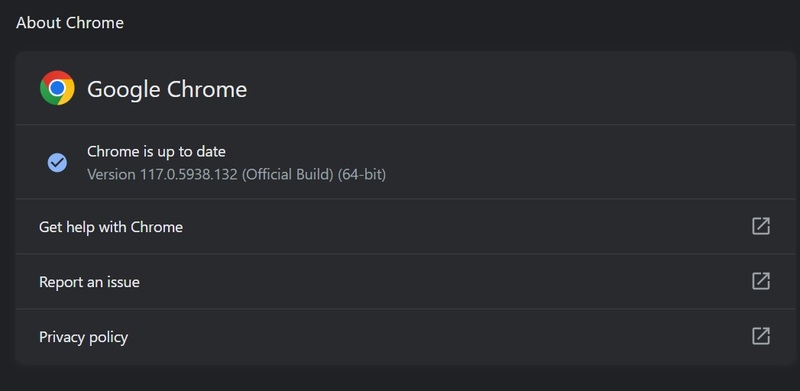
copy text in image
Update Google Chrome

Step 2: Right-click on the image > Select ‘Search image with Google’ (Search image with Google)

When you select this option, Chrome will open a new tab and display Google image search results. Search results may include information related to the image, such as name, address, phone number, or similar images.
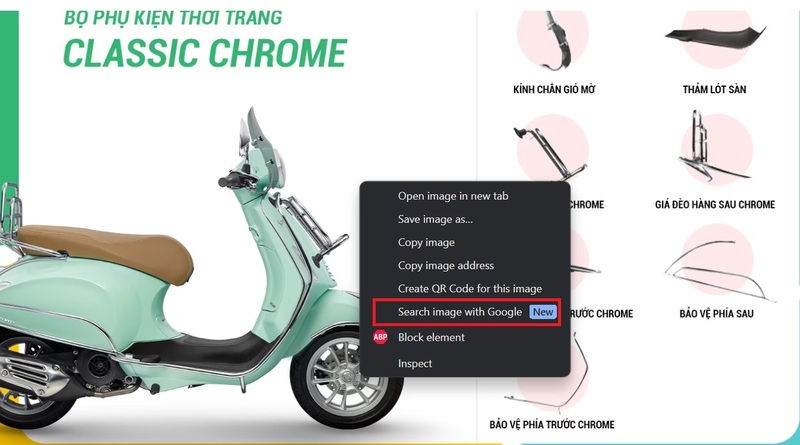
copy text in image
Right click on the image > Select ‘Search image with Google’

Step 3: Select ‘Text’ > ‘Select all text’
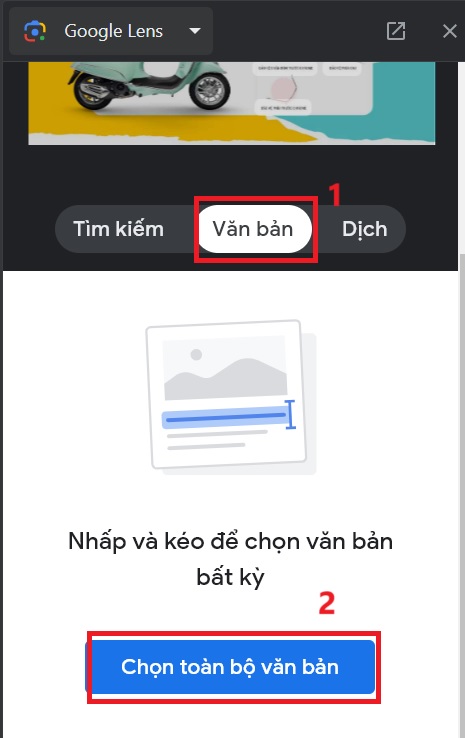
copy text in image
Select ‘Text’ > ‘Select all text’

Step 4: Click ‘Copy text’ then paste it into Word, notes,… and you’re done.
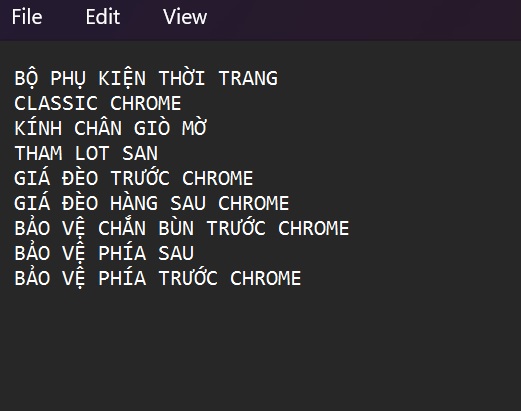
copy text in image
Paste text into Word, notes,…

This way you can also do the same for pdf files or websites that do not allow copying.

So you can copy text in pdf file video images simply and effectively. You don’t need to retype text by hand, don’t need to download or install any applications, just use two free and convenient features of Google: Search image with Google and Google Lens.

You can apply the retrieved text for different purposes, for example: looking up information, storing data, sharing content, or creating new content.

Epilogue

So I have guided you How to copy text in images, videos, pdf files,… with Chrome’s Search image with Google feature and the Google Lens tool. This is a very useful and interesting way to help you save time and effort when you want to copy text from images. Wishing you a successful application!

Rate this post

Tags: additionalcopyimagesinstallingPDFtextutilitiesvideos
Previous Post

Turn architectural sketch images into 3D color images

Next Post

How to get 30GB of Windscribe Pro VPN for free

AnonyViet

AnonyViet

Related Posts

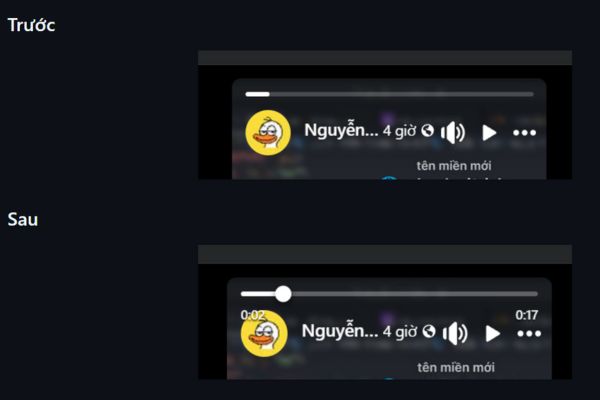
How to add sliders to Facebook Stories to easily rewind videos
Tips

How to add sliders to Facebook Stories to easily rewind videos

April 21, 2026
How to change the default font on Windows 10
Tips

How to change the default font on Windows 10

April 13, 2026
5 tips for using a Browser to replace an App (helps save RAM, time and money)
Tips

5 tips for using a Browser to replace an App (helps save RAM, time and money)

April 13, 2026
How to make funny MeMe photos without Photoshop within 10 seconds
Tips

How to make funny MeMe photos without Photoshop within 10 seconds

April 11, 2026
How to quickly design your own Logo without Photoshop
Tips

How to quickly design your own Logo without Photoshop

April 10, 2026
How to convert Website into App on Windows
Tips

How to convert Website into App on Windows

April 9, 2026
Next Post
How to get 30GB of Windscribe Pro VPN for free

How to get 30GB of Windscribe Pro VPN for free

0 0 votes
Article Rating
Subscribe
Login
Notify of
guest

guest

0 Comments
Oldest
Newest Most Voted
Inline Feedbacks
View all comments

Recent News

Tips to completely turn off CAPTCHA codes on iPhone and Mac are super simple

Tips to completely turn off CAPTCHA codes on iPhone and Mac are super simple

April 25, 2026
Compare Poco X8 Pro and Poco X7 Pro: A new step for the “king” of mid-range performance

Compare Poco X8 Pro and Poco X7 Pro: A new step for the “king” of mid-range performance

April 24, 2026
How to compress online videos for free without losing quality

How to compress online videos for free without losing quality

April 24, 2026
Top 5 apps to view good days 2026 for free on iOS and Android

Top 5 apps to view good days 2026 for free on iOS and Android

April 23, 2026
Tips to completely turn off CAPTCHA codes on iPhone and Mac are super simple

Tips to completely turn off CAPTCHA codes on iPhone and Mac are super simple

April 25, 2026
Compare Poco X8 Pro and Poco X7 Pro: A new step for the “king” of mid-range performance

Compare Poco X8 Pro and Poco X7 Pro: A new step for the “king” of mid-range performance

April 24, 2026
How to compress online videos for free without losing quality

How to compress online videos for free without losing quality

April 24, 2026
AnonyViet - English Version

AnonyViet

AnonyViet is a website share knowledge that you have never learned in school!

We are ready to welcome your comments, as well as your articles sent to AnonyViet.

Follow Us

Contact:

Email: anonyviet.com[@]gmail.com

Main Website: https://anonyviet.com

Recent News

Tips to completely turn off CAPTCHA codes on iPhone and Mac are super simple

Tips to completely turn off CAPTCHA codes on iPhone and Mac are super simple

April 25, 2026
Compare Poco X8 Pro and Poco X7 Pro: A new step for the “king” of mid-range performance

Compare Poco X8 Pro and Poco X7 Pro: A new step for the “king” of mid-range performance

April 24, 2026
No Result
View All Result
  • Home
  • News
  • Software
  • Knowledge
  • MMO
  • Tips
  • Security
  • Network
  • Office

wpDiscuz
0
0
Would love your thoughts, please comment.x
()
x
| Reply